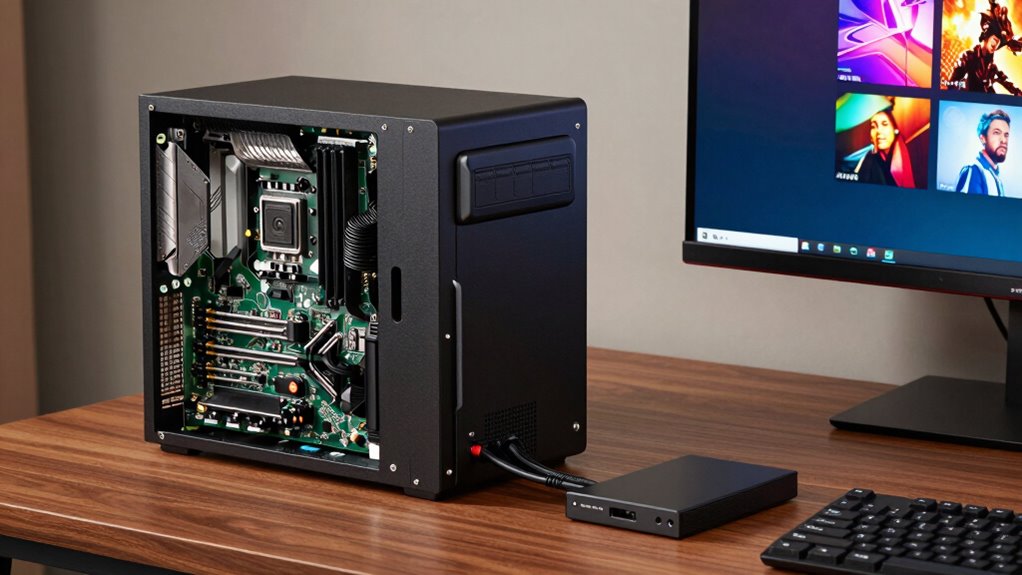

Turning an old PC into a home media center is a smart way to give your aging hardware a new purpose. Start by checking your hardware’s compatibility, then choose an easy-to-use OS like Windows or Linux-based options like Kodi. Install media server software, connect via Ethernet or Wi-Fi, and set up storage for your files. Keep everything updated and optimized for smooth streaming. Keep exploring for more tips to make your media center truly shine.
Key Takeaways
- Upgrade hardware components like RAM and SSD to improve performance and support media streaming.
- Choose a lightweight, compatible OS such as Linux or Windows for easy media center setup.
- Install media server software like Kodi, Plex, or Emby for organized streaming and remote access.
- Connect via Ethernet or optimize Wi-Fi for stable, high-quality media playback.
- Regularly update software, firmware, and perform system maintenance to ensure smooth operation.
As an affiliate, we earn on qualifying purchases.
Assessing Your Old PC’s Hardware and Compatibility
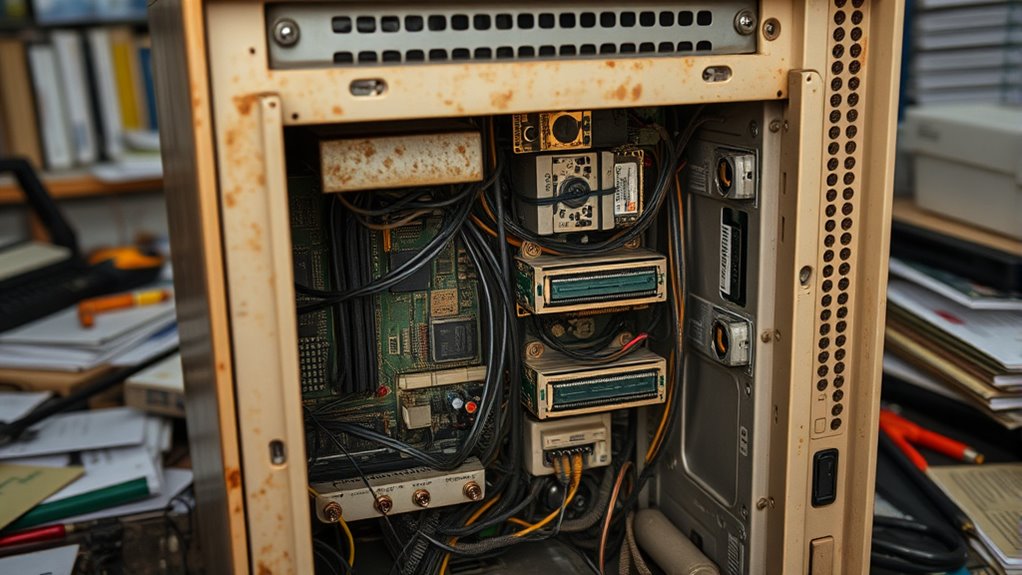
Before converting your old PC into a media center, you need to evaluate its hardware and compatibility. Check whether your system meets the basic hardware requirements, such as sufficient RAM, a decent CPU, and ample storage space for your media files. Hardware compatibility is vital because some older components might not support newer software or peripherals. Consider upgrade options—upgrading RAM or installing a more modern graphics card can enhance performance. Also, verify your motherboard has the necessary ports for your media devices, like HDMI or USB. If certain parts are outdated or incompatible, plan for replacements before proceeding. Evaluating these factors helps you determine whether your current hardware can handle a media center setup or if upgrades are necessary for a smooth experience. Additionally, understanding potential hardware limitations can help you avoid future performance issues. Checking your system’s Hardware compatibility ensures that all components work seamlessly together for a reliable media experience. Performing a performance assessment can further help identify any bottlenecks or issues that may affect media playback quality. Incorporating essential software tailored for media centers can optimize your setup for better performance and usability.
As an affiliate, we earn on qualifying purchases.
Choosing the Right Operating System for Media Center Use

Selecting the right operating system is essential for transforming your old PC into a functional and user-friendly media center. You want an OS that supports gaming compatibility if you plan to play games or use graphics-intensive apps. Windows offers broad compatibility with popular media center software and game titles, making it a versatile choice. Linux-based options, like Ubuntu or Kodi, can provide a lightweight, customizable experience with fewer hardware upgrade options needed. Consider your hardware’s capabilities—older systems may benefit from streamlined OSs that require fewer resources. Also, check if the OS allows easy hardware upgrades to improve performance or add new features later. Ultimately, choose an OS that balances ease of use, software support, and upgrade flexibility to maximize your media center’s potential. Additionally, understanding hardware compatibility is crucial for ensuring smooth operation and future upgrades.
As an affiliate, we earn on qualifying purchases.
Installing Media Center Software for a Seamless Experience
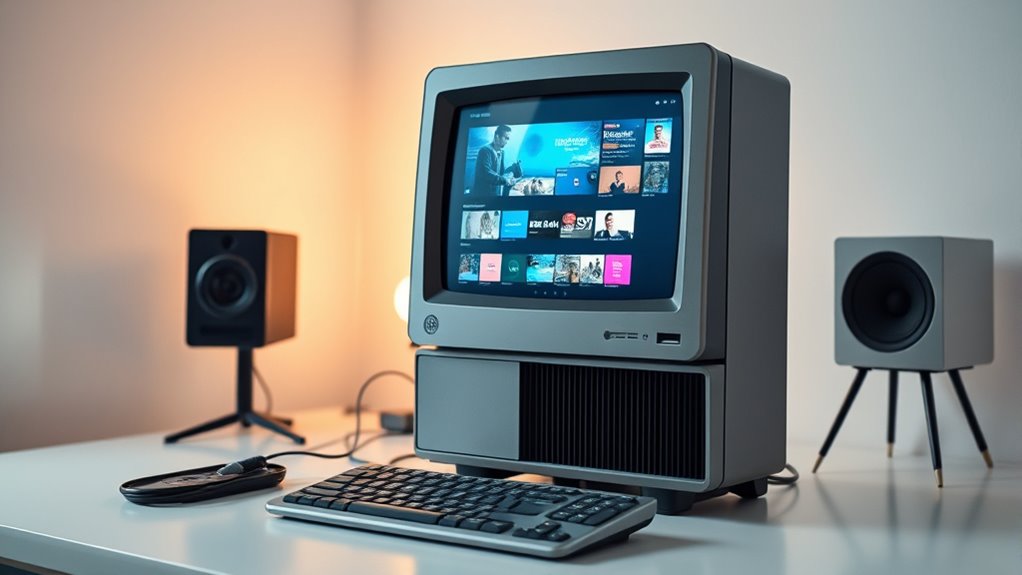
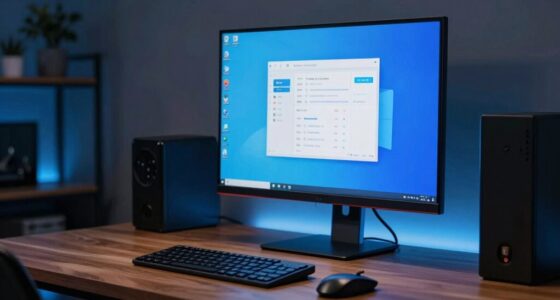
Choosing the right media center software is essential for creating a smooth and enjoyable entertainment experience on your old PC. Look for options like Kodi, Plex, or Emby, which offer user-friendly interfaces and reliable performance. These platforms support remote control apps, allowing you to navigate your media from your phone or tablet, making browsing effortless. Additionally, consider software that includes robust parental controls to keep content appropriate for all viewers. Installing the software is straightforward—download the installer, follow the prompts, and customize settings to suit your needs. Once set up, you’ll have a seamless system to stream movies, music, and TV shows with minimal fuss. This foundation ensures your media center is both easy to operate and family-friendly, especially when designed with Free Floating principles to optimize space and reduce clutter.
As an affiliate, we earn on qualifying purchases.
Connecting Your PC to Your Home Network and Devices
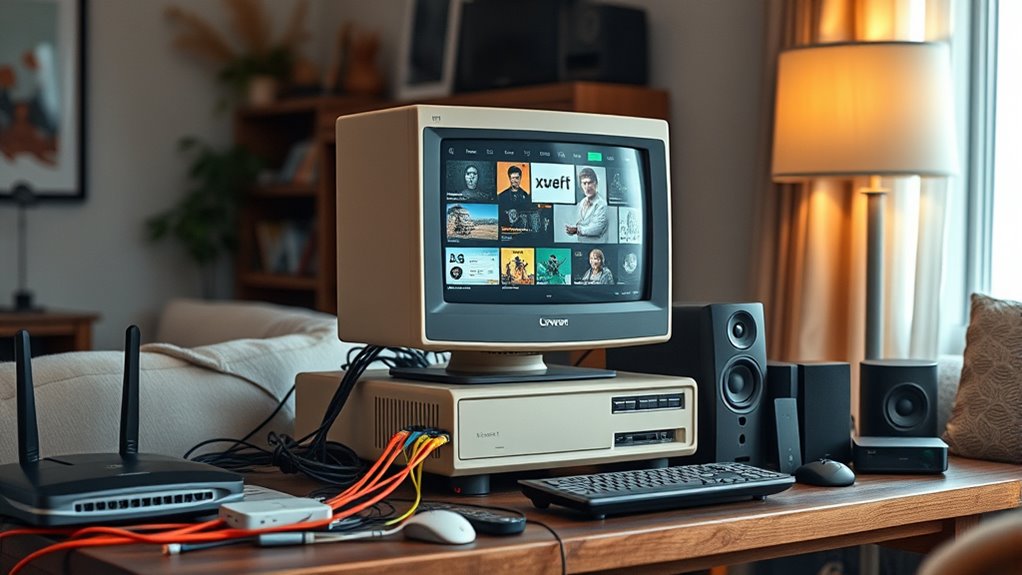
Wondering how to get your old PC communicating smoothly with your home network and devices? Start by making sure your PC supports common network protocols like SMB, DLNA, or UPnP, which enable seamless sharing and streaming. Connect your PC to your Wi-Fi or Ethernet network, making sure it has a stable connection. For streaming content, check that your media center software supports relevant streaming standards such as DLNA or Miracast, allowing you to cast or share media effortlessly. Update your network drivers if needed to improve compatibility. Once connected, test your setup by streaming a video or sharing a file across devices. This ensures your PC integrates well with your home network, ready to serve as a media hub. Network protocols are essential for smooth communication between devices. Additionally, verifying that your PC’s hardware and software are compatible with media streaming standards can prevent potential playback issues.
Configuring Storage Solutions for Media Files
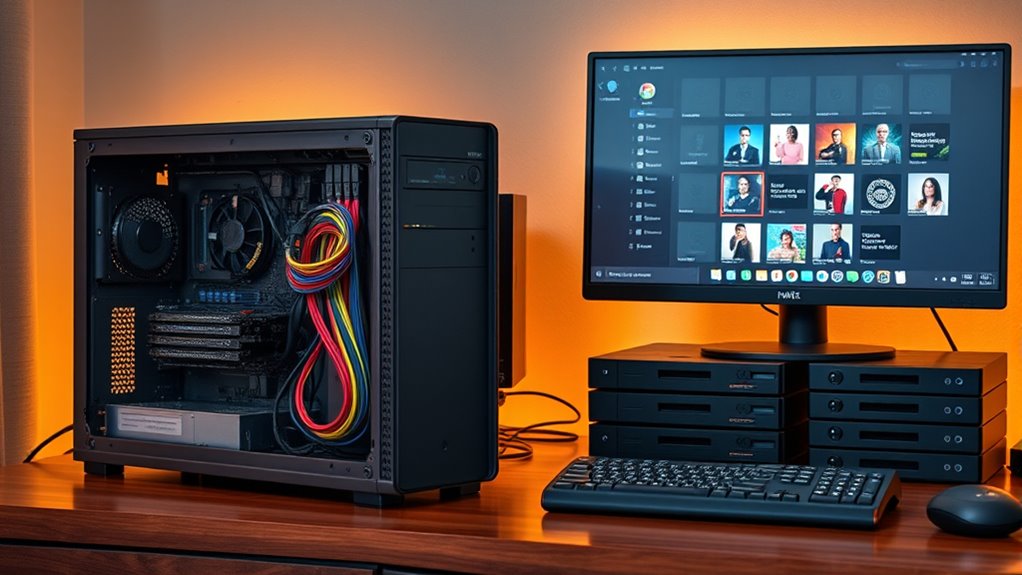
Once your PC is connected to your home network and ready to stream media, the next step is setting up reliable storage solutions for your media files. External drives are a simple, cost-effective option, giving you ample space and easy access. Connect an external drive to your PC and organize your media into folders for quick browsing. For scalable storage, consider cloud storage services like Google Drive or Dropbox, which allow you to access your files from anywhere and share with family members. Combining external drives with cloud storage provides both local speed and off-site backup, ensuring your media files stay safe. Make sure to regularly back up your media library to prevent data loss and keep your media center running smoothly.
Customizing Your Media Center Interface and Features
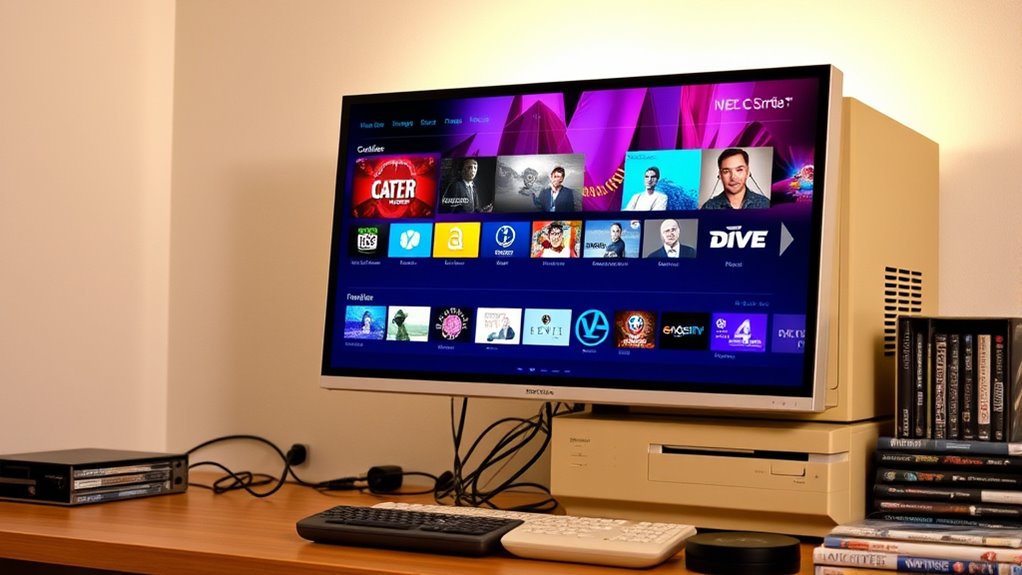
Customizing your media center interface and features allows you to tailor your viewing experience to suit your preferences. You can create a custom interface that reflects your style, making navigation more intuitive and enjoyable. Many media center software options offer the ability to choose personalized themes, which change the look and feel of your interface. By selecting themes that match your decor or favorite colors, you make your setup unique. Additionally, you can customize menus, layouts, and shortcuts to access your favorite content quickly. This personalization not only improves usability but also makes your media center more engaging. Take the time to explore different themes and interface options, ensuring your media experience feels just right for you. Designing focused workspaces can also inspire a sense of calm and clarity, enhancing your overall media enjoyment.
Ensuring Security and Regular Maintenance
To keep your media center safe and running smoothly, you need to prioritize security and perform regular maintenance. Start by ensuring your antivirus software is up to date; antivirus updates are essential for protecting against new threats. Regularly scan your system to detect and remove malware or viruses. Additionally, practice good password management—use strong, unique passwords for your accounts and update them periodically. Consider using a password manager to keep track of login details securely. Keep your operating system and media center software current with the latest updates, which patch security vulnerabilities. Regular maintenance also includes cleaning out unnecessary files and monitoring hardware performance. Being aware of vetted security practices can further help protect your media center from potential threats. Implementing wave and wind considerations in your setup can also enhance overall stability and power management. Incorporate proper air purifier maintenance to prevent dust accumulation that might affect hardware longevity. Regularly checking for piercing infection signs can help prevent hardware issues if you’re using wearable tech or accessories connected to your setup. Additionally, considering the Horsepower of electric dirt bikes can guide you in choosing power supplies that support your media center’s performance needs. By staying vigilant with security and maintenance, you’ll safeguard your media center and ensure it remains reliable for everyday use.
Optimizing Performance for Smooth Streaming and Playback
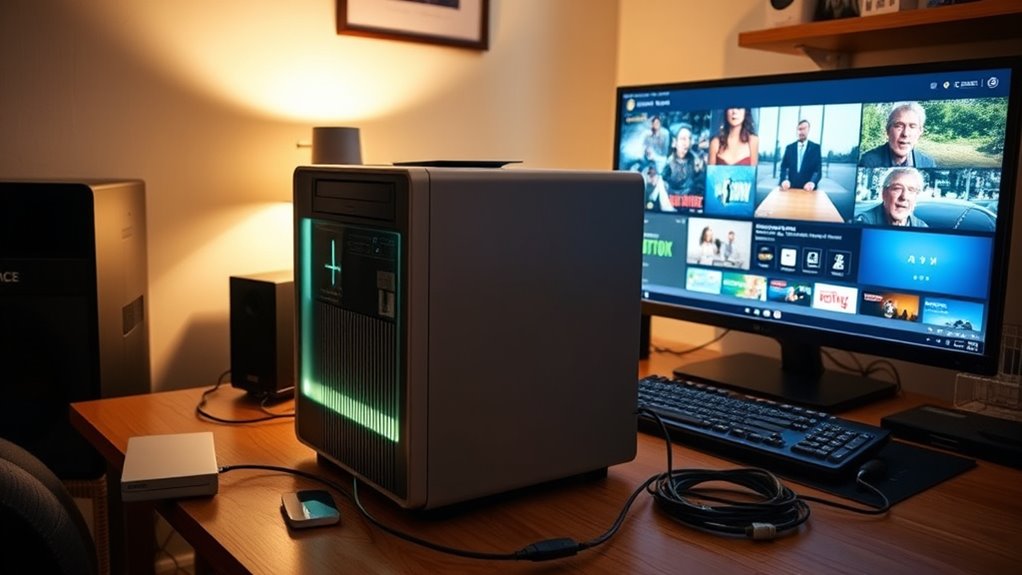
Achieving smooth streaming and playback starts with optimizing your media center’s hardware and software settings. First, consider hardware upgrades like adding more RAM or switching to an SSD, which can substantially boost performance. These upgrades reduce lag and improve load times, guaranteeing smoother playback. Additionally, network optimization is vital; connect your media center via Ethernet for a more reliable connection, or ensure your Wi-Fi signal is strong and stable. Adjust your router settings to prioritize media traffic if possible. Keep your media server and playback software updated to benefit from the latest performance improvements. By combining hardware upgrades with network optimization, you’ll minimize buffering, reduce interruptions, and enjoy seamless streaming and playback on your home media center.
Frequently Asked Questions
Can I Use a Laptop as a Media Center Instead of a Desktop PC?
Yes, you can definitely use a laptop as a media center instead of a desktop PC. Laptops offer great flexibility and are perfect for portable entertainment, allowing you to stream your favorite shows or access media files from anywhere. Plus, their built-in screens and speakers make setup simple. With the right media center software, your laptop can easily handle all your entertainment needs, providing a convenient, space-saving solution.
What Are the Best Budget-Friendly Hardware Upgrades for Older PCS?
Did you know that upgrading graphics and improving storage can boost an old PC’s performance by up to 50%? To get the most bang for your buck, start with a budget-friendly GPU upgrade for smoother media playback. Then, add a larger or faster SSD to improve storage and load times. These upgrades are affordable and can turn your aging computer into a reliable home media center.
How Do I Connect External Devices Like Gaming Consoles or Smart TVS?
To connect external devices like gaming consoles or smart TVs, first check their compatibility with your media center’s ports. Use HDMI cables for high-quality video and audio; connect from the device to your PC’s HDMI input or an external capture card if necessary. For other devices, like older consoles, consider adapters or USB connections. Follow connection setup tips such as updating drivers and configuring display settings for seamless integration.
Is It Possible to Run Multiple Media Streams Simultaneously?
Yes, you can run multiple media streams simultaneously on your home media center. To do this effectively, guarantee your PC has sufficient multi-stream capacity and good bandwidth management. Using a wired connection helps prevent buffering issues, and adjusting stream quality can improve performance. Upgrading your network hardware or prioritizing traffic for streaming devices can also optimize your setup, ensuring smooth playback across multiple streams without interruptions.
How Do I Troubleshoot Playback Issues or Buffering Problems?
Imagine your favorite show pausing at the worst moment. To fix playback issues, start with network troubleshooting—check your Wi-Fi signal and restart your router. Next, optimize buffering by closing unnecessary apps and updating your media center software. If problems persist, test your internet speed and consider wired connections for stability. These steps can turn frustrating buffering into smooth streaming, ensuring your media experience remains seamless and enjoyable.
Conclusion
Did you know that over 60% of old PCs are still capable of running a media center with just a few upgrades? By evaluating your hardware, choosing the right software, and customizing your setup, you can breathe new life into your aging tech. Not only will you enjoy seamless streaming, but you’ll also save money and reduce electronic waste. Turn your old PC into a home media hub today—it’s easier and more rewarding than you might think!