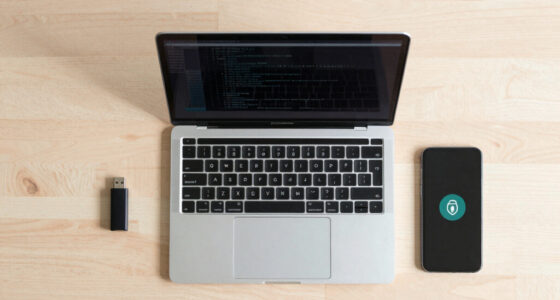

To encrypt external drives on Mac and Windows, start by connecting your drive and choosing the right tool. On Mac, open Disk Utility, erase the drive, and select an encrypted format like APFS Encrypted, then set a strong password. On Windows, go to Control Panel, open BitLocker, and turn it on, setting a secure password and saving the recovery key. For detailed steps and best practices, continue exploring how to protect your data effectively.

Get the latest gadgets delivered free with Prime
- Fast, free delivery on millions of items
- Prime Video, Amazon Music and more included
- Member-only deals all year
Key Takeaways
- Use Disk Utility on Mac to erase and format the drive with encryption, setting a strong password during setup.
- Enable BitLocker on Windows via Control Panel, selecting the drive and following prompts to set a password and save the recovery key.
- Backup data before encrypting to prevent accidental loss and ensure data recovery if needed.
- Keep encryption passwords and recovery keys secure, as losing them may result in permanent data loss.
- Follow best practices by regularly updating backups and securely storing recovery information for ongoing data protection.
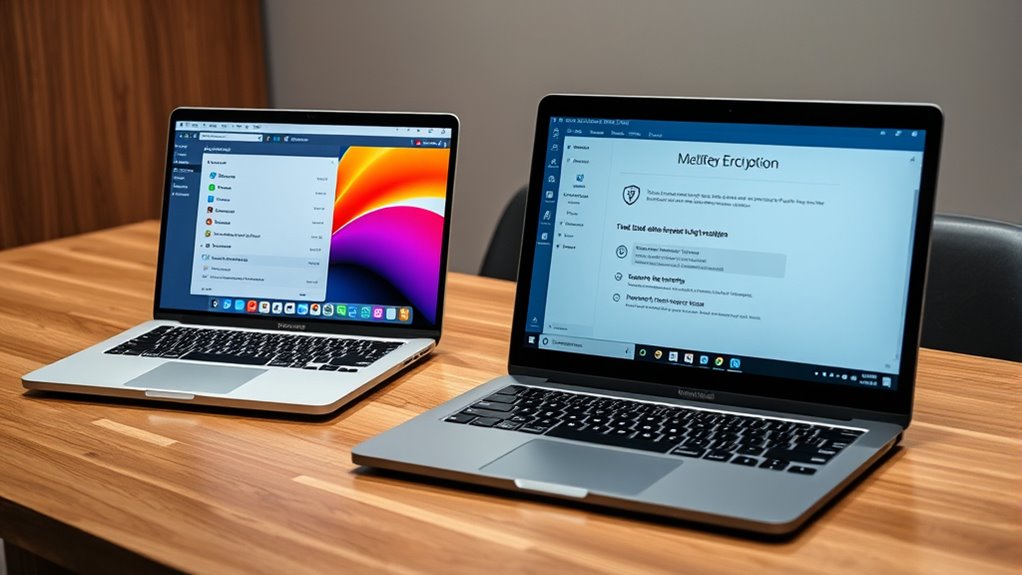
External drives are valuable tools for storing and transferring data, but they can also pose important security risks if lost or stolen. If someone gains access to your external drive without permission, your sensitive information could be exposed. That’s why encrypting your external drives is vital to protect your data. Encryption transforms your files into an unreadable format that only you can release with a password or encryption key. Whether you’re using a Mac or Windows, the process is straightforward, and it greatly enhances your data security.
Encrypting your external drives is essential to safeguard sensitive data from theft or loss.
Before you start, it’s wise to contemplate what happens if your drive becomes corrupted or data gets accidentally deleted. Many encryption solutions include options for data recovery, so you can retrieve your files if needed. Also, choose reputable encryption software that’s compatible with your operating system. Macs have built-in tools like FileVault, while Windows users can rely on BitLocker. These tools not only encrypt your drive but also provide options for restoring data if issues arise, giving you peace of mind.
On a Mac, encrypting an external drive is as simple as opening Disk Utility. Connect your drive, select it from the sidebar, then click on “Erase.” Before confirming, choose the format that includes encryption, such as APFS (Encrypted) or Mac OS Extended (Journaled, Encrypted). You’ll be prompted to set a strong password. Once the process completes, your drive is encrypted, and data recovery options remain accessible if needed, provided you keep your password safe. Remember, losing your password could make data recovery impossible, so choose something memorable but secure.
For Windows users, enabling encryption with BitLocker is just as straightforward. Connect your external drive, then go to Control Panel > System and Security > BitLocker Drive Encryption. Find your drive, click “Turn on BitLocker,” and follow the prompts. You’ll be asked to choose a password or use a smart card for unblocking. Once encrypted, your data is protected from unauthorized access. Should you need to recover data later, confirm you save the recovery key in a secure location. Without it, data recovery might be impossible if the drive becomes inaccessible.
Whichever OS you use, encryption software is your best defense against data breaches. It’s imperative to keep your encryption keys and passwords secure—losing them can mean losing access to your data forever. Regular backups, combined with encryption, guarantee your data remains safe even if your drive is lost or stolen. By taking these simple steps, you’re considerably reducing the risk of data exposure and making sure that only you can access your sensitive information. Additionally, understanding the contrast ratio of your projector can significantly improve your home cinema experience by enhancing image quality in dark scenes.
Frequently Asked Questions
Can I Encrypt an External Drive Without Formatting It?
Yes, you can encrypt an external drive without formatting it by using encryption software like VeraCrypt or BitLocker. These tools allow you to secure your data and enhance data security without erasing existing files. Simply install the software, select your external drive, and follow the prompts to encrypt it. This way, you protect your sensitive information while keeping all your files intact and accessible only with a password.
How Do I Recover Data if I Forget the Encryption Password?
Ever wondered what to do if you forget your encryption password? Unfortunately, without it, data recovery is nearly impossible, as encryption is designed to secure your files. Your best bet is to try password recovery options if available, or contact the encryption software’s support team. Remember, strong passwords are essential, and regularly backing up your data helps prevent permanent loss. If all else fails, professional data restoration services might be your last hope.
Is It Possible to Encrypt an External Drive on a Chromebook?
Yes, you can encrypt external storage on a Chromebook. Chromebook encryption is built-in through File System Encryption, securing your data automatically. For external drives, you can use third-party apps like VeraCrypt or enable Chromebook’s built-in encryption options if available. Just connect your external storage, open the app or settings, and follow the prompts to encrypt your drive. This keeps your data safe even if the drive gets lost or stolen.
How Long Does the Encryption Process Typically Take?
Encryption usually takes between 30 minutes to several hours, depending on the drive size. Remarkably, a 1TB external drive can take around 2 hours to encrypt fully. The encryption duration is affected by factors like drive speed, data amount, and your computer’s processing power. If your drive is nearly full or uses slower hardware, expect the process to take longer. Planning ahead ensures you’re not caught off guard.
Are There Differences in Encryption Methods Between Mac and Windows?
You’ll notice differences in encryption methods between Mac and Windows, mainly in their encryption algorithms and security protocols. macOS uses FileVault with XTS-AES-128 encryption, emphasizing seamless integration and strong security. Windows employs BitLocker, which typically uses AES encryption with various modes depending on the version. These variations impact how secure your data is and how the encryption process operates, so understanding these differences helps you choose the right option for your needs.
Conclusion
Now that you know how to encrypt your external drives on Mac and Windows, you can confidently safeguard your sensitive data. Imagine you’re traveling for work, and your external drive with confidential files gets lost. Thanks to encryption, even if someone finds it, they won’t access your information. Taking these simple steps ensures your data stays private, giving you peace of mind wherever your drive goes. Protect your information today—it’s a small step for big security.
Halloween Picks
halloween
As an affiliate, we earn on qualifying purchases.