
If your Wi-Fi shows as connected but you can’t access the internet, try restarting your device and power cycling your router to clear temporary glitches. Check for interference from other devices or nearby networks and change your Wi-Fi channel if needed. Updating your router’s firmware and verifying your network settings can also help. If problems persist, it’s worth checking for ISP outages or contacting support for further tips to restore your connection.
Key Takeaways
- Restart your device and router to clear temporary glitches and refresh connections.
- Check for ISP outages or service disruptions in your area.
- Update your router’s firmware to fix bugs and improve stability.
- Change your Wi-Fi channel to minimize interference from overlapping networks.
- Verify network settings like IP and DNS to ensure proper configuration.
If you’re experiencing Wi-Fi connectivity issues, you’re not alone. Many people face the frustrating situation where your device shows it’s connected to the Wi-Fi network, yet you can’t access the internet. This problem can stem from several factors, but understanding common causes can help you troubleshoot effectively. One frequent culprit is Wi-Fi signal interference. When multiple devices, appliances, or neighboring networks operate on the same or overlapping channels, they can disrupt your Wi-Fi signal, causing slow speeds or a false connection status. To minimize interference, try changing your Wi-Fi channel through your router’s settings. Switching to a less congested channel can improve your connection stability and reduce the likelihood of seeing “connected” but no internet.
Wi-Fi interference can cause false connections; changing your router’s channel may improve stability and internet access.
Another vital step is to ensure your router’s firmware is up to date. Router firmware acts like the operating system for your device, managing how it communicates with your network and the internet. Manufacturers regularly release firmware updates that fix bugs, improve performance, and enhance security. An outdated firmware might cause connectivity issues, including instances where your device reports a connection but cannot access the internet. To perform a router firmware update, log into your router’s admin panel—usually by typing its IP address into your browser. Check for available updates and follow the manufacturer’s instructions to install them. This process can resolve underlying issues that cause your Wi-Fi to appear connected without internet access.
In addition to interference and firmware updates, it’s wise to restart your router periodically. Power cycling your device clears temporary errors and refreshes your connection. If restarting doesn’t help, consider relocating your router to a central position free from thick walls, electronic interference, and other obstructions. A better placement can profoundly improve signal strength and stability. Also, verify that your device’s network settings are correct; sometimes, manual IP configuration or DNS settings can cause connectivity hiccups. Resetting network settings or renewing your IP address may resolve these conflicts. Furthermore, investing in a high-quality home theatre projector with better signal handling capabilities can reduce the impact of interference on your entertainment setup.
If problems persist despite these steps, check whether your internet service provider (ISP) is experiencing outages or issues in your area. Sometimes, the problem isn’t on your end but with the internet service itself. Contacting your ISP can clarify whether the problem is widespread or specific to your connection. Ultimately, troubleshooting involves ruling out interference, updating your equipment, and ensuring your local network settings are correct. By systematically addressing these areas, you’ll improve your chances of fixing the “Wi-Fi says connected but no internet” problem and enjoy a more stable, reliable connection.

TP-Link AX1800 WiFi 6 Router (Archer AX21 V5) – Dual Band Wireless Internet, Gigabit, Easy Mesh, Works with Alexa – A Certified for Humans Device, Free Expert Support
DUAL-BAND WIFI 6 ROUTER: Wi-Fi 6(802.11ax) technology achieves faster speeds, greater capacity and reduced network congestion compared to…
As an affiliate, we earn on qualifying purchases.
As an affiliate, we earn on qualifying purchases.
Frequently Asked Questions
Can Restarting My Device Fix Wi-Fi Without Internet?
Yes, restarting your device can fix Wi-Fi issues without internet. It’s a simple device troubleshooting step that clears temporary glitches and resets network connections. After turning off your device, wait a few seconds, then turn it back on. This network restart often resolves connectivity problems, allowing your device to reconnect properly to the internet. If issues persist, consider restarting your router or checking for network outages.
How Do I Check My Router’s Firmware Version?
Think of your router as a wise old ship needing regular upgrades. To check your router’s firmware version, open your web browser and enter your router’s IP address, often 192.168.1.1. Log in with your credentials, then navigate to the firmware or status section for a firmware check. If outdated, consider performing a router update to guarantee smooth sailing on your network.
Why Does Wi-Fi Say Connected but No Internet on Multiple Devices?
You might see Wi-Fi say connected but no internet on multiple devices due to Wi-Fi interference or network congestion. Interference from other devices or neighboring networks can weaken your signal, while too many devices sharing your network can cause slowdowns or outages. To fix this, try changing your Wi-Fi channel, moving your router to a clearer spot, or limiting the number of connected devices. Restart your router to refresh the connection as well.
Is There a Way to Test My Internet Speed?
Yes, you can test your internet speed easily. Use a speed test website or app like Ookla or Fast.com to measure your download and upload speeds. For a thorough check, run network diagnostics on your device or router. These tools help identify if your connection is slow or unstable, guiding you to troubleshoot issues or contact your provider for better performance. Regular testing guarantees your internet meets your needs.
Should I Contact My Internet Provider for Wi-Fi Issues?
Sure, go ahead and contact your internet provider for Wi-Fi issues. After all, troubleshooting steps are so last season. Customer support can help you identify if the problem’s on their end or if you need a new router. Sometimes, a quick call saves hours of frustration. They’ll guide you through steps you might have missed, making it easier to restore your internet connection without resorting to wild guesses.

XH-carpet EMF Stickers Blocker Neutralize Shield Protection from Cell Phones cased and Electronic Devices WiFi 5G Tablets Laptops Computers Monitors (6Pcs Golden)
[Not Affect Phone Use] Our XH-carpet protection stickers do not interfere with cell phone signals or wireless charging,…
As an affiliate, we earn on qualifying purchases.
As an affiliate, we earn on qualifying purchases.
Conclusion
So, next time your Wi-Fi shows connected but no internet, remember it might just be a coincidence—like that time your phone’s connection dropped right when you needed it most. Sometimes, a quick restart or resetting your router does the trick, almost like magic. Don’t let a small glitch ruin your day; often, fixing it is simpler than you think. After all, in tech and life, a little coincidence can lead to a big fix.
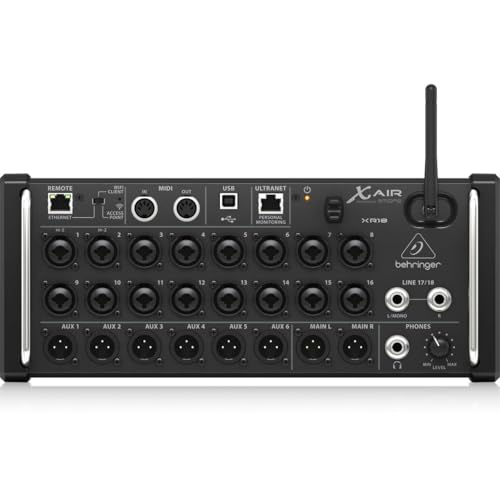
Behringer X AIR XR18 18-Channel, 12-Bus Digital Mixer for iPad/Android Tablets with 16 Programmable Midas Preamps, Integrated Wifi Module and Multi-Channel USB Audio Interface
IPad/Android tablet controlled 18-input digital mixer for studio and live application
As an affiliate, we earn on qualifying purchases.
As an affiliate, we earn on qualifying purchases.
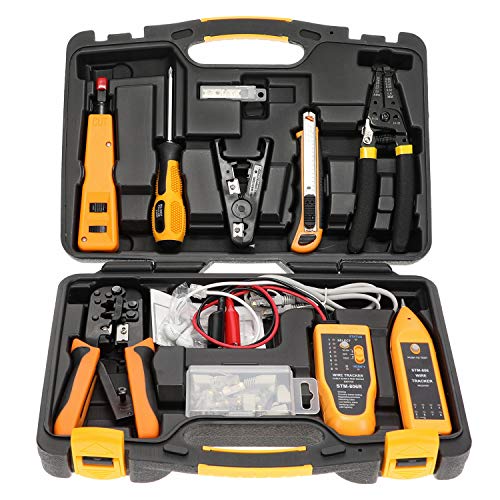
InstallerParts Professional Network Tool Kit 15 In 1 – RJ45 Crimper Tool Cat 5 Cat6 Cable Tester, Gauge Wire Stripper Cutting Twisting Tool, Ethernet Punch Down Tool, Screwdriver, Knife
Lightweight Hard Case : The tools are conveniently secured in place in a lightweight yet durable, high-quality portable…
As an affiliate, we earn on qualifying purchases.
As an affiliate, we earn on qualifying purchases.