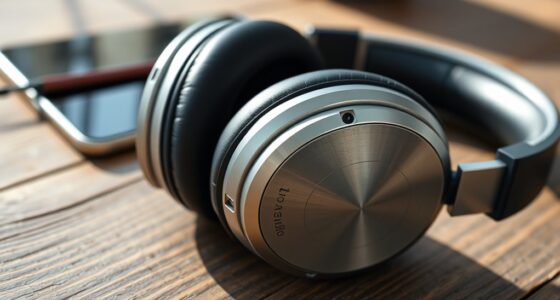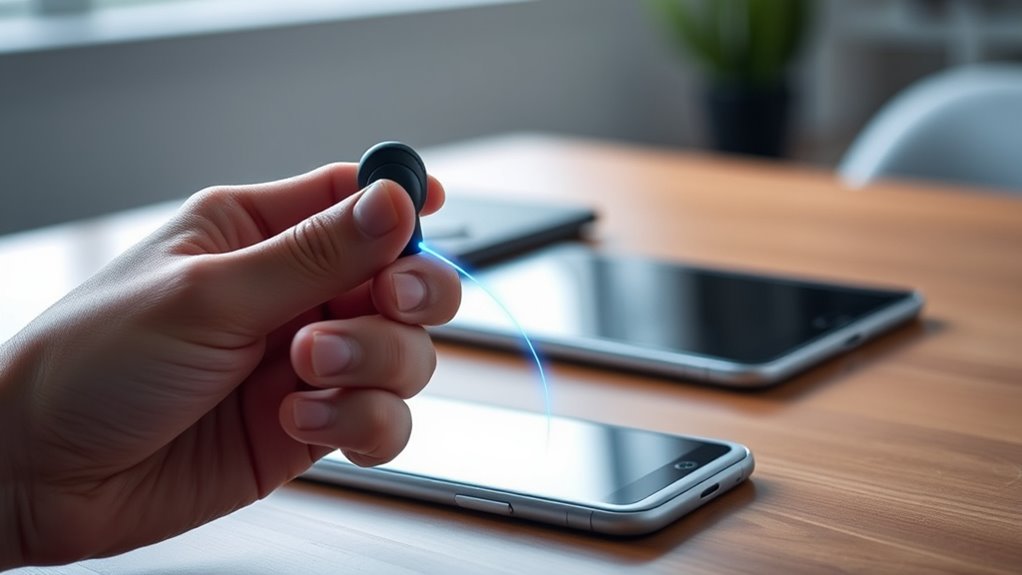

To pair two devices cleanly with Bluetooth multipoint, first check if your headphones support it and update their firmware if needed. Enter pairing mode on your headphones, usually by holding a button until a light flashes. Connect each device one at a time through their Bluetooth settings, ensuring they recognize and establish a connection. Once paired, switching between devices is seamless. Keep in mind, device compatibility matters, and supporting details can help you maximize your setup.
Key Takeaways
- Confirm your headphones support Bluetooth multipoint before attempting to pair multiple devices.
- Enter pairing mode on the headphones, then pair and connect each device individually via Bluetooth settings.
- Use the headphones’ dedicated app or firmware update to enable or optimize multipoint functionality if available.
- After initial pairing, ensure both devices are recognized and connected simultaneously for seamless switching.
- Manage connections through the headphones’ controls or device Bluetooth settings for clean, interference-free use.
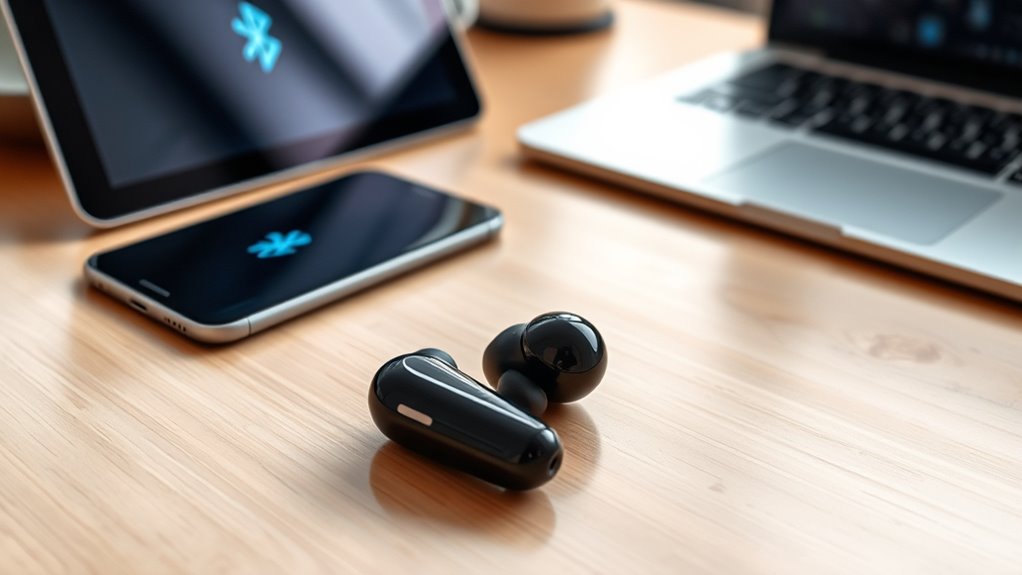
Have you ever wished you could connect your headphones to multiple devices at once? Bluetooth multipoint technology makes that possible, allowing you to switch seamlessly between your smartphone and laptop without disconnecting and reconnecting. To get started, you need to understand the pairing process and verify your devices are compatible. Not all devices support multipoint, so checking device compatibility is an essential first step.
The pairing process begins with placing your headphones into pairing mode. Usually, you do this by holding down the power button or a dedicated Bluetooth button until a light flashes or you hear a specific sound. Once in pairing mode, you’ll need to connect your headphones to your first device, such as your phone. Make sure Bluetooth is enabled on your device, then select your headphones from the list of available devices. When connected, your headphones will typically give an audio cue or a visual indicator confirming the connection.
Next, to enable multipoint pairing, you often need to pair the second device. This step varies depending on the headphones, but generally, you put the headphones back into pairing mode or a special multipoint pairing mode. Some models automatically recognize multiple devices once paired, while others require you to manually connect the second device through their app or settings menu. It’s crucial to verify that your headphones support Bluetooth multipoint; otherwise, they will only connect to one device at a time.
Device compatibility plays a critical role here. Not all Bluetooth devices support multipoint pairing, and even if they do, some may have limitations or require firmware updates. Check your headphones’ user manual or manufacturer’s website to confirm multipoint functionality and compatibility with your devices. For example, if you’re pairing with a Windows PC and an Android phone, ensure both support multipoint connections to avoid connectivity issues.
Once both devices are paired and connected, you’ll be able to switch between them effortlessly. When a call comes in on your phone, your headphones will prioritize the call, even if you’re listening to music from your laptop. Switching back is usually as simple as pausing the call or disconnecting from one device, allowing your headphones to automatically connect to the other. This fluid experience is what makes Bluetooth multipoint so appealing.
Additionally, understanding the contrast ratio of your home theater projector can significantly enhance your viewing experience by providing deeper blacks and brighter whites, especially in dark scenes.
Frequently Asked Questions
Can I Connect More Than Two Devices via Bluetooth Multipoint?
Yes, you can connect more than two devices via Bluetooth multipoint, but it depends on your device’s compatibility. Many modern headphones and speakers support multi-device pairing, allowing seamless switching between multiple gadgets. To do this, verify your device supports multi device pairing and follow the pairing instructions carefully. Keep in mind that some devices may have limitations, so check your device’s specifications to confirm how many connections it can handle simultaneously.
Does Bluetooth Multipoint Drain Device Batteries Faster?
Think of Bluetooth multipoint as a busy highway—more devices connected, more traffic. Yes, it can drain your device’s battery faster, impacting battery consumption and device longevity. When multiple devices are active, your phone works harder to maintain connections, which uses more power. To conserve battery life, disconnect unused devices and turn off Bluetooth when not in use. This way, your device stays healthier, longer.
Is Bluetooth Multipoint Compatible With All Smartphones?
Bluetooth multipoint isn’t compatible with all smartphones, so you should verify your device’s compatibility before trying to pair. The pairing process can vary depending on your phone’s Bluetooth settings and the device’s features. To ensure smooth connection, follow the manufacturer’s instructions carefully, and make sure both devices support multipoint pairing. If your phone isn’t compatible, you might need alternative solutions for connecting multiple devices simultaneously.
How Do I Troubleshoot Connectivity Issues With Multiple Devices?
To troubleshoot connectivity issues with multiple devices, start by managing interference—keep your devices away from Wi-Fi routers or other electronics that cause signal disruptions. Next, check for firmware updates for both your Bluetooth devices and your smartphone, as these often fix bugs and improve performance. If problems persist, reset the devices, re-pair them, and guarantee they’re within proper range for a stable connection.
Can I Prioritize One Device Over Another in Bluetooth Multipoint?
Did you know that over 60% of Bluetooth users want better connection management? Yes, you can prioritize one device over another in Bluetooth multipoint by adjusting device settings or using specific pairing modes. This device prioritization helps guarantee your preferred device gets a stronger or more stable connection, making your experience smoother. Just explore your device’s Bluetooth settings to set the priority, giving you control over your connection management.
Conclusion
Now that you know how to pair two devices with Bluetooth Multipoint, imagine the possibilities—seamlessly switching between your phone and tablet without missing a beat. But there’s more to explore. Could this setup get even smarter? Stay tuned, because mastering Bluetooth Multipoint might just open a whole new level of convenience you didn’t see coming. Ready to take your device connections to the next step? The adventure isn’t over yet.