To fix Bluetooth audio lag quickly, first check that your devices are compatible and have the latest firmware updates. Reconnect your Bluetooth devices properly, keeping them close and removing obstacles. Minimize interference from Wi-Fi or other wireless gadgets. Reset the Bluetooth connection by removing devices, restarting everything, and repairing. For even better results, consider using Bluetooth transmitters with Aptx Low Latency and switch to wired connections if possible. Keep going to discover more tips to get your audio in sync fast.
Key Takeaways
- Update firmware and Bluetooth drivers on your TV and phones for improved compatibility and reduced lag.
- Re-pair devices in close proximity with fresh pairing to reset connections and minimize delays.
- Reduce interference by keeping devices away from Wi-Fi routers, microwaves, and other wireless gadgets.
- Enable low-latency audio profiles like aptX Low Latency or aptX Adaptive if supported.
- Use wired connections for the lowest latency during critical listening or gaming sessions.
Check Bluetooth Device Compatibility and Updates

Before troubleshooting Bluetooth audio lag, you should verify that your device is compatible with your Bluetooth headphones or speakers and that both have the latest updates. Start by checking the device firmware on your devices, as outdated firmware can cause lag issues. Compatibility testing is essential; not all devices work seamlessly together, especially if they’re from different manufacturers or generations. Visit your device manufacturer’s website or settings menu to ensure your device supports your Bluetooth audio hardware. Updating the firmware often improves performance and fixes bugs that could cause lag. Confirm that your Bluetooth device is listed as compatible with your device. Ensuring compatibility and keeping firmware current helps create a stable connection, reducing lag before you move on to other troubleshooting steps. Additionally, understanding Bluetooth device profiles can help identify supported features and improve overall performance. Checking for interference sources like Wi-Fi networks or other wireless devices can further enhance connection stability. Being aware of Bluetooth version compatibility can also help optimize connection speed and reduce lag. Regularly inspecting and managing wireless signal quality can help maintain a more reliable Bluetooth connection.
Reconnect Your Bluetooth Devices Properly
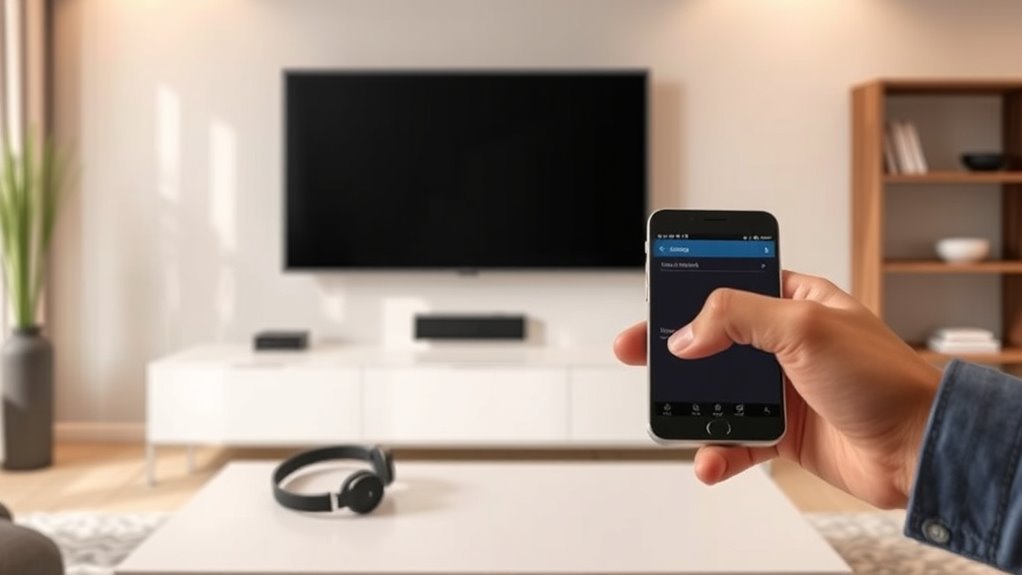
To reconnect your Bluetooth devices properly, start by removing them from your device’s list and repairing the connection. If issues persist, resetting your Bluetooth settings can often clear glitches and improve performance. These steps help guarantee a fresh, stable connection that reduces audio lag.
Remove and Repair Devices
If you’re experiencing persistent Bluetooth audio lag, removing and repairing your devices often solves the problem. Start by performing a device removal, which involves deleting the Bluetooth connection from your TV or phone. This clears any lingering issues or corrupted pairing data. After removing the device, restart your device to refresh its system. Then, proceed with device repair by re-pairing your Bluetooth device, ensuring the connection process is clean and accurate. During pairing, make sure your device is in pairing mode and within close proximity. Proper device repair can resolve minor glitches that cause lag, resulting in a smoother Bluetooth audio experience. Regularly removing and repairing devices keeps your connections up to date and helps eliminate audio delays. Proper pairing techniques can further enhance connection stability and reduce lag over time. Additionally, understanding Bluetooth version compatibility can improve overall connection quality and minimize lag issues. Being aware of interference sources like Wi-Fi networks or other wireless devices can also help you optimize your Bluetooth setup for better performance. Incorporating interference mitigation strategies can further stabilize your Bluetooth connections and improve audio sync.
Reset Bluetooth Settings
Resetting your Bluetooth settings can further improve connection stability and help eliminate audio lag. This process clears existing Bluetooth pairing data, allowing you to establish fresh device synchronization. To do this effectively, remove your devices from your phone or TV’s Bluetooth menu, then restart both the device and your receiver. Re-pair your Bluetooth devices to ensure a clean connection, which often reduces lag. Use the table below to understand common issues and solutions:
| Issue | Solution |
|---|---|
| Audio lag persists after pairing | Reset Bluetooth settings and re-pair |
| Devices won’t connect | Remove device, restart, and re-pair |
| Devices disconnect randomly | Refresh Bluetooth connection |
| Inconsistent audio quality | Re-sync devices properly |
| Bluetooth not recognizing device | Reset Bluetooth settings |
Proper device synchronization is key to smooth audio playback. Improving your Bluetooth setup can also involve firmware updates, which enhance device performance and compatibility. Additionally, ensuring your devices have updated Bluetooth drivers can prevent many connection issues and improve overall performance. Regularly managing Bluetooth interference from other wireless devices can further optimize your connection stability. For optimal results, also consider device placement, ensuring your Bluetooth devices are within effective range and free from physical obstructions to minimize lag.
Minimize Wireless Interference

Wireless interference can substantially increase Bluetooth audio lag, disrupting your listening experience. To reduce this, minimize sources of frequency interference that weaken your wireless signal. Keep your devices away from Wi-Fi routers, microwaves, and cordless phones, which can cause signal clashes. Use a less congested Bluetooth frequency band, like Bluetooth 5.0, which offers better resistance to interference. Maintain a clear line of sight between your device and headphones, avoiding obstacles that block the wireless signal. Additionally, turn off or move away from other electronic devices that emit strong signals. Ensuring optimal wireless communication can significantly improve your audio synchronization. Regularly updating your device firmware can also help optimize wireless performance and reduce lag. For best results, consider signal stability improvements such as using a dedicated wireless channel if available. Limiting the number of active wireless devices nearby to prevent congestion and interference enhances overall connection reliability. Maintaining a direct line of sight with your headphones helps sustain a strong connection and minimizes lag. Incorporating advanced wireless technologies like Bluetooth 5.0 can further enhance stability and reduce lag, providing a smoother listening experience.
Reset Your Bluetooth Connection
Sometimes, simply resetting your Bluetooth connection can resolve audio lag issues. Wireless interference or poor device placement often cause disruptions, so restarting the connection helps clear these problems. To do this, turn off Bluetooth on your device and your headset or speaker. Wait a few seconds, then turn Bluetooth back on. Re-pair your devices if necessary. Make sure your device and Bluetooth accessories are within close range and avoid placing them near other electronics that may cause interference. Resetting the connection refreshes the pairing process, reducing lag caused by signal disruptions. This quick step can markedly improve audio sync, especially if interference or device placement was the root cause of the delay. Also, consider device placement and ensuring your devices are positioned to minimize electronic clutter for optimal performance. Keep your devices close and free from other electronic clutter for the best results. Additionally, regularly updating your device firmware can help improve Bluetooth stability and prevent lag issues. Maintaining proper device compatibility can also ensure smoother Bluetooth audio performance. Furthermore, understanding nanotechnology advancements can offer innovative solutions to enhance wireless device performance and reduce lag.
Update Firmware on Your TV and Phone
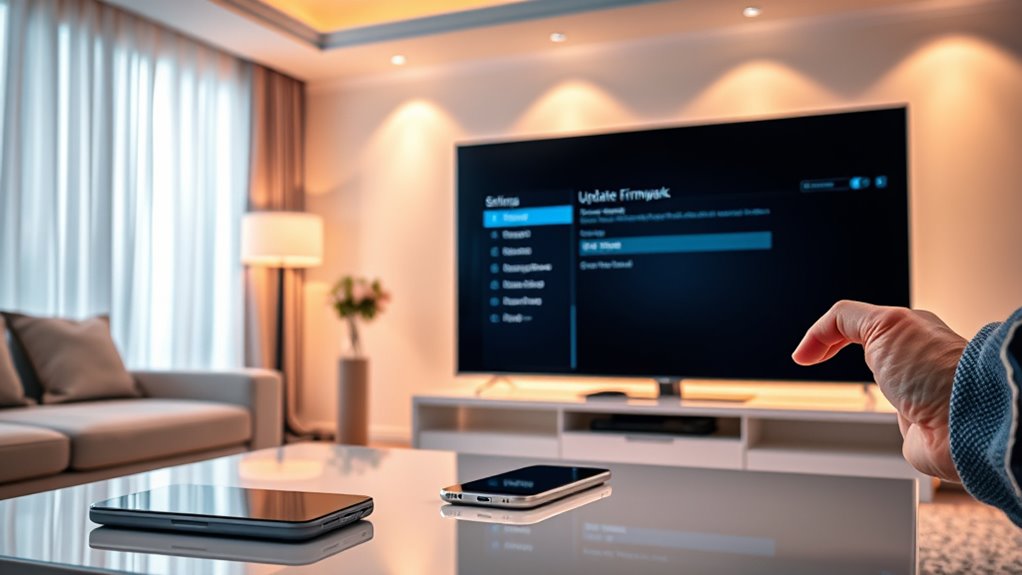
Keeping your TV and phone firmware up to date is essential for minimizing Bluetooth audio lag. Firmware updates often include bug fixes and performance improvements that enhance device compatibility, reducing latency issues. To update your devices, check for available firmware updates regularly through the settings menu. Be sure to install updates promptly to benefit from the latest optimizations. Keep in mind:
- Firmware updates improve device compatibility with newer Bluetooth standards
- Updates may fix known lag issues affecting audio sync
- Compatibility enhancements optimize Bluetooth connection stability
- Regular updates ensure better performance during streaming
- Outdated firmware can cause delays and disconnections
Staying current with firmware updates helps you maintain a smooth, lag-free Bluetooth experience on your TV and phone.
Adjust Audio Settings for Low Latency

Updating your device firmware helps reduce Bluetooth audio lag, but fine-tuning your audio settings can make an even noticeable difference. To improve sound synchronization, check your device’s audio settings for options related to audio delay or lip-sync. Many TVs and phones offer settings that let you manually adjust audio delay, helping to align sound with the picture. Reduce the audio delay as much as possible without sacrificing sound quality. If your device doesn’t have these options, look for specific sound profiles or modes designed for low latency. Adjusting these settings ensures better sound synchronization, minimizing lip-sync issues and making your Bluetooth audio experience smoother and more synchronized with the video. Properly configuring audio delay settings is a quick way to fix lag issues.
Use Bluetooth Transmitters With Aptx Low Latency
To reduce Bluetooth audio lag, consider using transmitters that support Aptx Low Latency. Make sure your devices are compatible, and follow setup tips to guarantee minimal delay. Proper placement can also improve connection stability and keep latency low.
Compatibility With Devices
Since Bluetooth audio lag can be noticeable on some devices, choosing a transmitter with Aptx Low Latency support is vital for minimizing delay. However, device compatibility is essential. Not all devices support Aptx Low Latency, and some may require specific update requirements to function properly. Before purchasing, check if your TV, phone, or other equipment supports Aptx LL or aptX Adaptive. Compatibility issues can cause the transmitter to default to higher latency codecs, negating the benefits. To guarantee smooth operation, verify:
- Device support for Aptx Low Latency or aptX Adaptive
- Firmware or software update requirements
- Bluetooth version compatibility
- Supported profiles (A2DP, AVRCP)
- Transmission range limitations
Understanding these factors helps you select a transmitter that works seamlessly with your devices, reducing lag effectively.
Ensuring Low Latency
Choosing a Bluetooth transmitter that supports Aptx Low Latency is essential for guaranteeing minimal audio delay. This codec markedly reduces audio delay, keeping sound synchronized with your video. To verify performance, perform latency testing with your setup, confirming that the audio delay stays within acceptable limits—usually under 40 milliseconds. Devices with Aptx Low Latency are designed to deliver faster data transfer, which minimizes lag between your TV or phone and Bluetooth headphones or speakers. Without this support, you might experience noticeable lag that disrupts your viewing or gaming experience. Investing in a transmitter with Aptx Low Latency ensures smooth, synchronized audio, making it easier to enjoy content without distracting lag. Always check for compatibility and test the latency to guarantee superior low-latency performance.
Setup and Placement Tips
For ideal performance, position your Bluetooth transmitter with Aptx Low Latency support in a central, unobstructed location near your audio devices. Proper placement minimizes signal interference and guarantees stable connectivity. When selecting a spot, consider device ergonomics and aesthetic design to keep your setup neat and efficient. Avoid placing the transmitter behind objects or in tight spaces that can block the signal. Keep it elevated, such as on a shelf or mounted discreetly nearby. Ensure the transmitter is close enough to your device for maximum performance, but not so close that it causes clutter. Good placement reduces lag and improves audio quality, making your viewing experience seamless. Remember, the right setup is key to maximizing the benefits of your low latency Bluetooth transmitter.
Keep Devices Close and Remove Obstacles
To guarantee a stable Bluetooth connection and reduce audio lag, keep your devices close together. Proper device placement ensures the Bluetooth signal remains strong and consistent. Position your TV or phone and your Bluetooth device within a few meters, avoiding large distances that can weaken the connection. Remove obstacles like walls, furniture, or electronic devices that can interfere with the signal. Metal objects or thick barriers are especially problematic and can cause significant lag or disconnections. Keep the line of sight clear whenever possible, as direct visibility helps maintain a smooth and responsive connection. By paying attention to device placement and obstacle removal, you’ll minimize audio lag and enjoy better synchronization between your devices.
Switch to Wired Connections When Possible

Switching to wired connections can markedly reduce audio lag. Make certain to choose reliable cables to prevent connection issues, and be aware that wired setups naturally minimize latency risks. When possible, opt for quality cables to guarantee consistent, low-latency audio.
Choose Reliable Cables
Using reliable cables can considerably reduce Bluetooth audio lag because wired connections tend to have lower latency than wireless ones. When choosing cables, prioritize durability to guarantee longevity and consistent performance. The right connector types, like HDMI or optical, match your devices for ideal transfer speed. Look for cables with sturdy insulation and resistant connectors to prevent wear and signal loss. Avoid cheap, flimsy options that can degrade over time and introduce lag. Investing in high-quality cables minimizes interference and maintains stable audio transmission. Consider these points:
- Cable durability for long-term use
- Compatibility with your devices’ connector types
- Shielding against electromagnetic interference
- Gold-plated connectors for better conductivity
- Length suited to your setup without excess slack
Minimize Latency Risks
Whenever possible, opting for wired connections substantially reduces audio latency compared to wireless options. Wired setups eliminate issues caused by a weak or unstable wireless signal, guaranteeing a more reliable audio experience. When you use cables, you avoid delays introduced during device pairing or signal transmission, which often cause lag in Bluetooth or other wireless connections. Minimize latency risks by maintaining a direct connection between your device and the audio source, reducing interference and packet loss. If you must use wireless, keep devices close and ensure they’re paired correctly. However, switching to wired connections is the most effective way to guarantee minimal latency, especially during gaming, live performances, or critical audio monitoring. This approach offers the most consistent and low-latency audio output.
Restart Devices and Clear Cache Data
Sometimes, simply restarting your devices can resolve Bluetooth audio lag. This refreshes the system, often fixing issues caused by device overheating or disrupted Bluetooth pairing. When you restart, it clears temporary cache data that might be causing delays or glitches in communication.
Restarting your devices can fix Bluetooth lag by clearing temporary glitches and overheating issues.
To maximize this fix:
- Turn off your TV or phone completely before turning it back on.
- Unpair and then re-pair your Bluetooth device.
- Clear cache data in your device’s settings, especially if lag persists.
- Ensure your device isn’t overheating, as heat can impair Bluetooth performance.
- Check for software updates, which often include bug fixes for Bluetooth issues.
Restarting can often refresh Bluetooth connections and improve audio sync, especially when lag results from temporary glitches or overheating.
Frequently Asked Questions
How Do I Identify if My Bluetooth Device Supports Low Latency?
You can identify if your Bluetooth device supports low latency by checking its Bluetooth codecs, like aptX Low Latency or AAC, which are designed for minimal delay. Look at the device specifications or user manual to see supported codecs. You can also run latency testing apps to measure actual delay. Devices with low latency codecs will provide faster audio sync, ideal for watching videos or gaming without lag.
Can Updating Firmware Fix Audio Lag on All Bluetooth Devices?
Updating firmware can often considerably reduce Bluetooth audio lag, but it’s not a magic fix for all devices. If your device supports advanced Bluetooth codecs like aptX or AAC, firmware updates can improve compatibility and performance. However, outdated firmware might cause or worsen lag. Check your device’s firmware compatibility and guarantee it supports the latest Bluetooth codecs; that’s your best shot at smoother audio syncing.
What Are the Best Locations to Reduce Wireless Interference?
To reduce wireless interference, you should position your Bluetooth devices away from common interference sources like Wi-Fi routers, microwaves, and cordless phones. Keep them in the best placement, such as central and elevated locations, with a clear line of sight if possible. Avoid metal objects and thick walls that can block signals. By minimizing interference sources and placing your devices thoughtfully, you’ll experience less lag and better audio quality.
How Do I Check if My TV or Phone Has the Latest Firmware?
Did you know over 80% of devices perform better after firmware updates? To check if your TV or phone has the latest firmware, go to Settings > About or Software Update. Make sure your device is compatible with the latest version, then follow prompts to update. Regular updates fix bugs and improve performance, helping reduce Bluetooth audio lag and ensuring your device runs smoothly with the newest features.
Are There Specific Bluetooth Transmitters Recommended for Minimal Lag?
Yes, you should look for Bluetooth transmitters that support Bluetooth aptX or aptX Low Latency for minimal lag. These transmitters are recommended because they offer better device compatibility and reduce audio delay when paired with compatible phones or TVs. Make sure your device also supports aptX Low Latency to get the best performance. Always check product specs to ensure they meet these standards for maximum audio synchronization.
Conclusion
By following these steps, you can banish that nagging Bluetooth lag like a pro. Think of your devices as a well-choreographed dance—when they sync perfectly, everything flows seamlessly. Keep your connections tight, update your gear, and minimize interference, so your audio stays smooth as silk. With a little patience and these tips, you’ll have your sound picture-perfect, turning tech chaos into harmony, and finally enjoying lag-free listening that feels like music to your ears.