
Start by disabling unnecessary startup programs to speed up boot time and free resources. Clear out temporary files, cache, and browser data regularly to keep your system running smoothly. Uninstall unused software and manage browser extensions for better performance. Upgrading to an SSD and increasing RAM can provide a quick boost. Running malware scans and adjusting visual effects also help. Keep your OS and drivers updated, and restart your computer regularly for maximum speed. More tips await to polish your PC further.
Key Takeaways
- Disable unnecessary startup programs to reduce boot time and improve system responsiveness.
- Clear cache, temporary files, and browser data regularly for smoother performance.
- Uninstall unused software and manage browser extensions to free up system resources.
- Upgrade hardware components like SSD and RAM for faster data access and multitasking.
- Keep your system updated and restart regularly to ensure optimal performance and security.
Clear Out Unnecessary Startup Programs
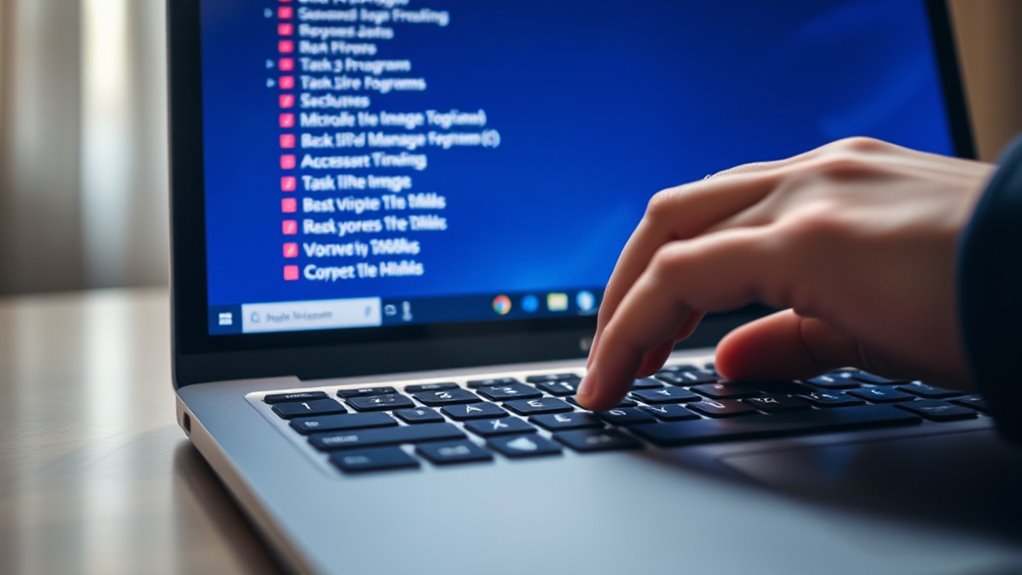
When your computer starts up, unnecessary programs often launch automatically, slowing down your boot time. These background processes add to the startup impact, making your system sluggish right from the start. By disabling or removing unneeded startup programs, you reduce the number of background processes running at startup, which can considerably improve your computer’s speed. To do this, open your Task Manager or System Configuration utility, then review the list of programs set to run at startup. Disable those that aren’t essential for your daily tasks. This tweak minimizes background processes, accelerates boot times, and frees up system resources. Keeping only necessary programs launching at startup ensures your computer runs more smoothly and responds faster. Additionally, understanding essential startup programs can help you make informed decisions about what to enable or disable during startup. Knowing which programs are supporting system performance can further optimize your startup process and overall computer health. Regularly reviewing your startup programs is a simple way to maintain a speedier computer, and being aware of background processes can help you identify potential issues before they impact performance. For example, identifying resource-heavy applications can guide you in managing your system more effectively.
Delete Temporary Files and Cache

Start by clearing your browser cache to free up space and improve load times. Then, remove unnecessary temporary files stored on your computer to boost overall performance. These simple steps can make a noticeable difference in your system’s speed. Additionally, regularly checking for unwanted programs and filter maintenance can help prevent slowdowns caused by background processes. Incorporating tools that optimize contrast ratio settings can also enhance your computer’s display performance, leading to sharper visuals and better clarity. Maintaining your system’s performance optimization settings ensures your computer runs smoothly during intensive tasks like deep-sky imaging. For optimal performance, consider using system optimization software that can automate these clean-up tasks and keep your computer running smoothly. Regularly managing cookie categories and adjusting your privacy preferences can also contribute to a more efficient browsing experience.
Clear Browser Cache
Have you noticed your browser slowing down or behaving oddly? Clearing your browser cache can boost your internet speed and improve performance. Over time, the cache stores temporary files, which can clutter your browser and cause delays. To clear it, go to your browser settings, find the privacy or history section, and select “Clear browsing data.” Choose to delete cached images and files, then confirm. Doing this regularly helps prevent sluggishness and keeps your browsing smooth. Regular maintenance like clearing cache is similar to system optimization, which is essential for maintaining the efficiency of European cloud servers and ensuring your devices run reliably—simple tweaks can lead to better overall results. Additionally, understanding browser cache can help you make informed decisions about managing your online experience, especially since cache management plays a key role in overall internet performance.
Remove Unnecessary Files
Ever notice your computer slowing down after a while? It’s often due to junk files, temporary data, and cache piling up. Removing unnecessary files helps free up valuable space and improves performance. Start by deleting temporary files and clearing cache from your browser and system. These junk files can slow down your computer’s operations over time. Also, scan for duplicate documents; having multiple copies can clutter your storage and reduce efficiency. Use built-in tools or third-party cleanup programs to identify and remove these duplicates easily. Regularly cleaning out unnecessary files prevents your system from becoming sluggish and ensures smoother operation. Incorporating system maintenance practices into your routine can help identify issues early and maintain optimal system health. Performing storage optimization can further enhance your system speed and responsiveness. Engaging in file organization by categorizing and archiving files can also simplify maintenance and quicken access. Maintaining a clean system through routine cleanup tasks is essential for long-term performance. Taking a few minutes to tidy up your storage makes a noticeable difference in speed and responsiveness. Keeping your files organized and clean is a simple, effective way to boost your computer’s performance.
Uninstall Unused Software

Start by identifying programs you no longer use or need, as they can slow down your system. Use uninstaller tools to remove these apps completely and free up space. Remember to regularly clear any leftover data to keep your computer running smoothly. Additionally, consider removing unused software that may be lurking in your system, which can contribute to decreased performance. Keeping your system free of unnecessary background processes can also help improve speed and responsiveness. Regularly updating your system drivers and firmware can prevent mechanical failures that might slow down your computer. Being aware of software vulnerabilities and promptly applying security patches can also enhance overall system stability. Incorporating sound therapy techniques to enhance your focus can further optimize your workflow and system efficiency.
Identify Unnecessary Programs
Wondering which programs are just taking up space on your computer? Start by checking your installed software list for unwanted apps you no longer use. These programs can run in the background processes, consuming resources without your knowledge. To identify them, open your control panel or settings and review the list of installed applications. Look for programs you haven’t used in months or that seem unnecessary. Unwanted apps often slow down your system by hogging memory and CPU cycles. Be cautious before uninstalling anything, especially unfamiliar software. Removing these unnecessary programs frees up disk space and reduces background processes, making your computer run more smoothly. Regularly reviewing and uninstalling unused software is a simple yet effective way to boost performance.
Use Uninstaller Tools
Using uninstaller tools makes removing unwanted software quick and thorough. These tools are designed to perform complete software removal, ensuring no residual files or registry entries are left behind. When you want to get rid of an unwanted application, standard uninstallation methods often leave behind clutter that can slow down your system. Uninstaller tools scan for all related files and cleanly remove them, freeing up space and improving performance. They’re especially useful for eliminating stubborn programs that refuse to uninstall normally. By regularly using uninstaller tools, you keep your system lean and free of unnecessary software. This proactive approach reduces background processes and minimizes potential conflicts, helping your computer run faster and more efficiently.
Regularly Clear Software Data
Uninstalling unused software regularly helps keep your computer running smoothly by freeing up valuable storage space and reducing background processes. This simple step enhances disk cleanup and improves overall software optimization. Start by reviewing your installed programs and removing those you no longer need. This prevents unnecessary background activity that slows your system. Use a reliable uninstaller tool for thorough removal. Here’s a quick guide:
| Action | Benefit |
|---|---|
| Identify unused software | Free up disk space |
| Uninstall unwanted apps | Reduce background processes |
| Run disk cleanup | Improve system speed |
| Regular maintenance | Keep your computer optimized |
Manage Your Browser Extensions
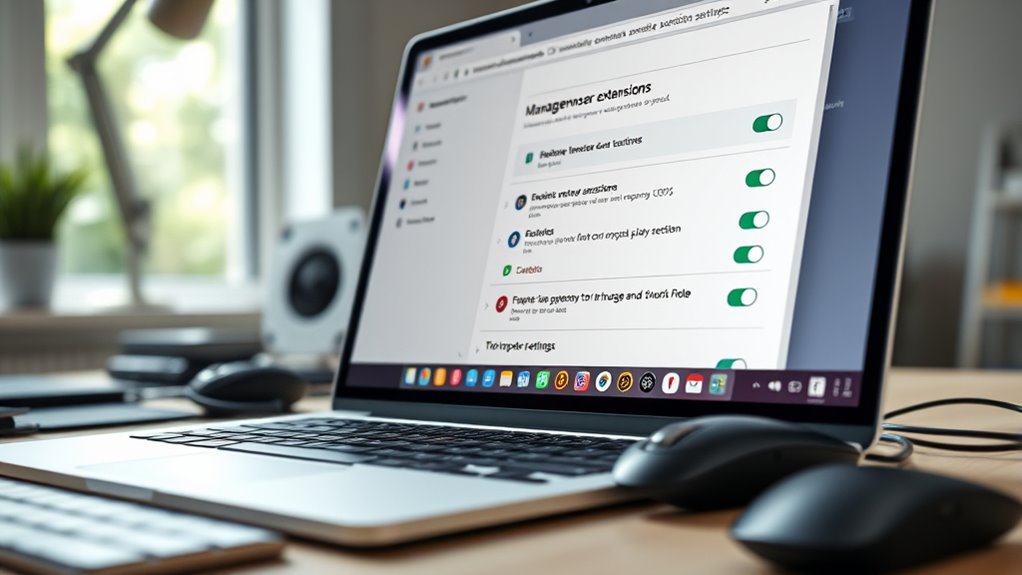
Managing your browser extensions is a simple but effective way to boost your computer’s speed. Too many extensions can cause browser slowdown or conflicts, affecting overall performance. To optimize, start by reviewing each extension’s necessity. Next, disable or remove any that you no longer use. Here are some extension removal tips:
Simplify your browsing by removing unused extensions to boost speed and reduce conflicts.
- Identify unused extensions through your browser’s extension manager.
- Disable extensions one by one to see if performance improves.
- Remove extensions causing browser conflicts or slowdowns.
- Keep only essential extensions active for smoother browsing.
Regularly managing your extensions minimizes browser clutter and prevents conflicts that can drain system resources. By trimming down your extensions, you’ll notice faster load times and improved overall speed. This simple step keeps your system lean and your browsing efficient.
Upgrade to an SSD if Possible

Upgrading to an SSD can substantially improve your computer’s performance. You’ll notice faster boot times, quicker access to files, and a more responsive system overall. If you’re looking for an easy upgrade, switching to an SSD is one of the best options.
Faster Boot Times
If your computer takes a long time to start up, switching to a solid-state drive (SSD) can make a significant difference. An SSD reduces the startup delay by speeding up data access. To maximize this benefit, consider these steps:
- Disable unnecessary background processes that launch on startup.
- Use Task Manager to identify and stop programs that slow down boot times.
- Adjust your system’s startup settings to prioritize essential applications.
- Keep your drivers and firmware updated to guarantee peak SSD performance.
These tweaks help minimize background processes that contribute to startup delays, allowing your computer to boot faster. Upgrading to an SSD is one of the most effective ways to improve overall boot times, making your system more responsive right from the moment you press the power button.
Quicker File Access
Ever notice how slow file access can drag down your computer’s overall performance? Upgrading to an SSD can dramatically improve this. An SSD offers faster read and write speeds, making file loading almost instant. To maximize benefits, streamline your folder organization—delete unnecessary files and keep your folders tidy. Also, enable file indexing to help your system quickly locate files without searching through every folder. This reduces delays when opening documents or applications. With an SSD and a clear folder structure, your computer will access files more swiftly, boosting overall responsiveness. These tweaks require minimal effort but yield significant improvements in how quickly you can work and find your files. Faster file access means less waiting and more productivity.
Improved System Responsiveness
Replacing your traditional hard drive with an SSD can substantially boost your computer’s overall responsiveness. SSDs deliver faster data access, reducing delays and making system operations feel smoother. To maximize system optimization, consider these hardware upgrades:
- Upgrade to an SSD to improve boot times and application launches.
- Increase RAM to handle more multitasking without slowing down.
- Update your graphics card for better visual responsiveness in demanding applications.
- Clean and optimize your startup programs to reduce unnecessary background processes.
These upgrades directly impact how quickly your system reacts to commands, providing a noticeable performance boost. Investing in hardware improvements not only speeds up your computer but also extends its lifespan. For a more responsive experience, prioritize upgrading to an SSD whenever possible.
Increase Your RAM

Adding more RAM is one of the most effective ways to boost your computer’s speed. RAM upgrades allow your system to handle more tasks simultaneously, reducing lag and improving performance. If your computer slows down during multitasking or when running demanding applications, consider memory expansion. Upgrading your RAM can be straightforward; check your device’s compatibility and install additional modules yourself or have a professional do it. More RAM means your system can store more data temporarily, decreasing reliance on slower hard drives and speeding up processes. This simple tweak can markedly enhance responsiveness, especially for everyday tasks like browsing, streaming, or working with large files. Investing in RAM upgrades is a cost-effective way to make your computer run faster and more smoothly.
Run a Malware Scan
Malware infections can considerably slow down your computer by consuming system resources and causing conflicts. To combat this, run a thorough malware scan using reputable antivirus software. This helps identify and remove malicious programs that may be lurking unnoticed. Here’s a quick guide:
- Update your antivirus software to ensure it detects the latest threats.
- Disconnect from the internet to prevent malware spread during scanning.
- Run a full system scan rather than a quick check for detailed malware removal.
- Review scan results carefully and quarantine or delete any detected threats.
Performing regular malware removal keeps your system clean and boosts performance. Don’t ignore suspicious activity; a quick malware scan can prevent future slowdowns and protect your data.
Adjust Visual Effects for Better Performance
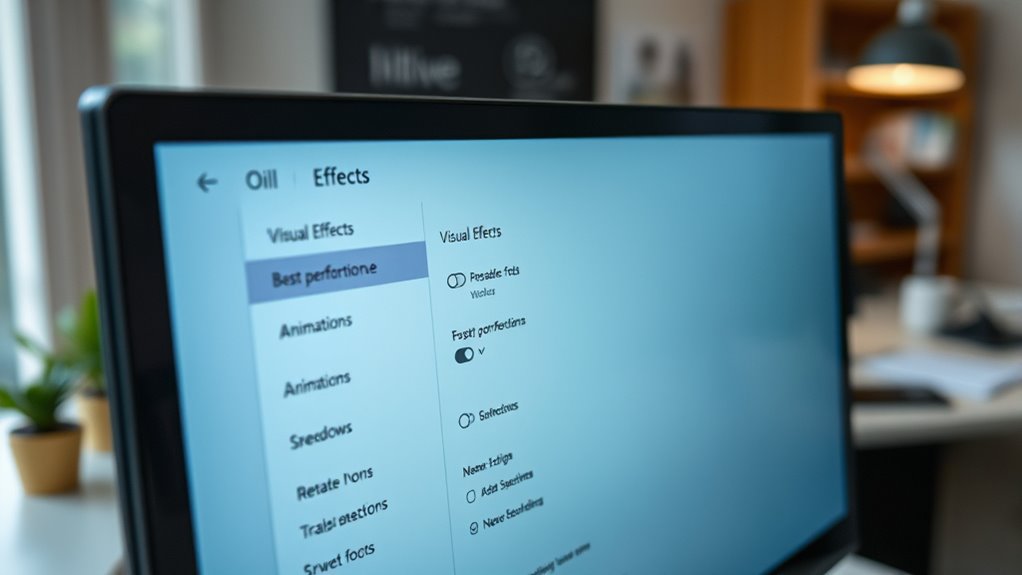
If your computer feels sluggish, adjusting your visual effects can make a noticeable difference in performance. You can reduce resource consumption by disabling or lowering effects like screen transitions and animation effects. To do this, open the Performance Options and select “Adjust for best performance.” This will disable many visual features that can slow down your system.
Here’s a quick comparison:
| Visual Effect | Impact on Performance |
|---|---|
| Screen transition effects | Slow down with frequent use |
| Animation effects | Consume extra CPU and RAM |
| Shadow under menus | Slight visual enhancement, but resource-heavy |
| Fade or slide menus | Adds smoothness but uses resources |
| Thumbnails previews | Use more memory and CPU |
Keep Your Operating System and Drivers Updated

Keeping your operating system and drivers up to date is crucial for maintaining peak performance. Updates fix bugs, improve security, and guarantee software compatibility, reducing the risk of driver conflicts that can slow your system. To keep things smooth:
Updating your OS and drivers ensures peak performance, security, and smooth software compatibility.
- Regularly check for OS updates through your system settings.
- Download and install driver updates from official manufacturer websites.
- Enable automatic updates for your OS and drivers whenever possible.
- Use device management tools to identify outdated drivers and address conflicts quickly.
Staying current prevents compatibility issues and keeps your system running efficiently. Outdated drivers can cause crashes or slowdowns, so timely updates are key. Don’t neglect this simple step; it’s indispensable for optimal performance and stability.
Restart Your Computer Regularly

Restarting your computer regularly helps clear out temporary files, close background processes, and refresh system resources, which can considerably improve performance. A simple power cycling, or system reboot, resets your hardware and software, preventing memory leaks and sluggishness caused by prolonged uptime. Regular restarts ensure updates and patches are properly applied and help eliminate lingering issues that slow down your system. Instead of leaving your PC running all day, make it a habit to restart it every few days. This practice keeps your system responsive and stable. By integrating these quick reboots into your routine, you’ll notice a noticeable boost in speed and overall efficiency, helping your computer run smoother and faster with minimal effort.
Frequently Asked Questions
How Do I Identify Which Startup Programs Are Unnecessary?
To identify unnecessary startup programs, open your Task Manager and go to the Startup tab. Review each program’s impact and purpose, focusing on background processes that aren’t essential for your system’s immediate functioning. Disable those you don’t recognize or use regularly to improve startup speed. This startup management helps reduce background processes, making your computer boot faster and run more smoothly without unnecessary background activity slowing you down.
What Are the Best Tools to Delete Temporary Files Safely?
Did you know that over 50% of your computer’s storage can be taken up by temporary files? Use built-in tools like Disk Cleanup to delete these safely, freeing space and boosting speed. Privacy tools are also useful for removing caches and cookies securely. Always guarantee you back up important data before cleaning, and stick to trusted programs to protect your privacy and keep your system running smoothly.
How Can I Tell if a Software Is Truly Unused?
To tell if software is truly unused, check your disk cleanup tool for programs you haven’t opened in a while. Look for apps that haven’t received recent software updates, indicating low or no activity. If you’re unsure, uninstall the software and monitor your system’s performance. Regularly reviewing your installed programs helps keep your computer optimized and guarantees you’re not wasting space on unused applications.
Which Browser Extensions Most Impact Performance?
You might worry that disabling extensions slows your browsing, but the impact on performance is significant. Browser extension impact varies, but those with high resource use, like ad blockers or social media widgets, can slow your system. Use extension management tips to identify and deactivate or remove unnecessary extensions. Streamlining your browser by managing extensions ensures faster load times and smoother performance, giving you a more efficient experience.
How Often Should I Run Malware Scans for Optimal Speed?
You should run malware scans weekly to keep your computer running smoothly. Make certain your antivirus software is up-to-date, as it helps detect and remove threats quickly. Also, regularly install system updates, which often include security patches that protect your device from malware. Consistent scans combined with current software ensure your system stays optimized and fast, preventing slowdowns caused by malware or vulnerabilities.
Conclusion
So, after all these simple tweaks, your slow computer might finally pick up the pace—who knew that tiny changes could make such a difference? It’s almost ironic how something as easy as cleaning up files or updating your system can turn your sluggish machine into a speed demon. So go ahead, give these tips a try, and enjoy the sweet irony of transforming your computer from a turtle into a cheetah—without breaking a sweat.