

To keep your laptop battery healthy for years, avoid deep discharges and keep it between 20% and 80% charge. Use power-saving modes, manage thermal conditions, and store it properly in a cool, dry place with a mid-level charge. Regular calibration and proper charging habits, like using certified chargers, also help preserve capacity. If you want to extend your battery’s lifespan further, you’ll find valuable tips ahead.
Key Takeaways
- Keep your battery charge between 20% and 80% to reduce stress and prolong lifespan.
- Avoid deep discharges and full cycles; perform partial recharges regularly.
- Use power-saving modes and manage thermal conditions to prevent overheating.
- Store the laptop in a cool, dry place with a 50% charge when not in use long-term.
- Regularly calibrate the battery and use certified chargers for optimal performance.
Understand How Your Laptop Battery Works
To keep your laptop battery healthy, it’s essential to understand how it works. Your battery relies on specific battery chemistry, typically lithium-ion, which determines how it stores and releases energy. This chemistry influences how efficiently your battery performs over time. Each time you charge and use your laptop, you complete a charge cycle—going from 0% to 100% and back again. Batteries can only handle a limited number of these charge cycles before their capacity diminishes. Knowing this helps you avoid unnecessary full charges or discharges, which can accelerate wear. Proper maintenance and awareness of battery chemistry and charge cycles can significantly extend your battery’s lifespan and ensure optimal performance over the years. Additionally, understanding battery longevity factors can help you implement better usage habits to preserve battery health.
Avoid Full Discharges and Deep Cycles
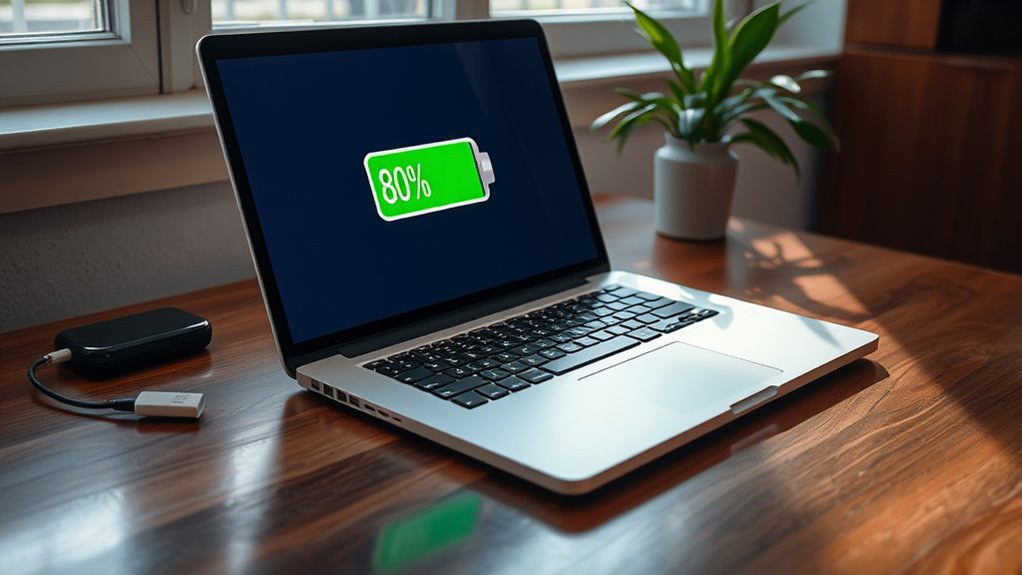
Avoid letting your battery fully discharge or go through deep cycles whenever possible, as these can substantially shorten its lifespan. The battery chemistry in most laptops, such as lithium-ion, is sensitive to voltage levels, and deep discharges cause unnecessary stress. Each complete charging cycle—going from 0% to 100%—wears down the battery more quickly, reducing its capacity over time. Instead, aim to keep your battery within a moderate range, ideally between 20% and 80%. Limiting deep cycles helps preserve cell integrity and minimizes degradation. Consistently draining your battery to zero and then fully recharging it accelerates aging. By managing your charging habits and avoiding deep discharges, you can extend your battery’s overall health and maximize its lifespan. Additionally, understanding how contrast ratio impacts image quality can help you optimize your home entertainment setup for longer-lasting performance. Maintaining proper battery calibration can also ensure your battery indicator remains accurate, helping you monitor usage effectively. To further protect your battery, consider enabling battery health management features that some laptops offer to automatically limit charging levels and preserve longevity. Regularly checking battery temperature can also prevent overheating, which can degrade battery life over time. Incorporating smart charging features can further optimize your charging patterns and reduce unnecessary stress on the battery.
Keep Your Battery Between 20% and 80

Keeping your battery between 20% and 80% helps maintain its health over time. Charging within this range prevents stress on the battery and avoids full discharges that can cause damage. Stick to this ideal range to prolong your laptop’s battery life. Additionally, using energy-efficient settings aligns with European cloud innovation principles, promoting sustainable device usage. Incorporating Free Floating techniques can also help optimize power management and reduce unnecessary energy consumption. Implementing battery maintenance practices ensures your device remains reliable and efficient in the long run. Staying informed about connected device best practices can further help you make informed decisions about your device’s care.
Optimal Charging Range
Maintaining your laptop battery within an ideal charging range can considerably extend its lifespan. Keeping the battery between 20% and 80% helps preserve its capacity over time and reduces the number of charging cycles it undergoes. Charging beyond 80% or letting it drop below 20% strains the battery, accelerating capacity loss. By sticking to this range, you minimize stress on the battery’s chemical components, ensuring it retains its ability to hold a charge longer. This practice not only prolongs the overall lifespan but also maintains peak performance. Remember, each full charge cycle diminishes battery capacity slightly, so limiting partial charges within this range is a simple yet effective way to keep your battery healthy for years to come. For those interested in optimizing their device’s performance, understanding the charging cycle process can help in planning better charging habits. Additionally, using battery calibration techniques periodically can help the system more accurately report the remaining battery life, further supporting healthy battery management.
Avoid Full Discharges
Did you know that letting your battery fully discharge can speed up its deterioration? To maximize your battery’s longevity, avoid letting it drop below 20% regularly. Full discharges strain the battery and reduce its overall lifespan. Instead, develop good charging habits by keeping your battery between 20% and 80%. This prevents unnecessary stress on the cells and helps maintain best performance over time. Regularly charging before reaching a critical low point minimizes wear and tear. Additionally, avoiding deep discharges can significantly extend your battery’s overall lifespan. Remember, frequent partial charges are better than letting your battery drain completely. By managing your charging habits carefully, you preserve your battery’s health, ensuring your laptop stays reliable for years. Maintaining proper charging practices is a simple but effective way to extend its lifespan. Additionally, understanding your battery chemistry can help you adopt even better care strategies. Being aware of battery aging mechanisms can further inform your maintenance routine and improve longevity. Incorporating smart charging techniques can also optimize your battery’s performance over time.
Use Power-Saving Settings and Modes
Using power-saving settings and modes is one of the simplest ways to extend your laptop’s battery life and preserve its health over time. Enabling power saving modes reduces energy consumption by dimming the screen, turning off unnecessary background processes, and adjusting CPU performance. These adjustments help prevent unnecessary strain on your battery, protecting its long-term battery health. Most laptops have built-in options to activate power-saving modes automatically or manually. By doing so, you limit power drain during heavy usage or when you’re on the go. Regularly using these modes not only prolongs your battery’s charge but also minimizes wear caused by excessive charging cycles. Incorporating power-saving settings into your routine guarantees your laptop remains efficient and healthy for years to come. Understanding device efficiency can further help you optimize performance and battery preservation. Additionally, keeping your battery calibration up to date ensures accurate power management and prolongs overall battery life. Maintaining optimal charging habits also plays a crucial role in extending battery longevity by avoiding frequent full discharges or overcharging, which can accelerate battery wear. Implementing these strategies can also help manage your device’s thermal performance, reducing heat that can damage internal components. Engaging in these practices also aligns with wave and wind energy principles by promoting sustainable device usage and reducing unnecessary power consumption.
Maintain Optimal Operating Temperatures

Keeping your laptop within the essential temperature range is crucial for preserving its battery health. Proper thermal management prevents overheating, which can degrade battery capacity over time. Use cooling solutions like external fans or cooling pads to assist in maintaining ideal operating temperatures, especially during intensive tasks. Avoid exposing your laptop to direct sunlight or high-temperature environments, as excessive heat accelerates battery wear. Regularly clean vents and fans to ensure proper airflow and prevent heat buildup. If your device feels unusually warm, pause usage and allow it to cool down before continuing. Maintaining a stable temperature not only protects your battery but also enhances overall performance and longevity. Being aware of heat management techniques is essential for prolonging your laptop’s battery life. Investing in good cooling solutions and being mindful of environmental conditions are key steps in extending your laptop’s battery life.
Use the Correct Charging Practices

To maximize your laptop battery’s lifespan, it’s essential to adopt proper charging habits. Always use the original or certified charging accessories to guarantee safe and efficient charging. Avoid using cheap or incompatible chargers, which can damage your battery over time. Try to keep your battery between 20% and 80%, preventing frequent full discharges or constant full charges that strain the cells. When your battery reaches the end of its lifespan, consider a battery replacement rather than overcharging or using it past its capacity. Be mindful of charging habits, as improper practices can accelerate battery degradation. Proper charging routines help extend your battery’s health and delay the need for replacement, saving you money and maintaining ideal device performance.
Regularly Calibrate Your Battery
To keep your battery accurate, you should regularly calibrate it by understanding the calibration process. Performing a full calibration once a month helps maintain reliable battery readings. Make sure to use proper charging cycles to avoid unnecessary wear and keep your battery healthy over time.
Understand Calibration Process
Regularly calibrating your laptop battery helps it provide accurate readings of remaining charge and prevents it from misreporting its capacity. Understanding the calibration process is essential for maintaining ideal battery health. The process involves fully charging your battery to 100%, then unplugging and using your laptop until the battery drains completely to zero. During this discharge, the battery’s internal sensors recalibrate, aligning the displayed battery level with its actual capacity. This reset ensures your laptop’s power management system accurately reflects real battery life, avoiding unexpected shutdowns or incorrect charge estimates. Keep in mind, calibration doesn’t fix degraded battery capacity but helps maintain accurate readings. By understanding this process, you can better monitor your battery’s true health and extend its lifespan over time.
Perform Monthly Calibration
Have you been neglecting your laptop’s battery calibration schedule? Regular calibration is essential for proper battery maintenance and accurate charge readings. Performing a monthly calibration helps you identify issues early and ensures your battery gauge remains reliable. To calibrate effectively, use proper calibration techniques: fully charge your laptop to 100%, then disconnect and use it until it completely discharges. Once the battery hits zero, recharge it uninterrupted to full capacity. This process resets the battery’s internal sensors, providing more accurate readings and prolonging overall health. Skipping calibration can lead to inaccurate battery life estimates and unnecessary wear. Make calibration a monthly routine to keep your battery in top shape and extend its lifespan, saving you time and money in the long run.
Use Proper Charging Cycles
Using proper charging cycles is essential for maintaining your laptop battery’s health over time. Your charging habits directly impact your battery’s lifespan, so it’s important to avoid constant trickle charging or letting the battery drain completely. Instead, aim to keep your battery between 20% and 80% for regular use. Fully charging or fully discharging the battery repeatedly can cause wear and reduce its capacity over time. Calibrating your battery periodically helps keep its performance accurate and prevents premature degradation. By following these proper charging cycles, you ensure your battery remains healthy longer, saving you money and hassle in the long run. Consistent, mindful charging habits are key to extending your laptop’s overall battery lifespan.
Store Your Laptop Properly When Not in Use

When you’re not using your laptop for an extended period, storing it properly is essential to prevent battery degradation. Using effective storage techniques helps maintain your battery’s health. First, keep your laptop in a cool, dry environment; extreme temperatures can harm the battery. Second, store it with a charge level around 50%; avoiding full or empty states reduces stress on the battery. Third, turn off your laptop completely and disconnect it from power sources to prevent slow discharge. Ensuring ideal environmental conditions and proper storage techniques can considerably extend your battery’s lifespan. Remember, neglecting these factors may lead to capacity loss and reduced performance over time. Proper storage is a simple yet crucial step to preserving your laptop’s battery health for years.
Frequently Asked Questions
Can Software Updates Affect My Battery’s Lifespan?
Software updates can impact your battery’s lifespan by improving power management and fixing bugs that drain power. They may also include battery calibration tools, helping you maintain accurate charge readings. Regular updates optimize energy efficiency, extending your battery’s life. To maximize benefits, verify your software is current and perform battery calibration if needed. This combination keeps your laptop running smoothly and your battery healthy for years.
How Do I Know if My Battery Needs Replacing?
You’ll know your battery needs replacing when you notice signs of deterioration like rapid battery drain, overheating, or your laptop shutting down unexpectedly even when charged. To confirm, check your system’s battery health status through built-in diagnostics or third-party tools. If the health report indicates significant capacity loss or frequent issues, it’s time for a battery replacement to restore ideal performance and avoid potential damage.
Does Using My Laptop While Charging Harm the Battery?
You might worry that using your laptop while charging harms the battery, but it’s generally safe. This practice doesn’t cause damage if your charging habits include occasional battery calibration and avoiding constant full charges. Think of it like balancing a scale—you keep your battery healthy by practicing good habits, not by avoiding activity. As long as you monitor your battery’s performance and calibrate when needed, you can use your laptop freely without harm.
Are Third-Party Chargers Safe for My Laptop Battery?
Using third-party chargers can be risky for your laptop battery because of compatibility issues. If the charger isn’t compatible with your device, it could deliver inconsistent power or cause damage over time. To protect your battery’s health, always opt for chargers approved by your laptop manufacturer. Third-party risks include potential overheating, reduced battery lifespan, and even safety hazards. Stick to original chargers or certified third-party options to keep your battery safe.
How Often Should I Perform Battery Calibration?
You should perform battery calibration every 3 to 6 months to maintain your battery’s accuracy. This process helps guarantee your laptop provides reliable battery life estimates and prevents unnecessary wear. Regular calibration resets the battery’s power management system, improving overall health. If you notice rapid battery drain or inaccurate readings, increase calibration frequency. Consistent calibration keeps your battery working at its best and extends its lifespan over time.
Conclusion
By understanding how your laptop battery works and following simple habits, you might just find your device lasting longer than expected. It’s funny how small tweaks—like avoiding full discharges or maintaining the right temperature—can unexpectedly extend your battery’s life. Sometimes, it’s the little things that make a big difference. With consistent care, you could enjoy a healthier battery for years, making your tech experience smoother and more reliable when you need it most.