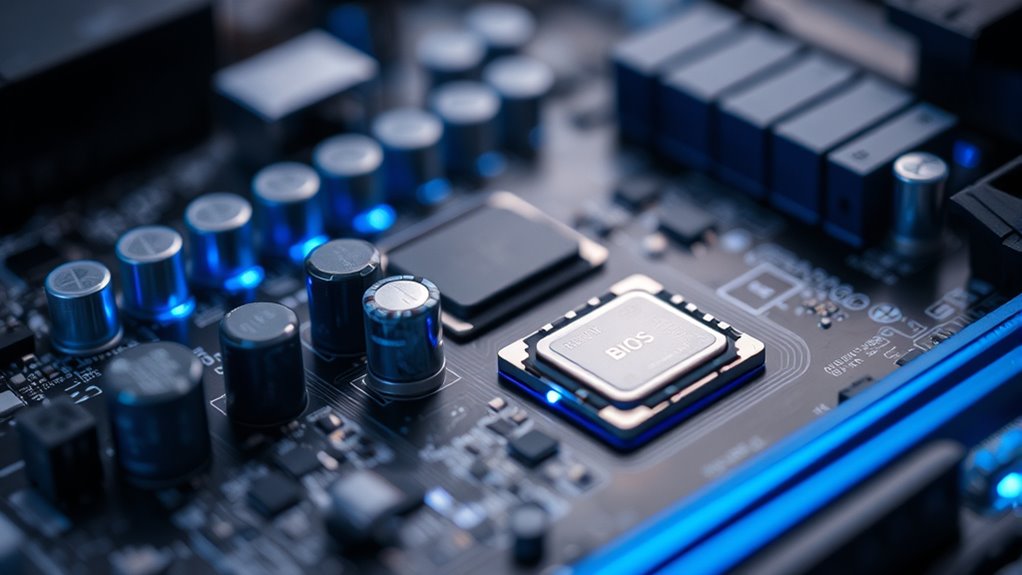

BIOS, or Basic Input/Output System, is firmware that starts your computer and helps hardware components work together. Updating your BIOS can improve system stability, fix security vulnerabilities, and add new features. However, you should only update it if needed, such as for security patches or hardware compatibility. Performing a BIOS update carefully is vital to avoid issues. To learn more about when and how to update your BIOS, keep exploring the details ahead.
Key Takeaways
- BIOS is firmware that initializes hardware during startup and loads the operating system.
- Updating BIOS can improve stability, add features, fix security vulnerabilities, and enhance hardware compatibility.
- Updating BIOS involves downloading firmware from the manufacturer and using specialized tools or BIOS menus.
- Only update BIOS if necessary, such as for security patches, hardware support, or system issues, following proper procedures.
- Outdated BIOS can pose security risks, making updates important to protect against cyber threats and ensure optimal performance.

Ever wonder what a BIOS update is and why it matters? The Basic Input/Output System, or BIOS, is the essential firmware that starts your computer and helps it communicate with hardware components like your keyboard, storage devices, and graphics card. When you power on your PC, the BIOS performs a series of tests called POST (Power-On Self Test) and then loads the operating system. Over time, manufacturers release BIOS updates to improve system stability, add new features, and patch security vulnerabilities. But understanding whether you need to update your BIOS involves knowing about firmware security and update procedures. Firmware security is crucial because outdated BIOS versions can contain vulnerabilities that hackers might exploit. Cybercriminals often target outdated firmware to gain low-level access to your system, which can lead to malware infections or unauthorized data access. Updating the BIOS helps close these security gaps, making your system less vulnerable to attacks. However, it’s essential to follow proper update procedures because a failed BIOS update can result in a bricked motherboard, leaving your PC unusable. Typically, update procedures involve downloading the latest BIOS firmware from your motherboard or system manufacturer’s website, then using a dedicated utility or BIOS flash tool to install it. Some systems support updating directly from the BIOS menu, while others require creating bootable media. Before proceeding, it’s essential to back up your current BIOS and ensure your system has a stable power source to prevent interruptions during the update process. Additionally, understanding projector technology can help you make better decisions about hardware compatibility and future upgrades, especially if integrating with a home theater or gaming setup. Performing a BIOS update isn’t something you should take lightly. First, verify that your system actually needs an update by checking the manufacturer’s release notes and comparing your current BIOS version. If security patches or performance improvements are included, it’s usually worth updating. Next, follow the manufacturer’s instructions carefully. Many modern motherboards have built-in tools that simplify the process, guiding you step-by-step through flashing the new firmware. Keep in mind that updating BIOS isn’t always necessary for routine day-to-day use unless you’re experiencing specific hardware issues or you need the latest features. Nonetheless, staying current with firmware updates can help enhance firmware security, protect against vulnerabilities, and ensure your hardware runs smoothly.
Top picks for "bios should update"
Open Amazon search results for this keyword.
As an affiliate, we earn on qualifying purchases.
Frequently Asked Questions
Can I Downgrade My BIOS to an Older Version Safely?
Yes, you can perform a BIOS rollback or firmware downgrade, but it’s risky. Make sure to download the correct version for your motherboard and follow the manufacturer’s instructions carefully. Keep in mind that downgrading BIOS can cause system instability or hardware issues if not done properly. Always back up your data and guarantee your power source is stable before attempting a BIOS rollback to avoid bricking your device.
How Long Does a Typical BIOS Update Take?
A typical BIOS update takes about 5 to 20 minutes, depending on your system and firmware stability. You should avoid interrupting the process to prevent damage. Update frequency varies; only update when necessary, such as for security patches or hardware support. Regular updates aren’t usually needed, but staying current guarantees your system runs smoothly and securely. Always follow manufacturer instructions carefully for a safe, successful BIOS update.
Will Updating BIOS Improve Gaming Performance?
Updating your BIOS can be like tuning a finely crafted engine, potentially boosting gaming performance by improving overclocking stability and power efficiency. While it might not turn your system into a gaming powerhouse overnight, a BIOS update can smooth out hiccups and optimize resource use. Just guarantee you follow instructions carefully—an update done right can make your gaming experience more fluid and responsive.
Are BIOS Updates Necessary for New Hardware Compatibility?
Yes, BIOS updates are necessary for new hardware compatibility. They improve firmware stability, ensuring your system recognizes and works smoothly with the latest components. Updating your BIOS can fix bugs, enhance hardware support, and prevent issues when installing new devices. While not always required, keeping your BIOS current helps maintain peak performance and stability, especially as you upgrade to newer hardware.
What Are the Risks of Updating BIOS Incorrectly?
Think of updating your BIOS as walking a tightrope—one wrong move can lead to a fall. If you update incorrectly, you risk BIOS security vulnerabilities and firmware instability, which can cause your system to crash or become unbootable. To avoid these risks, follow manufacturer instructions carefully, ensure power stability, and back up your current BIOS. Proper updates safeguard your system’s integrity, but mistakes can be costly.
Conclusion
Updating your BIOS can improve system stability, enhance hardware compatibility, and fix security vulnerabilities. But it also carries risks like potential data loss or system failure. So, you should update your BIOS when necessary—when improvements matter, when issues arise, or when security demands it. Ultimately, staying informed, staying cautious, and staying proactive help you make the right choice—because a well-updated BIOS keeps your system running smoothly, securely, and efficiently.