External GPUs (eGPUs) connect to your laptop via Thunderbolt 3 or 4 ports, boosting graphics performance for gaming, creative work, and professional tasks. They include an enclosure, a powerful GPU, and a reliable power supply, all working together to upgrade your laptop’s capabilities. Proper setup, driver updates, and system adjustments are key to optimizing performance. Keep exploring to discover how to maximize your eGPU’s potential and transform your laptop into a high-end machine.
Key Takeaways
- External GPUs connect via Thunderbolt 3 or 4 ports to boost your laptop’s graphics performance effectively.
- Proper setup involves connecting the enclosure, installing drivers, and configuring system settings for optimal operation.
- Choosing compatible components like the right enclosure, GPU, and power supply ensures stability and performance.
- Updating drivers and adjusting graphics settings help optimize performance and troubleshoot issues.
- External GPUs enhance gaming, creative work, and professional tasks while extending your laptop’s lifespan.
What Is an External GPU and Why Consider One?

An external GPU, or eGPU, is a dedicated graphics card housed outside your computer that connects via a high-speed interface like Thunderbolt 3 or 4. It boosts your laptop’s graphics performance, making it ideal for gaming, video editing, or 3D work. When considering an eGPU, think about power consumption, as some models require additional power sources, which can affect setup complexity. Portability considerations are also important; while eGPUs offer significant performance gains, they add bulk and weight, reducing mobility. If you need a portable solution, an eGPU might not be the best choice. However, if you want to upgrade your laptop’s graphics capabilities without buying a new computer, an eGPU provides a flexible, powerful option—just keep in mind its size and power needs. Additionally, be aware of the reliability and safety considerations, such as proper power setup and secure connections, to ensure stable operation. Being aware of compatibility issues is also crucial to ensure the eGPU works seamlessly with your laptop and software. Moreover, understanding power efficiency can help you choose models that balance performance with energy consumption for more sustainable use. Considering energy management strategies can further optimize your overall setup, especially if you plan to use the eGPU extensively. For optimal image quality, selecting an eGPU with advanced technology can make a noticeable difference.
How Do External GPUs Connect to Your Laptop?

External GPUs connect to your laptop through high-speed interfaces like Thunderbolt 3 or 4, which provide the bandwidth needed for demanding graphics tasks. The connection relies on specific cable types, typically Thunderbolt cables, that guarantee fast data transfer. Port compatibility is essential; your laptop must have a compatible Thunderbolt port to support the external GPU. Some setups may also use USB-C with Thunderbolt support, but not all USB-C ports are suitable. Make sure your laptop’s port supports the necessary standards to avoid connection issues. Once connected via the appropriate cable, the external GPU communicates seamlessly with your laptop, allowing you to enjoy enhanced graphics performance without complicated installation or hardware changes. Additionally, understanding the navigation and mapping capabilities of external GPU setups can help optimize performance and troubleshoot connectivity problems. Ensuring proper compatibility standards between your laptop and external GPU is crucial for a smooth connection and optimal performance. Paying attention to power delivery requirements can also prevent connection failures and ensure stable operation. Being aware of performance bottlenecks can help you identify potential issues and maximize your GPU’s capabilities. Recognizing the importance of driver support is also essential for maintaining compatibility and stability with different laptop models.
Key Components of an External GPU Setup
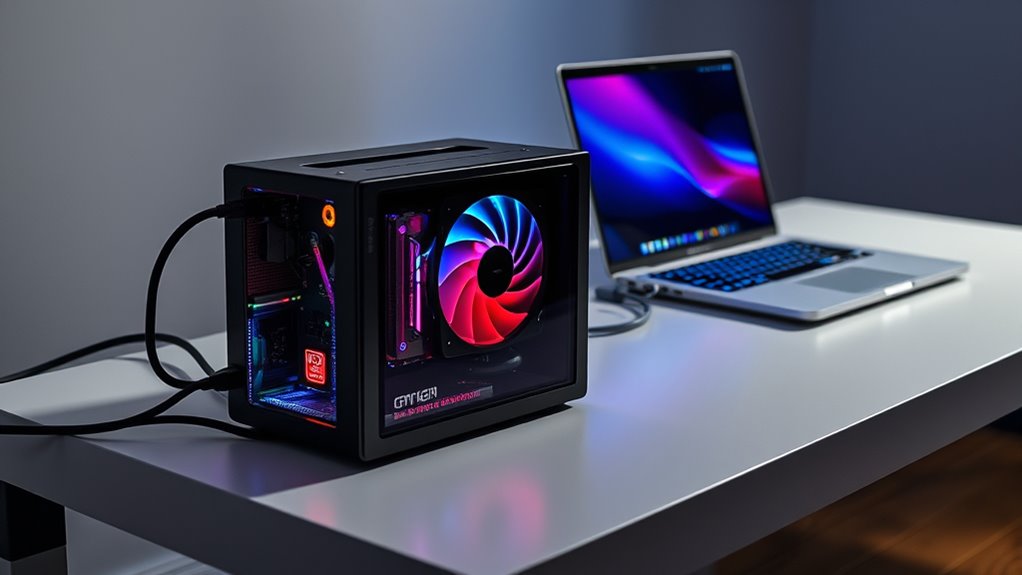
To set up an external GPU, you’ll need a sturdy enclosure that houses the graphics card and connects to your laptop. The connection method, like Thunderbolt 3 or USB-C, determines how well data moves between devices. Make sure your setup also includes a reliable power supply to keep everything running smoothly. Additionally, choosing the right workspace setup can enhance your overall experience and ensure optimal performance. When planning your external GPU system, consider the field‑of‑view design principles to create a flexible and adaptable environment that supports your gaming or professional needs. Incorporating proper cooling solutions is essential to maintain performance and longevity of your components. Transparency about affiliate commissions can also help you make informed decisions when selecting components.
Enclosure and Connectivity
Choosing the right enclosure and ensuring proper connectivity are vital steps in setting up an external GPU. Your enclosure must support the GPU physically and have enough space for airflow. It should also include a reliable power supply to handle the GPU’s energy needs. Cable types are essential; you’ll likely use Thunderbolt 3 or 4 for fast data transfer, and high-quality cables prevent connectivity issues. Make sure your enclosure has compatible ports for your laptop and GPU. Here’s a quick overview:
| Aspect | Details |
|---|---|
| Power Supply | Must provide sufficient wattage |
| Cable Types | Thunderbolt 3/4, USB-C, DisplayPort |
| Enclosure Size | Fits your GPU and laptop compatibility |
| Cooling | Adequate airflow to prevent overheating |
| Connectivity | Reliable, high-speed data transfer |
GPU and Power Supply
A powerful GPU and a reliable power supply are essential for an external GPU setup to perform effectively. Without sufficient power, your GPU can’t reach its full potential, causing lag and stuttering. Ensuring compatibility between your GPU and power supply is vital; an incompatible setup leads to crashes or hardware damage. Vetted information emphasizes the importance of matching components to ensure safety and optimal performance. Consider these key points:
- Check GPU compatibility to match your laptop’s needs and avoid bottlenecks.
- Choose a robust power supply that can handle the GPU’s wattage demands.
- Opt for a power supply with adequate connectors for your GPU.
- Ensure stability and efficiency to maximize performance and longevity.
A well-matched GPU and power supply harness the true power of your external GPU, transforming your gaming and creative experience.
Compatibility and Requirements for External GPU Use

Ensuring compatibility is essential before setting up an external GPU, as not all systems support this technology. Your laptop or desktop needs a compatible Thunderbolt 3 or 4 port, which provides the necessary bandwidth for high-performance graphics. Check your system’s specifications to confirm support. Additionally, your power supply must be capable of delivering sufficient power to the external GPU enclosure, especially during intensive tasks. Proper heat management is also critical; external GPUs generate significant heat, so ensure your setup has adequate cooling solutions to prevent overheating. Compatibility isn’t just about ports—it involves verifying your device’s hardware capabilities and guaranteeing your setup can handle the power and thermal demands. Confirming these requirements helps avoid performance issues and hardware damage down the line. hardware capabilities play a vital role in ensuring your external GPU functions smoothly and reliably, and understanding your system’s compatibility can save you time and potential troubleshooting later. Additionally, consulting your device’s manufacturer specifications can provide detailed information about supported configurations, including external GPU support.
Choosing the Right External GPU Enclosure
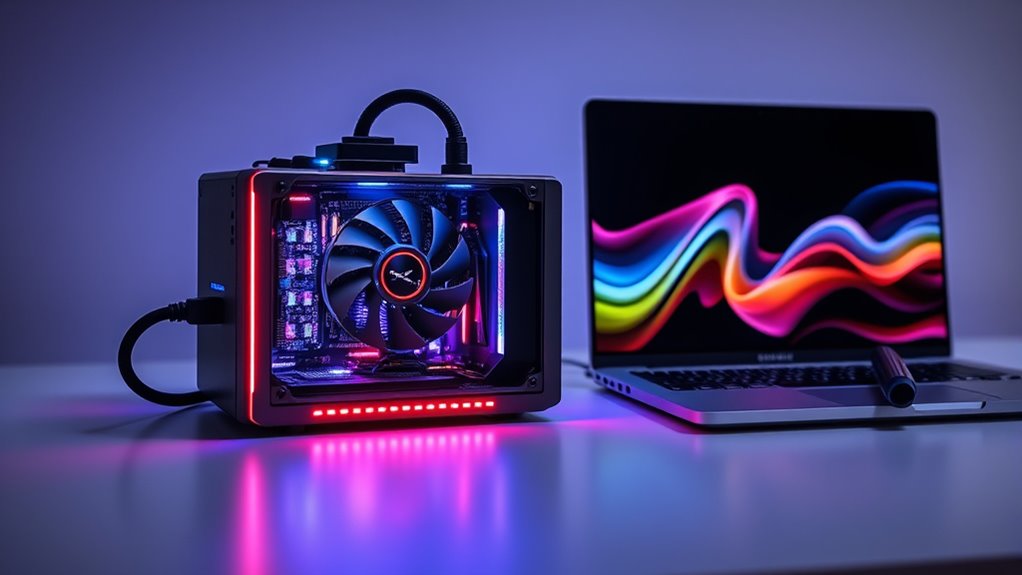
Selecting the right external GPU enclosure is essential because it directly impacts performance, compatibility, and ease of use. When choosing, consider these key factors:
Choosing the right external GPU enclosure ensures optimal performance, compatibility, and cooling for a smooth gaming or creative experience.
- Compatibility considerations – Make sure the enclosure supports your laptop’s ports and the GPU’s size and power needs. Checking for connectivity standards ensures your setup will work seamlessly.
- Cooling solutions – Look for strong cooling options to prevent overheating during intensive tasks.
- Build quality – A durable enclosure keeps your GPU safe and maintains ideal airflow.
- Port selection – Multiple ports can expand your connectivity options, boosting productivity and entertainment.
- Performance enhancement – Ensuring the enclosure provides optimal bandwidth and power delivery is crucial for maximizing GPU performance.
Choosing wisely ensures your setup runs smoothly, avoiding frustration and maximizing your gaming or creative experience. Prioritize compatibility and cooling to create a reliable, efficient external GPU system that transforms your laptop’s graphics capabilities.
Installing and Setting Up Your External GPU
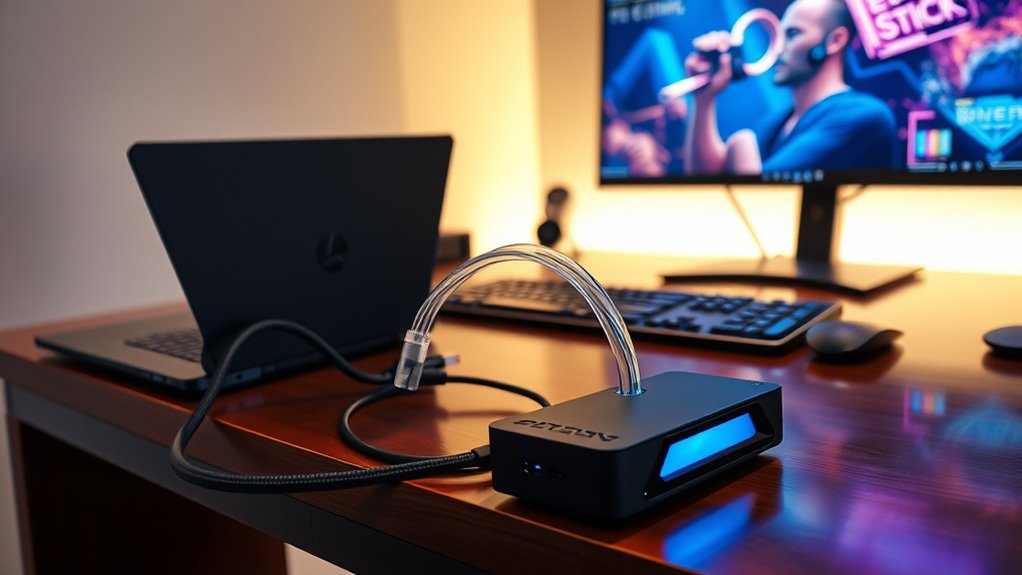
To get started, you’ll need to connect your external GPU to your computer properly. Next, install any required drivers to guarantee everything runs smoothly. Finally, adjust your system settings to optimize performance and compatibility. Ensuring your power supply can handle the additional load is also essential for safe and reliable operation. Additionally, verifying that your system’s compatibility supports external GPU setups can prevent potential issues. It’s also advisable to review your system’s hardware specifications to ensure full support for external GPU configurations, especially considering the varying security features across different systems. Being aware of system requirements can help you avoid setup problems and ensure optimal performance.
Connecting the Hardware
Connecting your external GPU begins with choosing the right enclosure and compatible hardware. Ensuring your laptop’s ports match the GPU enclosure is vital. Next, you’ll need to select the correct cable types—such as Thunderbolt 3 or USB-C—that support high-speed data transfer. Here are four steps to help you connect confidently:
- Confirm your laptop’s port compatibility with the GPU enclosure.
- Pick the right cable type, like Thunderbolt 3, for maximum performance.
- Connect the GPU enclosure securely to your laptop.
- Power on the external GPU and verify connections.
Pay close attention to cable quality and port compatibility to avoid issues. Properly connecting the hardware guarantees a seamless upgrade, ready to release your laptop’s gaming or creative potential.
Installing Necessary Drivers
Once you’ve physically connected your external GPU, the next essential step is installing the proper drivers. These drivers ensure your system recognizes and communicates efficiently with the new hardware. Start by visiting the GPU manufacturer’s website to download the latest driver updates, which often include performance improvements and bug fixes. Installing the correct drivers guarantees ideal software compatibility, preventing issues like crashes or poor graphics performance. Follow the installation instructions carefully, and restart your system if prompted. Keeping your drivers up to date is crucial for maintaining compatibility with new games and software updates. Proper driver installation lays the foundation for a stable and powerful external GPU setup, enabling you to unlock your laptop’s full graphics potential.
Configuring System Settings
After installing the correct drivers, your next step is to configure your system settings to get your external GPU up and running smoothly. First, access your System BIOS to enable any necessary options like PCIe or Thunderbolt support. Second, open Device Manager and verify that your external GPU is recognized and properly installed. Third, set your external GPU as the default graphics device in your system settings to optimize performance. Fourth, ensure your power management settings don’t limit GPU activity, keeping everything running at full capacity. These adjustments bolster stability and performance, making your external GPU truly ready to deliver maximum graphics power. Taking these steps ensures your system is optimized for seamless, high-performance gaming or creative work.
Optimizing Performance and Troubleshooting Common Issues
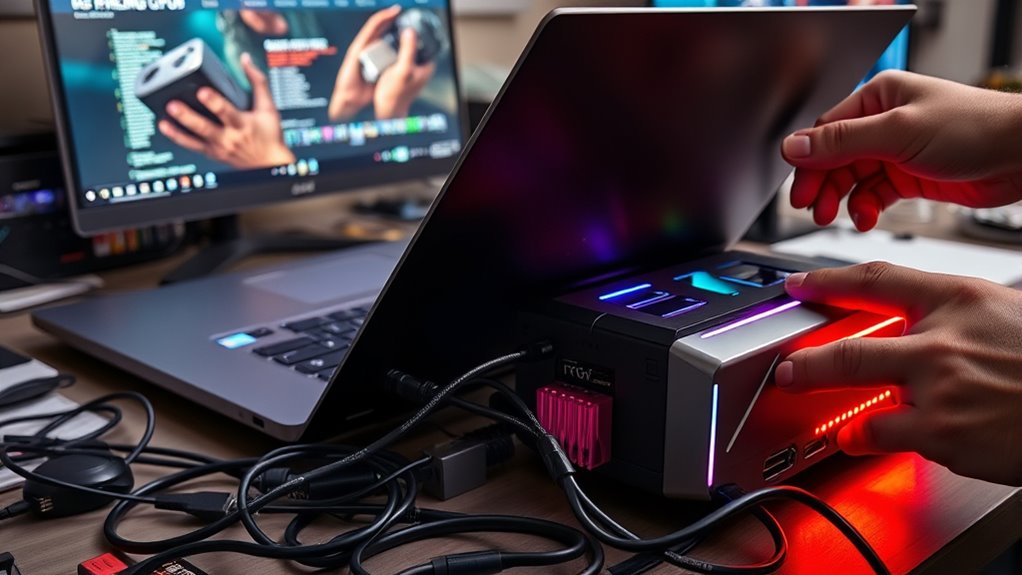
To get the most out of your external GPU setup, you need to focus on optimizing performance and resolving common issues promptly. Start by monitoring performance metrics like frame rates, GPU utilization, and temperature. These metrics help identify bottlenecks or overheating problems that could degrade performance. If you notice issues, follow troubleshooting steps such as updating drivers, checking connections, and ensuring your system recognizes the eGPU correctly. Regularly updating your graphics drivers can improve stability and performance. Adjust settings like resolution and graphics quality to balance visuals and speed. If problems persist, consult manufacturer support or online forums for specific solutions. Staying proactive with performance monitoring and troubleshooting guarantees your external GPU operates efficiently, giving you smooth, high-quality graphics.
Benefits and Limitations of Using an External GPU

Using an external GPU can considerably boost your system’s graphics performance, especially if your internal GPU is outdated or underpowered. This upgrade can make portable gaming smoother and enhance professional rendering tasks. However, there are limitations to contemplate:
- Cost: External GPUs can be expensive, requiring a significant investment for a noticeable upgrade.
- Portability: While portable gaming becomes easier, the setup isn’t always compact or travel-friendly.
- Bandwidth Bottleneck: Thunderbolt connections may limit performance compared to internal GPUs, especially during intensive tasks.
- Compatibility: Not all laptops support external GPUs, and some software may not fully utilize the added power.
Understanding these benefits and limitations helps you decide if an external GPU is right for your gaming or professional needs.
Future Trends in External GPU Technology
Advancements in external GPU technology are rapidly shaping the future, promising faster performance, better compatibility, and more streamlined designs. Expect to see more integration with cloud gaming platforms, allowing you to stream high-quality games seamlessly without heavy hardware. Portable gaming will also benefit, as lighter, more efficient external GPUs become common, enabling your laptop to handle demanding titles on the go. Future trends include faster Thunderbolt interfaces and improved cooling solutions, making setups more compact and reliable. These innovations will reduce latency, enhance visual fidelity, and expand access to high-end graphics capabilities, even for casual gamers. As external GPU technology evolves, you’ll experience a smoother, more versatile gaming and creative experience, whether at home or on the move.
Frequently Asked Questions
Can External GPUS Improve Gaming Performance on Laptops?
Yes, external GPUs can improve your gaming performance on laptops, especially if your device supports external GPU setups. They boost graphics power, allowing you to run demanding games more smoothly and at higher settings. However, you should check your laptop compatibility first, as not all models support external GPU connections. If compatible, an external GPU can be a game-changer, giving your laptop desktop-level graphics performance.
Do External GPUS Work With Macbook or Only Windows Laptops?
Think of external GPUs as a powerful engine that can boost your laptop’s performance, but they don’t fit all cars. With MacBooks, compatibility limitations and macOS support mean some eGPUs might not work seamlessly. You’ll need to check if your MacBook’s Thunderbolt port and software are compatible before plugging in. So, while eGPUs can work with MacBooks, it’s not as straightforward as with Windows laptops.
How Much Does an External GPU Setup Typically Cost?
An external GPU setup usually costs between $300 and $1,200, depending on the GPU model and enclosure quality. You should consider cost considerations like the price of the GPU, the enclosure, and any additional accessories or cables. Setup expenses can add up if you need a compatible laptop port or power supply upgrades. Planning your budget carefully helps make certain you get the best performance boost without overspending.
Will an External GPU Cause Latency or Input Lag Issues?
Latency concerns are valid, but external GPUs (eGPUs) generally cause minimal input lag, often less than 10 milliseconds, which most gamers won’t notice. Modern Thunderbolt 3 and 4 connections support high-speed data transfer, reducing potential latency issues. While some slight delays may occur, they rarely impact gameplay or creative work considerably. Overall, an eGPU can boost your graphics without noticeably increasing input lag or causing frustrating latency concerns.
Are External GPUS Suitable for Professional Tasks Like Video Editing?
External GPUs are great for professional applications like video editing, as they substantially boost your laptop’s graphics power. They’re suitable if your hardware is compatible, ensuring smooth performance without lag. Just make sure your laptop supports the external GPU connection, usually via Thunderbolt 3 or 4. With the right setup, you’ll experience faster rendering, real-time editing, and improved overall workflow, making your professional tasks much more efficient.
Conclusion
Now that you know how external GPUs can boost your laptop’s graphics, are you ready to unearth new gaming and creative possibilities? Imagine transforming your portable device into a powerhouse with just a simple setup—no more limitations holding you back. With the right external GPU, you’ll experience smoother gameplay and faster rendering. Isn’t it time you gave your laptop the upgrade it deserves and stepped into a future of enhanced performance?