SSDs and HDDs differ mainly in speed, reliability, and cost. SSDs use flash memory, so they’re faster, more durable, and quieter, making them great for quick access and portable devices. HDDs rely on spinning disks, offering larger capacities at a lower price but with slower speeds and more vulnerability to damage. Choosing the right one depends on your needs—whether you prioritize performance or storage size—and exploring further can help you make the best choice.
Key Takeaways
- SSDs are faster, more durable, and offer quicker data access compared to HDDs, making them ideal for performance-critical tasks.
- HDDs provide larger storage at a lower cost, suitable for bulk data storage and budget-conscious setups.
- SSDs consume less power, operate silently, and are better suited for portable devices and laptops.
- HDDs are more vulnerable to physical shocks but generally have higher capacities for the price.
- Choose SSDs for speed and reliability; opt for HDDs when large storage capacity and budget are priorities.
Top picks for "difference should"
Open Amazon search results for this keyword.
As an affiliate, we earn on qualifying purchases.
How Do SSDs and HDDs Store Data?

SSDs and HDDs store data in fundamentally different ways, which directly impacts their speed and reliability. HDDs use magnetic storage, where data is encoded onto spinning platters coated with a magnetic material. A read/write head moves across these platters to access data, relying on magnetic fields to encode information. In contrast, SSDs use flash memory, storing data in interconnected memory chips without moving parts. Their data encoding involves electrical charges within floating-gate transistors, allowing for faster access times. Because HDDs depend on physical movement and magnetic encoding, they are more prone to mechanical failure and slower data retrieval. data storage mechanisms in SSDs contribute to their lower latency and higher transfer speeds compared to traditional HDDs. Additionally, the lack of moving parts in SSDs reduces wear and tear, enhancing their durability and lifespan. This non-mechanical design also means SSDs are less affected by shocks and vibrations, making them suitable for portable devices.
Speed and Performance Differences

When it comes to speed and performance, SSDs considerably outpace HDDs due to their lack of moving parts and electronic data access methods. This results in faster data transfer and markedly reduced access times. With an SSD, you’ll notice quicker boot-ups, faster file transfers, and smoother overall operation. To understand the differences better:
- SSDs have data transfer rates that can reach 500 MB/s or more, while HDDs typically max out around 150 MB/s.
- Access times on SSDs are about 0.1 milliseconds, compared to 5-10 milliseconds for HDDs.
- Sequential read/write speeds are much faster on SSDs, enhancing large file handling.
- Random access performance is nearly instantaneous on SSDs, while HDDs experience delays due to physical head movement.
- Solid-state technology also contributes to lower power consumption and improved durability, making SSDs ideal for modern, energy-efficient cloud solutions.
These differences make SSDs the clear choice for speed-focused tasks.
Durability and Reliability

You’ll find that SSDs are more resistant to shocks and drops compared to HDDs, which rely on spinning disks that can be easily damaged. This means your data is less likely to be lost if you accidentally jolt your device. However, both storage types carry some risk of data loss, so understanding their reliability is key to safeguarding your information.
Shock Resistance Capabilities
Unlike traditional HDDs, SSDs are more resistant to shocks and physical impacts because they lack moving parts. This makes them excellent for scenarios where impact durability and shock resistance matter most. Because there are no spinning disks or mechanical arms, your SSD can handle drops and bumps better, reducing the risk of damage.
- They can withstand sudden jolts without data corruption.
- Impact durability allows for better performance during travel or rough handling.
- The absence of mechanical components minimizes wear from vibrations.
- Overall, SSDs offer superior shock resistance, ensuring your data stays safe even in challenging environments.
This durability makes SSDs a reliable choice when physical stability is critical, especially if you often move your device.
Data Loss Risks
While SSDs are generally more durable than HDDs, they still carry certain risks that can lead to data loss. Data corruption is a key concern, often caused by sudden power outages or firmware issues, which can corrupt files or entire drives. Malware risks also pose a threat, as malicious software can target SSDs, leading to data breaches or erasure. Unlike HDDs, SSDs can wear out over time due to limited write cycles, increasing the chance of failure. Even with their advanced durability features, no storage device is immune to all risks. Regularly monitoring drive health and understanding the importance of proper maintenance can help mitigate these vulnerabilities. For example, some SSDs include wear-leveling algorithms designed to extend the lifespan of the drive. This understanding of storage device longevity can help users plan for replacements before critical failures occur. Protecting your data involves regular backups and security measures to mitigate these vulnerabilities. Understanding these risks helps you choose appropriate safeguards, ensuring your important information remains safe and accessible.
Power Consumption and Noise Levels

You’ll notice that SSDs use less power than HDDs, making them more energy-efficient and saving you on electricity costs. They also operate silently, so you won’t hear any spinning disks or clicking sounds. Plus, SSDs draw less power during use, which can extend your device’s battery life. Additionally, their advanced storage technology contributes to these energy savings and quiet operation. This efficiency is partly due to the lack of moving parts, which reduces mechanical wear and energy consumption. Furthermore, the smart management features of SSDs help optimize power use and prolong device lifespan. Incorporating power management systems similar to those in smart home devices can further enhance energy efficiency and device longevity. Understanding energy-efficient hardware can help you select drives that maximize longevity and performance.
Energy Efficiency Benefits
Solid-state drives (SSDs) consume less power than traditional hard disk drives (HDDs), making them more energy-efficient for everyday use. This energy savings translates into lower electricity bills and a smaller carbon footprint, offering eco friendly benefits. When choosing between SSDs and HDDs, consider these advantages:
- Reduced power consumption during idle and active states, conserving energy over time
- Less heat generation, which decreases cooling requirements and further saves power
- Longer device lifespan due to lower thermal stress, reducing replacement needs
- Quieter operation, as less energy is used for noise-inducing components, enhancing environmental friendliness
- Free Floating technology helps optimize power management and efficiency in modern storage solutions. Additionally, SSDs often incorporate power management features that further reduce energy use during periods of inactivity, promoting sustainability. These power saving features contribute significantly to reducing overall energy consumption in computing environments and align with energy efficiency standards to support eco-conscious technology usage. Moreover, the integration of advanced cooling techniques in SSDs can help maintain optimal operating temperatures, further extending device longevity.
Silent Operation Advantage
Because SSDs use fewer moving parts and generate less heat than HDDs, they operate more quietly. This silent operation is a significant advantage if you prefer a quieter workspace or want to minimize noise distractions. Unlike HDDs, which rely on spinning disks and moving read/write heads that produce audible noise, SSDs have no mechanical components, leading to near-silent performance. This noise reduction can be especially noticeable during intensive tasks or long periods of use. With no spinning disks or moving parts to create vibrations, SSDs maintain a peaceful environment while running. Additionally, the protective styling benefits of SSDs contribute to their durability and quiet operation. If quiet operation is a priority, choosing an SSD ensures you enjoy a smoother, less disruptive experience, making them the better option for quietness and overall noise reduction. Moreover, their lower power consumption not only extends device battery life but also helps reduce heat, further supporting a quieter and more stable system operation. The reliability of SSDs also means fewer crashes or failures, contributing to a more consistent and peaceful working environment.
Power Draw Differences
While both SSDs and HDDs draw power during operation, SSDs generally consume markedly less energy. This results in higher power efficiency and lower overall energy consumption, which can extend your device’s battery life and reduce electricity costs. SSDs operate without moving parts, meaning they require less power for data access and transfer. Here are key points: 1. SSDs typically use 2-4 watts, whereas HDDs can consume 6-10 watts during active use. 2. Lower power consumption leads to less heat generation, reducing cooling needs. 3. Noise levels are also reduced with SSDs, as they lack spinning disks and moving components. 4. Over time, the energy savings and efficiency benefits make SSDs a more sustainable choice for power-conscious setups. Additionally, the improved performance of SSDs can significantly enhance your computing experience. Moreover, the reduction in energy consumption contributes to a smaller carbon footprint and supports environmentally friendly technology choices.
Cost and Price Comparison

When comparing costs, SSDs generally come with a higher price tag than HDDs for the same storage capacity. This price difference reflects current pricing trends, which favor HDDs for affordability. You’ll find that HDDs are much more budget-friendly, especially for larger capacities. However, SSDs are dropping in price as technology advances, narrowing the gap. Here’s a quick affordability comparison:
| Storage Type | Typical Price Range (per GB) |
|---|---|
| HDD | $0.02 – $0.05 |
| SSD | $0.10 – $0.20 |
| Note | Prices continue to decline |
| Trend | SSDs becoming more affordable |
While SSDs cost more upfront, their performance benefits might justify the investment depending on your needs. Additionally, advancements in storage technology are making SSDs increasingly accessible to a broader range of users.
Storage Capacity and Scalability

SSD and HDD storage capacities vary considerably, affecting how much data you can store and how easily you can expand your system. When choosing storage options, consider these factors:
- HDDs often offer larger capacities at lower costs, suitable for extensive data storage.
- SSDs typically have smaller maximum capacities but are rapidly improving in size.
- Scalability challenges arise with HDDs due to physical limitations, making upgrades more cumbersome.
- SSDs provide easier scalability with multiple drives or NVMe options, supporting faster, flexible expansion.
Your decision depends on your storage needs and future growth plans. Larger capacity HDDs may suit bulk data storage, but SSDs excel in quick, scalable upgrades and performance. Balancing capacity and ease of scalability helps you optimize your system’s storage options effectively.
Physical Size and Design Variations
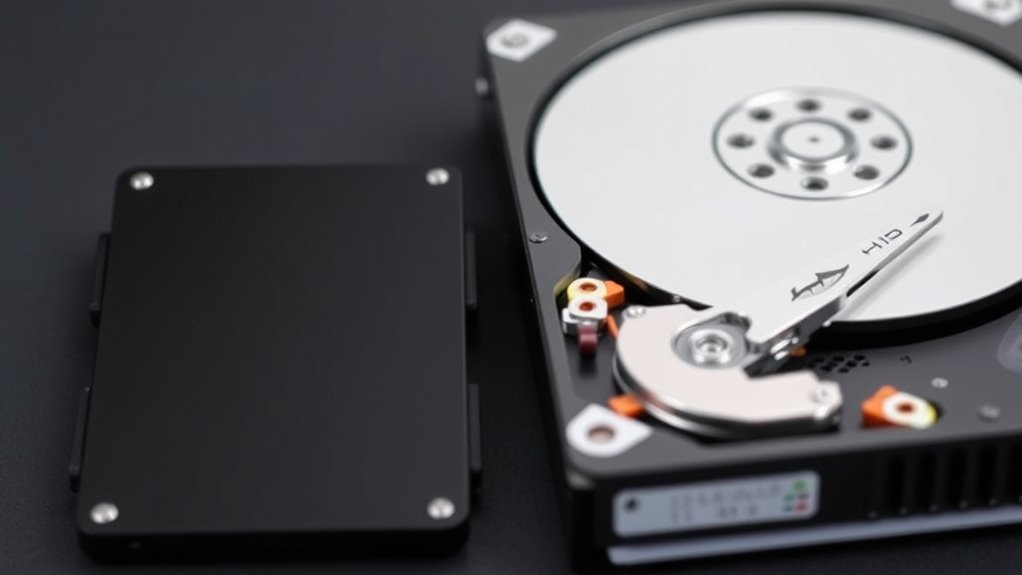
The physical size and design of storage devices substantially influence how they fit into your system. SSDs typically feature a compact design, making them ideal for laptops and small form factor builds. They come in various form factor options, such as 2.5-inch, M.2, and PCIe cards, offering flexibility for different setups. HDDs, on the other hand, are generally larger and bulkier, often in 3.5-inch or 2.5-inch sizes, which can impact installation space. The choice of form factor affects compatibility with your motherboard and case. If you need a slim, lightweight solution, SSDs are more adaptable. For larger storage capacities and older systems, HDDs might be more suitable due to their standardized sizes. Understanding these design variations helps you select the right drive for your system needs.
Ideal Use Cases for Each Drive Type

Solid-state drives excel as the ideal choice for users seeking fast boot times, quick data access, and enhanced durability, making them perfect for gaming, creative work, and everyday computing. They offer superior performance, with benefits like reduced load times and quiet operation. For the best use cases, consider these points:
- Gaming setups, where fast load times enhance experience.
- Creative professionals handling large multimedia files.
- Everyday users wanting quick system responsiveness.
- Those prioritizing cost efficiency and installation simplicity for upgrades.
While SSDs may have a higher upfront cost, their durability and speed often justify the investment. They also simplify installation, making them accessible for most users. Overall, SSDs are ideal for scenarios demanding speed and reliability.
Factors to Consider When Choosing Between SSD and HDD
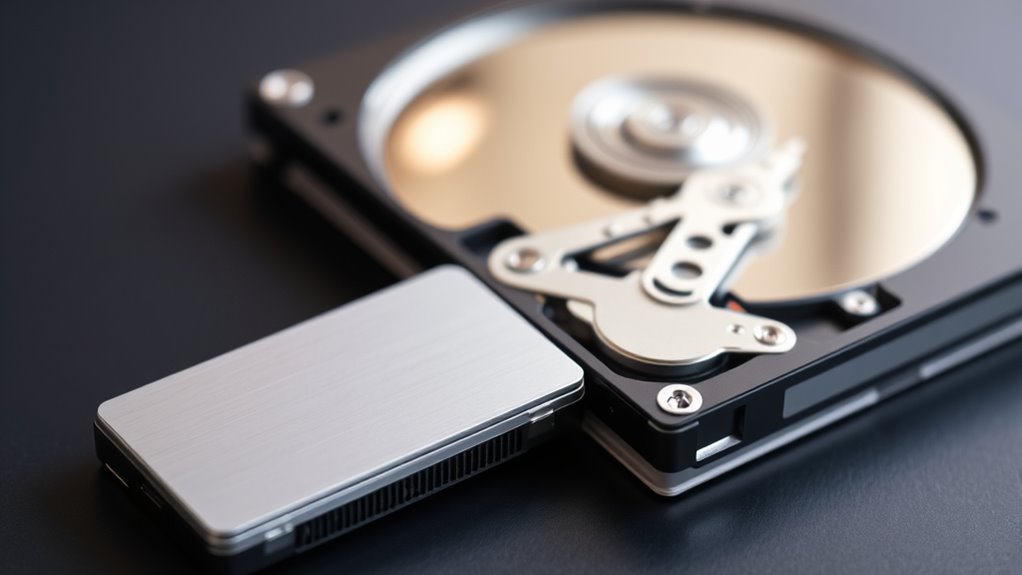
When choosing between an SSD and an HDD, you’ll want to take into account several key factors to guarantee you select the right drive for your needs. Data encryption is vital if you’re storing sensitive information; SSDs often offer built-in encryption features, adding an extra layer of security. Firmware updates are another consideration, as SSDs typically receive regular updates that improve performance and reliability, whereas HDDs usually don’t require frequent updates. Price and capacity also matter—HDDs generally provide larger storage at a lower cost, while SSDs offer faster speeds. Think about your primary use—if speed and security are priorities, an SSD might be better. For budget-conscious large storage, an HDD could be the better choice.
Frequently Asked Questions
Can SSDS Be Upgraded or Expanded Easily?
Yes, SSDs can be upgraded or expanded easily, offering good upgrading flexibility for most systems. You can add a new SSD or replace the existing one with a larger capacity, depending on your expansion options. Many laptops and desktops support additional drives or have removable SSDs, making upgrades straightforward. Just guarantee your device has the necessary slots or connectors, and you’ll enjoy faster storage and more space with minimal effort.
How Do SSDS Affect Overall System Boot Times?
Did you know that upgrading to an SSD can cut your system boot times by up to 50-70%? You’ll notice faster startup and smoother system performance because SSDs considerably improve system boot optimization. The SSD cache impact plays an essential role here, storing vital data for quick access. This means your computer starts up almost instantly, making your daily tasks more efficient and reducing wait times dramatically.
Are There Any Data Recovery Challenges With SSDS?
Data recovery with SSD challenges you because these drives use encryption and TRIM commands that can erase data permanently during normal operation. When files are lost, recovery becomes more difficult compared to HDDs. You might need specialized software or professional help, but success isn’t guaranteed. To minimize risks, always back up important data regularly, as SSDs can be more complex for recovery after failures or accidental deletions.
What Are the Environmental Impacts of Manufacturing SSDS Versus HDDS?
While both SSDs and HDDs have environmental impacts, SSDs generally have a smaller footprint due to easier recycling challenges and better material sustainability. Manufacturing SSDs involves fewer moving parts and less energy, reducing resource consumption. However, rare materials used in SSDs can pose challenges for recycling. By choosing SSDs, you help minimize environmental strain, but it’s important to support responsible manufacturing practices that address recycling and sustainability issues.
How Does the Lifespan of SSDS Compare in Different Usage Scenarios?
Your SSD’s lifespan depends on your usage. In light use, it can last years thanks to wear leveling, which spreads out writes evenly. For heavy tasks like gaming or video editing, write endurance becomes critical, and the drive may wear out sooner. Properly managing data and avoiding constant heavy writes can extend your SSD’s life, ensuring it remains reliable over time.
Conclusion
Choosing between an SSD and HDD is like selecting a trusted compass for your digital journey. An SSD’s speed and durability guide you through swift adventures, while an HDD’s spaciousness and reliability anchor your storage needs. Consider your path—whether swift or steady—to find the perfect fit. Whichever you choose, remember, it’s your map to data’s vast landscape, helping you navigate with confidence and clarity. Your ideal drive awaits—ready to lead you forward.