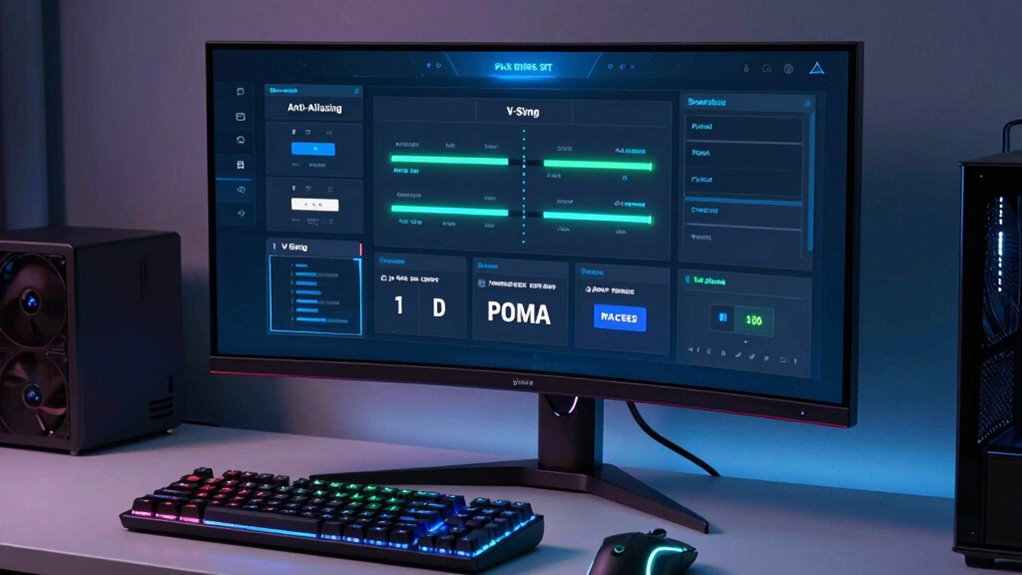

Graphics Settings 101 helps you enhance your game by adjusting options like anti-aliasing, V-Sync, resolution, and texture quality. Anti-aliasing smooths jagged edges, while V-Sync reduces screen tearing but can add input lag. Balancing frame rate and refresh rate ensures smooth gameplay. Fine-tuning shadows, lighting, and detail enhances visual realism without sacrificing performance. If you want to optimize your gaming experience further, you’ll find tips that make adjusting these settings easier and more effective.
Key Takeaways
- Understand how settings like anti-aliasing and V-Sync improve visual quality and reduce artifacts such as jagged edges and screen tearing.
- Balance graphics options to enhance immersion without overloading your hardware, ensuring smooth gameplay performance.
- Anti-aliasing techniques smooth jagged edges; higher settings improve visuals but may impact system resources.
- V-Sync synchronizes frame rate with your monitor’s refresh rate, minimizing tearing but possibly causing input lag.
- Adjust graphics settings based on your hardware capabilities to optimize both visual fidelity and gameplay fluidity.
Top picks for "graphic setting beginner"
Open Amazon search results for this keyword.
As an affiliate, we earn on qualifying purchases.
Understanding Graphics Settings and Why They Matter
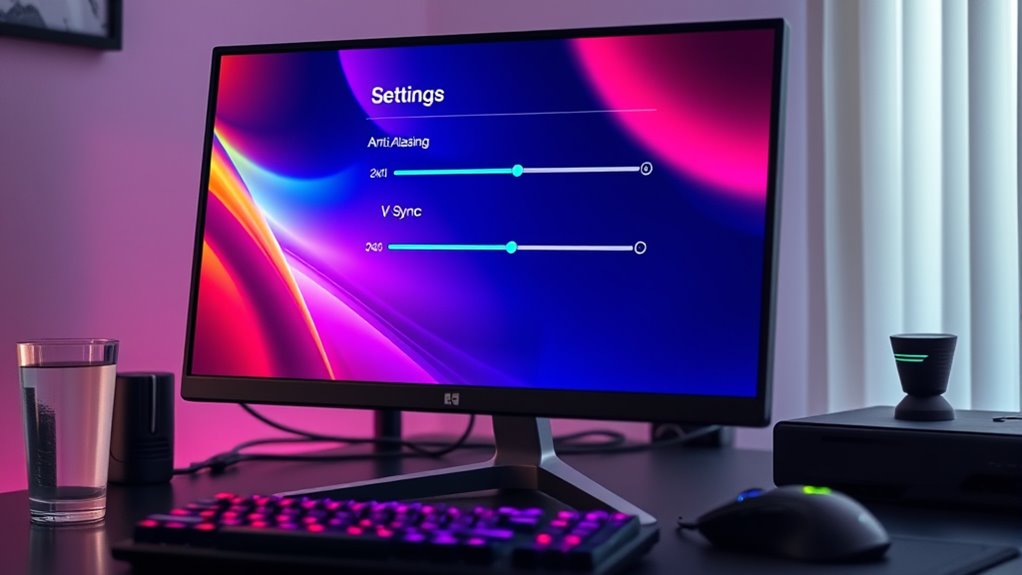
Understanding graphics settings is essential because they directly impact your gaming experience. Adjusting options like color grading can enhance visual appeal, making scenes more vibrant or moodier depending on your preference. Proper color grading influences how immersive the game feels and can highlight details you might otherwise miss. Motion blur, on the other hand, affects how smooth fast movements appear; reducing it can sharpen gameplay clarity, especially during rapid action sequences. These settings give you control over how the game looks and feels, allowing you to tailor visuals to your hardware capabilities and personal taste. Mastering these options helps optimize performance and visual quality, ensuring you get the most enjoyable and immersive experience possible. Additionally, understanding the impact of graphics settings can help you make informed choices that balance visual fidelity with system stability.
What Is Anti-Aliasing and How Does It Affect Your Game
Anti-aliasing helps smooth out jagged edges on objects, making your game look more realistic. However, enabling it can also impact your game’s performance, especially on lower-end systems. Knowing when and how to use anti-aliasing lets you find the right balance between visuals and smooth gameplay. Color accuracy plays a significant role in how vibrant and true-to-life your game appears, affecting your overall experience.
Smoothing Jagged Edges
Jagged edges, or aliasing, can make your game visuals look rough and less realistic, but anti-aliasing techniques smooth out these imperfections. By using pixel smoothing and edge blending, anti-aliasing softens jagged lines, creating a cleaner, more immersive image. Different methods, like FXAA or MSAA, apply these techniques to enhance visual quality without losing detail. Understanding how anti-aliasing works helps you choose settings that balance clarity and performance. Here’s a quick overview:
| Method | Pixel Smoothing | Edge Blending | Best Use Case |
|---|---|---|---|
| FXAA | Yes | Yes | Fast, less resource-intensive |
| MSAA | Yes | Yes | High-quality, moderate impact |
| TXAA | Yes | Yes | Combines techniques, smoothest |
| SSAA | Yes | Yes | Highest quality, demanding |
This table highlights how different anti-aliasing methods utilize pixel smoothing and edge blending to improve visuals. Additionally, understanding graphics settings like anti-aliasing can help optimize your gaming experience for both performance and visual fidelity.
Impact on Performance
While anti-aliasing techniques substantially improve visual quality, they also demand additional processing power, which can impact your game’s performance. The effect varies depending on your hardware compatibility; older or less powerful systems may struggle with higher settings, leading to lower frame rates or lag. That’s why user customization is key—you can adjust anti-aliasing levels to strike a balance between visuals and performance. Keep in mind that some anti-aliasing methods are more demanding than others, so choosing the right type can help optimize your game’s smoothness. Additionally, system performance can be affected by other factors such as cooling and hardware maintenance, which are important for ensuring consistent gameplay. Regularly checking your hardware health ensures optimal operation and prevents performance dips. Proper management of graphics settings can help you achieve smoother gameplay without sacrificing visual quality, especially when considering the capabilities of your best heat pump for overall system efficiency and reliability. Understanding how anti-aliasing influences performance allows you to make informed decisions, tailoring settings to your hardware’s capabilities and personal preferences for a better gaming experience.
Exploring V-Sync: Smoothing Out Screen Tearing
V-Sync helps you eliminate screen tearing by syncing your game’s frame rate with your monitor’s refresh rate. When enabled, it can make your gameplay look smoother and more consistent. Understanding how V-Sync works and its benefits can improve your overall gaming experience.
How V-Sync Works
Screen tearing occurs when your graphics card outputs frames faster than your monitor can display them, resulting in a disjointed image that distracts from gameplay. V-Sync works by syncing your graphics card’s frame rate with your monitor’s refresh rate, preventing the tearing effect. When V-Sync is enabled, it caps the frame rate to match your monitor, smoothing out motion blur and reducing visual distractions. This synchronization ensures that each frame is fully rendered before the monitor displays it, creating a more seamless image. While V-Sync doesn’t directly influence color grading, it enhances overall visual stability, making effects like motion blur appear more consistent. By understanding how V-Sync works, you can enjoy a more fluid, tear-free gaming experience without sacrificing image quality. Additionally, Free Floating techniques can further enhance your gaming visuals by optimizing your display settings for a smoother experience.
Benefits of V-Sync
Enabling V-Sync offers significant benefits by delivering a smoother and more visually stable gaming experience. It aligns your frame rate with your monitor’s refresh rate, improving frame pacing and reducing screen tearing. This creates a more consistent image, making gameplay feel more fluid and immersive. However, V-Sync can introduce input lag, which might slightly delay your actions on screen. For fast-paced games, this lag could impact your responsiveness, so weigh the trade-offs. Overall, V-Sync helps eliminate distracting visual artifacts, allowing you to focus on gameplay without visual distractions. It’s especially useful if you notice tearing or inconsistent frame delivery, providing a more enjoyable, stable visual experience. Additionally, understanding how graphics settings interact can help optimize your gaming performance further.
Frame Rate and Refresh Rate: Finding the Right Balance
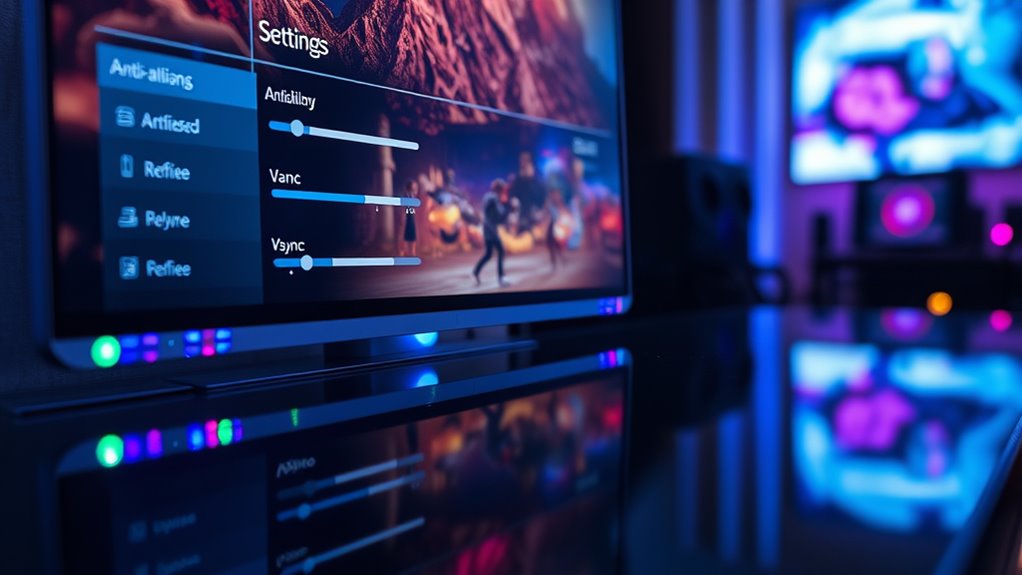
Finding the right balance between frame rate and refresh rate is crucial for a smooth gaming experience. Your frame rate, the number of images your game renders per second, directly affects how fluid gameplay feels. Meanwhile, your monitor’s refresh rate determines how often it updates with new images. If your frame rate exceeds your monitor’s refresh rate, you might experience screen tearing or stuttering. To avoid this, aim for a frame rate close to your monitor’s refresh rate, or enable V-Sync to synchronize them. This balance reduces visual artifacts and ensures smoother gameplay. Keep in mind that higher frame rates require more processing power, so find a sweet spot where your system performs well without sacrificing visual quality. Adjusting these settings improves your overall gaming experience. Additionally, understanding adaptive sync technologies can help optimize performance and reduce visual disruptions during gameplay.
Texture Quality and Its Impact on Visual Fidelity
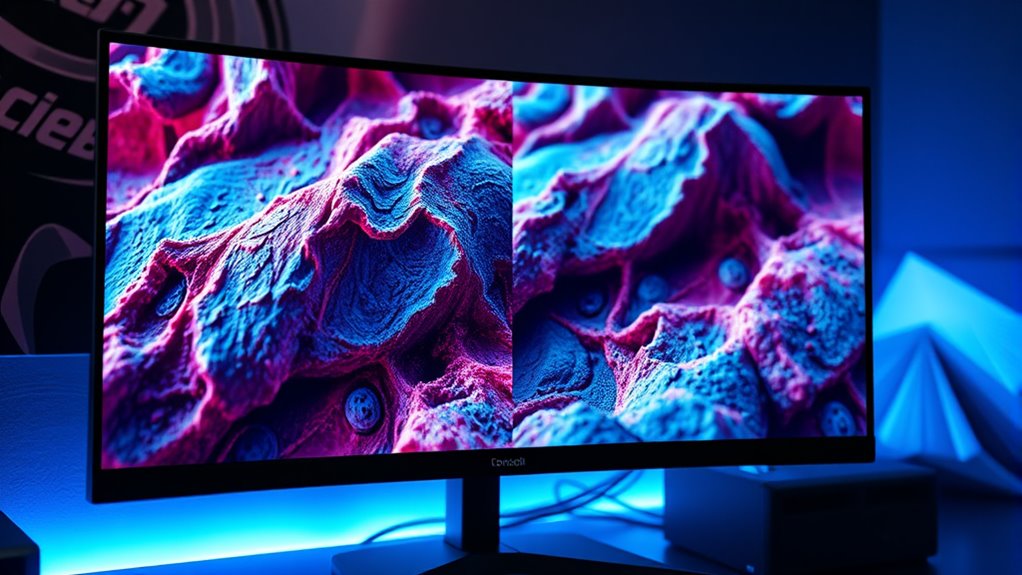
Adjusting texture quality settings directly affects the visual richness of your game, enhancing details like surfaces, characters, and environments. Higher texture quality reveals more intricate texture details, making objects appear sharper and more realistic. This boost in visual clarity helps you notice subtle surface patterns and fine elements that improve immersion. However, increasing texture quality also demands more from your graphics card and memory, which can impact performance if your hardware isn’t robust enough. Finding the right balance is key—setting textures too high might cause lag, while setting them too low can make visuals look flat or blurry. Experiment with different settings to see what delivers the best visual fidelity without sacrificing smooth gameplay.
Shadows, Lighting, and Effects: Enhancing Realism or Improving Performance
Shadows, lighting, and effects play a crucial role in creating a sense of realism and atmosphere in your game, but balancing their quality can be challenging. Higher shadow detail and lighting effects add depth and immersion, making environments feel more alive. However, cranking these up can reduce performance, especially on less powerful systems. To help you decide, here’s a quick comparison:
| Effect Level | Impact on Visuals | Performance Impact |
|---|---|---|
| Low | Basic shadows, minimal effects | Smooth gameplay |
| Medium | Improved shadows, subtle lighting | Balanced experience |
| High | Realistic shadows, vibrant effects | Possible frame drops |
| Ultra | Ultimate realism, detailed effects | Might cause lag |
Adjust based on your system and preferred experience—more realism or better performance? Additionally, understanding performance optimization can help you make the most of your gaming setup.
Resolution Settings: Clarity Versus Performance
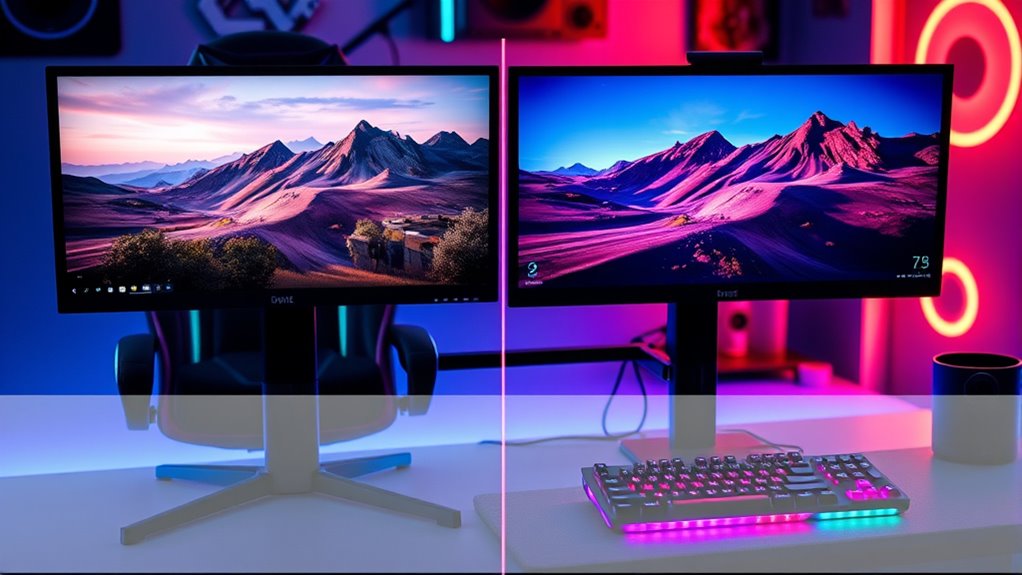
Resolution settings directly impact your game’s visual clarity and overall performance. Higher resolutions deliver sharper images, making textures and details pop, but can strain your system, leading to lower frame rates. Conversely, lowering resolution improves performance but can make visuals look fuzzy or pixelated. This resolution trade-off requires balancing clarity against smooth gameplay. To optimize, consider proper display calibration—adjusting your monitor settings to match the resolution for the best image quality. Imagine:
- Crisp, detailed environments that feel lifelike
- Frame rates that keep gameplay smooth and responsive
- Screen pixels that blur together or stand out sharply
Choosing the right resolution depends on your hardware and personal preferences. Remember, adjusting resolution isn’t just about visuals; it’s about finding that sweet spot where clarity and performance meet. For instance, selecting a lower resolution can significantly improve performance if you’re using a high-performance electric dirt bike for gaming, as both require balancing power and efficiency.
Advanced Options: Anisotropic Filtering and More
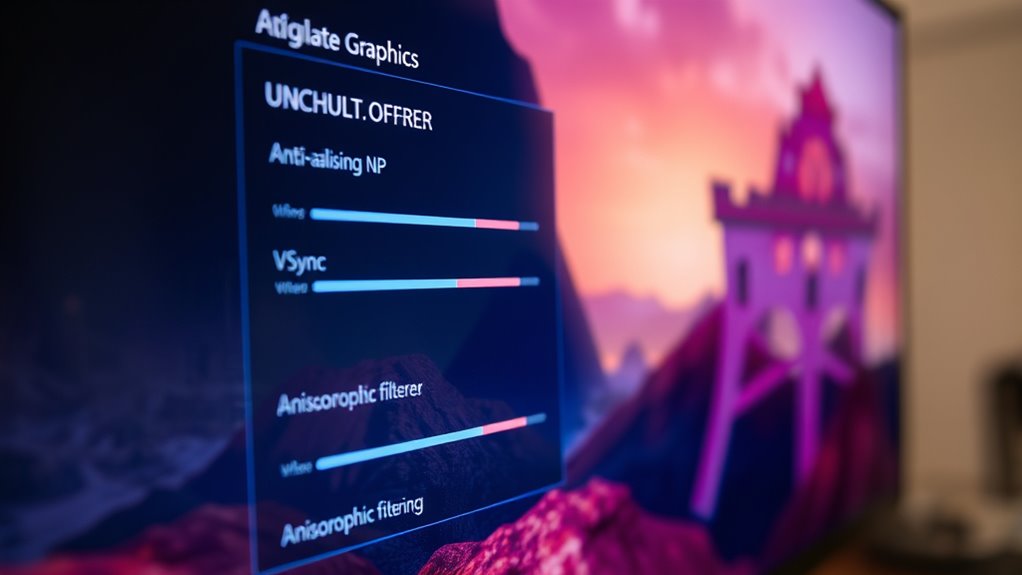
To enhance your game’s visual quality without sacrificing performance, exploring advanced options like anisotropic filtering can make a noticeable difference. Anisotropic filtering sharpens textures viewed at shallow angles, resulting in clearer scenery and more realistic environments. Additionally, color grading allows you to adjust the overall mood by modifying tones and contrast, elevating immersion. Utilizing proper filtration techniques in your graphics settings can further optimize visual clarity and performance.
Tips for Optimizing Graphics Settings for Your System
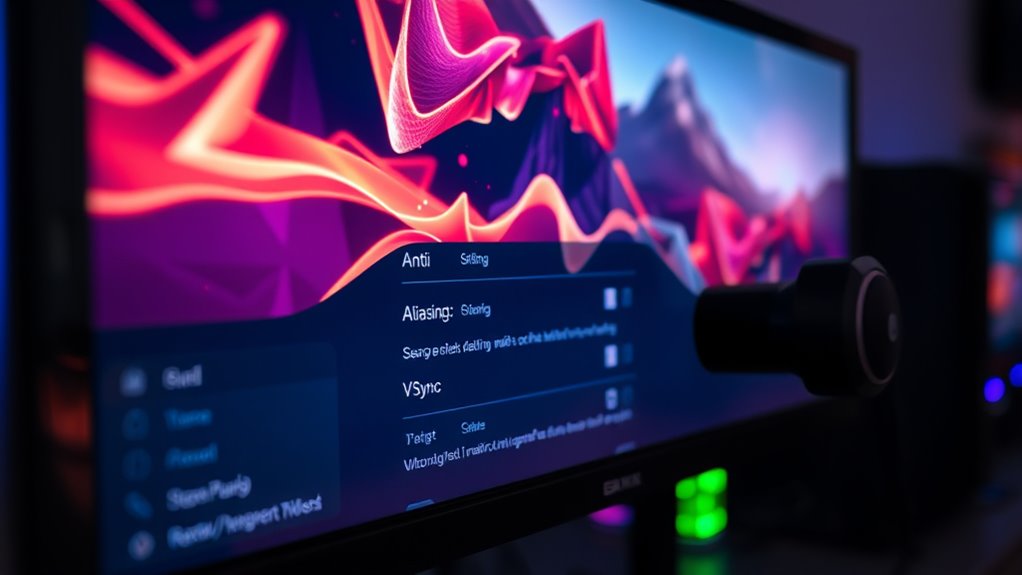
Optimizing your graphics settings starts with understanding your system’s strengths and limitations. Begin by adjusting your monitor calibration and color correction to ensure your display shows accurate colors and details. This foundation helps you make informed decisions about in-game options. Consider the following tips:
- Visualize sharp edges and smooth lines when adjusting anti-aliasing settings.
- Imagine vibrant, true-to-life colors after proper color correction.
- Envision seamless gameplay with stable frame rates by balancing graphics quality and performance.
- Use load calculations to better understand how different settings impact your system’s performance and avoid overloading your hardware.
Frequently Asked Questions
How Do I Know Which Graphics Settings Are Best for My Hardware?
You should start by checking your hardware compatibility, ensuring your GPU, CPU, and RAM meet the game’s recommended specs. Adjust your settings based on your hardware’s capabilities to balance performance and visual clarity. If your system struggles, lower the graphics quality; if it runs smoothly, you can push for higher settings for better visual clarity. Regularly test and tweak to find the most favorable balance for your specific hardware.
Can Adjusting Graphics Settings Improve Game Performance Without Sacrificing Visuals?
Yes, adjusting graphics settings can improve game performance without sacrificing visuals. You can lower resolution scaling and texture quality to boost frame rates while keeping key visual elements intact. Try reducing resolution scaling slightly if your game lags, and set texture quality to medium or high to maintain detail. These tweaks help you balance performance and visuals, giving you a smoother experience without losing too much graphic fidelity.
What Are the Common Signs of Graphics Settings That Are Too High or Too Low?
Imagine a smooth river suddenly rippling with visual artifacts like shimmering waves—that’s a sign your settings are too high, causing your frame rate to drop and visuals to stutter. Conversely, if the graphics look dull or pixelated, your settings might be too low. Keep an eye out for choppy gameplay and distorted visuals; these clues help you find the perfect balance for sharp, fluid graphics.
How Do Different Gaming Genres Influence Optimal Graphics Configurations?
Different gaming genres shape your ideal graphics settings by emphasizing their visual style and gameplay immersion. For fast-paced shooters, you prioritize high frame rates and smooth visuals, so lower settings work best. In contrast, story-driven adventure games benefit from detailed graphics to enhance immersion, allowing higher settings. Strategy games may balance visuals and performance, while visually stunning RPGs demand richer details. Adjust settings based on the genre’s focus to optimize your gaming experience.
Are There Any Risks Associated With Overclocking to Improve Graphics Performance?
Pushing your hardware to its limits is like gently nudging a sprinter to run faster. Overclocking can boost graphics performance, but it also risks hardware overheating if not managed carefully. This might lead to instability or damage, and could void your warranty. To stay safe, monitor temperatures closely and avoid excessive overclocking. Balance is key—aim for gains without risking your system’s health or your warranty coverage.
Conclusion
Don’t let confusing settings hold you back from enjoying your games. By understanding key options like anti-aliasing, V-sync, and resolution, you can find the perfect balance between stunning visuals and smooth performance. Sure, tweaking settings might seem overwhelming at first, but with a little experimentation, you’ll enhance your gaming experience without sacrificing frame rates. Immerse yourself, customize your preferences, and unseal the full potential of your system—your game world will thank you.