
To look better on webcam, position your camera at eye level and face directly into it for a flattering angle. Use soft, diffused lighting in front of you, ideally from natural sources or a ring light, to minimize shadows and enhance your features. Opt for a wide lens if possible, and avoid harsh angles that distort your face. Small setup tweaks can make a big difference—stay tuned to learn more tips to improve your webcam presence.
Key Takeaways
- Position the camera at eye level or slightly above for a flattering, natural perspective.
- Use soft, diffused lighting facing your face at a 45-degree angle to minimize shadows.
- Choose a lens with a focal length that reduces distortion and provides a natural-looking image.
- Adjust camera angles to avoid looking up or down, ensuring your face is well-framed and proportionate.
- Incorporate warm-toned lights and avoid harsh, direct illumination for a more vibrant and appealing appearance.
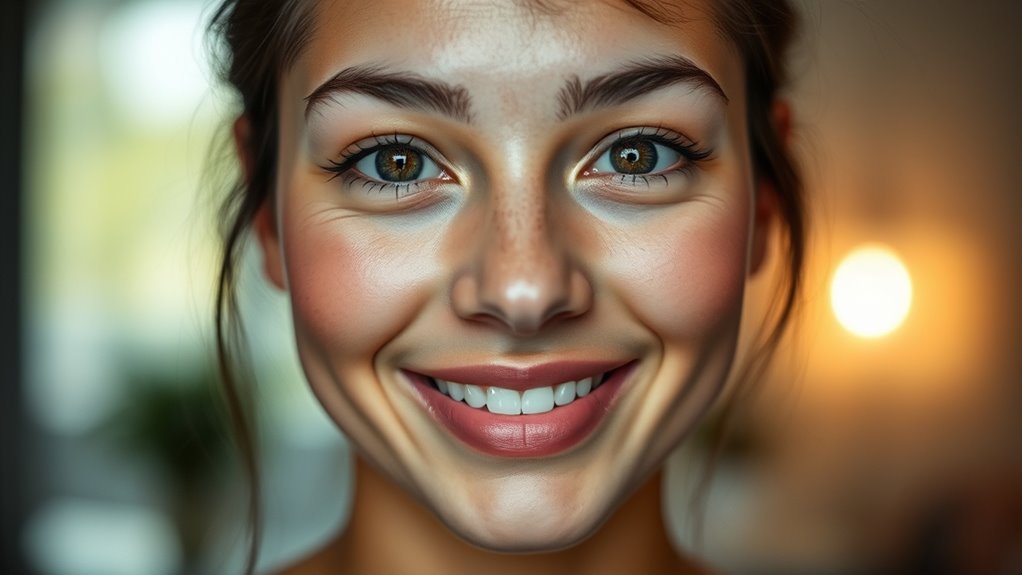
Ever wonder how to look your best on webcam? The secret isn’t just in your smile or your outfit; it’s also about how you position yourself and the lighting you use. Camera positioning plays a crucial role in your overall appearance. You want your camera at eye level or slightly above, never looking up at your chin or down from above. This angle flatters your face, minimizes unflattering shadows, and helps avoid the double chin effect. Sit straight and look directly into the camera, not at your screen or your reflection, to create a more engaging and natural connection with your viewers. Adjust your camera’s height and angle until your face is framed well—usually from just below your shoulders to the top of your head—so viewers see your face clearly without unnecessary background distractions. Proper camera angle can also help emphasize your best features and create a more professional appearance.
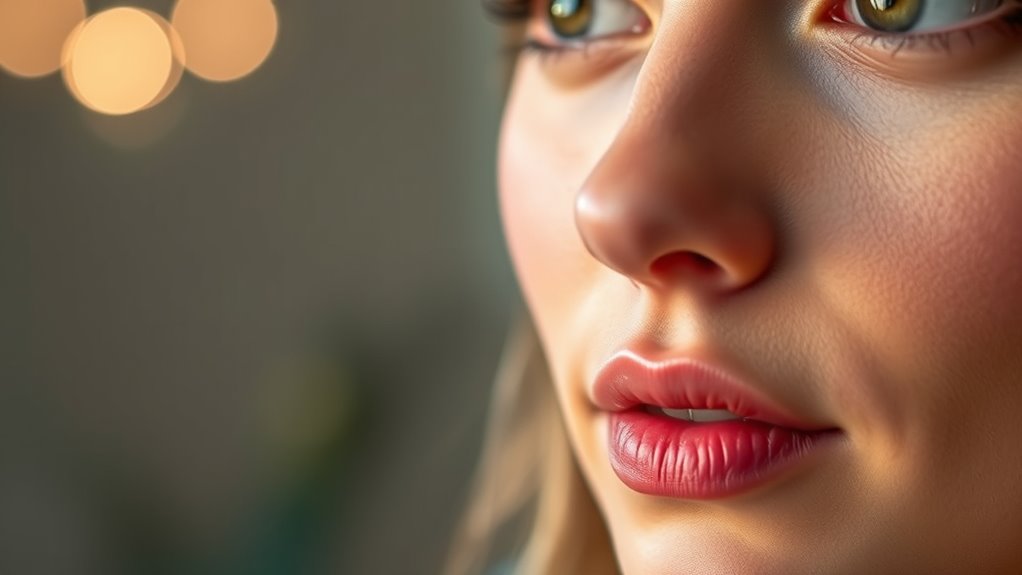
Lighting techniques are equally important. Good lighting can dramatically improve your webcam image and make you appear more vibrant and professional. Natural light is often best, so try to position yourself facing a window during the day. If natural light isn’t available, invest in soft, diffused artificial lighting. Avoid harsh, direct lights that create unflattering shadows on your face. A simple ring light or a softbox placed in front of you at eye level can evenly illuminate your face, reducing shadows and highlighting your best features. Keep the light source at a 45-degree angle to your face for a balanced look. You should also be mindful of the color temperature of your lights; warm tones tend to be more flattering and inviting than cool, bluish lights. Combining proper camera positioning with effective lighting techniques results in a polished, professional appearance on webcam. When your camera is correctly placed, and your lighting is soft and well-angled, your face will look clear and vibrant without any distracting shadows or glare. Experiment with different setups until you find what works best for your space and skin tone. Remember, small adjustments can make a big difference, so don’t be afraid to tweak your position and lighting as needed. With these simple but effective tips, you’ll be able to present yourself confidently and look your best every time you go on camera.
Top picks for "look better webcam"
Open Amazon search results for this keyword.
As an affiliate, we earn on qualifying purchases.
Frequently Asked Questions
How Does Webcam Resolution Affect Image Quality?
Webcam resolution directly impacts your image quality by reducing camera pixelation and improving image sharpness. Higher resolution webcams capture more detail, making your video clearer and more professional. When you choose a webcam with better resolution, you’ll notice less pixelation and crisper visuals, especially on larger screens. This means your face looks sharper and more lifelike, helping you appear more polished during video calls or recordings.
Can Virtual Backgrounds Improve My Appearance?
Ever wonder if virtual backgrounds can actually improve your appearance? They can, but only if you choose effective backgrounds and avoid common virtual background myths. For example, a clutter-free, well-lit setting creates a professional look, while busy or poorly lit backgrounds can be distracting. When used correctly, virtual backgrounds help you look polished and confident on camera. Just make certain your software and lighting are optimized for the best effect.
What Are the Best Settings for Low-Light Conditions?
In low-light conditions, you should use your camera’s highest ISO setting to brighten the image without graininess. Enable any low-light or night mode features, if available. Use a camera with good sensors and low-light lenses designed for dim environments to improve clarity. Position yourself closer to the light source, and add soft, diffused lighting to enhance visibility. These adjustments help your webcam perform better in challenging lighting.
How Do I Reduce Glare or Reflections on My Face?
Imagine your face as a calm pond, and glare as sudden, unwanted ripples. To reduce glare and control reflections, angle your webcam slightly downward or upward to change how light hits you. Use anti-reflective or matte filters on your screen, and soften harsh light with a diffuser or lamp shade. These tiny adjustments act like gentle hands smoothing the water, creating a clearer, glare-free reflection.
Are There Specific Clothing Colors That Look Better on Camera?
Bright, solid colors like blues, greens, and jewel tones generally look great on camera, helping you stand out without causing distraction. Avoid busy patterns or overly bright whites, as they can create glare or wash you out. Focus on building a camera-friendly wardrobe with clothing color choices that complement your skin tone and contrast well with your background. This approach guarantees you look sharp and professional during your webcam sessions.
Conclusion
To truly transform your webcam presence, focus on favorable angles, fabulous lighting, and the right lens. By mastering these simple secrets, you’ll look more confident, clearer, and more engaging. Remember, a little lighting and a clever angle can make a massive difference. So, experiment enthusiastically, elevate your environment, and enjoy effortless excellence. With these tips, you’ll glow on camera and leave a lasting, lovely impression every time you log in.