
If you’re looking for a lightweight, easy-to-maintain OS, ChromeOS might suit you best, especially if you focus on cloud-based tasks and want long battery life. However, if you need broader software support, hardware flexibility, or customization options, Windows could be the better choice. Consider your priorities like offline use, security, and budget to decide. Keep exploring further to find out which OS aligns perfectly with your lightweight device needs.
Key Takeaways
- Choose ChromeOS for simple tasks, long battery life, and seamless cloud integration; opt for Windows for extensive software compatibility and customization.
- ChromeOS offers a minimalistic interface ideal for beginners, while Windows provides advanced personalization and multitasking features.
- Prioritize ChromeOS if you mainly use web apps and Android apps; select Windows for offline work and running legacy software.
- ChromeOS emphasizes security with automatic updates and encryption; Windows supports a wider range of hardware and software but may require more maintenance.
- Consider budget and device support: ChromeOS is cost-effective and ideal for lightweight devices; Windows suits users needing flexible hardware options.
Overview of ChromeOS and Windows for Lightweight Devices

Are ChromeOS and Windows suitable options for lightweight devices? Both operating systems are designed with different priorities, making them appealing choices. ChromeOS excels in cloud storage integration, meaning you rely heavily on online storage solutions like Google Drive, reducing hardware demands. Its minimalistic design ensures it runs smoothly on lightweight hardware with limited resources. Additionally, ChromeOS often includes optimized performance features that enhance speed and responsiveness on low-end hardware. Windows, on the other hand, offers broader hardware compatibility, allowing you to run a variety of peripherals and devices. It’s versatile and supports more complex applications, but this can also mean higher hardware requirements. For lightweight devices, Windows may need more powerful components to operate efficiently, while ChromeOS is optimized for simplicity and cloud-based use. Your choice depends on whether you prioritize cloud storage or hardware flexibility. Additionally, the contrast ratio of a device can influence its display quality, especially in different lighting environments, which may be a consideration depending on your usage needs. Considering the hardware efficiency of each OS can help you make an informed decision based on your device’s specifications. Moreover, understanding the energy consumption of these operating systems can be crucial for extending battery life in portable devices, and recent innovations have improved power management features in both platforms to enhance portability.
User Experience and Interface Considerations
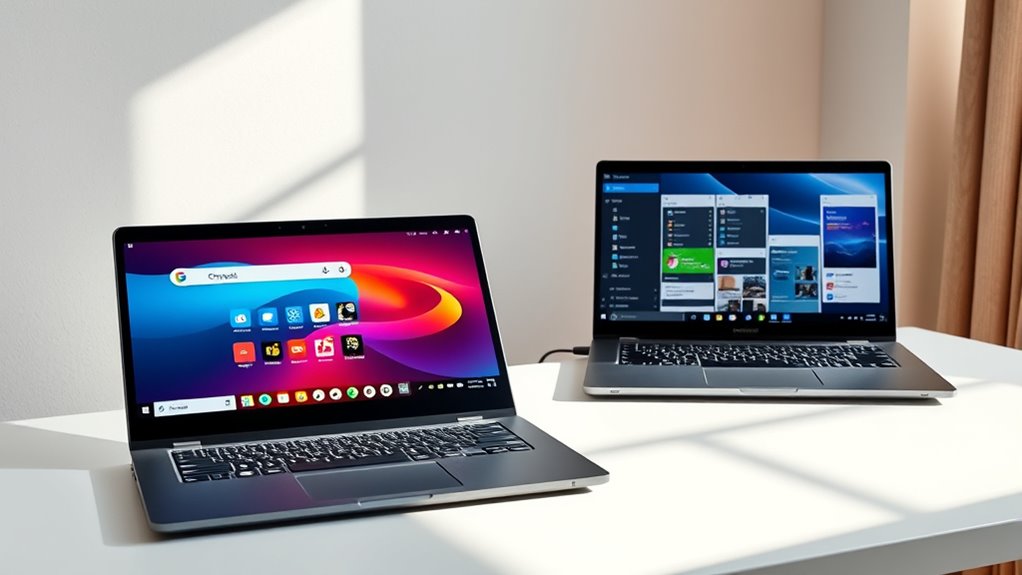
Your experience with ChromeOS and Windows depends heavily on how intuitive the navigation feels and how smoothly the interface flows. Visual design and aesthetics also influence your engagement and ease of use, making some systems feel more modern or cluttered. Additionally, the level of customization and personalization options lets you tailor the interface to suit your preferences, affecting overall satisfaction. Considering the importance of user interface design and how well it aligns with your workflow can significantly impact your overall experience. Furthermore, understanding how essential oils can influence mood and productivity might help you customize your digital environment for enhanced comfort and focus. For example, some users find that certain visual themes or wallpapers inspired by nature can create a calming workspace that boosts concentration. Exploring interface consistency can also improve usability by creating a more predictable and seamless experience across different applications and features.
Navigation Simplicity and Flow
Navigation simplicity and flow play a crucial role in shaping your overall user experience, as they determine how easily you can access features and move through your device. When navigation feels intuitive, you’ll enjoy a smoother, frustration-free journey. Consider these aspects:
- Effortlessly manage browser extensions, making customization seamless.
- Quickly switch between apps and windows, reducing frustration.
- Rely on offline capabilities to continue work without interruption, even without internet.
- Understanding the concept of Free Floating design can help you appreciate how minimalistic interfaces streamline navigation and reduce clutter.
Visual Design and Aesthetics
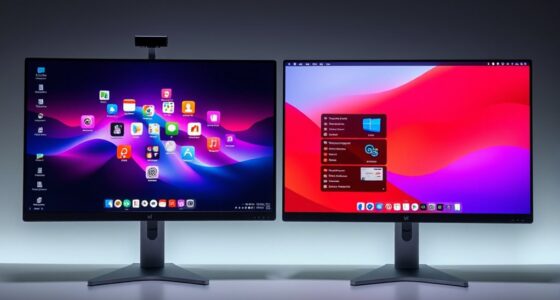
Visual design and aesthetics considerably influence how enjoyable and comfortable it feels to use your device. Your experience hinges on elements like color schemes and icon styles, which shape the interface’s vibe. ChromeOS favors a clean, modern look with soft pastel colors and simple, rounded icons that create a friendly, approachable feel. Windows, on the other hand, offers a more customizable approach, allowing you to choose bold or subtle color schemes and diverse icon styles to match your personality. Consider this comparison:
| Aspect | ChromeOS | Windows |
|---|---|---|
| Color Schemes | Soft pastels, minimalistic | Wide variety, vibrant or muted |
| Icon Styles | Rounded, simple | Diverse, detailed |
| Overall Aesthetic | Sleek, streamlined | Flexible, personalized |
Your preference depends on whether you lean toward simplicity or customization.
Customization and Personalization
While ChromeOS offers a streamlined, uniform interface that emphasizes simplicity, Windows provides extensive options for customization and personalization. You can create a truly unique experience by exploring cloud customization, which syncs your preferences across devices. Personalization themes let you tailor your desktop’s look, evoking emotion and making your device feel personal. With Windows, you have the power to:
- Choose from a wide array of themes and wallpapers that reflect your personality.
- Customize your start menu and taskbar for quick access to what matters most.
- Use cloud settings to seamlessly transfer your preferences across multiple devices, creating a consistent, personalized environment.
This flexibility ensures your laptop feels like an extension of yourself, not just a tool.
Software Compatibility and App Ecosystems

When comparing ChromeOS and Windows, software compatibility and app ecosystems stand out as key factors. Windows offers a vast library of traditional desktop applications, making it ideal for users needing specialized or legacy software. It also supports a wide range of hardware and peripherals. ChromeOS, on the other hand, primarily relies on cloud app integration, which means most apps run through the browser or Android apps. While ChromeOS excels in seamless cloud access, offline functionality can be limited, impacting productivity without an internet connection. If you depend on specific desktop programs or extensive offline work, Windows provides a more extensive ecosystem. Additionally, software compatibility can vary depending on your specific needs and the types of applications you use regularly. For users who prioritize health and wellness during their computing sessions, Windows often supports a broader range of accessibility and ergonomic tools, enhancing user comfort. Furthermore, performance optimization varies between the two operating systems, with Windows generally offering more customization options to improve system responsiveness. However, if your tasks are mostly web-based or cloud-focused, ChromeOS’s simplicity and integration might suit you better.
Performance, Speed, and System Requirements
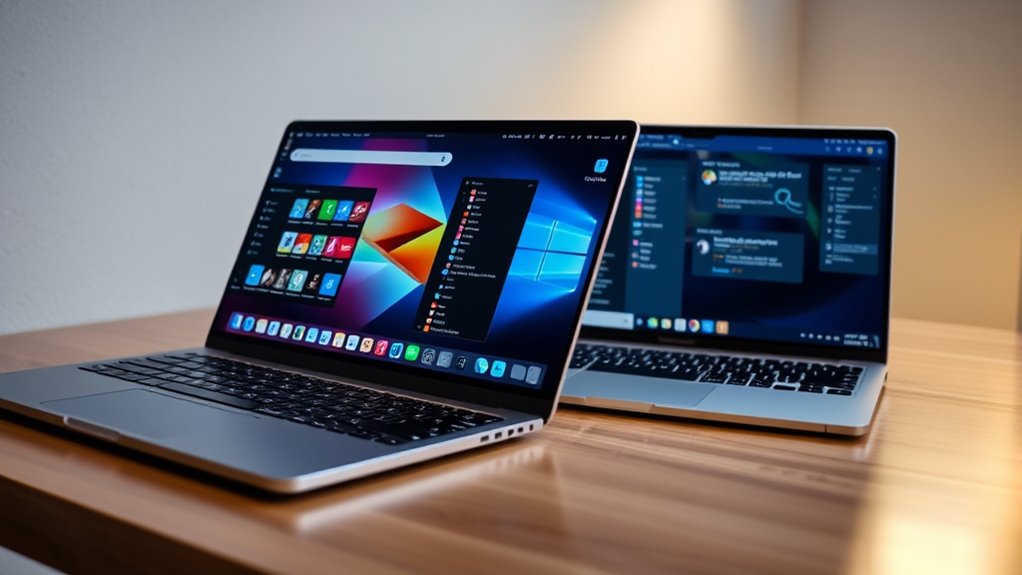
Performance and speed are often the deciding factors when choosing between ChromeOS and Windows, especially as they relate to system requirements. ChromeOS demands minimal hardware, leading to faster boot times, smoother multitasking, and impressive battery life. In contrast, Windows offers broader hardware compatibility but can strain your device’s resources, potentially slowing down performance. Consider these points:
- ChromeOS excels in quick startup and long battery life, perfect for lightweight tasks.
- Windows supports a wider range of hardware but may require more power, affecting battery longevity.
- Both OSes vary in performance depending on your device’s specifications, influencing speed and responsiveness.
- The hardware requirements for each system can significantly impact overall performance and user experience.
- Additionally, the system flexibility of Windows allows for customization and software options not available in ChromeOS.
- The performance capacity of each OS is directly influenced by these hardware demands, affecting your daily use.
- Understanding the hardware compatibility can help ensure your device runs efficiently with your chosen OS without unnecessary upgrades.
- Recognizing how system optimization differs between the two can further assist in selecting the best OS for your needs.
Security Features and Privacy Aspects
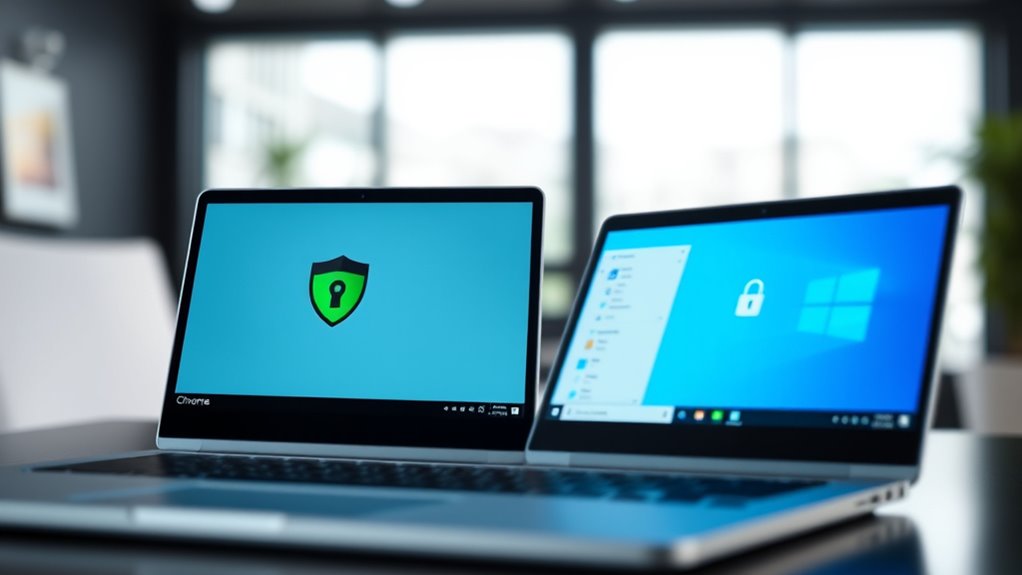
When comparing security features, you’ll want to take into account how each OS handles data encryption standards and app permissions controls. These elements directly impact your privacy and protect your information from threats. Understanding these aspects helps you choose the platform that best secures your digital life. Additionally, evaluating how each system manages privacy policies and cookie categories can provide further insight into their commitment to user data protection. Recognizing the importance of user consent management ensures you maintain control over your privacy preferences while using these operating systems. Furthermore, the integration of security updates and patches plays a crucial role in maintaining the integrity of each platform against emerging vulnerabilities. Being aware of encryption standards can help you better understand how your data is safeguarded across different systems. Staying informed about security protocol implementations offers a comprehensive view of how each OS defends against evolving cyber threats.
Data Encryption Standards
Data encryption standards are a crucial aspect of both ChromeOS and Windows, as they protect your personal information from unauthorized access. When it comes to cloud data, strong encryption standards ensure your files stay secure during transfer and storage. You’ll want to contemplate:
- The robustness of encryption algorithms, which keeps hackers at bay and preserves your privacy.
- How seamlessly encryption integrates with cloud services, so your data remains protected without hassle.
- The transparency and compliance of encryption standards, giving you confidence in your OS choice.
Both operating systems prioritize encryption standards to shield your sensitive data, but their approaches differ. ChromeOS leans heavily on Google’s cloud security, while Windows offers more customizable options. Your choice hinges on your privacy priorities.
App Permissions Controls
App permissions controls are crucial for safeguarding your privacy and maintaining security on both ChromeOS and Windows. They allow you to manage which apps can access your camera, microphone, location, and files, giving you greater control over your data. With cloud file management features, permissions guarantee that your sensitive information remains protected whether you’re working online or offline. On ChromeOS, permissions are streamlined and transparent, making it easy to review and adjust app access at any time. Windows offers detailed permission settings, letting you fine-tune app privileges for enhanced security. Both operating systems support offline capabilities, but strict permission controls help prevent unauthorized access, especially when managing local files. Overall, app permissions controls are essential in balancing usability with privacy and security.
Cost, Updates, and Support Options

Cost, updates, and support options vary considerably between ChromeOS and Windows, influencing which platform might be better suited for your needs. With ChromeOS, you benefit from free updates, automatic security patches, and built-in cloud storage options, making maintenance simple and affordable. Windows often requires purchasing a license, and updates can be more disruptive, especially on older hardware. Here are key points to think about:
- You might save money long-term with ChromeOS’s free updates and integrated cloud storage.
- Hardware compatibility can be a concern; Windows supports a wider range of devices, but ChromeOS is optimized for specific hardware.
- Regular updates ensure security but can sometimes cause compatibility issues, especially on Windows.
Choose based on your budget, hardware needs, and preference for seamless updates.
Frequently Asked Questions
How Do Chromeos and Windows Handle Offline Functionality?
You’ll find that ChromeOS handles offline functionality by allowing you to access and edit files stored locally, but it relies heavily on cloud storage for syncing. Windows, on the other hand, offers robust offline app compatibility, enabling you to run most programs without internet. While ChromeOS’s offline capabilities are improving, Windows gives you more seamless offline app use, making it better for tasks that require extensive app compatibility and local storage.
Can Both OS Options Support Gaming on Lightweight Devices?
Think of your lightweight device as a bridge to worlds beyond. Both ChromeOS and Windows support gaming, but Windows acts as a sturdy vessel, offering better game compatibility for traditional titles. ChromeOS leans into the clouds, allowing you to enjoy cloud gaming services that stream games directly. If you’re into heavy gaming, Windows is your best bet, but for casual play and streaming, ChromeOS’s cloud options work surprisingly well.
Which OS Offers Better Battery Management for Portability?
You’ll find ChromeOS offers better battery management for portability because it focuses on battery efficiency and power optimization. Its lightweight design consumes less energy, helping you extend your device’s battery life throughout the day. Windows, while versatile, tends to use more power due to its broader functionality. So, if maximizing battery life is your priority, ChromeOS is the smarter choice for efficient, portable use.
Are There Any Hardware Limitations Specific to Each OS?
Imagine a puzzle with missing pieces—each OS has hardware limitations. ChromeOS offers limited hardware compatibility and driver support, mainly optimized for specific devices, so you might face restrictions if you try to customize or upgrade. Windows, by contrast, provides broader hardware compatibility and extensive driver support, making it more flexible. Your choice depends on whether you prefer streamlined simplicity or expansive compatibility to fit your hardware needs.
How Easy Is Switching Between Chromeos and Windows?
Switching between ChromeOS and Windows can be straightforward, but it depends on your familiarity with each OS. You’ll find cross-platform compatibility helpful, especially with cloud-based apps and file sharing. However, software availability varies; some programs work better on Windows, while ChromeOS relies more on web apps. Moving from one to the other requires some adjustments, but overall, you can adapt quickly if you explore the features and tools each OS offers.
Conclusion
Choosing between ChromeOS and Windows is like picking the right tool for the job—you’ll want what fits your needs best. If you prioritize simplicity and speed, ChromeOS feels like a sleek sports car. But if you need powerful software and flexibility, Windows is more like a sturdy pickup truck. Consider your usage, budget, and preferences to find the perfect lightweight OS that runs smoothly and keeps you productive.