
If your laptop is running hot, start by keeping it in a cool environment and ensuring vents are clean and unobstructed. Close unnecessary background apps to reduce workload and prevent overheating. Elevate your laptop with a stand or add a cooling pad to improve airflow. Adjust power settings for lower CPU usage, and reapply thermal paste if temps stay high. Want more tips to keep your laptop cool? Keep going for easy tweaks that really work.
Key Takeaways
- Keep your laptop in a cool, well-ventilated environment and clean vents regularly.
- Use a cooling pad or elevate the laptop to improve airflow and heat dissipation.
- Close unnecessary background applications to reduce CPU load and overheating.
- Reapply thermal paste if temperatures stay high or use software to monitor system temperatures.
- Adjust power settings for lower CPU usage and better thermal management during extended use.
Keep Your Laptop in a Cool Environment
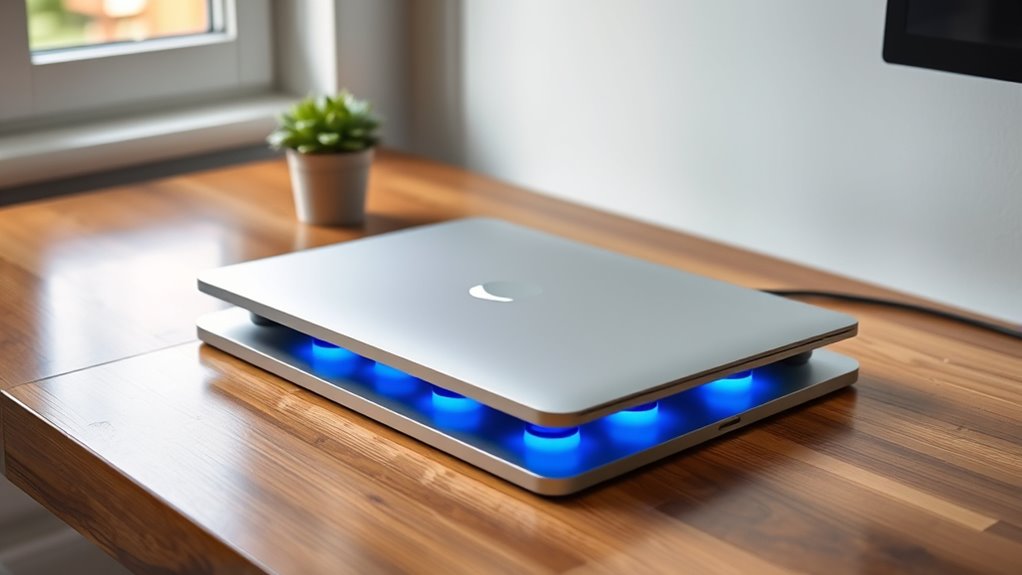
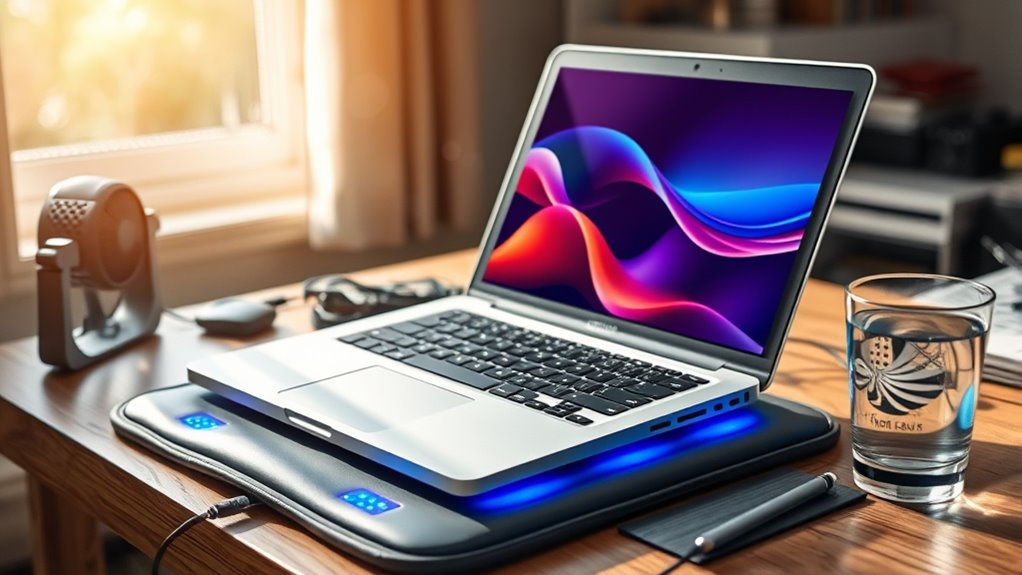
Have you ever noticed your laptop overheating during a hot day or after hours of heavy use? Keeping your device in a cool environment helps prevent this. Avoid placing it in direct sunlight or near heat sources, as high ambient temperatures strain the cooling system. Using cooling pads can also make a big difference; they improve airflow and help dissipate heat more effectively. Additionally, check the thermal paste between your CPU and heatsink; if it’s dried out or degraded, reapplying fresh thermal paste can markedly enhance heat transfer. Ensuring proper air circulation around your laptop is essential for maintaining optimal operating temperatures. Proper ventilation is crucial to prevent heat buildup inside the device, especially during extended use. This not only prevents overheating but also extends the lifespan of your device’s internal components. Regularly cleaning dust from vents and fans can further improve thermal management and keep your laptop running smoothly. Moreover, maintaining good internal airflow by organizing cables and components can significantly contribute to better cooling efficiency. To optimize cooling, consider adjusting your device’s fan settings or using software tools that monitor temperature levels.
Manage Background Applications and Processes
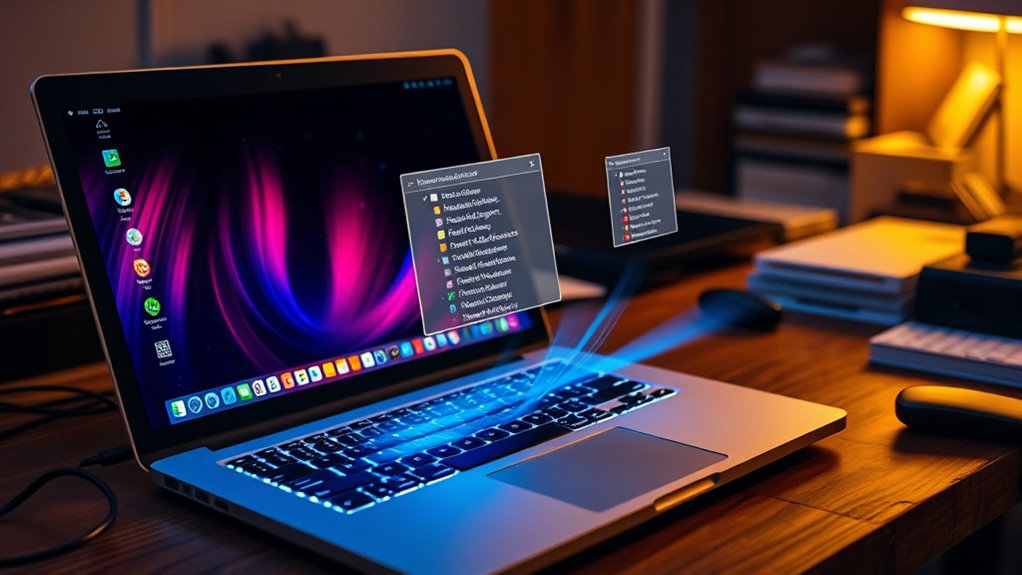
Even with a cool environment, your laptop can still overheat if too many background applications and processes are running simultaneously. Managing background process management is vital for application optimization and heat reduction. To identify resource-heavy tasks, open your task manager or activity monitor. End unnecessary processes to free up CPU and memory, reducing heat output. Here’s a quick guide:
| Process | CPU Usage | Status |
|---|---|---|
| Browser | 15% | Running in background |
| App X | 25% | Idle |
| Update | 5% | Paused |
Prioritize closing or disabling non-essential background applications. This targeted approach keeps your laptop cooler and improves overall performance by minimizing unnecessary workload. Efficient background process management is key to preventing overheating and maintaining system stability. Additionally, regularly checking for software updates can help improve system efficiency and reduce unnecessary background activity. Keeping an eye on background processes ensures your system remains optimized and less prone to overheating. Moreover, monitoring resource allocation helps you understand how your system distributes its processing power, further aiding in heat management. Being aware of CPU load can also help you identify which applications are contributing most to system strain.
Optimize Your Laptop’s Ventilation and Settings

Proper ventilation is essential for keeping your laptop cool, especially during intensive tasks. To optimize airflow and prevent overheating, consider these steps:
- Clean vents and fans regularly to remove dust buildup that hampers airflow.
- Elevate your laptop using a stand to improve heat dissipation.
- Adjust power settings to reduce CPU load, which can help lower temperatures.
- Reapply thermal paste if temperatures remain high; fresh thermal paste improves heat transfer from the CPU to the heatsink, enhancing airflow efficiency.
- Using cooling pads can also help dissipate heat more effectively during prolonged use, and choosing the right fan placement can further improve cooling performance.
- Ensuring proper ventilation around your laptop, such as avoiding enclosed spaces, can significantly enhance cooling efficiency. Additionally, understanding the horsepower of electric dirt bikes can be a fun way to explore how powerful components work, similar to assessing your laptop’s cooling needs.
- Monitoring system temperatures with software can help you identify overheating issues early and take corrective action.
Frequently Asked Questions
Can I Use External Cooling Pads Effectively?
Yes, you can use external cooling pads effectively to lower your laptop’s temperature. External cooling devices, like laptop pads with built-in fans, help improve airflow and reduce heat buildup. Place your laptop on the cooling pad, ensuring vents are clear for ideal performance. These external cooling solutions are especially useful during intensive tasks or gaming sessions, providing a simple way to keep your laptop cool and functioning smoothly.
Does Overclocking Cause My Laptop to Overheat?
Overclocking your laptop is like revving a car engine too hard; it definitely causes overheating. When you push your CPU beyond its limits, it generates extra heat, making airflow optimization vital. Reapplying fresh thermal paste helps transfer heat efficiently from the CPU to the heatsink, cooling things down. If you overclock, make certain your laptop’s cooling system is up to par, or you’ll risk damaging your device from the heat buildup.
How Often Should I Clean My Laptop’s Fans?
You should clean your laptop’s fans every 3 to 6 months to prevent dust buildup that can cause overheating. Regular cleaning helps avoid fan malfunctions and keeps airflow smooth. If you notice your laptop overheating or the fans making unusual noises, it’s a sign to clean them sooner. Use compressed air to remove dust, and guarantee the fans spin freely to maintain peak cooling performance.
Are There Specific Software Tools for Monitoring Temperature?
Think of software monitoring tools as your laptop’s health check-up. Yes, there are specific temperature tools like HWMonitor or Core Temp that give real-time data. I once used these tools during a gaming marathon, and they flagged overheating issues early. These software tools help you keep an eye on your device’s temperature, so you can prevent overheating before it causes damage. Regular monitoring guarantees your laptop stays cool and runs smoothly.
Can Unusual Hardware Issues Cause Overheating?
Yes, unusual hardware issues can cause overheating. You should run hardware diagnostics to identify problems like failing fans or damaged components. Additionally, check if the thermal paste between your CPU and heatsink needs reapplication, as degraded thermal paste can reduce heat transfer efficiency. Addressing these issues can improve cooling, prevent overheating, and keep your laptop running smoothly. Regular maintenance helps avoid hardware-related heat problems altogether.
Conclusion
By keeping your laptop in a cool environment, managing background apps, and optimizing ventilation, you can prevent it from overheating. These simple tweaks put you ahead of the game and save you from future headaches. Remember, a proactive approach keeps your device running smoothly and extends its lifespan. Don’t wait until it’s too late—nip the problem in the bud before it spirals out of control. Stay vigilant, and your laptop will thank you for it.