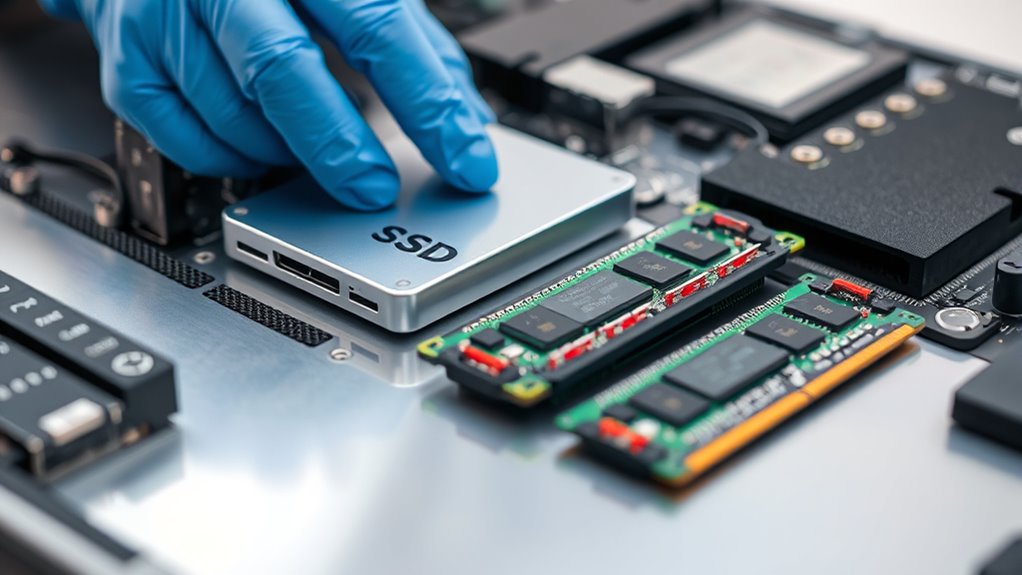

Upgrading your SSD first usually makes the most sense because it instantly boosts system responsiveness and speeds up application loading, giving you noticeable improvements right away. An SSD upgrade is often more impactful for overall performance, especially if you’re using an older HDD. After that, adding or upgrading RAM can help with multitasking and handling larger files. If you want to get the most out of your system, understanding the best upgrade order can really pay off—keep exploring to learn more.
Key Takeaways
- Assess current system bottlenecks: prioritize SSD upgrades if boot/app load times are slow, and RAM if multitasking lags.
- Check hardware compatibility for both SSD and RAM before upgrading to avoid installation issues.
- Consider budget: SSDs generally cost more upfront but offer faster system responsiveness; RAM is cheaper per gigabyte.
- Upgrade the component that addresses your most noticeable performance limitation first for maximum impact.
- For overall balanced performance, upgrade SSD first if storage speed is a bottleneck, then add RAM for multitasking needs.

When your computer starts to slow down or struggle with multitasking, you might wonder whether upgrading your SSD or RAM will give you the best performance boost. To make the right decision, you need to consider the cost comparison and compatibility concerns of each upgrade. Typically, upgrading your SSD can substantially improve boot times and application load speeds, especially if your current drive is an older HDD or a smaller-capacity SSD. RAM upgrades, on the other hand, enhance your system’s ability to handle multiple applications simultaneously without slowing down. Understanding which upgrade offers the most immediate benefits depends on your specific use case, but budget and hardware compatibility are vital factors to weigh.
When evaluating cost, an SSD upgrade usually involves a higher upfront expense than adding more RAM, but the performance gains can be instantly noticeable. SSD prices have dropped considerably, making larger capacities more affordable, but you’ll want to compare prices across different brands and models to get the best deal. RAM tends to be cheaper per gigabyte, and adding more memory can be a quick fix if your system frequently uses virtual memory or shows signs of running out of RAM. However, the actual cost comparison also depends on the capacity you need—adding 16GB of RAM may be inexpensive compared to replacing your existing drive with a larger SSD. Keep in mind, though, that the total cost should be balanced against the expected performance improvements in your daily tasks. Additionally, understanding the contrast ratio of your display can help you optimize your visual experience when working on graphics-intensive tasks.
Frequently Asked Questions
Can Upgrading SSD or RAM Improve Gaming Performance Significantly?
Upgrading your SSD or RAM can give you a noticeable performance boost, but the impact varies. An SSD improves load times and game streaming, making gameplay smoother, while more RAM helps with multitasking and running demanding games. For cost-effectiveness, upgrading to an SSD often delivers a quicker overall experience at a lower cost, but if your system already has plenty of RAM, adding an SSD makes a bigger difference in gaming performance.
Is It Better to Upgrade SSD or RAM First for Photo Editing?
You should upgrade your RAM first for photo editing, as it directly boosts performance for large files and multitasking. Storage upgrades, like adding an SSD, improve load times and file access but don’t speed up editing processes as much. Prioritizing RAM helps optimize your workflow immediately, making your system more responsive, while SSD upgrades enhance storage capacity and file management later. This order maximizes performance optimization efficiently.
How Do I Know if My Laptop Supports Additional RAM or SSD?
You can determine if your laptop supports additional RAM or SSD by checking its hardware compatibility. Look up your laptop model online to find detailed specifications or consult the manufacturer’s website. Open the laptop carefully to see available RAM slots and an accessible SSD bay. Consider upgrade considerations like maximum supported memory and compatible SSD types. This guarantees your upgrades are compatible and worthwhile, avoiding potential compatibility issues.
Will Upgrading SSD or RAM Void My Device Warranty?
Upgrading your SSD or RAM can affect your warranty, depending on your device’s warranty implications and upgrade policies. Typically, if you perform the upgrade yourself without voiding the warranty, it’s okay, but some manufacturers consider it void if not done by authorized technicians. Always check your device’s upgrade policies and warranty terms first. If unsure, consult your manufacturer’s support to avoid invalidating your warranty.
What’s the Typical Lifespan of Upgraded SSDS and RAM Modules?
Your upgraded SSD can last up to 10 years, while RAM modules typically have a lifespan of around 5 to 10 years. Durability expectations vary depending on usage, quality, and environmental factors, but most components exceed their replacement cycles comfortably. You might need to replace your SSD sooner if it’s heavily used or encounters issues, but generally, both upgrades provide long-term reliability, often outlasting your device’s typical lifespan.
Conclusion
Think of your computer like a busy kitchen: upgrading your SSD is like adding a new pantry for faster ingredient access, while more RAM is like expanding your countertop space for better prep. If your system feels sluggish opening files or booting up, start with the SSD—it’s the quickest way to boost speed. But if multitasking slows you down, more RAM is your best bet. Prioritize based on your needs, and watch your digital kitchen run smoothly.