
To quickly cut off unauthorized access on your iPhone, start by going to Settings > Privacy. Review app permissions for location, camera, microphone, and contacts, and revoke any unnecessary access. Enable biometric security like Face ID or Touch ID for added protection. For an all-inclusive fix, perform a security check and consider resetting network settings or even a full factory reset if needed. Stay confident in your device’s safety by exploring these steps further.
Key Takeaways
- Navigate to Settings > Privacy to review and revoke app permissions like location, camera, and microphone.
- Disable access for suspicious or unnecessary apps to prevent data leaks or misuse.
- Use the “Reset Location & Privacy” option to revoke all app permissions at once.
- Enable biometric security (Face ID or Touch ID) to restrict device access immediately.
- Perform a software update to patch security vulnerabilities and ensure device integrity.
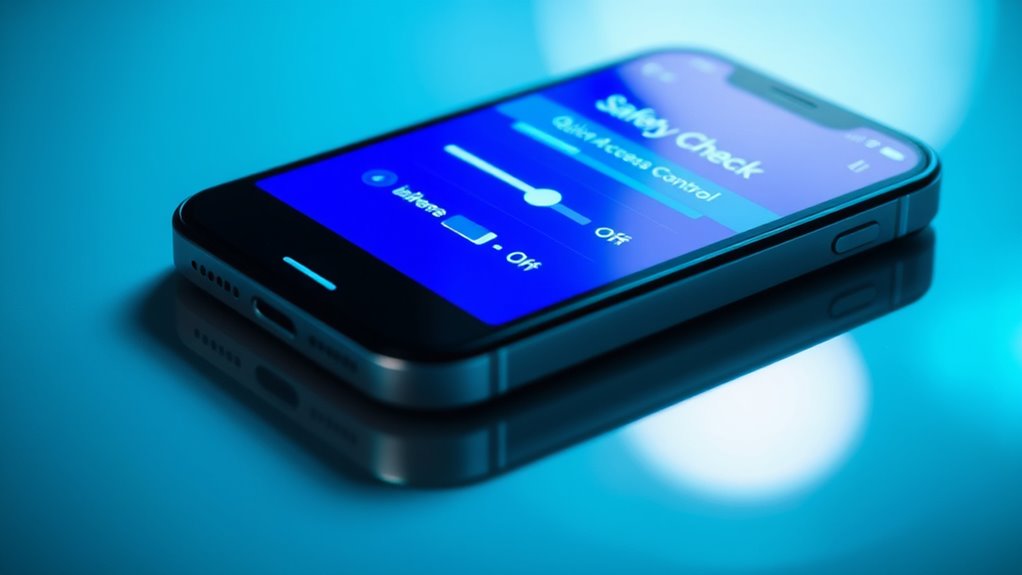
Ever wondered if your iPhone is secure and functioning properly? It’s a question worth asking, especially as your device becomes more integrated into your daily life. Keeping your iPhone safe isn’t just about updating the software; it’s also about actively managing app permissions and maintaining device security. Apps often request access to your camera, microphone, contacts, and location, but not all of these permissions are necessary for their core functions. Regularly reviewing and adjusting app permissions is a simple yet powerful way to safeguard your privacy. When you grant an app unnecessary permissions, you open a door for potential misuse or data leaks. By limiting app access, you tighten your device security and reduce vulnerabilities that could be exploited by malicious actors.
Regularly review and adjust app permissions to protect your privacy and enhance your iPhone’s security.
To perform a quick safety check, start by heading into your Settings. Tap on Privacy, where you’ll see a list of permission categories like Location Services, Microphone, Camera, and Contacts. Review which apps have access to each category and revoke permissions that aren’t essential. For instance, if a game has access to your microphone but doesn’t need it, disable that permission. This proactive approach ensures apps only have access to what they genuinely require, reducing the risk of data collection or misuse. Additionally, practicing smart device management by regularly monitoring connected devices and permissions helps prevent unauthorized access.
Device security doesn’t stop at managing app permissions. You should also check your security settings regularly. Ensure that Face ID or Touch ID is enabled for added biometric protection. Confirm that your passcode is strong and updated, and consider turning on two-factor authentication for your Apple ID. This extra layer of security helps prevent unauthorized access, especially if your device ever gets lost or stolen. Additionally, keep your iOS updated to the latest version, since updates often include security patches that fix known vulnerabilities.
If you suspect any suspicious activity or if your device is compromised, performing an immediate safety check becomes essential. You can do this by resetting your device’s network settings, which clears out any potentially malicious configurations. Also, review your downloaded apps and delete any that seem unfamiliar or untrustworthy. If needed, back up your data and perform a factory reset to restore your device to a clean state. This process helps cut off access to malicious apps or intrusions that might still be lingering.
In essence, maintaining your iPhone’s security is an ongoing process that involves managing app permissions, updating software, and staying vigilant against potential threats. Regular safety checks ensure your device remains a secure and reliable tool for your daily activities. Being proactive about your device security not only protects your personal information but also gives you peace of mind knowing your iPhone is functioning as it should.
Frequently Asked Questions
Can I Perform an Iphone Safety Check Remotely?
Yes, you can perform an iPhone safety check remotely by using Apple’s Find My app or remote access tools. Make sure your device’s security protocols are up-to-date and enabled, then log in to your iCloud account from another device. From there, you can lock your iPhone, erase data if needed, or track its location. This helps cut off access quickly, keeping your information secure even when you’re not physically near your device.
Does Safety Check Affect My Phone’s Data or Settings?
No, safety check won’t wipe out your data or mess with your settings—it’s like a superhero shield protecting your privacy concerns while boosting your security benefits. You can rest easy knowing your info stays intact, and your device remains just as you left it. Think of it as a quick, powerful security boost that keeps your iPhone safe without causing chaos or losing a single photo or message.
How Often Should I Run a Safety Check?
You should run a safety check whenever you notice unusual activity or have privacy concerns. Regularly performing safety checks helps guarantee your security protocols are up-to-date, protecting your personal data. How often depends on your usage habits, but monthly or quarterly checks provide good ongoing security. This proactive approach minimizes risks, keeps your information safe, and helps you quickly cut off access if needed, maintaining your privacy and security.
Will Safety Check Delete My Apps or Contacts?
You’ll be glad to know that running a safety check won’t delete your apps or contacts. It’s designed to cut off access quickly and address privacy concerns, especially around app permissions. Think of it like a security sweep—your data stays intact while permissions get tightened. So, when you run the check, you can confidently protect your privacy without losing important contacts or apps.
Is Safety Check Available on All Iphone Models?
Safety Check is available on iPhones running iOS 16 and later, so if your device has this update, you can access it. This feature helps address privacy concerns by quickly disconnecting people or apps from your device, enhancing your security features. If your iPhone is older, you won’t find Safety Check, so consider updating your software to benefit from these privacy protections.
Conclusion
Just like a vigilant guardian guarding a treasure, quick safety checks on your iPhone protect your personal world. By promptly cutting off access when needed, you prevent unwanted intrusions and keep your information secure. Remember, even Sherlock Holmes would agree that early detection saves the day. Stay proactive, stay safe—your digital fortress depends on your swift actions. Don’t wait for a breach; act now and keep your iPhone’s castle secure.