
Discover hidden Android features to boost your device’s efficiency. Customize your quick settings panel for fast access to Wi-Fi, Bluetooth, and brightness controls. Use system-wide dark mode to save battery and reduce eye strain. Record your screen easily with built-in tools and explore fun Gboard features like emojis and stickers. Enable developer options for advanced tweaks, manage notifications better, and track your device with Find My Device. Keep exploring these options to get even more out of your phone.
Key Takeaways
- Customize quick settings tiles for faster access to frequently used features like Wi-Fi, Bluetooth, and brightness.
- Enable system-wide Dark Mode to reduce eye strain and extend battery life on OLED screens.
- Use hidden emoji features and Gboard themes for personalized keyboard experiences.
- Manage app permissions and privacy settings to enhance security and control data access.
- Activate Find My Device and remote locking for efficient device tracking and protection.
Master Your Quick Settings Panel
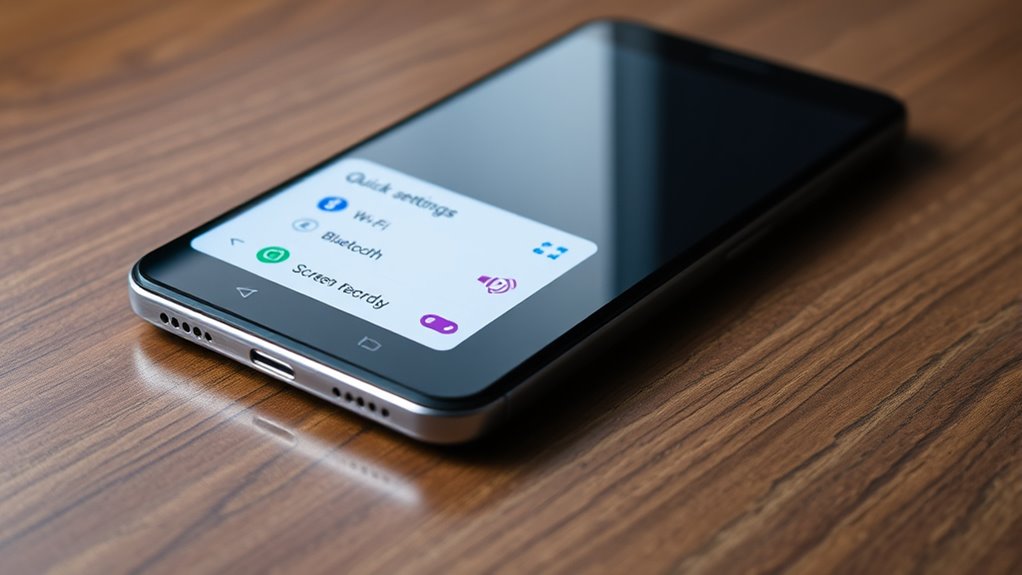
Your Quick Settings panel is a powerful tool that can streamline your Android experience. By mastering quick settings customization, you can easily access frequently used features like Wi-Fi, Bluetooth, and brightness controls. You can also tailor the panel to fit your needs, adding or removing tiles for faster access. This saves you time and effort during daily tasks. Additionally, the panel helps with app permission management, allowing you to quickly toggle permissions for specific apps without diving into deeper settings. This gives you more control over your privacy and security. Regularly personalizing your quick settings ensures you have the most relevant options at your fingertips, making your device more efficient and personalized. Taking the time to explore these features can also enhance your overall Android customization, unlocking even more ways to optimize your device. Exploring system settings can further improve your device’s performance and display quality, ensuring a smoother user experience. Understanding how to access hidden features within your device can reveal additional tools to enhance your daily use.
Use Screen Pinning to Secure Apps
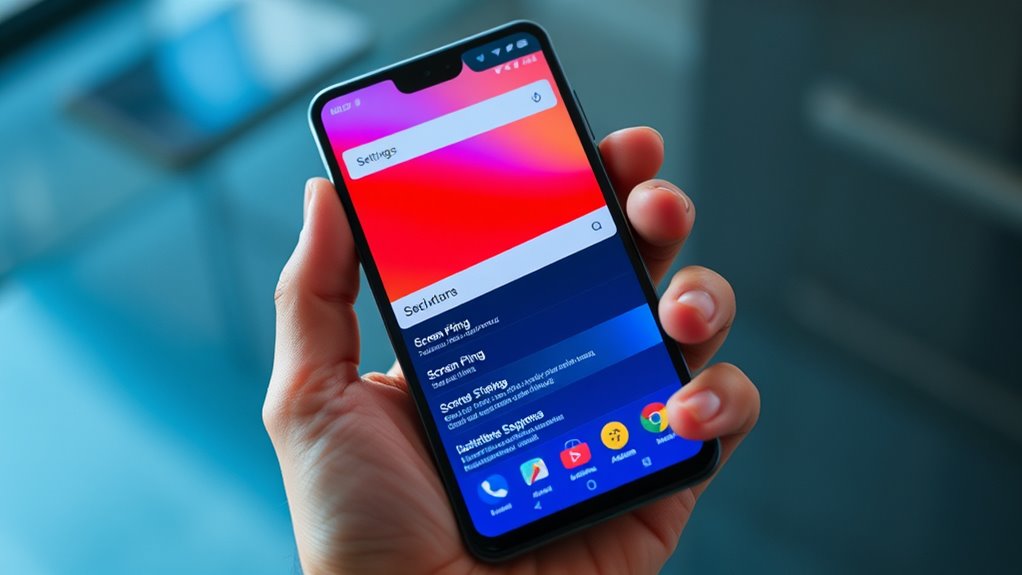
Ever wondered how to keep someone focused on a single app without access to your entire device? Screen pinning is a simple feature that enhances app security and user privacy by locking your device to a specific app. To activate it, go to Settings > Security > Screen Pinning, then enable the feature. Once enabled, you can pin an app by opening it, tapping the overview button, and selecting the pin icon. When pinned, the user can’t switch apps or access other parts of your device. To unpin, press and hold the back and overview buttons simultaneously. Using security features like screen pinning can help safeguard your device from unauthorized access and accidental touches. Regularly update device software to ensure security features work effectively and to benefit from the latest improvements in device protection. Additionally, familiarizing yourself with device security settings can further enhance your overall privacy and safety.
Customize App Permissions for Better Privacy
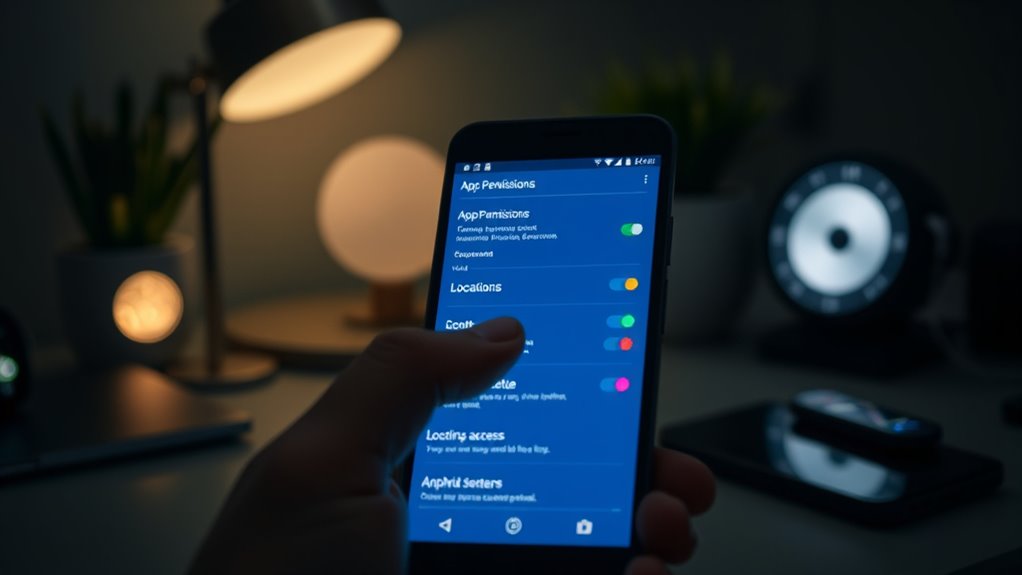
You can improve your privacy by managing app access and adjusting permission settings on your Android device. Review which apps have unnecessary rights and revoke them to limit data sharing. Taking control of app permissions guarantees your personal information stays protected. Additionally, understanding cookie categories can help you optimize your device’s performance and security, especially when considering cloud service vulnerabilities that may impact your data privacy.
Manage App Access
Have you ever wondered how to protect your privacy on your Android device? Managing app access is a key step. You can tighten security through features like app lock and permission management, giving you control over what apps can access. To get started:
- Enable app lock for sensitive apps
- Review app permissions regularly
- Restrict location access for apps
- Limit camera and microphone use
- Deactivate unnecessary background data
- Explore app permission management options to enhance your privacy. Additionally, understanding how water safety and privacy settings intersect can help you safeguard your personal information more effectively. Being aware of European cloud innovation principles can also guide you toward choosing more secure cloud storage solutions.
Adjust Permission Settings
Adjusting permission settings is a straightforward way to enhance your privacy on Android devices. By managing app permission management, you gain control over what each app can access, like your camera, location, or contacts. To do this, go to your device’s privacy control settings and review the permissions granted to each app. You can revoke permissions that are unnecessary or overly invasive, reducing the risk of data leaks. This simple step allows you to tailor your privacy preferences and limit apps from accessing sensitive information without your consent. Regularly checking and adjusting permission settings helps keep your personal data secure and ensures you’re only sharing what you’re comfortable with. It’s a proactive way to protect your privacy without sacrificing app functionality. Additionally, understanding permission management tools can help you better monitor and modify app access in real-time.
Revoke Unnecessary Rights
To better protect your privacy, it’s important to revoke app permissions that are no longer necessary. App permission revocation helps you control what each app can access, enhancing your privacy. Regularly reviewing permissions guarantees you’re not sharing unnecessary data. To do this effectively:
- Check permissions for each app in your settings
- Remove location access for apps that don’t need it
- Disable microphone and camera permissions for unused apps
- Revoke contact or storage access if irrelevant
- Limit background activity by adjusting permissions
- Additionally, understanding wiring basics can help you troubleshoot or customize device connections more securely. Being aware of privacy policies and how your data is handled further empowers you to make informed decisions about your device usage. Regularly updating your device firmware also helps protect against vulnerabilities and maintains optimal privacy safeguards. Knowing about electrical safety can prevent potential hazards when handling device connections or repairs. Furthermore, paying attention to essential oil benefits can enhance your well-being, whether through aromatherapy or other health practices.
Enable Dark Mode System-Wide
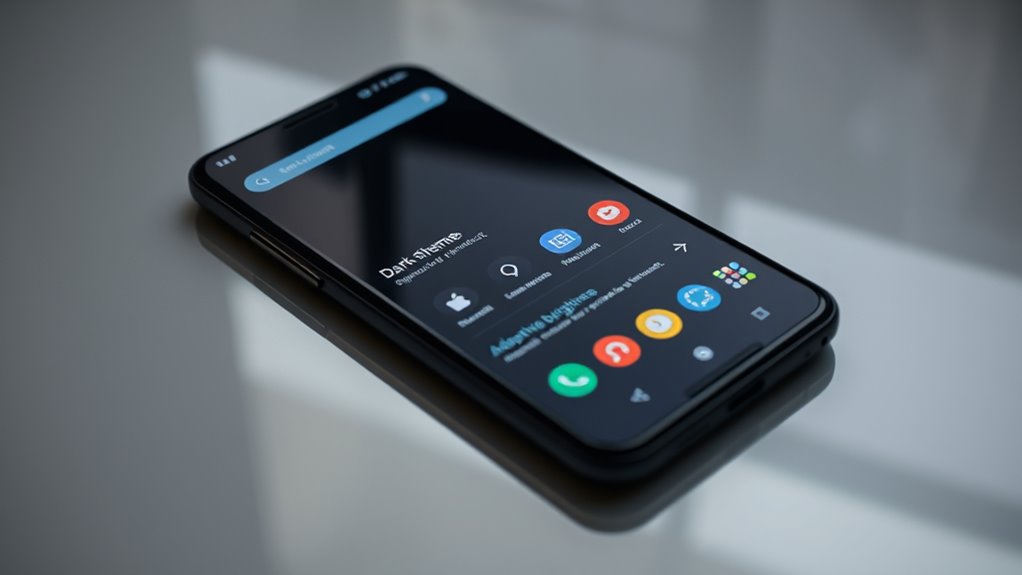
Ever wondered how to make your Android device easier on the eyes and improve battery life? Enabling Dark Mode system-wide does just that. It applies a sleek, dark theme across menus, apps, and settings, enhancing dark mode customization. To activate it, go to Settings > Display > Dark Theme or System Settings > Appearance > Dark Mode. Once enabled, your device adapts seamlessly with system wide theme adjustments that reduce eye strain and save battery, especially on OLED screens. Exploring device accessibility options can further tailor your experience for comfort and usability. Additionally, many apps now support dark mode independently, allowing for a more consistent visual experience across your device. Enabling dark mode not only improves visual comfort but also can contribute to extending your device’s overall battery life, making it a practical choice for daily use. Incorporating power-saving features can further optimize your device’s energy efficiency while using dark mode.
Utilize Built-In Screen Recording Tools
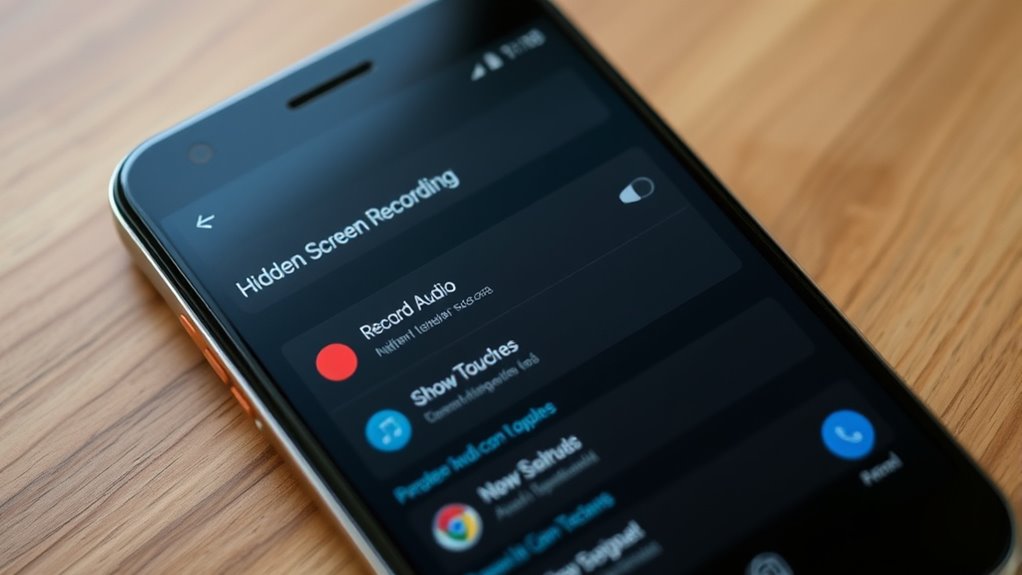
You can quickly access the built-in screen recording tool through your device’s Quick Settings panel. Once recorded, you have options to edit and share your videos directly from your gallery or file manager. Exploring these features makes capturing and sharing on Android easier than ever.
Access via Quick Settings
Accessing the built-in screen recording feature on your Android device is quick and straightforward through the Quick Settings panel. Once there, you can easily start recording your screen without browsing through menus. To customize your experience, you might want to explore gesture navigation options or manage notifications to keep the recording clear.
Here are some tips:
- Swipe down twice to access Quick Settings quickly
- Tap the screen recorder icon to start recording
- Use gesture navigation to switch apps smoothly
- Adjust notification management to avoid interruptions
- Add the screen recording tile if it’s not visible
This method makes it simple to record tutorials or gameplay while keeping your device streamlined and easy to control.
Use Third-Party Apps
While quick settings offer a convenient way to record your screen, third-party apps provide additional features and customization options that built-in tools may lack. These apps often let you personalize your recording experience, such as creating custom app icons for easy access or integrating widgets directly on your home screen. Some apps offer advanced recording options like adjustable resolution, frame rate, or the ability to record internal audio. They may also include editing tools, timestamps, or the ability to pause and resume recordings seamlessly. Using third-party apps gives you more control over your recordings, making it easier to tailor the process to your needs. Plus, with widget integration, you can start a recording instantly without navigating through menus.
Edit and Share Recordings
Ever wondered how to quickly refine and share your screen recordings without installing extra apps? Your Android device’s built-in tools make this easy. After recording, you can trim videos, enhance audio, or add voice recordings directly from your gallery. Sharing is just as simple—send your edited clip via messaging, email, or social media. To get started, explore these features:
- Edit recordings with basic trimming options
- Add voice recordings for narration or explanations
- Perform audio editing to improve sound quality
- Save multiple versions of your recording
- Share directly from your device with ease
Using these tools, you can produce polished recordings and share them instantly, all without third-party apps. It’s a quick way to create professional-looking content right from your Android device.
Optimize Battery Life With Adaptive Battery

To extend your Android device’s battery life, enabling Adaptive Battery can make a noticeable difference. This feature intelligently manages app activity, providing better battery optimization and adaptive power. When activated, it learns your usage patterns and limits background activity for rarely used apps, conserving energy. To visualize this, consider the following:
| App Usage Frequency | Power Management Approach |
|---|---|
| Frequent | Full background activity |
| Occasionally | Limited background activity |
| Rarely | Restricted background activity |
| Never Used | No background activity |
| Unknown | Default settings |
Discover Hidden Emoji and Gboard Features
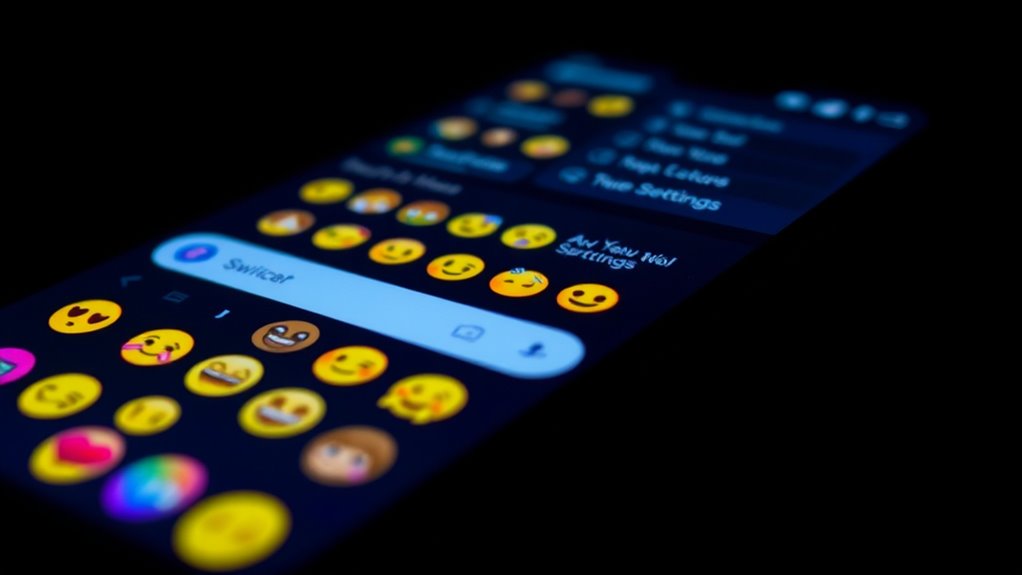
You can easily find emojis faster with search tips that quickly bring up the perfect sticker or symbol. Gboard also offers options to personalize your keyboard, making your typing experience uniquely yours. Exploring these hidden features helps you communicate more creatively and efficiently.
Emoji Search Tips
Have you noticed how searching for the perfect emoji can sometimes feel like a game of chance? Luckily, Gboard offers hidden emoji search tips that make finding the right emoji faster. Use the emoji search bar at the top of the keyboard to quickly locate specific emojis by typing keywords. Tap the emoji icon, then enter terms like “happy” or “food” to narrow your options. You can also explore emoji categories to find related symbols easily. For more fun, try emoji customization features that let you create personalized stickers or emoji variants. Keep these tips in mind:
- Use keyword search for quick access
- Browse emoji categories efficiently
- Pin your favorite emojis for quick access
- Discover trending emojis in your region
- Experiment with emoji variants and skin tones
Mastering these tricks enhances your emoji search experience and makes messaging more fun.
Gboard Personalization
Gboard offers a variety of personalization options that let you customize your typing experience and discover hidden features, including unique emojis. You can change keyboard themes to match your style, making your typing more engaging. Explore the settings to find themes like dark mode or colorful designs, which refresh your interface. Additionally, Gboard’s multilingual typing allows you to switch seamlessly between languages without needing to change keyboards. You can enable multiple languages and even personalize emoji suggestions based on your preferences. Hidden features include discovering new emojis, stickers, and GIFs effortlessly as you type. These personalization options help you express yourself better and make your communication more fun. Immerse yourself in Gboard’s settings to reveal these hidden gems and tailor your keyboard to suit your mood.
Access Developer Options for Advanced Tweaks
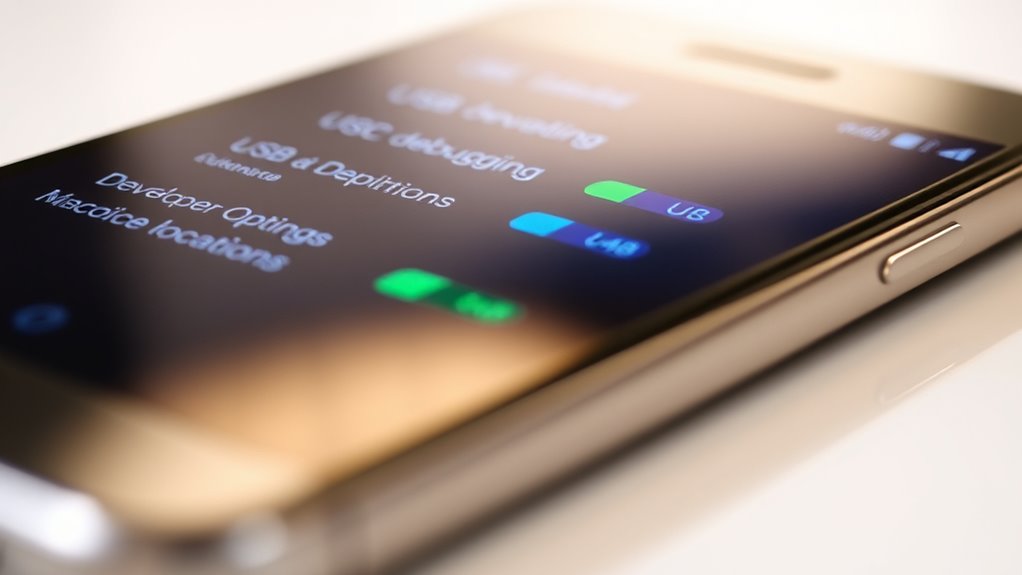
To access Developer Options on your Android device, you need to enable them through the Settings menu. Once activated, you can explore a variety of advanced tweaks to optimize your device’s performance and functionality. To do this, go to Settings > About phone > Tap the Build number seven times. Then, return to Settings and select Developer Options. Here, you’ll find options that allow you to:
Enable Developer Options by tapping the Build number seven times in Settings > About phone.
- Enable USB debugging for easier device management
- Adjust animation scales for faster navigation
- Limit background processes to save battery
- Enable GPU rendering for smoother graphics
- Show touches on the screen for testing purposes
Using developer options reveal powerful features that can enhance your Android experience, but proceed with caution to avoid unintended issues.
Manage Notifications With Notification Channels

Notification channels give you detailed control over how apps deliver alerts on your Android device. By managing these channels, you can customize notification settings for each app, ensuring you only receive the alerts you care about. You can adjust notification importance levels, which determine how prominently notifications appear and whether they make sounds or vibrate. This feature allows you to prioritize critical messages while silencing less important ones, reducing distractions. To access notification channels, go to your device’s settings, select “Apps & Notifications,” then choose an app and tap “Notifications.” From there, you can customize each channel’s notification behaviors. Managing notification channels helps you create a more streamlined and personalized notification experience, giving you full control over how and when you’re notified.
Use Find My Device for Easy Tracking
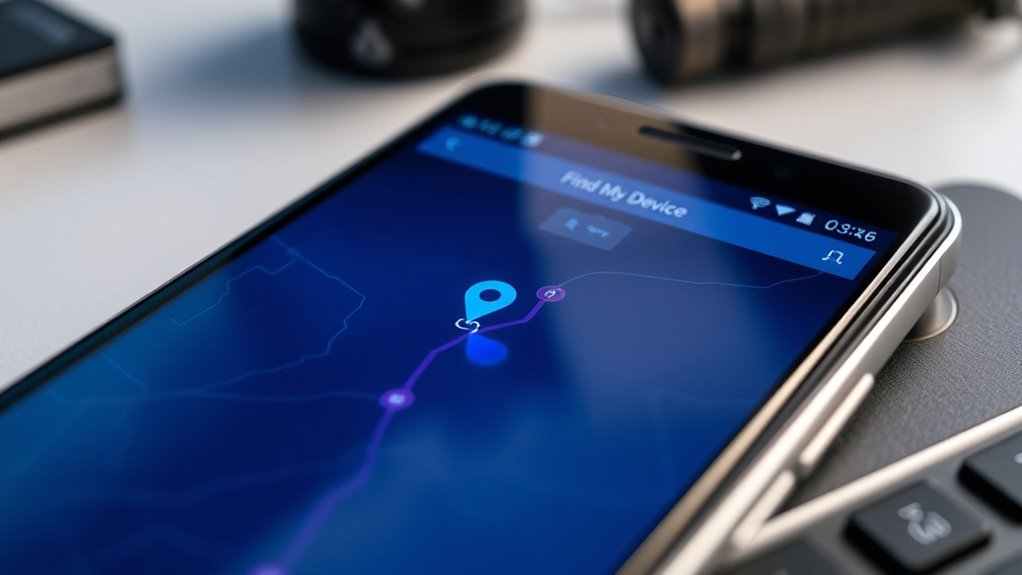
If you ever misplace your Android device, using Find My Device makes locating it quick and easy. This feature enhances device tracking and enables you to share your location effortlessly. To get started, verify your device is signed into your Google account and has location services enabled. Once set up, you can:
- Ring your phone loudly to find it nearby
- Lock your device remotely to prevent unauthorized access
- Display a custom message with contact info on the lock screen
- Erase your data to protect sensitive information
- View your device’s real-time location on a map
Using Find My Device not only helps locate lost devices but also improves your overall security through location sharing. It’s a simple tool that keeps your Android device within reach, even when you’re not nearby.
Frequently Asked Questions
How Can I Customize Gestures on My Android Device?
You can customize gestures on your Android device by accessing the gesture control settings. To do this, open your Settings app, tap on “System” or “Advanced features,” then select “Gestures” or “Motion.” From there, you can enable and personalize gesture controls like swipe, double-tap, or specific motion commands. This allows you to tailor gesture customization to fit your usage habits, making your device more intuitive and efficient.
What Are Some Hidden Shortcut Tricks in Android?
Ever wish your Android device had secret shortcuts? Explore Developer Options for hidden tricks like quick settings customization, which lets you add or remove toggles for faster access. Swipe down to access quick settings, then tap the pencil icon to rearrange. You can also enable features like “Stay Awake” or “Show Touches,” turning your device into a powerful tool—making everyday tasks feel like second nature.
Can I Hide Specific Apps From My App Drawer?
Yes, you can hide specific apps from your app drawer through app hiding and launcher customization. Most Android launchers, like Nova Launcher or Apex Launcher, let you hide apps easily. You simply access the launcher’s settings, find the app hiding or drawer options, and select the apps you want to hide. This way, your app drawer stays clean, and sensitive apps stay private without uninstalling them.
How Do I Enable or Disable System Sounds and Haptic Feedback?
Imagine your device responding smoothly like a gentle tap on a glass surface. To enable or disable system sounds and haptic feedback, open your sound settings, then navigate to volume control. Here, you can toggle system sounds and haptic feedback on or off, giving you control over your device’s tactile and auditory responses. Adjusting these settings lets you customize your experience, making your device feel just right for your environment.
Are There Secret Codes to Access Hidden Android Features?
Yes, secret code discovery lets you access hidden feature activation on your Android device. You can dial specific codes like *#*#4636#*#* to view device info or *#*#197328640#*#* for service menu options. Keep in mind, these codes vary by device and Android version. Use them carefully, as they can reveal advanced settings or diagnostics not normally accessible, giving you quick access to hidden features.
Conclusion
Now that you’ve revealed these hidden features, your Android device becomes a seamless extension of your life. Imagine swiping through your customized quick settings, pinning apps for security, and wielding powerful tools like screen recording and developer options—all at your fingertips. With each tap and toggle, your device transforms into a sleek, efficient companion. Explore these settings, and let your Android experience flow effortlessly, turning everyday tasks into smooth, effortless routines.