
To format your drives, choose NTFS if you’re on Windows and need security features, or exFAT for cross-platform compatibility with large files. If you’re using a Mac and want advanced features like snapshots and native encryption, go for APFS. Keep in mind compatibility, security, and storage limits when picking. Want to make sure your drive is set up properly? Keep exploring to find the best option for your needs.
Key Takeaways
- Choose NTFS for Windows drives needing security, permissions, and large file support within Windows environments.
- Use exFAT for cross-platform compatibility on external storage devices, supporting large files and easy formatting on Windows and macOS.
- Opt for APFS if you’re on Mac, managing large files, snapshots, and requiring native encryption and data integrity features.
- Consider device ecosystem and OS compatibility—NTFS for Windows, exFAT for multi-platform, APFS for Mac-focused use.
- Match your security, performance, and maintenance needs with the appropriate file system for optimal drive performance and data safety.
Top picks for "format driv right"
Open Amazon search results for this keyword.
As an affiliate, we earn on qualifying purchases.
Overview of NTFS, Exfat, and APFS
Understanding the differences between NTFS, exFAT, and APFS is essential when choosing a file system for your drives. NTFS, primarily used on Windows, offers robust drive encryption options and advanced permissions, making it ideal for secure file sharing within Windows environments. exFAT is designed for compatibility across multiple devices like cameras and external drives, supporting large files without complex permissions, though it lacks built-in drive encryption. APFS, Apple’s modern file system, enhances data integrity and provides native encryption features, streamlining secure file sharing on Macs and iOS devices. Each file system serves specific needs: NTFS for Windows security, exFAT for broad compatibility, and APFS for seamless Apple ecosystem integration. Additionally, European Cloud Servers are contributing to sustainable and secure storage solutions, emphasizing the importance of energy-efficient and innovative cloud infrastructure. Understanding these differences helps you select the right system for your storage and sharing requirements.
Compatibility Across Operating Systems
Choosing the right file system depends heavily on how well it works across different operating systems. Device compatibility is essential if you use multiple platforms, like Windows, macOS, or Linux. NTFS offers excellent support on Windows but limited cross-platform support without third-party tools. ExFAT provides better cross-platform compatibility, working seamlessly on Windows and macOS, making it ideal for external drives. APFS is optimized for macOS devices and doesn’t natively support Windows or Linux, limiting its cross-platform support. If you need versatile device compatibility, ExFAT is your best choice for external drives. However, if you primarily use a Mac, APFS guarantees smooth operation. Understanding your device ecosystem helps you select a file system that guarantees reliable cross-platform support and smooth data access. Compatibility considerations play a crucial role in ensuring your data remains accessible across all your devices, especially considering how file system technology impacts overall performance and functionality. Additionally, security features can influence your choice, especially when handling sensitive data across different platforms.
Performance and Speed Differences
When it comes to performance and speed, the choice of file system can substantially impact how quickly your data is accessed and transferred. NTFS generally offers fast read/write performance on Windows, making it suitable for large files and frequent transfers. ExFAT provides high transfer speeds across both Windows and macOS, ideal for external drives and portable storage. APFS is optimized for Macs, delivering superior read/write performance with quick access times, especially for SSDs. Each file system’s efficiency in handling transfer speeds varies depending on your hardware and usage patterns. If you prioritize rapid data transfer and minimal latency, selecting the right format can markedly improve overall performance. Understanding these differences helps you optimize your storage setup for faster, smoother operation. For instance, connected equipment and proper optimization can further enhance transfer speeds and overall system responsiveness. Additionally, choosing the appropriate file system can improve system stability and data security during transfers. Moreover, the selection of a suitable file system can also influence power efficiency, particularly in mobile or portable devices, leading to longer battery life and reduced energy consumption. The compatibility of the file system with your operating system also plays a vital role in maintaining optimal data integrity during transfers. Ensuring that your device’s hardware supports the selected file system can further prevent potential corruption and data loss issues.
Storage Limits and File Size Restrictions
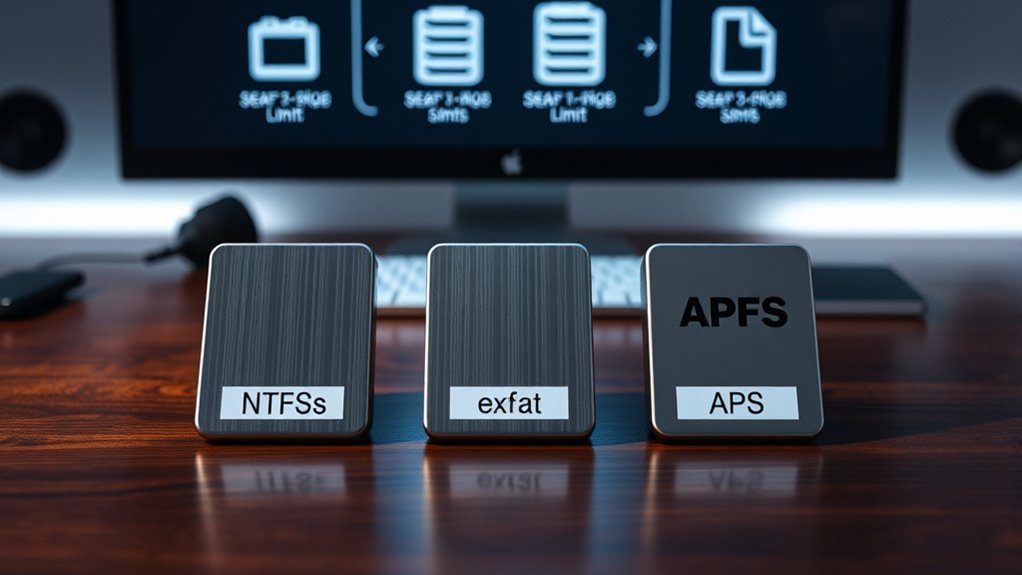
Understanding storage limits and file size restrictions helps you choose the right format for your needs. NTFS, exFAT, and APFS each have different maximum capacities, affecting how much data you can store. Knowing these limits guarantees you don’t run into issues when handling large files or extensive storage requirements. Additionally, consider the compatibility of file systems with your devices to ensure seamless data access and transfer. For example, some formats are better suited for device-specific requirements, influencing your choice based on your hardware setup. Moreover, understanding deep-sky imaging storage demands can help you select a format that supports your high-resolution image files without restrictions, especially when dealing with large data sets. Being aware of file system limitations can save you time and prevent data loss during critical storage operations.
Maximum Storage Capacity
NTFS, exFAT, and APFS each have specific storage limits and file size restrictions that can impact your data management. NTFS supports very large volumes, up to 256TB, making it ideal for external drives and enterprise storage. exFAT can handle drives up to 128PB, which suits large external drives and cloud storage solutions, but it may face compatibility issues across devices. APFS, used mainly on Macs, supports volumes up to 8EB, so you’re unlikely to hit a limit unless managing massive storage arrays. For cloud storage, these limits are less restrictive, but understanding them helps you plan for future growth. When choosing a format, consider your storage needs, whether you’re working with external drives or cloud solutions, to avoid hitting capacity bottlenecks.
File Size Restrictions
File size restrictions are just as important as storage capacity when choosing a drive format, as they determine the maximum size of individual files you can store. Understanding file size limits helps prevent issues when working with large files or transferring data. NTFS supports extremely large files, with a maximum file size of 16 TB, making it ideal for high-capacity storage and large media files. ExFAT offers a file size limit of 16 EB (exabytes), suitable for large external drives and cross-platform use. APFS, used mainly on Apple devices, supports maximum file sizes of 8 EB, ensuring efficient handling of large files on macOS and iOS.
- NTFS handles large files up to 16 TB
- ExFAT supports files up to 16 EB for broad compatibility
- APFS allows files up to 8 EB for optimized Apple device use
Data Security and Encryption Features
When it comes to data security, you’ll want to compare the encryption standards each file system offers to protect your information. Built-in security tools can help you manage access and safeguard your data, while data integrity measures guarantee your files remain uncorrupted. Understanding these features helps you choose the right format for your security needs. Additionally, modern kitchen technology emphasizes the importance of data security in connected appliances and smart devices, ensuring your personal information remains protected. Recognizing the privacy policies associated with each system can also help you make informed decisions about data sharing and security. Moreover, the encryption capabilities of each file system vary, affecting how securely your data is stored and transmitted. Being aware of security vulnerabilities associated with different formats can further assist in making a safer choice for your data. Incorporating encryption standards into your data management approach is crucial for maintaining overall security.
Encryption Standards Comparison
Encryption standards vary considerably across NTFS, exFAT, and APFS, directly impacting your data security. NTFS uses the Encrypting File System (EFS), which relies on encryption key lengths typically up to 256 bits, providing strong protection. exFAT offers minimal built-in encryption and is mainly dependent on external tools for security. APFS supports robust encryption options, including multi-key encryption with strong key lengths, and is optimized for hardware encryption compatibility, ensuring faster, more secure data processing. Understanding these differences helps you choose the right file system for your security needs. Vetted – wave and wind Additionally, encryption features vary depending on the file system, influencing overall data protection strategies. For example, professional voice actors can enhance the clarity and impact of security messages within these contexts. Moreover, the cryptographic algorithms employed by each system play a crucial role in determining their resilience against potential breaches.
Built-in Security Tools
Built-in security tools vary markedly across NTFS, exFAT, and APFS, directly affecting how effectively your data is protected. NTFS offers robust encryption algorithms through its BitLocker integration, providing strong data security and reducing security vulnerabilities. In contrast, exFAT has minimal built-in security features, mainly relying on external encryption tools, making it more susceptible to vulnerabilities. APFS includes native encryption options, such as file and disk encryption, using advanced algorithms to safeguard your data. Its security features help mitigate vulnerabilities by encrypting data at rest and during access. However, no system is immune to security vulnerabilities, so combining these built-in tools with additional security measures is advisable to guarantee comprehensive protection for your sensitive information.
Data Integrity Measures
Data integrity measures are essential for ensuring your files remain unaltered and secure during storage and transfer. These measures help prevent corruption and protect against data loss. To maintain data security, leverage built-in features like encryption and error-checking. Implement robust backup strategies to recover quickly from corruption or hardware failure. Regularly verify data integrity to catch issues early. You can also use checksum verification to detect file tampering. Using these tools reduces the risk of data corruption and guarantees your files stay intact. Whether you’re working with NTFS, exFAT, or APFS, understanding these measures helps you safeguard your data effectively. Remember, consistent backups and encryption are your best defenses against unexpected data loss or corruption. Stay proactive to keep your files secure and reliable.
Ease of Formatting and Maintenance
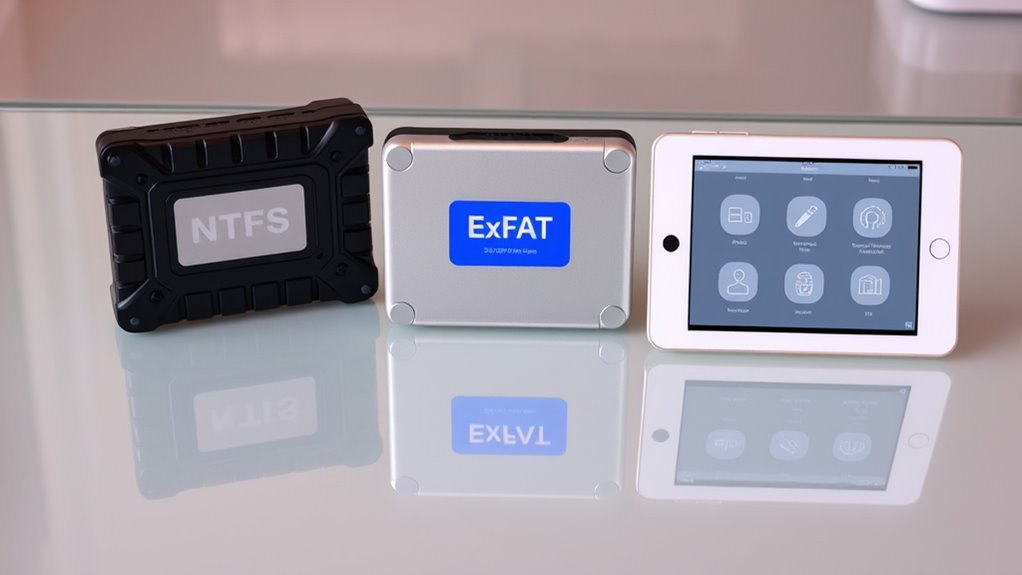
When it comes to formatting and maintaining drives, the process can vary considerably depending on the file system you choose. NTFS offers straightforward drive reformatting on Windows, making system setup quick and simple, but it’s less compatible with other OSes. ExFAT is easy to format across both Windows and macOS, requiring minimal effort for drive reinitialization, which simplifies maintenance for shared drives. APFS, optimized for Mac systems, allows quick formatting and efficient updates, but maintaining it on non-Apple devices is more complex. Overall, NTFS and ExFAT provide more user-friendly options for drive reformatting and ongoing maintenance, especially if you regularly switch between systems. APFS excels in Mac environments but demands more careful management if used outside them.
Best Use Cases for Each File System
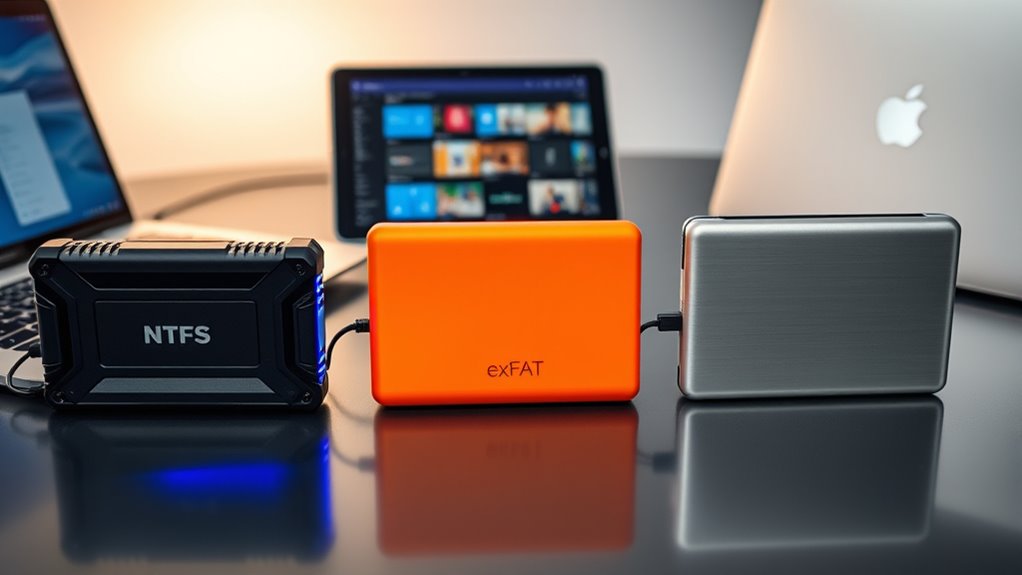
Choosing the right file system depends heavily on how and where you’ll use your drives. Your decision should match your use case scenarios and user requirements. For example, if you’re working with Windows and need compatibility across devices, NTFS is ideal due to its robustness and security features. If you’re frequently transferring files between Windows and macOS, exFAT offers flexibility without the limitations of FAT32. For Mac users managing large files or working with advanced features like snapshots, APFS is best suited. Consider your storage size, device compatibility, and performance needs when selecting a file system.
Choose the right file system based on your device, storage needs, and compatibility for optimal performance.
- NTFS: Best for Windows-based computers, external drives, and security-focused applications.
- ExFAT: Ideal for cross-platform compatibility, large files, and external storage devices.
- APFS: Designed for Mac users, optimizing SSDs and managing large, complex files efficiently.
Making the Right Choice for Your Drives

Selecting the right file system depends on understanding your specific needs and how you’ll use your drives. If security is a priority, consider a system that supports robust drive encryption, like NTFS or APFS, to protect sensitive data. For drives prone to frequent data loss, choose a format that works well with data recovery tools, ensuring you can retrieve files when needed. Exfat offers broad compatibility across multiple devices but lacks native encryption and advanced recovery features. If you’re working within a Mac ecosystem, APFS is optimized for SSDs and offers better encryption options, making it ideal for security-conscious users. Ultimately, assess your device compatibility, security requirements, and ease of data recovery to make an informed decision.
Frequently Asked Questions
Can NTFS, Exfat, and APFS Be Used Interchangeably on the Same Drive?
You can’t use NTFS, exFAT, and APFS interchangeably on the same drive without facing compatibility issues. Each file system has specific formatting procedures and is designed for different operating systems—NTFS for Windows, APFS for macOS, and exFAT for cross-platform use. To avoid problems, you’ll need to reformat the drive when switching between systems, which can lead to data loss if not done carefully.
How Do These File Systems Handle Data Recovery in Case of Corruption?
Data damage during drive disasters demands decisive data recovery. NTFS, exFAT, and APFS each handle corruption differently. NTFS offers built-in recovery features, while exFAT relies more on external recovery tools. APFS prioritizes data integrity with snapshots and clones, easing recovery. You can use specialized recovery tools to restore lost data, but success varies based on the file system’s features and the extent of the corruption.
Are There Any Hidden or Less-Known Limitations of Each File System?
You should know that each file system has hidden limitations and lesser-known constraints. NTFS, for instance, struggles with very large files and has limited compatibility outside Windows. ExFAT offers broad device support but lacks advanced features like journaling, risking data integrity. APFS, optimized for Macs, can be less reliable on non-Apple devices and may have compatibility issues. Understanding these hidden limitations helps you choose the right system for your needs.
How Do Updates or Upgrades Affect Existing Data on Formatted Drives?
You’re opening a can of worms when you update or upgrade your drive’s file system, risking data loss if you’re not careful. Updates can affect existing data by improving compatibility and security, but they may also cause data preservation issues if the process goes wrong. Always back up your files beforehand, and check update compatibility to make certain your data stays safe and accessible after the upgrade.
What Are the Environmental Impacts of Choosing One File System Over Another?
Choosing a file system impacts the environment through energy consumption and material sourcing. NTFS, commonly used in Windows, may require more energy during data processing, while exFAT, optimized for flash drives, consumes less power. APFS, designed for Apple devices, balances efficiency and performance. Your choice influences device longevity and resource use, so selecting a system that minimizes energy use and reduces the need for frequent hardware replacements helps lessen environmental impact.
Conclusion
Choosing the right file system is like selecting the perfect key for your digital vault. NTFS, Exfat, and APFS each unseal different doors—security, speed, or universal access. By understanding their symbolism—strength, freedom, or harmony—you can open the path to seamless storage. Make your choice wisely, and let your drive’s true potential shine, guiding your data safely through the labyrinth of technology with clarity and purpose.