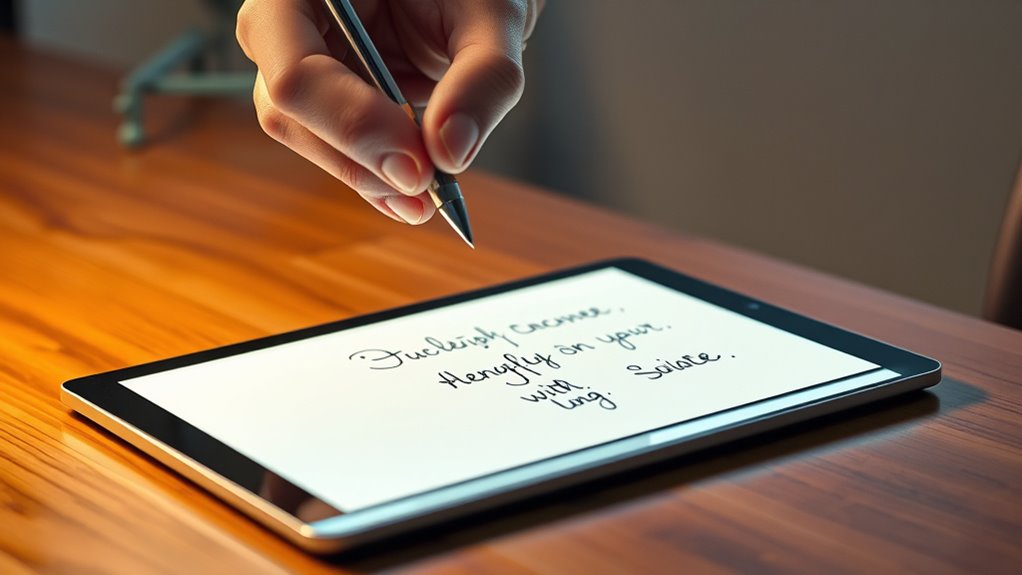

To turn handwriting into text on tablets without lag, use note-taking apps like OneNote or Notability that feature real-time recognition technology. Opt for high-quality styluses such as the Apple Pencil or S Pen, and practice clear, consistent handwriting to improve accuracy. Keep your device and apps updated, and customize recognition settings for smoother results. By optimizing your tools and habits, you’ll experience faster, more reliable conversions—stay with us to discover how to further enhance your workflow.
Key Takeaways
- Use high-quality styluses like Apple Pencil or S Pen for precise stroke capture.
- Keep handwriting clear and consistent to improve recognition speed and accuracy.
- Update your tablet’s software and note-taking apps to ensure optimal performance.
- Enable and customize recognition and shape recognition features within your note app.
- Practice steady, neat handwriting and correct recognition errors promptly for faster results.
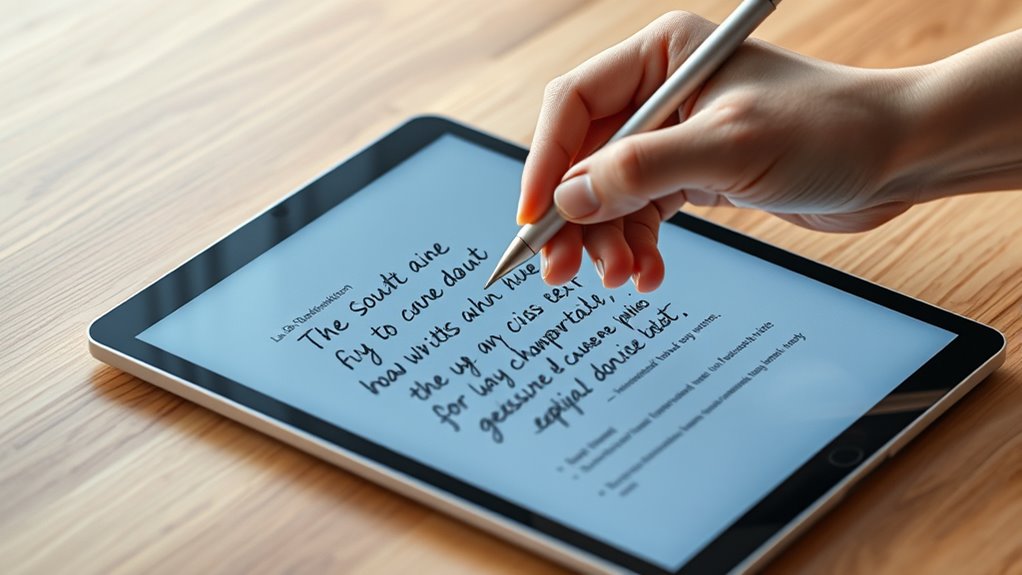
If you want to quickly convert your handwritten notes into digital text on a tablet, modern tools make it easier than ever. The key lies in understanding how digital handwriting and tablet recognition work together to transform your scribbles into clean, editable text. With advancements in technology, you no longer need to spend extra time rewriting or manually typing out your notes. Instead, you can focus on capturing your ideas naturally and let the software do the heavy lifting.
Digital handwriting has come a long way, and today’s tablets are equipped with sophisticated recognition algorithms. These systems analyze the strokes you make with your stylus or finger, identifying characters and words almost instantly. When you write on your tablet, the device’s recognition engine processes each stroke in real time, translating your handwriting into digital text that appears on screen. This means you get immediate feedback, and your notes are ready for editing, sharing, or storing without delays.
Modern tablets use advanced recognition algorithms to instantly convert handwritten strokes into digital, editable text with real-time feedback.
Choosing the right tool is crucial for smooth tablet recognition. Many popular note-taking apps, like OneNote, GoodNotes, or Notability, feature built-in handwriting recognition that’s both accurate and fast. These apps often include features such as shape recognition, automatic line smoothing, and correction tools, which enhance the overall experience. When your device has a high-quality stylus, like the Apple Pencil or Samsung S Pen, the digitization becomes even more precise, capturing subtle strokes and pressure variations that improve recognition accuracy.
To guarantee seamless digital handwriting, you should write clearly and consistently. While recognition software has improved, messy or overly stylized handwriting can still cause errors. Practice your writing style to align with the app’s capabilities. Additionally, making sure your device is updated and your app settings are optimized can considerably reduce lag. Many apps allow you to customize recognition sensitivity or switch between handwriting and text modes, helping to streamline your workflow. Understanding recognition algorithms can help you better optimize your writing habits for faster recognition.
Finally, patience is key. Even with the best technology, occasional misinterpretations happen, especially with complex or unusual handwriting. However, most recognition tools learn from corrections you make, gradually improving their accuracy over time. As you become more familiar with your device’s capabilities and limitations, you’ll find turning handwritten notes into digital text becomes faster, more reliable, and almost lag-free. With the right setup, your tablet becomes a powerful tool that seamlessly converts your digital handwriting into editable, searchable text, making your note-taking more efficient than ever.
Top picks for "turn handwrit text"
Open Amazon search results for this keyword.
As an affiliate, we earn on qualifying purchases.
Frequently Asked Questions
Does Handwriting Recognition Work With All Tablet Brands?
Handwriting recognition doesn’t work seamlessly with all tablet brands. It depends on the device’s digital pen technology and handwriting accuracy capabilities. Some tablets, like iPads with Apple Pencil or Samsung Galaxy tablets with S Pen, support advanced recognition features. Others might lack the necessary hardware or software, leading to inconsistent results. To get the best experience, choose a tablet that prioritizes digital pen technology and offers reliable handwriting accuracy.
Can I Customize the Handwriting to Text Settings?
Absolutely, you can customize your handwriting to text settings—because who doesn’t want their tablet to embrace their unique handwriting styles? Explore the settings menu and discover a treasure trove of customization options. Adjust recognition sensitivity, tweak font styles, or even train your device to better understand your quirkiest handwriting styles. It’s like giving your tablet a personality upgrade, making it more “you” with every tap and scribble.
Is There a Difference in Lag Between Stylus Types?
Yes, there is a difference in lag between stylus types, especially depending on features like stylus pressure sensitivity and palm rejection. Higher-quality styluses with better pressure sensitivity respond more quickly, reducing lag when you write or draw. Palm rejection also plays a vital role; a stylus with effective palm rejection prevents accidental touches, ensuring smoother, more responsive handwriting to text conversion. Choosing the right stylus improves your overall experience and minimizes lag.
How Secure Is My Handwritten Data During Conversion?
Your handwritten data during conversion is generally secure if the app uses data encryption to protect your information. However, be aware of privacy concerns, especially with cloud-based services that transmit your data over the internet. Always review the app’s privacy policy, verify encryption is enabled, and choose trusted apps. This way, you can confidently convert handwriting into text without worrying about unauthorized access or data breaches.
Can I Use Offline Mode for Handwriting to Text?
You can definitely use offline mode for handwriting to text. It’s like keeping your cards close to your chest—offline mode enhances data privacy by processing your handwriting locally, without sending it to the cloud. This way, you avoid potential security risks and keep sensitive information under wraps. Just confirm your app supports offline functionality, and you’ll enjoy fast, secure conversion without worrying about internet interruptions or data breaches.
Conclusion
Now, transforming your handwriting into text on tablets feels as effortless as riding a bike—once you get the hang of it, it becomes second nature. Imagine a student jotting notes quickly during class, then watching her handwritten words seamlessly turn into typed text, saving time and boosting productivity. With these tools, you’ll find that your creative flow no longer stalls at the keyboard. It’s like having a personal assistant, ready to turn your ideas into polished digital text in an instant.