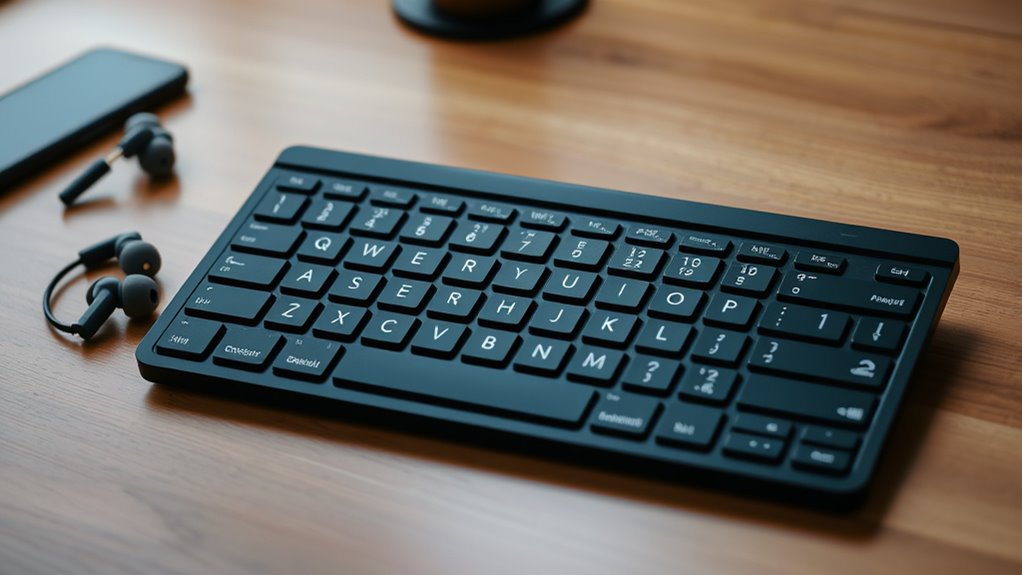

If your Bluetooth keyboard types the wrong characters, it’s usually due to a conflicting or misconfigured keyboard layout setting. Check your device’s input language or keyboard settings and switch to the correct layout matching your hardware, like QWERTY or AZERTY. Make sure the keyboard supports your device’s OS and that firmware or drivers are up to date. Adjusting these settings often fixes the issue, and you’ll find more helpful tips if you look further.
Key Takeaways
- Verify and match your device’s input language and keyboard layout settings to ensure they align with your physical keyboard.
- Reset and re-pair your Bluetooth keyboard to your device, updating firmware or drivers if available.
- Confirm that your keyboard supports your device’s operating system for proper character mapping.
- Switch the input source or keyboard layout in device settings to correct mismatched characters.
- Keep your device and keyboard firmware/software up to date to prevent compatibility issues causing wrong characters.
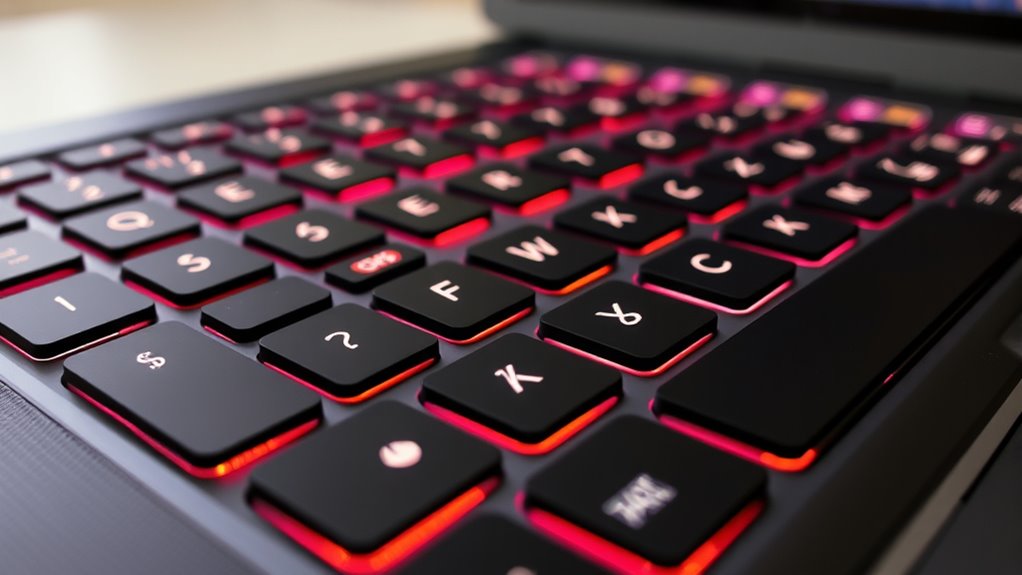
If you’ve recently connected a Bluetooth keyboard and noticed it’s typing the wrong characters, you’re not alone. Many users face this issue, and it often comes down to a mismatch in keyboard layout or device compatibility. When your keyboard’s characters don’t match what you see on the screen, it can be frustrating, especially if you’re trying to get work done or send a quick message. Luckily, fixing this usually involves adjusting settings or confirming compatibility.
First, consider the keyboard layout. Different countries and regions use distinct layouts, like QWERTY, AZERTY, or DVORAK, which change the placement of certain keys. If your device’s default keyboard layout doesn’t match the layout of your Bluetooth keyboard, you’ll get mismatched characters. For example, pressing the ‘Y’ key might produce a ‘Z’ or vice versa, especially if the keyboard was originally set for a different language or region. To resolve this, go into your device’s language and input settings. On Windows, you can change the keyboard layout by navigating to Settings > Time & Language > Language, then selecting your preferred language and keyboard layout. On macOS, head to System Preferences > Keyboard > Input Sources, and add or switch to the correct layout. Mobile devices often allow you to select or add keyboard languages directly in the keyboard settings, making it easy to align your Bluetooth keyboard’s layout with your device.
Device compatibility is another vital factor. Not all Bluetooth keyboards seamlessly work with every device, especially if the device’s Bluetooth profiles or drivers are outdated or incompatible. Some keyboards are designed for specific operating systems, like Windows, macOS, or Android, and might not function optimally across all platforms. Check the manufacturer’s specifications to confirm your keyboard supports your device’s OS. If you’re experiencing character mismatches, verify that your device recognizes the keyboard correctly. Sometimes, updating your device’s Bluetooth drivers or firmware can improve compatibility. Also, resetting the Bluetooth connection and re-pairing the keyboard often helps resolve quirks related to device recognition. Ensuring your device has updated drivers can help improve overall Bluetooth compatibility.
In many cases, the root cause is a mismatch between the keyboard’s intended layout and the device’s current settings. By carefully reviewing and adjusting your device’s language, input, and keyboard settings, you can quickly restore proper character input. Remember, compatibility issues can sometimes cause strange behavior, so ensuring your hardware and software are up to date is a good preventative step. Once these adjustments are made, your Bluetooth keyboard should start typing the correct characters, making your typing experience smooth and frustration-free.

Kisnt KN85 Wireless Mechanical Gaming Keyboard, 75% Layout with RGB Backlit, Custom Hot Swappable, Creamy Sound, Bluetooth/2.4GHz/USB-C Compatible with Windows/Mac/PC(Retro Beige,Linear Switch)
【Less Keys, More Desk】Crafted for users who value style and functionality, the KN85 series is a game-changer in…
As an affiliate, we earn on qualifying purchases.
As an affiliate, we earn on qualifying purchases.
Frequently Asked Questions
Can Resetting the Bluetooth Connection Fix Character Issues?
Yes, resetting the Bluetooth connection can fix character issues. During Bluetooth troubleshooting, disconnect and then re-pair your keyboard to guarantee proper communication. Sometimes, compatibility problems cause wrong characters, and resetting helps resolve these by revitalizing the connection. If issues persist, check your keyboard’s compatibility with your device and update drivers or firmware, which can also improve performance and solve character mismatches effectively.
Do Keyboard Language Settings Affect Character Display?
Ironically, your keyboard language settings and layout configuration often dictate what characters appear. If you notice strange symbols or wrong characters, check your language settings—they might be set to a different language or keyboard layout. Switching to the correct language or layout configuration can instantly fix the issue. So, double-check your settings before assuming hardware problems; a simple menu adjustment might save you hours of frustration.
How Do I Update My Device’s Bluetooth Drivers?
To update your device’s Bluetooth drivers, go to your device manager and locate the Bluetooth section. Right-click your Bluetooth adapter and select “Update driver.” Choose “Search automatically for updated driver software” to let Windows find the latest Bluetooth driver updates. Ensuring your drivers are up-to-date improves device compatibility and fixes bugs. Regular updates help prevent issues like wrong character input, keeping your Bluetooth keyboard functioning smoothly.
Is There a Way to Test Keyboard Hardware for Faults?
Imagine you notice your Bluetooth keyboard types wrong characters. To test the hardware, you can perform a simple keyboard testing by opening a text editor and typing all keys to identify faulty ones. For hardware diagnosis, try connecting the keyboard to another device to see if the issue persists. This helps determine if the problem’s hardware-related or software-based, ensuring you isolate and fix the fault effectively.
Can Third-Party Apps Resolve Keyboard Layout Problems?
Yes, third-party apps can help resolve keyboard layout problems by adjusting keyboard mapping to match your preferred language or layout. They often offer better app compatibility and more flexible customization options than default system settings. You simply install a reputable app, configure your keyboard mapping, and it’ll override the default layout, ensuring the correct characters appear. Just make sure the app is compatible with your device and operating system for seamless functionality.
Kisnt KN85 Wireless Mechanical Gaming Keyboard, 75% Layout with RGB Backlit, Custom Hot Swappable, Creamy Sound, Bluetooth/2.4GHz/USB-C Compatible with Windows/Mac/PC(Retro Beige,Linear Switch)
【Less Keys, More Desk】Crafted for users who value style and functionality, the KN85 series is a game-changer in…
As an affiliate, we earn on qualifying purchases.
As an affiliate, we earn on qualifying purchases.
Conclusion
Sometimes, a simple restart or reconnect can unexpectedly resolve your Bluetooth keyboard’s quirks, almost like the universe aligning in your favor. It’s funny how these small glitches often pop up just when you’re about to finish an important task. By tweaking your settings or trying a quick layout fix, you might find that everything clicks into place — almost as if the universe conspired to give you a little nudge toward a smoother typing experience.

Logitech MK250 Bluetooth Wireless Mouse and Keyboard Combo: Fast & Easy Connectivity, Compact Wireless Keyboard, Ambidextrous Mouse, Durable Build – Windows/MacOS – Graphite
Connect in seconds: Fast, easy Bluetooth wireless technology—pair and play this Logitech Wireless Keyboard and Mouse Combo without…
As an affiliate, we earn on qualifying purchases.
As an affiliate, we earn on qualifying purchases.

iClever BK10 Bluetooth Keyboard, Universal Bluetooth 5.1 Wireless Keyboard with Number Pad, Ergonomic Design, Multi-Device Compatibility, Stable Connection for Mac, iPad, iPhone, Android, Windows
Quiet Typing for Focus: Low noise scissor switch keys deliver laptop-like comfort while reducing finger fatigue. Perfect for…
As an affiliate, we earn on qualifying purchases.
As an affiliate, we earn on qualifying purchases.