If HDMI ARC isn’t working, start by checking that you use a high-speed, certified HDMI cable compatible with ARC or eARC. Make sure all connections are secure and plugged into the correct ports. Verify your device supports ARC/eARC and update your firmware if needed. Also, turn on the ARC setting in your TV’s audio options and disable CEC if necessary. For best results, ensure your setup is correctly configured; more tips can help you get it working smoothly.
Key Takeaways
- Ensure both TV and sound system support eARC and have the latest firmware updates installed.
- Use a high-speed, certified HDMI cable suitable for eARC to prevent connection issues.
- Enable eARC in TV settings and disable CEC if it causes communication conflicts.
- Test different HDMI ports labeled for eARC or ARC to identify port-specific problems.
- Consult device manuals or support for specific setup instructions and compatibility confirmation.
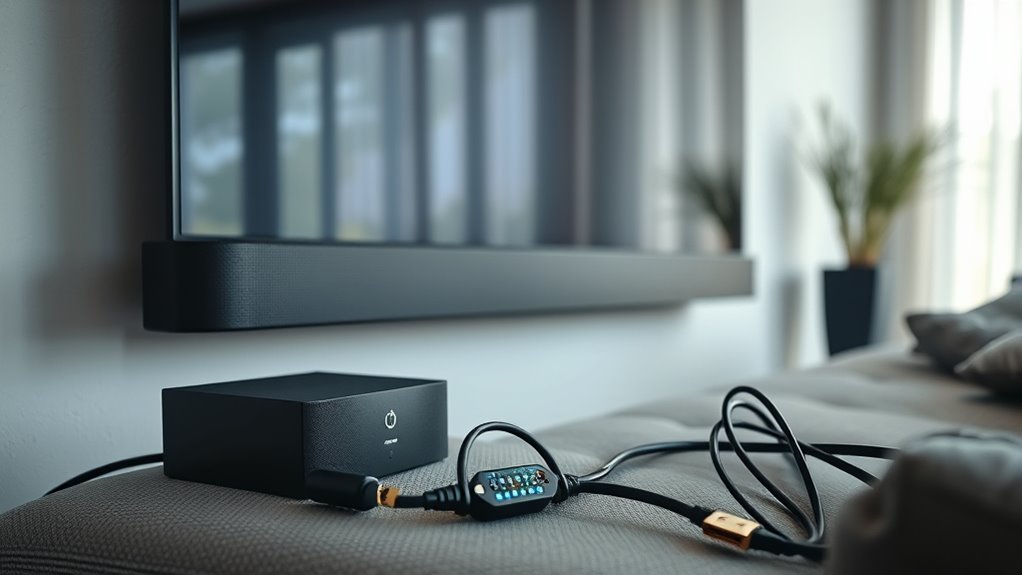
If your HDMI ARC isn’t working, it can be frustrating trying to get your audio to play through your sound system. The first step is to carefully check your cable troubleshooting. Not all HDMI cables are created equal, and some may not support ARC or eARC features fully. Make sure you’re using a high-speed HDMI cable that’s rated for ARC or eARC. Sometimes, a faulty or outdated cable can cause connection issues, so swapping it out for a newer, certified HDMI cable might resolve the problem. Inspect the cable for damage, kinks, or loose connections, because even subtle issues can interrupt audio signals. Also, confirm that the cable is securely plugged into the correct HDMI ports—often, the ARC or eARC port is labeled on your TV or sound device.
Check your HDMI cable for damage and ensure it supports ARC or eARC for proper connection.
Device compatibility plays a critical role in making HDMI ARC work smoothly. Not all devices support ARC or eARC, so double-check your TV and sound system specifications. Your TV’s user manual or manufacturer’s website should specify whether it supports ARC or eARC and if any firmware updates are needed to activate these features. Similarly, ensure your soundbar or AV receiver supports ARC or eARC; older models might only support basic HDMI connections. If your devices aren’t compatible, no amount of cable troubleshooting will fix the issue. Sometimes, updating the firmware on your TV or sound system can improve compatibility and resolve communication hiccups. Additionally, understanding device compatibility can help prevent future connection issues.
Once you’ve confirmed your cables are suitable and your devices are compatible, go into your TV’s audio settings. Make sure that HDMI ARC or eARC is enabled, and set the audio output to the correct device—often labeled as “Sound System” or “External Speakers.” Sometimes, you might need to disable CEC (Consumer Electronics Control) to eliminate conflicts that prevent proper communication. After making these adjustments, restart both your TV and sound device to ensure settings are properly reset and recognized.
If problems persist, revisit your cable troubleshooting and device compatibility checks. It’s worth trying a different HDMI port on your TV or sound device to rule out port-specific issues. Remember, even if everything appears correct, software bugs or outdated firmware can interfere with ARC functionality. Regularly check for updates and install them when available. By systematically verifying cable quality, device compatibility, and settings, you greatly improve your chances of getting HDMI ARC to work reliably. If all else fails, consulting the device manuals or contacting support can help identify less obvious issues.
![Silkland HDMI eARC/ARC Cable 3.3FT, 8K Certified Ultra High Speed HDMI 2.1 [8K@60Hz, 4K@120Hz] Dolby Atmos Vision, 48Gbps, HDR10, HDCP Compatible for Samsung/Bose/Vizio/SoundBar](https://m.media-amazon.com/images/I/41Ns4mhmH+L._SL500_.jpg)
Silkland HDMI eARC/ARC Cable 3.3FT, 8K Certified Ultra High Speed HDMI 2.1 [8K@60Hz, 4K@120Hz] Dolby Atmos Vision, 48Gbps, HDR10, HDCP Compatible for Samsung/Bose/Vizio/SoundBar
【HDMI 2.1 Certification】Only 1% of HDMI cables on the market have passed HDMI 2.1 certification. Scan with the…
As an affiliate, we earn on qualifying purchases.
As an affiliate, we earn on qualifying purchases.
Frequently Asked Questions
Can I Use HDMI ARC With Older TV Models?
Yes, you can use HDMI ARC with older TV models if they meet the necessary HDMI version requirements, typically HDMI 1.4 or later. However, older TVs might lack the full compatibility needed for advanced features like eARC. Check your TV’s specifications for HDMI ARC support, and if it’s not compatible, you might need an external audio extractor or upgrade to a newer model for ideal audio quality and connectivity.
What’s the Difference Between HDMI ARC and Earc?
You’ll find that HDMI ARC and eARC differ mainly in their audio return capabilities and connectivity standards. HDMI ARC handles basic audio return functions, but eARC offers higher bandwidth and supports advanced audio formats like Dolby Atmos. With eARC, you get better sound quality and simpler connectivity, making your devices work seamlessly. This upgrade guarantees your TV and sound system communicate more effectively, providing a richer, more immersive audio experience.
How Do I Check if My Device Supports Earc?
Imagine your device as a gateway waiting to open new soundscapes. To check if it supports eARC, explore your user manual or settings menu—look for “eARC” or “HDMI eARC” options. Make sure your firmware is up-to-date, as updates often reveal new features like eARC support. Conduct an audio calibration test with compatible devices; if they communicate seamlessly, your device likely supports eARC and is ready to elevate your audio experience.
Can a Damaged HDMI Cable Cause ARC Issues?
Yes, a damaged HDMI cable can cause ARC issues. Poor cable quality or a frayed, bent, or broken cable can disrupt the signal, preventing proper audio transmission. Also, if the port is damaged, it might not establish a stable connection, leading to ARC problems. To fix this, try replacing the cable with a high-quality one and inspect the ports for any damage before testing again.
Is There a Way to Test if My HDMI Port Is Faulty?
You can definitely check if your HDMI port is faulty. First, try using a different HDMI cable and connect it to another device, which acts as a simple testing method. If the port still doesn’t work, you might want to test it with another HDMI device or use a multimeter to check for connectivity. These steps help identify if the HDMI port itself is the issue, saving you time and guesswork.

Assistrust Sound Bar for Smart TV, Soundbar with Bluetooth/ARC/Opt/AUX Connect, Auto Volume Boost, 3 Equalizer Modes, 2 in 1 Detachable Soundbar for TV/PC/Gaming/Projectors
【𝐈𝐦𝐩𝐚𝐜𝐭𝐟𝐮𝐥 𝐕𝐨𝐥𝐮𝐦𝐞 𝐁𝐨𝐨𝐬𝐭】: Elevate faint sounds to vibrant with automatic loudness boost. Experience immersive sound through 4 versatile…
As an affiliate, we earn on qualifying purchases.
As an affiliate, we earn on qualifying purchases.
Conclusion
Think of your HDMI ARC and eARC setup as a delicate dance—when one partner stumbles, the whole performance falters. But with patience and the right steps, you can get them moving in harmony again. Don’t let technical hiccups dim your entertainment joy; instead, see them as a gentle nudge to master your devices. Soon enough, your home theater will be a smooth symphony, filling your space with seamless sound and picture.

192KHz HDMI ARC to Optical Audio Converter for TV to Soundbar, Plug & Play 3.4ft/1.05m ARC to Optical Cable Audio Extractor Adapter Splitter for Sound System Speaker Home Theater Support Dolby/DTS 5.1
HDMI ARC to Optical Cable(1.05m/41in): The ARC Audio Extractor connects to an ARC-compatible TV, allowing the TV's audio…
As an affiliate, we earn on qualifying purchases.
As an affiliate, we earn on qualifying purchases.

Highwings 8K@60 HDMI Cable 10FT/3M, 48Gbps 2.1 High Speed HDMI Braided Nylon 4K120 144Hz RTX 3090 eARC HDR10 4:4:4 HDCP 2.2&2.3 Compatible for PS5, PS4, UHD TV and PC
Top Technology—-8K@60HZ: This 8K Ultra High Speed HDMI Cable uses the most cutting-edge technology, is compatible with 8K@60HZ…
As an affiliate, we earn on qualifying purchases.
As an affiliate, we earn on qualifying purchases.