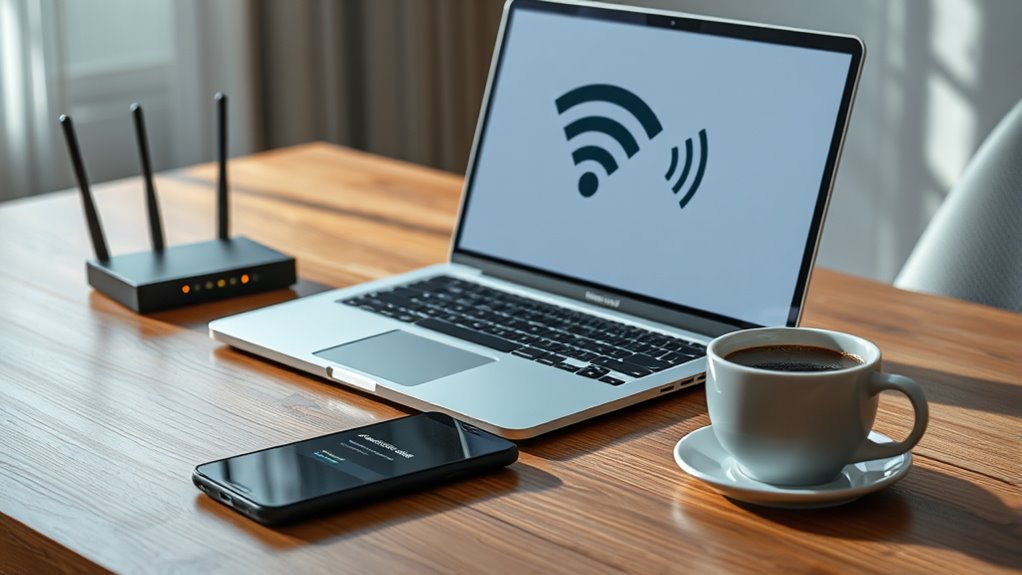

If your laptop Wi-Fi keeps dropping, start by moving closer to your router and changing the Wi-Fi channel to reduce interference from neighboring networks. Make sure your drivers are up to date, as outdated software can cause connection issues. Reset your router or update its firmware for better performance. If you still have problems, try resetting your network settings or testing with another device to identify if the issue is hardware or network related. Keep exploring further fixes to stabilize your connection.
Key Takeaways
- Update your Wi-Fi drivers and firmware to fix compatibility issues and improve network stability.
- Restart or reset your router and switch Wi-Fi channels to reduce interference and congestion.
- Move closer to the router for stronger signal strength and better connection reliability.
- Forget and reconnect to your Wi-Fi network, or reset network settings on your device to resolve configuration issues.
- Test your laptop with another device on the same network to identify if the problem is device-specific or network-related.

EVEO Screen Cleaner Spray - Large Screen Cleaner Bottle - TV Screen Cleaner, Computer Screen Cleaner, for Laptop, Phone, Ipad - Computer Cleaning kit Electronic Cleaner (1 Pack)
Screen Cleaner is Your Screen’s New Bestfriend! - EVEO is proud to present a screen cleaner that’s perfectly...
As an affiliate, we earn on qualifying purchases.
Troubleshooting Wi-Fi Dropouts on Your Laptop

If your laptop’s Wi-Fi keeps dropping unexpectedly, it can be frustrating and disrupt your work or browsing. One common cause is network interference, which happens when other electronic devices or neighboring Wi-Fi networks interfere with your signal. Wireless signals operate on specific frequencies, and when multiple devices use similar channels, they can cause congestion, leading to dropped connections. To minimize this, try changing your Wi-Fi channel through your router settings, especially if you notice the problem intensifies during certain times or when nearby networks are active. Moving closer to your router can also help reduce interference, as a stronger signal often results in more stable connectivity.
Another essential step is to guarantee your device’s driver updates are current. Outdated Wi-Fi drivers can cause compatibility issues, leading to connection drops. Check your laptop manufacturer’s website or your device manager on Windows to see if there’s a newer driver available. Updating drivers often resolves bugs and improves network stability. If you’re unsure how to do this manually, many laptops come with utility software that automatically detects and installs the latest drivers. Keeping your drivers updated is vital because it guarantees your wireless hardware communicates effectively with your operating system and the network. Additionally, understanding the contrast ratio of your wireless hardware can help you choose devices that perform better in various environments, ensuring a more reliable connection.
Beyond interference and driver updates, consider your network’s security settings. Sometimes, security protocols or weak passwords can cause connection issues. Make sure your Wi-Fi network uses WPA2 or WPA3 encryption, which are more reliable and secure. If your connection drops frequently, resetting your router can also help. Power off your router, wait a few seconds, then turn it back on. This refreshes the network and can clear any temporary glitches causing instability. Also, regularly updating your router’s firmware can improve performance and security, preventing issues before they arise.
Additionally, check your laptop’s network settings. Forget the Wi-Fi network and reconnect, ensuring you re-enter the password correctly. Sometimes, saved network configurations become corrupted or outdated, leading to connectivity issues. You can also try resetting network settings entirely, which resets all network adapters and configurations to their default state, often resolving persistent problems. A network diagnostic tool can also help identify underlying issues that might not be immediately apparent. Regularly reviewing your network’s signal strength can also help you identify areas with poor coverage and improve overall connection stability. To further enhance stability, consider using mesh network systems if you experience consistent weak spots in your coverage area.
If you’ve tried these steps and your Wi-Fi still drops, consider testing with another device on the same network. If other devices experience similar issues, the problem likely originates from your router or internet service provider. However, if only your laptop struggles, the issue is more likely within your device, possibly hardware-related or due to software conflicts. In such cases, further troubleshooting or professional support may be necessary. Properly managing network interference and ensuring your hardware and software are up to date are key steps toward stabilizing your Wi-Fi connection and avoiding those frustrating drops.

KIC CrystalVu Screen Cleaner Spray Kit (16oz) with Microfiber Cloth
Streak-Free Formula – Professional-grade electronic screen cleaner spray removes fingerprints, smudges, and oily buildup from Smart TVs, OLED...
As an affiliate, we earn on qualifying purchases.
Frequently Asked Questions
Can Wi-Fi Drops Be Caused by Malware or Viruses?
Yes, malware impact and virus interference can cause Wi-Fi drops on your laptop. Malicious software may hijack your network settings, slow down your connection, or even disable your Wi-Fi adapter. Viruses often interfere with your network drivers or cause system conflicts, leading to unstable Wi-Fi. To fix this, run a full antivirus scan and guarantee your security software is up to date. Keeping your system clean helps stabilize your connection.
How Does Old Wi-Fi Router Firmware Affect Connection Stability?
Imagine your Wi-Fi signal as a steady stream of water; old router firmware can cause leaks and blockages, disrupting that flow. When you neglect router updates, firmware bugs accumulate like grime, making your connection unstable and prone to drops. Regularly updating your router’s firmware cleans out these bugs, ensuring a smoother, more reliable connection. Keep your firmware current to prevent those frustrating drops and enjoy a consistently strong signal.
Is It Normal for Wi-Fi to Drop During Specific Times of Day?
It’s normal for Wi-Fi to drop during certain times of day because of network congestion and interference sources. During peak hours, many devices connect simultaneously, slowing your connection or causing drops. Interference from other electronics or neighboring Wi-Fi networks can also disrupt your signal. To improve stability, try changing your Wi-Fi channel, move closer to your router, or reduce the number of connected devices during busy times.
Can Background Apps Interfere With Wi-Fi Connectivity?
Yes, background app conflicts can interfere with your Wi-Fi connectivity. When multiple apps run in the background, they may consume bandwidth or cause signal interference, leading to dropped connections. To improve your Wi-Fi, check which apps are active and close those unnecessary. Also, consider minimizing signal interference by keeping your device away from other electronics or thick walls. These steps help maintain a stable and faster Wi-Fi connection.
Does Wi-Fi Dropping Indicate Hardware Failure in the Laptop?
Wi-Fi dropping doesn’t always mean hardware failure. For example, a user’s laptop experienced frequent disconnects, but diagnostics revealed outdated drivers and software conflicts. Running hardware diagnostics helped confirm the Wi-Fi card was fine. Often, issues stem from software conflicts or outdated firmware rather than hardware problems. So, before assuming hardware failure, update your drivers, check for software conflicts, and run hardware diagnostics to pinpoint the real cause.

WHOOSH! Screen Shine Duo – Screen Cleaner and Wipe Kit, 3.7 + 0.3 fl oz
SAFE FOR ALL SCREENS: Designed to clean without compromise, Screen Shine Duo is safe for every screen and...
As an affiliate, we earn on qualifying purchases.
Conclusion
If your laptop’s Wi-Fi keeps dropping, don’t give up. Regularly updating your network drivers and resetting your router can substantially improve stability. Did you know that over 60% of Wi-Fi issues are resolved with simple troubleshooting steps like these? Staying proactive with these fixes not only keeps your connection steady but also prolongs your device’s lifespan. With a few quick adjustments, you’ll enjoy a more reliable and faster internet experience every time.

iO CLEAN Screen Cleaner Spray (16oz - 473ml) – Best Large Cleaning Kit
Screen cleaner spray and cloth. Screen cleaner spray and cloth are designed for high-end devices and work flawlessly...
As an affiliate, we earn on qualifying purchases.