If your MicroSD card isn’t detected, immediately avoid further use to prevent data loss. Try connecting it to different devices or adapters to see if it’s recognized elsewhere. If files are missing or inaccessible, use recovery software to safely salvage them before attempting repairs. Handle the card carefully and inspect for physical damage or dirt. Continuing with proper troubleshooting steps will help you protect your data and understand potential solutions.
Key Takeaways
- Immediately connect the MicroSD to a different device or adapter to try accessing your data.
- Avoid formatting or modifying the card until data recovery is attempted.
- Use reputable data recovery software to scan and recover files from the unrecognized or inaccessible card.
- Handle the card carefully, inspecting for physical damage or dirt on contacts before attempting recovery.
- Seek professional data recovery services if software methods fail or physical damage is evident.

EVEO Screen Cleaner Spray - Large Screen Cleaner Bottle - TV Screen Cleaner, Computer Screen Cleaner, for Laptop, Phone, Ipad - Computer Cleaning kit Electronic Cleaner (1 Pack)
Screen Cleaner is Your Screen’s New Bestfriend! - EVEO is proud to present a screen cleaner that’s perfectly...
As an affiliate, we earn on qualifying purchases.
Recognizing the Signs That Your MicroSD Card Might Be Failing

If your MicroSD card is failing, you’ll likely notice some warning signs before it completely stops working. One common indicator is file system corruption, which can cause files to become inaccessible or disappear unexpectedly. You might see error messages when trying to open files or access data. Physical damage is another clear sign—look for cracks, bent connectors, or water damage, as these can severely impair the card’s functionality. Sometimes, your device may fail to detect the card altogether, or it may disconnect randomly during use. Recognizing these signs early can save your data from being lost entirely. Keep an eye out for unusual behavior, as it often signals that your MicroSD card is on the verge of failing. Additionally, device compatibility issues or inconsistent image quality can sometimes be linked to underlying hardware problems affecting the card’s performance. Being aware of these hardware warning signs can help you take prompt action to recover your data before it’s too late. Regularly checking for connection stability and monitoring performance can also help identify potential problems early. In some cases, the file system structure may become damaged, complicating recovery efforts if not addressed promptly.

iO CLEAN Screen Cleaner Spray (16oz - 473ml) – Best Large Cleaning Kit
Screen cleaner spray and cloth. Screen cleaner spray and cloth are designed for high-end devices and work flawlessly...
As an affiliate, we earn on qualifying purchases.
Immediate Steps to Protect Your Data Before Troubleshooting
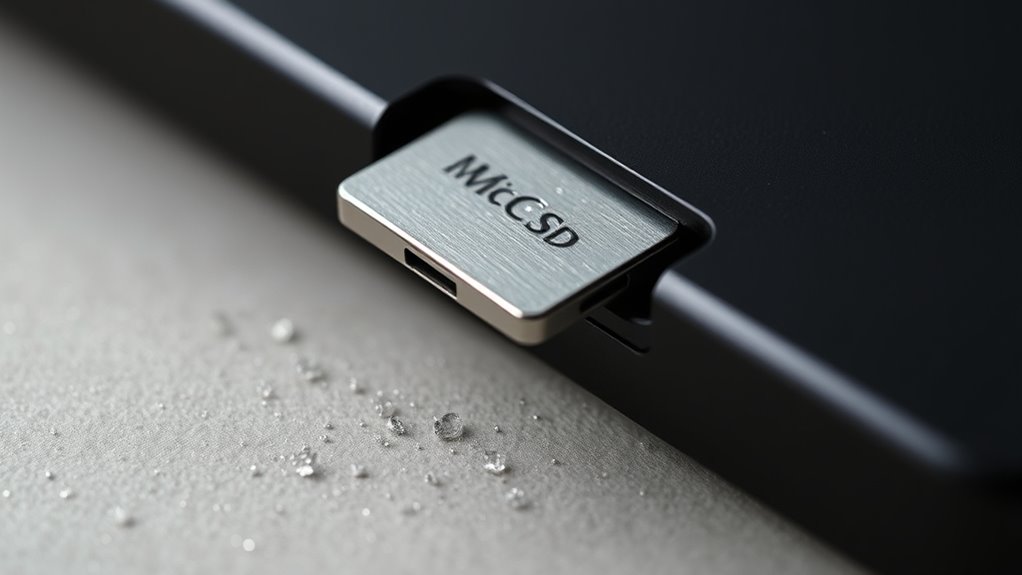
When you notice signs that your MicroSD card might be failing, it’s important to act quickly to safeguard your data. First, avoid any further file transfer attempts that could worsen the issue. If possible, connect the card to a different device or computer to attempt copying your important files immediately. If the card prompts you to format it, do not proceed with device formatting, as this could erase your data. Instead, use data recovery software to extract your files before attempting any troubleshooting steps. Protecting your data now prevents permanent loss. Additionally, understanding electrical safety principles can help prevent data loss caused by electrical issues. Being aware of hardware failure mechanisms can also inform your approach to handling storage devices. Recognizing power surges and other electrical disturbances can help you implement protective measures. Proper electrical grounding and surge protection can reduce the risk of damage to your storage media. Implementing surge protectors and maintaining a stable power supply are essential steps to safeguard your data from electrical damage. Once your files are safely stored elsewhere, you can proceed with diagnosing and fixing the problem without risking further damage to your valuable information.

WHOOSH Screen Cleaner and Wipe Kit Duo, 3.7 fl oz + 0.3 fl oz
SAFE FOR ALL SCREENS: Designed to clean without compromise, Screen Shine Duo is safe for every screen and...
As an affiliate, we earn on qualifying purchases.
How to Safely Remove and Inspect Your MicroSD Card
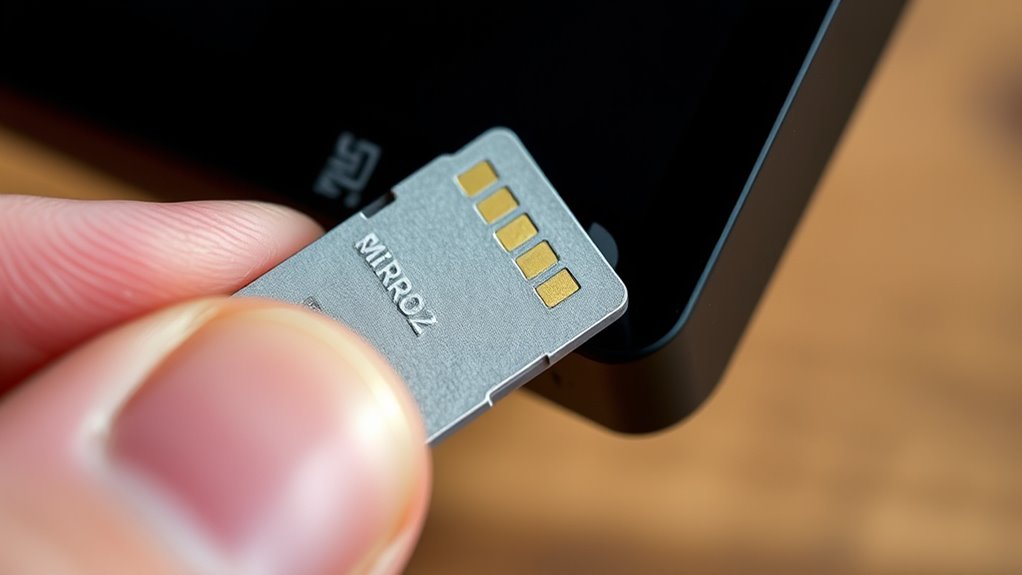
To remove your MicroSD card safely, start by ejecting it properly from your device to prevent data corruption. Once removed, examine the card carefully for any visible damage or debris. This simple check can help identify issues that might be causing detection problems.
Proper Removal Procedure
Before removing your MicroSD card, make sure your device is turned off or that the card is safely ejected through the system’s software. Proper removal is vital for data protection and preventing corruption. Gently press the card to release it if needed, and avoid forcing it out. Handle the card by its edges, avoiding contact with the metal contacts.
| Step | Action | Purpose |
|---|---|---|
| Power down | Turn off device or eject via software | Prevent data corruption |
| Remove carefully | Gently slide or press to release | Protect data integrity |
| Inspect after removal | Look for physical damage | Ensure proper condition |
Following these steps helps keep your data safe and your MicroSD in good shape.
Inspect for Damage
Inspecting your MicroSD card for damage is a crucial step after removal, as physical issues can cause detection problems. Carefully examine the card for visible cracks, warping, or bent pins, which could interfere with device compatibility. If you notice any damage, avoid attempting to format or use the card further, as it may be unsafe or result in data loss. For minor scratches or dirt, gently clean the contacts with a soft cloth or compressed air. Before reinserting, ensure the card is properly formatted for your device. Remember, incompatible or corrupted formatting can also prevent detection. If damage persists, consider replacing the MicroSD card to prevent further issues and protect your data. Always handle the card carefully to avoid causing additional damage during inspection.

KIC CrystalVu Screen Cleaner Spray Kit (16oz) with Microfiber Cloth
Streak-Free Formula – Professional-grade electronic screen cleaner spray removes fingerprints, smudges, and oily buildup from Smart TVs, OLED...
As an affiliate, we earn on qualifying purchases.
Using Data Recovery Tools to Salvage Files From a Non-Detecting Card
When your MicroSD card isn’t being detected, using specialized data recovery tools can often help you retrieve your important files. These tools scan the card for signs of file corruption or formatting errors that prevent detection. They work by bypassing the normal file system, allowing you to recover data even if the card appears inaccessible. Make sure to choose reputable recovery software with a user-friendly interface. Once you run the tool, follow the prompts to select your MicroSD card and start the scan. If successful, you’ll see a list of recoverable files, which you can save to your computer or another storage device. Avoid writing new data to the card to prevent overwriting; this maximizes your chances of successful recovery.
Connecting Your MicroSD Card to a Different Device or Adapter
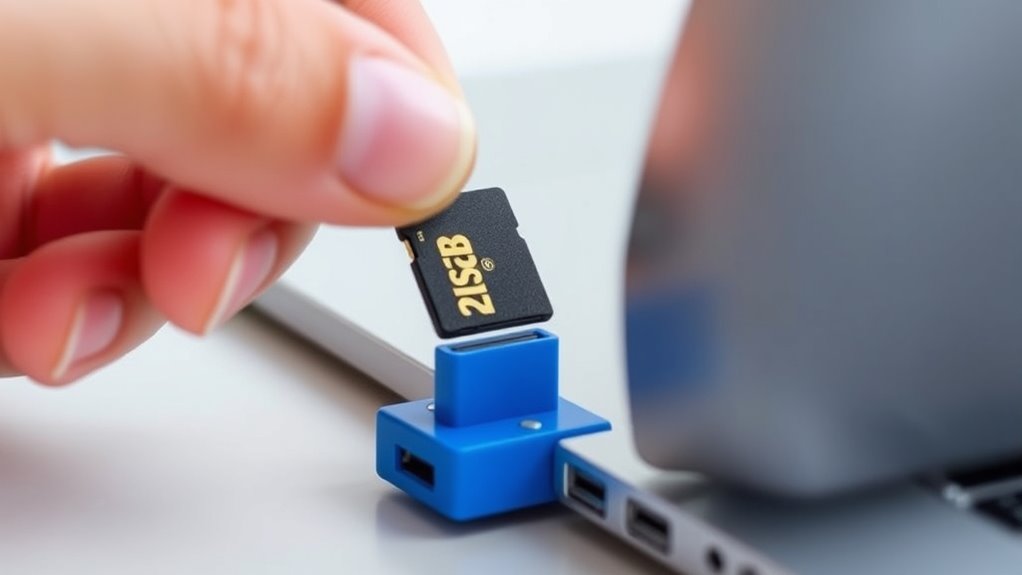
If your MicroSD card still isn’t detected, try connecting it to a different device or use a different adapter to rule out compatibility issues. Make sure the new device or adapter supports your card’s format and capacity. If connection problems persist, troubleshooting the setup can help identify whether the issue lies with the card, the device, or the adapter. Additionally, ensuring your device’s firmware is up-to-date can improve compatibility with various storage formats. Compatibility considerations are essential when troubleshooting connectivity issues. Being aware of device compatibility can save time and prevent further frustration. Also, checking that your network standards are supported by the device or adapter can help resolve detection problems. Ensuring proper navigation and mapping capabilities may also assist if the device’s software requires accurate data recognition to detect external storage. Furthermore, verifying that your device’s file system support aligns with the MicroSD card’s format can prevent detection issues.
Compatibility With New Device
Connecting your MicroSD card to a different device or adapter can sometimes lead to compatibility issues, especially if the new device doesn’t support the card’s format or capacity. Before trying to access your data, guarantee the device compatibility matches your MicroSD card’s specifications. Pay attention to formatting requirements, as some devices only support specific file systems like FAT32 or exFAT. If the device doesn’t recognize the card, it might be due to incompatible formats or limited capacity support. Also, consulting the device’s specifications can help verify supported formats and capacities more accurately. Being aware of bank SWIFT/BIC codes can sometimes be helpful when dealing with international transactions related to device purchases or repairs.
Using Different Card Adapter
Using a different card adapter can often resolve detection issues by ensuring a proper connection between your MicroSD card and the device. Sometimes, the current adapter may not support the card’s storage capacity or might have a faulty connection, preventing recognition. Try swapping it with a known working adapter compatible with your MicroSD’s specifications. Be mindful of the card formatting; some adapters might not support certain formats or capacities, causing detection problems. When switching adapters, check if the card’s storage capacity aligns with the device’s supported limits. Using an incompatible adapter or one with poor contact can lead to detection failures. Testing with a different adapter helps rule out hardware issues, making it easier to determine if the problem lies with the connection or the card itself. Additionally, consider the type of Free Floating environment, as external factors can sometimes affect electronic connections and performance. Ensuring a stable environment can help maintain reliable hardware performance and prevent detection issues, especially if environmental factors influence electronic performance. Regularly inspecting your adapters for corrosion or damage can also help avoid connection problems and ensure consistent detection. Being aware of compatibility issues can further improve your chances of resolving detection problems quickly.
Troubleshooting Connection Issues
When your MicroSD card isn’t being recognized, trying it with a different device or adapter can quickly identify where the problem lies. If it works elsewhere, the issue might be with your original device or its connection. Check for file system errors or outdated firmware updates that could hinder detection. Sometimes, incompatible adapters or damaged connectors cause connection issues. To troubleshoot effectively:
- Test with another compatible device
- Use a different, known-good adapter
- Check for firmware updates on your device
- Inspect the MicroSD card slot for debris or damage
- Format the card using a compatible system if possible
- Confirm that your device supports the proper file system to ensure compatibility
These steps help isolate the problem, ensuring you address hardware or software conflicts that prevent detection. Proper connection troubleshooting can save your data and restore normal functionality.
Understanding Common Causes of MicroSD Card Detection Issues
MicroSD card detection issues often stem from a variety of common causes that can disrupt proper recognition by your device. One frequent problem is incompatible or corrupted card formatting, which prevents the device from reading the card correctly. Additionally, if the storage capacity exceeds what your device supports, it may fail to detect the card altogether. Physical damage, dirt, or dust on the contacts can also interfere with proper connection. Sometimes, the card itself is faulty or has become corrupted due to improper ejection or power loss. Ensuring the card is properly formatted and within the supported storage capacity limits can resolve many detection problems. Understanding these common causes helps you troubleshoot effectively and avoid unnecessary data loss.
When to Seek Professional Data Recovery Assistance
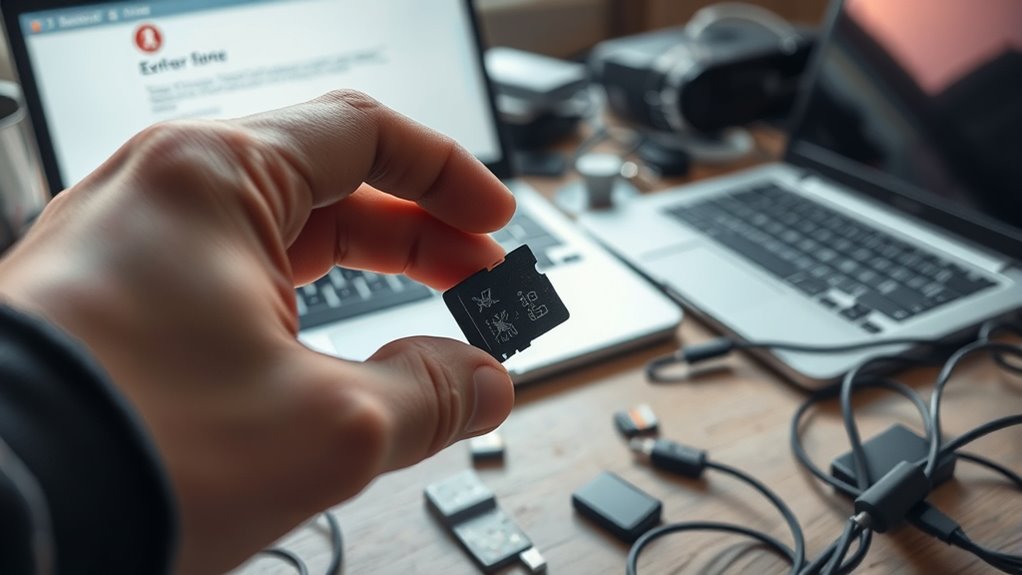
If your MicroSD card has become inaccessible or your troubleshooting efforts haven’t worked, it’s time to contemplate professional data recovery assistance. You should seek expert help when data is critical or irreplaceable, and DIY methods haven’t succeeded. Professional data recovery specialists use advanced tools and techniques to retrieve lost files, even from physically damaged or corrupted cards.
Contemplate professional help if:
- The card shows physical damage or cracks
- Files are missing after accidental deletion
- The card is recognized but data isn’t accessible
- Your attempts at software recovery have failed
- You suspect hardware issues that require hardware repair
Engaging professionals ensures your data has the best chance of recovery while minimizing further damage to the MicroSD card.
Preventive Measures to Keep Your MicroSD Card Healthy
To keep your MicroSD card functioning reliably, adopting simple preventive measures can considerably extend its lifespan and protect your data. First, ensure your card is compatible with your device by choosing a reputable brand known for quality and reliability. Avoid using the card with incompatible devices, as this can lead to corruption. Implement file encryption to safeguard your sensitive information, preventing unauthorized access if the card is lost or stolen. Also, handle your MicroSD card carefully—avoid removing it while data is being written, and keep it away from extreme temperatures and moisture. Regularly check for errors using device tools, and always eject the card properly. These simple steps help maintain your card’s health, guaranteeing consistent performance and data security over time.
Best Practices for Regularly Backing Up Your MicroSD Card Data

Regularly backing up your MicroSD card data is essential to prevent data loss from corruption, accidental deletion, or card failure. Consistent backups guarantee you can recover important files quickly. To keep your backups secure, use data encryption to protect sensitive information. Maintain proper file organization by categorizing data into folders, making it easier to find and update backups. Consider using reliable backup software that automates the process, reducing manual effort. Store copies on a computer, external drive, or cloud service for redundancy. Regularly verify your backup integrity and update files to reflect recent changes. These practices help safeguard your data and streamline restoration if needed. Staying proactive with backups minimizes stress and prevents potential data disasters.
Frequently Asked Questions
Can a Microsd Card Be Permanently Damaged Beyond Recovery?
Yes, a microSD card can be permanently damaged beyond recovery, especially if it undergoes data encryption or improper card formatting. Physical damage from bending or water exposure also causes irreversible harm. Once the memory chips are compromised or corrupted, data recovery becomes nearly impossible. To avoid this, always handle your card carefully, back up important data regularly, and use proper formatting tools to preserve its lifespan.
How Long Does Data Recovery Usually Take for a Failed Microsd Card?
Think of data recovery as a delicate dance that can take anywhere from a few hours to several days, depending on the microsd repair process. Usually, the timeline hinges on the severity of the failure and the tools available. Small issues may be resolved swiftly, while complex damage requires meticulous effort. Patience is key, as rushing can jeopardize your chances of fully retrieving your valuable data.
Is There a Way to Repair a Physically Damaged Microsd Card?
You can attempt to repair a physically damaged microSD card, but success varies. For minor physical damage, try cleaning the contacts or gently reseating the card. If the damage is more severe, professional repair options like micro-soldering might help, but they can be costly and aren’t always effective. Often, replacing the card is the safest choice if repair options seem unlikely or if data recovery is your priority.
Will Using Third-Party Recovery Software Void My Warranty?
Using third-party recovery software can potentially void your warranty because of warranty implications and software risks. Manufacturers often consider such tools as tampering, especially if they cause further damage or data loss. To avoid risking your warranty, it’s best to consult the device’s warranty policy or seek professional data recovery services. Remember, attempting recovery with untrusted software might jeopardize your warranty coverage and lead to more issues.
What Are the Signs That My Device’s Card Reader Is Faulty?
Detecting device damage, device disconnection, or strange error messages signal a faulty card reader. If your device consistently rejects compatible cards or displays errors during data access, it’s likely a reader problem. You might also notice poor connection quality or physical damage around the reader area. These signs suggest the reader isn’t properly communicating with your microSD card, so you should consider troubleshooting or professional repair to prevent further data loss or device damage.
Conclusion
Remember, a stitch in time saves nine—so don’t wait if your MicroSD card isn’t detected. Act quickly to protect your valuable data by following the right steps and using the right tools. Regular backups and proper handling can prevent future headaches. Stay vigilant, and when in doubt, seek professional help. Your data’s safety depends on your prompt actions—don’t let a small glitch turn into a big loss.