To establish a VPN on your router, first confirm your device’s compatibility and update its firmware if needed. Gather your VPN provider’s details, including server addresses and login info. Access your router’s admin panel and locate the VPN settings section. Enter the necessary configuration details, select the right protocol, and save your settings. Afterward, test your connection to guarantee everything works smoothly. For thorough steps and tips, you’ll discover how to keep your whole home protected.
Open a free Amazon Business account
Business pricing, bulk buying and tax-exempt orders.
As an affiliate, we earn on qualifying purchases.
Key Takeaways
- Verify your router supports VPN protocols like OpenVPN or PPTP, or consider custom firmware such as DD-WRT or Tomato.
- Obtain VPN credentials and server details from your provider, ensuring compatibility with your router.
- Access your router’s admin panel via browser, locate the VPN settings, and enable VPN configuration.
- Enter VPN server info, select the appropriate protocol, and input login credentials; save settings and test the connection.
- Keep firmware updated, back up your settings regularly, and verify VPN functionality for comprehensive network security.
As an affiliate, we earn on qualifying purchases.
Understanding the Benefits of a Router VPN
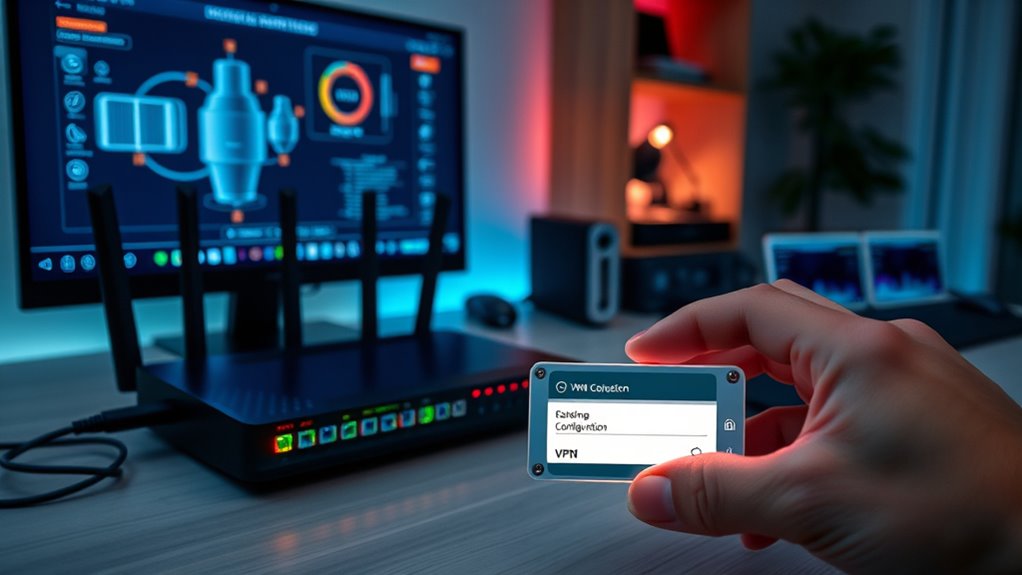
A router VPN enhances your online security by encrypting all the internet traffic passing through your network, making it much harder for hackers or third parties to eavesdrop. This encryption relies on robust encryption methods that scramble your data, ensuring only authorized devices can decode it. Besides security, a router VPN improves your privacy by masking your IP address and hiding your online activities from your internet service provider. It also helps you understand a VPN provider’s privacy policies, so you know how your data is handled and protected. By setting up a router VPN, you safeguard every device connected to your home network, providing an all-encompassing shield against cyber threats and privacy breaches. Network security protocols are essential for maintaining a safe and private smart home environment. Additionally, understanding the encryption standards used by your VPN can help ensure your data remains secure. Implementing secure connection methods further strengthens your overall online defense and aligns with best practices in European cloud innovation.
VPN router with firmware support
As an affiliate, we earn on qualifying purchases.
As an affiliate, we earn on qualifying purchases.
Checking Your Router’s Compatibility for VPN Setup
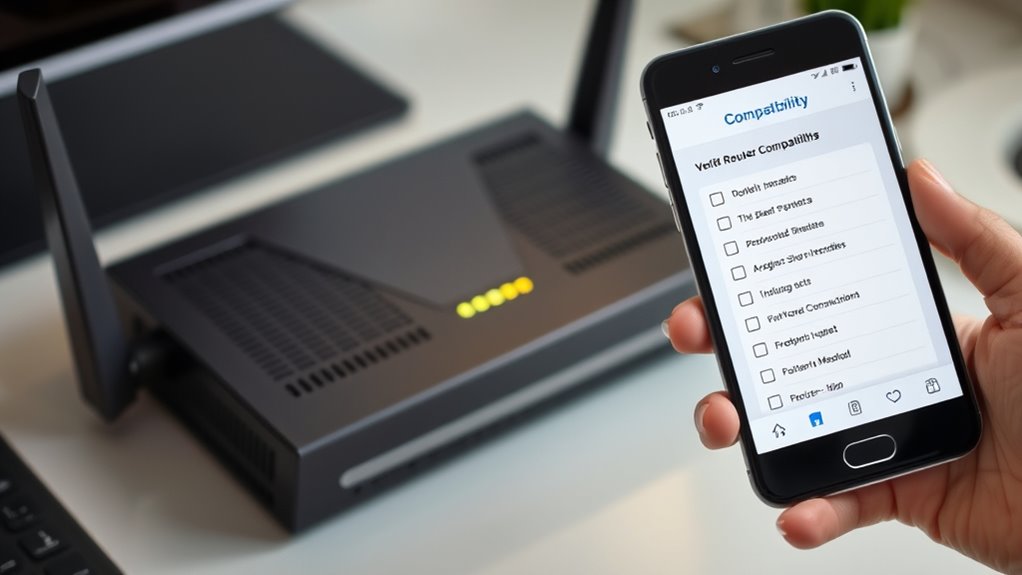
Before you start setting up a VPN on your router, it’s essential to verify whether your device supports VPN configurations. Check your router’s hardware compatibility to ensure it can handle the VPN setup. Not all routers are designed for this purpose, so review your model’s specifications or manufacturer’s documentation. Firmware requirements are equally important—your router needs compatible firmware that supports VPN protocols like OpenVPN or PPTP. Some routers come with built-in VPN support, while others may require custom firmware, such as DD-WRT or Tomato. Ensure your firmware is up to date and compatible with your VPN service. Without proper hardware compatibility and the right firmware, your VPN setup might fail or compromise your network’s security. Confirm these details before proceeding to avoid unnecessary issues. Additionally, understanding router firmware capabilities can help you determine if your device can be upgraded or modified for VPN support. Being aware of your network device limitations can also prevent potential configuration problems. Checking your router’s VPN support features can save you time and effort during setup. Recognizing the security features of your router can further ensure your network remains protected during and after the setup process.
As an affiliate, we earn on qualifying purchases.
Gathering the Necessary VPN Service Details

Before you can set up your VPN on your router, you need to gather some key details from your VPN provider. Make sure you have your VPN credentials ready, including your username and password, as well as any server information. Confirm that your VPN service is compatible with your router to make certain a smooth setup process. Additionally, reviewing your VPN provider’s privacy policies and cookie management can help you understand how your data will be handled during usage. Being aware of the wave and wind conditions can also ensure a more reliable connection during setup and daily use. Recognizing potential manipulation tactics that could affect your network security can further aid in maintaining a safe and private browsing environment. Understanding network configurations can help you troubleshoot issues and optimize your VPN performance.
Obtain VPN Credentials
Have you gathered the necessary VPN service details before configuring your router? To do this, you’ll need your VPN credentials, which include your username and password, provided by your VPN provider. These credentials are essential for authenticating your connection. You’ll also need the VPN server address, which is vital for server selection, guaranteeing you connect to the best or nearest server for maximum speed and security. Make sure to note any specific settings, like VPN encryption protocols, as some providers require these details for proper setup. Having all this information ready streamlines the configuration process and helps ensure your connection is secure and reliable. Double-check that your credentials are correct before moving on to the next step.
Verify VPN Compatibility
How can you guarantee your VPN service is compatible with your router? First, check your router’s compatibility to verify it supports VPN protocols like OpenVPN or PPTP. Not all routers can handle VPN encryption, so confirming this is essential. Look up your router’s specifications or consult the manufacturer’s website. Next, review your VPN provider’s supported devices and protocols; they should explicitly mention compatibility with your router’s firmware. Making sure router compatibility prevents connectivity issues and guarantees smooth setup. Confirm that your VPN service offers detailed configuration guides for your specific router model. Additionally, verify VPN protocol support to ensure your chosen encryption methods are compatible with your hardware. Being aware of technical limitations can help you avoid potential setup problems and ensure a seamless VPN experience across your entire network. For optimal performance, consider whether your router supports firmware upgrades that can enhance VPN compatibility and security. This way, you can confidently proceed, knowing your VPN encryption will be properly secured across your entire network without any compatibility hiccups.
Best routers for VPN configuration
As an affiliate, we earn on qualifying purchases.
As an affiliate, we earn on qualifying purchases.
Accessing Your Router’s Admin Panel

To access your router’s admin panel, you need to connect to your network and open a web browser. Typically, you’ll enter your router’s IP address, such as 192.168.1.1 or 192.168.0.1, into the address bar. This allows you to log in through the router login page. For security reasons, make sure you’re connected to your network directly or via a secure connection. Once logged in, you’ll enter your username and password, which are usually found on the router or in its manual. Accessing the admin panel is vital for maintaining your network security and configuring settings like VPN setup. Be cautious when making changes, as improper adjustments can affect your network’s stability and security. Understanding network configuration is essential for optimizing your setup and ensuring your home network remains protected. Familiarity with router security practices can help prevent unauthorized access and potential vulnerabilities, especially when managing features like VPN setup on your router.
Configuring VPN Settings on Your Router
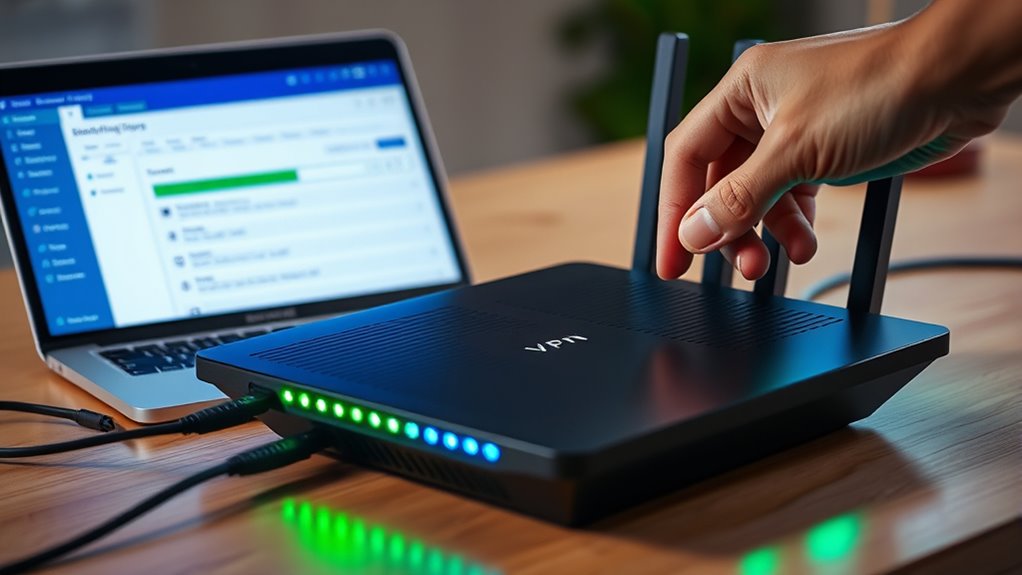
Once you’ve accessed your router’s admin panel, the next step is to configure the VPN settings. Start by checking your router’s compatibility with VPN protocols, as not all models support this feature. If compatible, locate the VPN or VPN client section in the settings menu. Here, you’ll need to enable VPN encryption, which secures your data as it passes through the network. Choose the appropriate VPN protocol, such as OpenVPN or L2TP/IPsec, based on your provider’s recommendations and your security needs. Enter any required options like encryption level or handshake settings. Be sure to save your changes before moving on. Configuring these settings correctly ensures your entire network benefits from strong VPN encryption, providing secure and private internet access across all connected devices. Maintaining a secure network environment is essential to protect your digital activities. Implementing proper configuration practices can help optimize your VPN setup and enhance your overall digital security. Digital security practices can also be supported by maintaining clear and simple digital security practices.
Entering VPN Server Information and Credentials
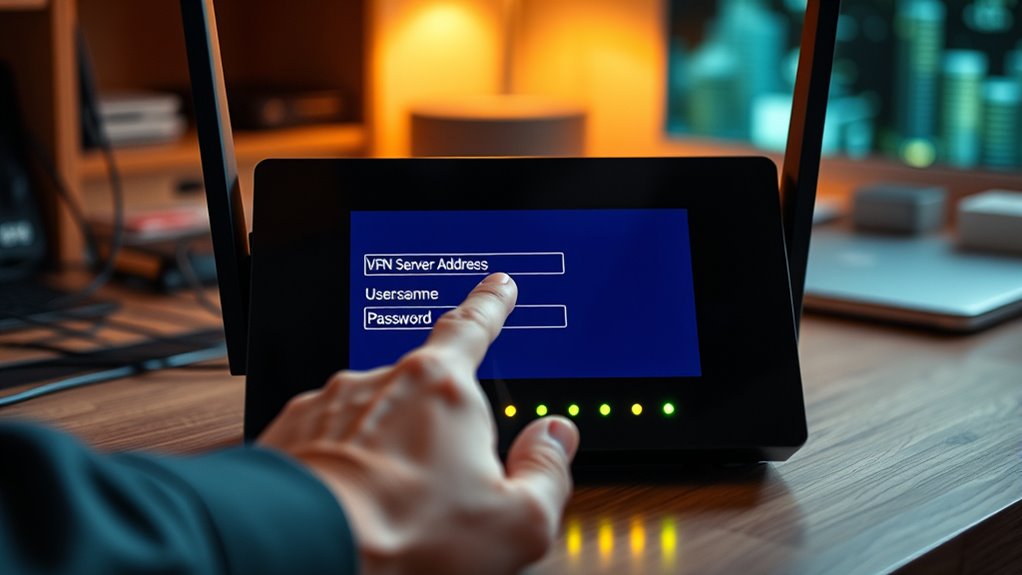
Now, you’ll need to input the VPN server details into your router. Make certain you enter the correct authentication data to secure your connection. Once you’ve added this information, double-check the connection settings to ensure everything works smoothly. Remember, proper configuration helps prevent potential security issues and maintains the privacy of your entire network security configuration. Verifying the network encryption protocols can further enhance your security and protect your data during transmission. Additionally, reviewing network safety measures ensures your setup remains resilient against potential threats. Ensuring secure network practices are followed during setup can further strengthen your overall security posture. Incorporating advanced security techniques can provide an extra layer of protection for your connected devices.
Input Server Details
Before entering the server details, gather the necessary information from your VPN provider, including the server address, protocol type, and your login credentials. Accurate server selection guarantees you connect to the right location and optimize VPN encryption. When inputting the server address, double-check for typos to prevent connection issues. Choose the appropriate protocol—such as OpenVPN or IKEv2—based on your provider’s recommendations, as this impacts your VPN encryption strength and speed. Enter your username and password precisely to authenticate successfully. Correct server details are essential for a stable, secure connection. Once completed, review your entries before saving. Proper server input ensures your VPN functions correctly, providing the security and privacy benefits you’re aiming for across your entire home network.
Enter Authentication Data
To successfully connect to your VPN, you need to enter your authentication data accurately. This involves providing your VPN server with the correct credentials and selecting the right authentication method. Common methods include username/password, certificates, or multi-factor authentication, depending on your VPN provider. Keep your passwords secure and use password management tools to avoid errors. Double-check your entries before saving. Here’s a quick overview:
| Authentication Method | Required Data | Tips |
|---|---|---|
| Username/Password | VPN username & password | Use strong, unique passwords |
| Certificates | Digital certificates | Keep them secure and updated |
| Multi-factor | Password + code | Enable for extra security |
Accurate data entry guarantees a secure connection and smooth setup.
Verify Connection Settings
After entering your authentication details, it’s important to verify that all the connection settings are correct. Double-check the VPN server information to ensure it’s compatible with your device, as some routers or devices may have specific requirements. Confirm that the server address, username, and password are accurate, and that you’ve selected the correct protocol for your setup. This step helps prevent connection issues and improves overall connection stability. If your device isn’t compatible with certain VPN configurations, you might experience drops or sluggish performance. Testing your connection after entering the details guarantees everything functions smoothly. Proper verification guarantees your home network remains secure and your VPN operates reliably across all supported devices.
Testing Your VPN Connection

How can you be sure your VPN is working correctly once you’ve set it up on your router? The key is to test the VPN connection by checking for VPN encryption and IP masking. First, connect a device to your home network and visit a site like WhatIsMyIP.com. If your VPN is active, your displayed IP address should differ from your actual IP address, confirming IP masking. Additionally, verify that your connection is encrypted by observing the VPN status in your router’s dashboard or using a network security tool. These steps ensure your whole home network benefits from VPN encryption, protecting your data and maintaining privacy. Confirming these details helps you trust that your setup is functioning correctly and securing your browsing.
Troubleshooting Common Setup Issues

Even with careful setup, you might encounter common connection issues when configuring your VPN on your router. These problems often stem from firmware compatibility, as outdated or incompatible firmware can prevent the VPN from functioning correctly. Make sure your router’s firmware is up to date and supports the VPN protocols you’re using. If you experience slow speeds or dropped connections, verify your VPN server settings and ensure they match what your provider recommends. Double-check your login credentials and encryption settings, as incorrect details can cause connection failures. Sometimes, resetting your router and reconfiguring the VPN from scratch helps resolve persistent issues. Troubleshooting these common connection issues by confirming firmware compatibility and correct settings will help guarantee a smoother setup and better VPN performance.
Enhancing Security With Additional Router Features

To further strengthen your VPN’s security, consider enabling additional router features such as a firewall, intrusion detection systems, and network segmentation. These tools bolster router security by providing multiple layers of protection. Guarantee your router uses strong encryption protocols like WPA3 to safeguard your network traffic. Enabling a firewall helps block unauthorized access, while intrusion detection systems monitor for suspicious activity. Network segmentation isolates your VPN-connected devices from other home devices, reducing potential attack vectors.
- Activate the firewall to filter incoming and outgoing traffic.
- Use intrusion detection systems to spot threats early.
- Segment your network for better control over device access.
These features help secure your network, making it more resilient against cyber threats.
Maintaining and Updating Your VPN Router Configuration
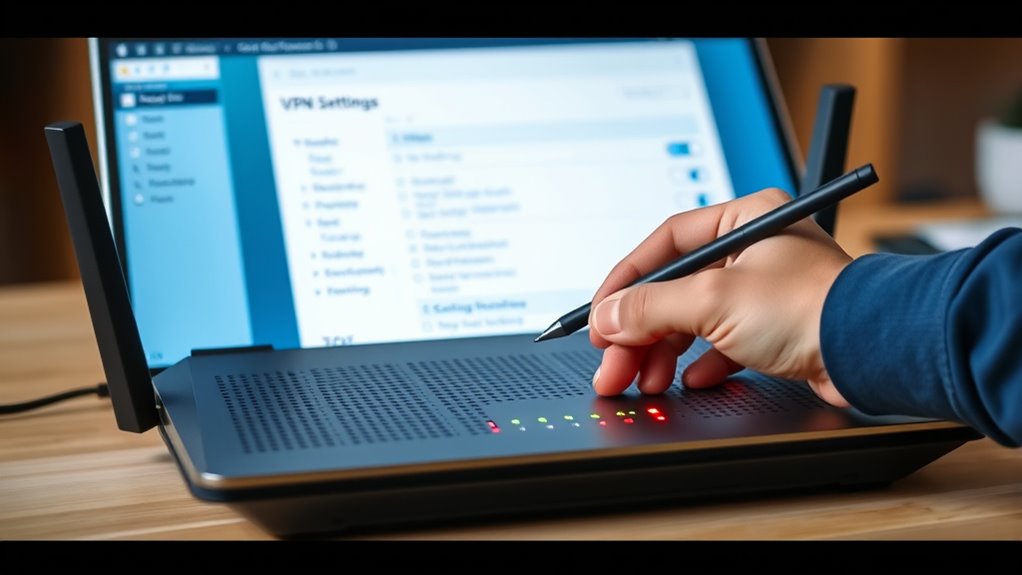
Regularly updating your router’s firmware guarantees your VPN stays secure and functions smoothly. It’s also wise to back up your current settings so you can restore them quickly if needed. Keeping these practices in mind helps maintain a reliable and protected VPN connection.
Subheading 1: Regular Firmware Updates
Keeping your VPN router’s firmware up to date is essential for maintaining security and peak performance. Firmware updates patch vulnerabilities, improve stability, and enhance features like network segmentation. Regular updates prevent potential breaches and ensure your network stays resilient. To stay current:
- Check your router’s manufacturer website periodically for firmware releases.
- Enable automatic updates if available to save time and avoid missing critical patches.
- After updating, verify that your VPN settings and network segmentation remain intact.
Updating firmware reduces the risk of cyberattacks and keeps your device running smoothly. It also guarantees your VPN functions correctly within your network, providing secure and segmented access. Staying proactive with firmware updates is a simple yet vital step to protect your entire home network.
Subheading 2: Backup and Restore Settings
Backing up your router’s settings guarantees you can quickly recover from misconfigurations or hardware failures. Regular backups ensure your VPN configuration, including data encryption settings and network segmentation, remain intact. To back up, access your router’s admin panel and export the current configuration file. Storing this file securely allows you to restore your settings effortlessly if needed. Restoring settings helps maintain consistent security protocols and network segmentation, preventing potential vulnerabilities. Periodic backups also make it easier to update your VPN setup without starting from scratch. When updates or changes are made, saving a new backup ensures you can revert if something goes wrong. Keeping your configuration data safe minimizes downtime and keeps your entire home network secure and properly segmented.
Frequently Asked Questions
Can I Use a VPN on Multiple Devices Simultaneously?
Yes, you can use a VPN on multiple devices simultaneously. Your VPN’s device compatibility determines how many devices can connect at once, often specified in your plan. This allows you to enjoy secure, private browsing across all your devices and enables simultaneous streaming without sacrificing speed or security. Just make certain your VPN provider supports multiple connections, so you get full coverage and protection everywhere you go.
How Do I Update My Router’s Firmware for VPN Compatibility?
Think of your router as a fortress needing reinforcement. To guarantee your VPN’s compatibility, you must perform a firmware update, strengthening its defenses. First, check your router’s current firmware version and visit the manufacturer’s site for the latest updates. Download the firmware, then log into your router’s settings to upload and install it. This compatibility check keeps your network protected and ready to integrate the latest VPN security features.
Is a Paid VPN Service Necessary for Effective Security?
A paid VPN service isn’t always necessary for effective security. Free options can offer basic VPN encryption and improve your data privacy, but they often lack advanced features and may compromise your data. Paid VPNs typically provide stronger encryption, better privacy policies, and reliable connections. If you prioritize thorough security and data privacy, investing in a reputable paid VPN service ensures you get robust protection across your entire network.
What Are the Common Signs of a Misconfigured VPN Router?
You might notice slow internet speeds, frequent connection drops, or difficulty accessing certain websites, which are signs of a misconfigured VPN router. Make certain your VPN encryption settings are correctly enabled and check router compatibility with your VPN service. Incorrect configurations can also cause IP leaks or DNS issues. Regularly update your firmware and verify settings to avoid these problems, keeping your VPN secure and functioning properly.
Can I Set up a VPN on a Dual-Band or Mesh Router?
You can set up a VPN on a dual-band or mesh router, but it depends on the device’s capabilities. Some dual-band routers support VPN configurations thanks to their advanced firmware, and mesh network setups can also handle VPNs if the nodes allow it. Check your router’s specifications and firmware options. With the right setup, you can secure your entire home network across multiple bands or mesh nodes seamlessly.
Conclusion
By setting up a VPN on your router, you’re gently opening a door to a safer, more private home network. With a little patience and attention, you’ll create a seamless shield that quietly guards your online world. Regular updates and tweaks help keep this harmony in tune, ensuring your digital space remains calm and protected. Embrace the process, and enjoy the peace of mind that comes with a more secure, connected home.
Flea & tick season Picks
flea and tick prevention
As an affiliate, we earn on qualifying purchases.