
Discover hidden iPhone accessibility features that simplify your daily life. You can customize Back Tap for quick actions, use Sound Recognition to alerts you about environmental noises, and turn your device into a magnifying glass for small text. Haptic and sound alerts help you stay aware of important notifications, while Guided Access keeps you focused by limiting distractions. Keep exploring these features to find even more ways to make your iPhone work better for you.
Key Takeaways
- Back Tap lets you quickly activate features like app shortcuts or Accessibility options with double or triple taps.
- Sound Recognition detects environmental sounds such as sirens or doorbells and provides customizable alerts for safety.
- Magnifier transforms your iPhone into a digital magnifying glass, enhancing small text or objects with adjustable settings.
- Sound and Haptic Alerts customize notification sounds and tactile feedback for better awareness of important messages.
- Guided Access locks your device into a single app, minimizing distractions and controlling usage during focused tasks.

EVEO Screen Cleaner Spray - Large Screen Cleaner Bottle - TV Screen Cleaner, Computer Screen Cleaner, for Laptop, Phone, Ipad - Computer Cleaning kit Electronic Cleaner (1 Pack)
Screen Cleaner is Your Screen’s New Bestfriend! - EVEO is proud to present a screen cleaner that’s perfectly...
As an affiliate, we earn on qualifying purchases.
Customizing Back Tap for Quick Access
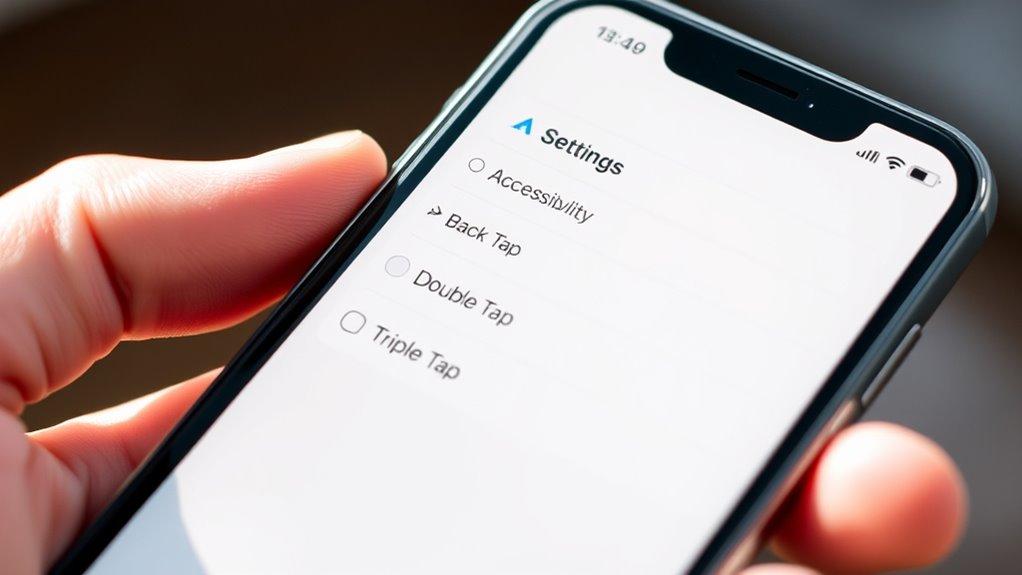
If you want to quickly access certain features or apps, customizing the Back Tap on your iPhone is a simple and effective solution. With Back tap customization, you can assign specific actions to double or triple taps on the back of your device. This allows you to create quick access shortcuts for functions like opening the camera, toggling the flashlight, or launching your favorite apps. To set it up, go to Settings > Accessibility > Touch > Back Tap. From there, choose Double Tap or Triple Tap, then select the feature or shortcut you want to activate. This feature streamlines your routine, making frequently used functions just a tap away, and enhances your overall iPhone experience with minimal effort. Understanding the customization options available can help you tailor your device to better suit your needs and improve overall efficiency. Additionally, exploring home automation can offer insights into creating a smarter and more responsive living environment that adapts to your daily routines.

iO CLEAN Screen Cleaner Spray (16oz - 473ml) – Best Large Cleaning Kit
Screen cleaner spray and cloth. Screen cleaner spray and cloth are designed for high-end devices and work flawlessly...
As an affiliate, we earn on qualifying purchases.
Using Sound Recognition to Detect Environmental Noises
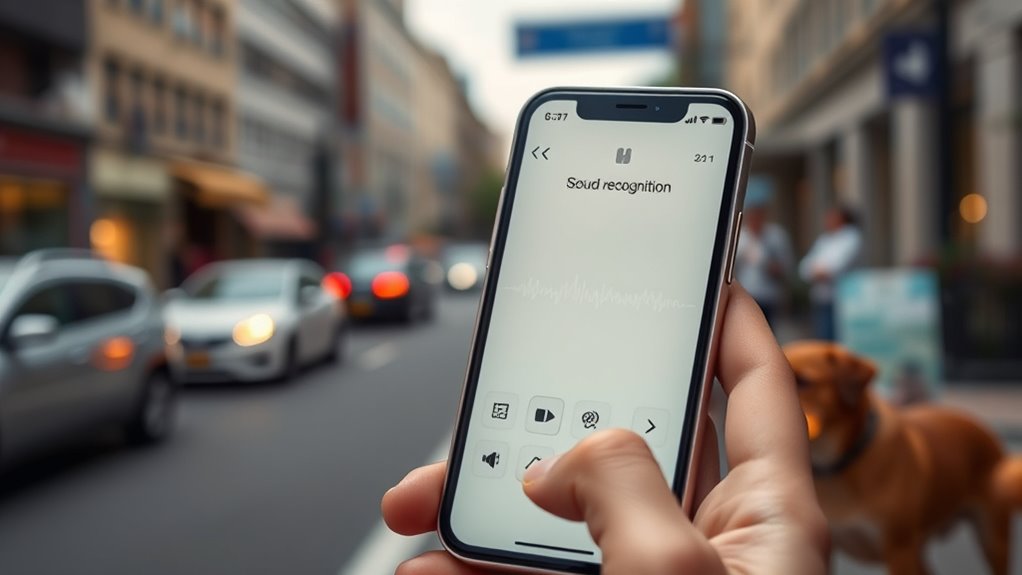
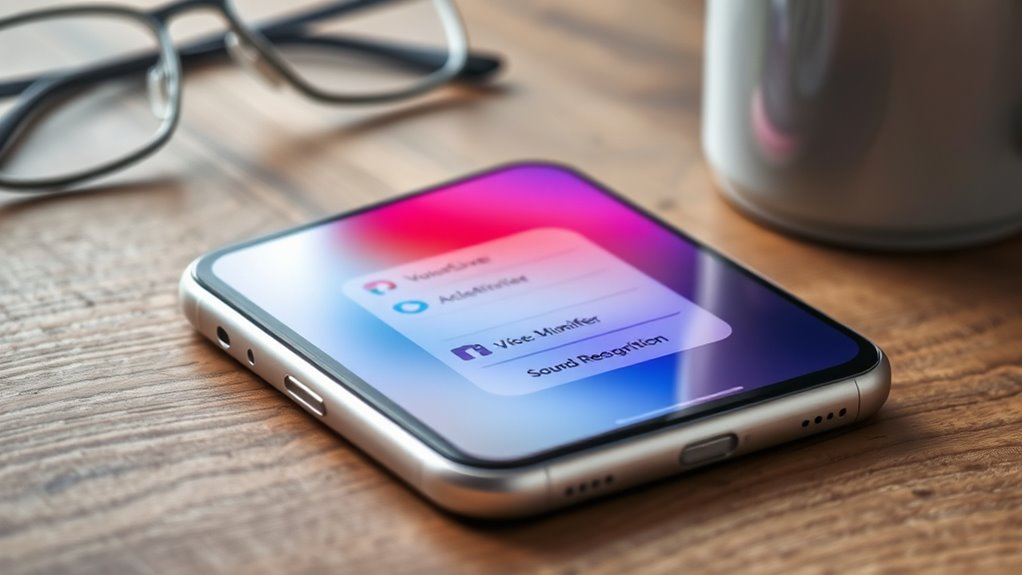
Sound Recognition on your iPhone can automatically alert you to important environmental noises, helping you stay aware of your surroundings. This feature uses environmental sound detection to identify specific sounds like sirens, doorbells, or baby cries, providing customizable sound alerts tailored to your needs. You can select which sounds to recognize and receive notifications for, making it adaptable for various environments. To enable it, go to Settings > Accessibility > Sound Recognition, then turn it on and choose your sounds. Here’s a quick overview:
| Sound Type | Notification Method | Customization Options |
|---|---|---|
| Sirens | Audible alerts | Add or remove sounds |
| Doorbells | Visual alerts | Adjust alert frequency |
| Baby cries | Tactile alerts | Set priority levels |
This feature enhances safety and awareness by seamlessly integrating environmental sound detection into your daily life. Additionally, understanding environmental sound detection can help you better appreciate how your device can serve as a helpful safety tool in various situations.
ZEISS Screen Cleaning Combo Kit for Computers, Phones, Televisions and More
Dependable: ZEISS lens cleaner and microfiber cleaning cloth work together to provide a streak-free finish suitable for everyday...
As an affiliate, we earn on qualifying purchases.
Magnifier: Turning Your Iphone Into a Digital Magnifying Glass

The Magnifier feature on your iPhone transforms your device into a powerful digital magnifying glass, making it easier to see small text or objects up close. With this tool, you can instantly enhance visual clarity by zooming in on details that are hard to read or observe. It offers text enlargement, which is especially helpful for reading labels, menus, or fine print without straining your eyes. The visual enhancement capabilities improve contrast and sharpness, ensuring you get a clearer view of what’s in front of you. To activate the Magnifier, simply add it to your Control Center, then tap to turn it on whenever needed. This feature provides a quick, accessible way to improve visibility and reduces the need for external magnifying tools. Additionally, the Magnifier leverages Free Floating technology to allow for flexible viewing angles and easy adjustments, further enhancing its usefulness in various situations. Incorporating Accessibility features like this supports inclusive design, making technology more usable for everyone. Many users also find that the Battery Backup feature helps maintain consistent performance during long viewing sessions. Furthermore, understanding how to properly manage your device’s power settings can optimize the performance of features like the Magnifier over extended use, especially when combined with power management strategies.

Screen Mom Screen Cleaner Spray 16oz Bottle for TV, Car, Laptop & Computer
STREAK FREE FORMULA FOR CRYSTAL CLEAR SCREENS: Screen Mom tv cleaner spray and cloth advanced streak-free screen cleaner...
As an affiliate, we earn on qualifying purchases.
Sound and Haptic Alerts for Important Notifications

Sometimes, important notifications can go unnoticed, especially in noisy environments or when your iPhone is out of sight. To guarantee you never miss critical alerts, you can customize notification sounds and haptic feedback. Your iPhone allows you to set distinct sounds for different alerts, making it easier to recognize what’s happening without looking. Haptic feedback provides a subtle vibration, giving you tactile confirmation of notifications. This feature is especially helpful when you’re in meetings or in noisy places. You can enable or adjust these alerts in your accessibility settings, tailoring the experience to your needs. By combining sound and haptic alerts, you make sure that important messages grab your attention promptly, keeping you informed without relying solely on visual cues. Personalized alerts can enhance your overall experience by making notifications more intuitive and responsive to your environment. Additionally, configuring alert types for specific notifications can help differentiate urgent messages from less critical ones, ensuring you respond appropriately. Understanding notification customization options can further optimize your alert system to suit your lifestyle and environment, especially considering the various cookie categories that help manage your privacy preferences and overall browsing experience. To maximize safety and awareness, consider exploring sound and haptic alert settings to fine-tune how your device communicates important information.
Guided Access to Limit Distractions and Control Usage
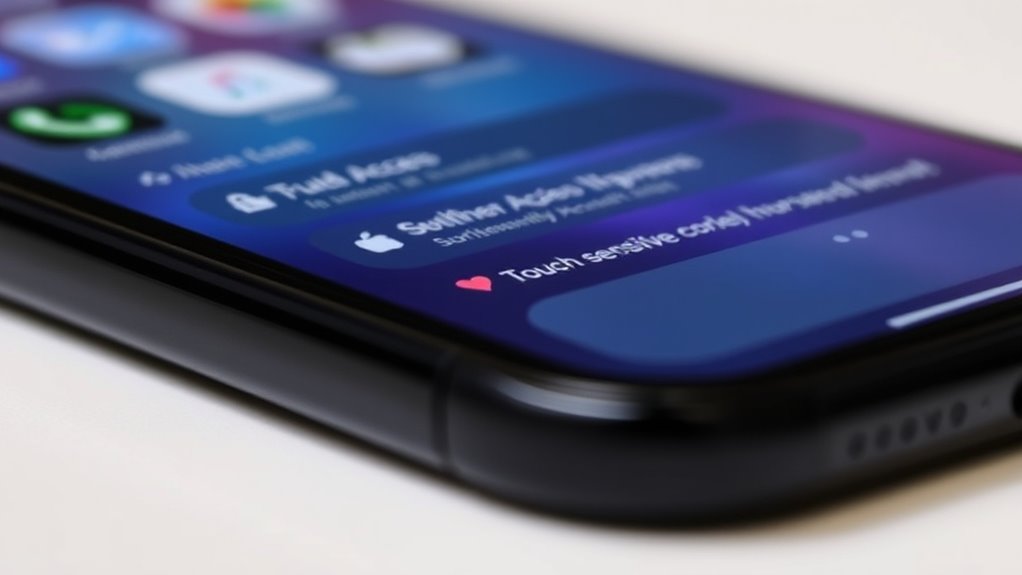
Guided Access is a powerful feature that helps you stay focused by limiting distractions and controlling how your iPhone is used. It allows you to customize your device settings for specific tasks, ensuring only relevant apps and features are accessible. By activating Guided Access, you can lock the device to a single app, preventing accidental or intentional navigation elsewhere. This is especially useful for device customization, as you can disable areas of the screen or hardware buttons that might lead to distractions. You can also add Accessibility shortcuts to quickly enable or disable Guided Access, making it easy to toggle when needed. Overall, this feature keeps your focus sharp, whether you’re working, studying, or managing screen time.
Voice Control for Completely Hands-Free Navigation

Voice Control enables you to operate your iPhone entirely hands-free by using your voice to navigate, open apps, and execute commands. With this feature, you can perform complex tasks simply by saying a voice command, making multitasking easier and more accessible. Gesture control also complements voice commands, allowing you to use specific gestures for navigation without touching the screen. This is especially helpful when your hands are busy or unavailable. You can customize commands to suit your needs, creating a personalized experience. Whether you’re managing calls, browsing the web, or controlling media, Voice Control offers seamless, intuitive interaction. This feature enhances accessibility for users with motor impairments and simplifies daily use for everyone.
- Use voice commands to open apps or settings
- Enable gesture control for quick navigation
- Create custom commands for specific tasks
Frequently Asked Questions
Can These Accessibility Features Be Customized for Different Users?
Yes, you can customize accessibility features for different users. iPhones offer personalization options that let you set user-specific configurations, guaranteeing each person’s needs are met. You can adjust settings like VoiceOver, display accommodations, or switch control to suit individual preferences. This flexibility ensures everyone gets a tailored experience, making your device more accessible and easier to use for different users.
Are These Features Available on All Iphone Models and Ios Versions?
You’ll find that most hidden iPhone accessibility features are available on recent models and iOS versions, but compatibility questions do come up with older devices. Apple regularly updates iOS, adding new customization options and enhancing existing features. To make certain you access all these tools, check your device’s software version and model. Updating your iPhone guarantees you benefit from the latest accessibility enhancements, making your device more accessible and personalized.
How Secure Is the Data Used by Sound Recognition and Voice Control?
Think of your data as a treasure chest, locked tight with encryption. Sound recognition and voice control keep your information secure by following strict privacy policies and encrypting data in transit and at rest. Apple designs these features with privacy in mind, making sure your voice data isn’t shared without your consent. Rest assured, your personal info stays protected, like a secret locked away, safe from prying eyes and ears.
Can These Features Be Used Together for Enhanced Accessibility?
Yes, you can use these features together for enhanced accessibility. The multifunctional integration allows you to combine sound recognition and voice control seamlessly, making your device more accessible. Just verify feature compatibility is enabled in your settings, and you’ll experience smoother interactions. This way, you get a more personalized and efficient experience, allowing you to stay connected and independent with minimal effort.
Do These Features Require an Internet Connection to Function?
Did you know that 85% of accessibility features work offline? You’ll be glad to know that many of these hidden iPhone accessibility customizations don’t require an internet connection to function. Features like VoiceOver, Magnifier, and AssistiveTouch operate entirely offline, ensuring you stay connected and independent wherever you go. So, whether you’re traveling or in a no-service area, your accessibility tools remain reliable and ready to assist you seamlessly.
Conclusion
These hidden iPhone features quietly enhance your everyday life, offering independence and peace of mind. While they make technology feel less intimidating, they also remind you of the power in small, thoughtful tools. Embrace these accessibility options, and you’ll find yourself steering challenges with confidence—sometimes feeling more connected than ever before. In a world that’s constantly changing, your iPhone becomes not just a device, but a trusted companion in your journey.