

To back up your WhatsApp and iMessage photos smartly, start by enabling automatic cloud backups like iCloud for iMessage and Google Drive or iCloud for WhatsApp. Regularly update these backups and organize your images into folders or albums for easy access later. Manually saving important photos adds extra protection. Maintaining a consistent backup routine guarantees your memories stay safe, and you’ll discover simple tips to keep your photos protected and well-organized if you continue exploring.
Key Takeaways
- Enable automatic cloud backups in WhatsApp and iMessage settings to ensure photos are regularly saved.
- Choose reliable cloud services like Google Drive or iCloud for secure, organized photo storage.
- Manually save important photos to cloud or local storage for extra protection beyond automatic backups.
- Categorize and tag photos within cloud storage to facilitate quick retrieval and organized management.
- Verify backup completion regularly to prevent data loss and keep your photos safely stored.

Have you ever lost valuable photos from WhatsApp or iMessage and wished you had backed them up? It’s a frustrating experience, but the good news is that you can prevent it from happening again. The key is to use the right methods to back up your images reliably. One of the most efficient ways to do this is through cloud storage, which automatically saves your photos online, making them accessible from any device and safe from device loss or damage. By leveraging cloud storage services like Google Drive, iCloud, or Dropbox, you can ensure your photos are stored securely and can be easily retrieved whenever you need them.
Backing up your WhatsApp and iMessage photos with cloud storage keeps memories safe and easily accessible.
When you set up cloud storage for your messages, you also improve your photo organization. Instead of hunting through countless chats and media folders, cloud services allow you to categorize and search your photos efficiently. Many platforms enable you to create albums or tags, so you can quickly locate specific images later. This streamlined photo organization not only saves you time but also keeps your digital memories well preserved and easy to navigate.
To get started, check your device’s settings to enable automatic backups for WhatsApp and iMessage. For WhatsApp, go into the app’s settings, select chat backup, and choose your preferred cloud storage account. You can set it to back up daily, weekly, or monthly, depending on how often you want your photos saved. For iMessage, ensure that your iCloud backup is enabled. When iCloud backup is active, your message history, including photos, is stored securely in the cloud. Remember, the more frequent the backups, the less likely you are to lose recent images.
In addition to automatic backups, consider manually saving important photos to your cloud storage or local device. This extra step guarantees that your favorite memories are preserved even if you change devices or disable automatic backups. Organize these manually saved photos into specific folders or albums within your cloud service, so they stay neat and easy to find later. This proactive approach to photo organization makes retrieving cherished moments simple and stress-free.
Ultimately, backing up WhatsApp and iMessage photos through cloud storage is the smartest way to protect your memories. It minimizes the risk of losing valuable images and keeps your photo collection organized and accessible. By setting up automatic backups and maintaining a good photo organization system, you can enjoy peace of mind knowing your cherished photos are safe and easy to find whenever you want to revisit them. Additionally, understanding how contrast ratio affects your images can help you choose the right display settings to enhance your viewing experience.
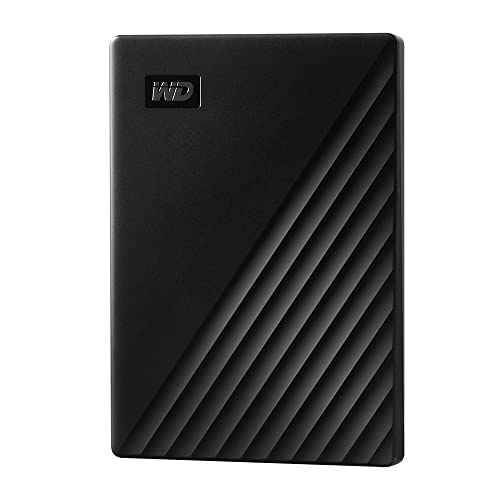
WD 2TB My Passport, Portable External Hard Drive, Black, backup software with defense against ransomware, and password protection, USB 3.1/USB 3.0 compatible – WDBYVG0020BBK-WESN
Slim durable design to help take your important files with you
As an affiliate, we earn on qualifying purchases.
As an affiliate, we earn on qualifying purchases.
Frequently Asked Questions
Can I Selectively Back up Specific Photos From Whatsapp and Imessage?
Yes, you can selectively back up specific photos from WhatsApp and iMessage using photo filtering techniques. You’ll need third-party apps or manual methods that allow you to choose only the photos you want to save. These tools let you filter and select images before backing them up, saving storage and time. Make sure to review app features for selective backup options, ensuring you back up only the photos you truly need.
What Is the Fastest Method to Back up Large Photo Libraries?
To back up large photo libraries quickly, you should enable backup automation through cloud services like Google Photos or iCloud. Use photo compression to reduce file sizes without losing quality, speeding up uploads. Automating backups guarantees your photos are regularly saved without manual effort, making the process faster and more efficient. This way, you can safeguard your memories effortlessly and access them anytime, anywhere.
Are There Any Free Tools to Back up Whatsapp and Imessage Photos?
You might think free tools can handle all your backup needs, but they often fall short. However, for WhatsApp and iMessage photos, cloud storage services like Google Photos or iCloud offer free plans that help you manage your photos easily. These tools let you back up your images without extra costs, ensuring your memories are safe and organized. Don’t underestimate the power of these free options—they’re more effective than you might think.
How Do I Restore Photos From a Backup Without Losing Messages?
To restore photos from a backup without losing messages, start by using cloud storage that supports photo synchronization, like iCloud for iMessage or Google Drive for WhatsApp. Carefully select the restore option, ensuring you choose the correct backup. This way, your photos are restored alongside your messages. Always verify your backup is recent and complete, so you don’t miss any important data during the restore process.
Is It Possible to Back up Photos Without Using Icloud or Google Drive?
They say, “A stitch in time saves nine,” and you can back up photos without iCloud or Google Drive by exploring alternative cloud solutions or local storage options. You might use external drives, SD cards, or apps like Dropbox or OneDrive to save photos directly from your device. These options give you full control, ensuring your photos are safe without relying on mainstream cloud services, ultimately protecting your privacy and data.

2026 iCloud for Beginners and Seniors: The Complete Step-by-Step User Guide to Understanding iCloud Storage, Backups, Device Syncing, Security, and Fixing Common iCloud Issues
As an affiliate, we earn on qualifying purchases.
As an affiliate, we earn on qualifying purchases.
Conclusion
So, now you’re all set to be the hero of your digital life—saving those precious photos from the brink of oblivion. No more frantic searches or tears over lost memories. With these smart backup tricks, you can confidently say goodbye to photo panic and hello to peace of mind. Because let’s be honest, your future self will thank you when those hilarious or sentimental snaps are still waiting for you, safe and sound, in the cloud.

How you manage your subscriptions 2024 iCloud OneDrive Google Drive : Cloud storages Testbook of subscription Service (Japanese Edition)
As an affiliate, we earn on qualifying purchases.
As an affiliate, we earn on qualifying purchases.

Pix-Star LUX 10.4'' Wi-Fi Digital Picture Frame – Unlimited Cloud Storage, Easy App Sharing, 40,000+ Pictures, No-Glare Display, Motion Sensor, Email/App/USB/SD – 10 inch
UNLIMITED CLOUD STORAGE – FREE FOREVER Enjoy lifetime free cloud backup with no subscription fees. Manage up to…
As an affiliate, we earn on qualifying purchases.
As an affiliate, we earn on qualifying purchases.