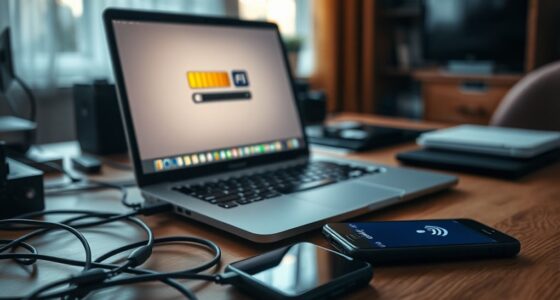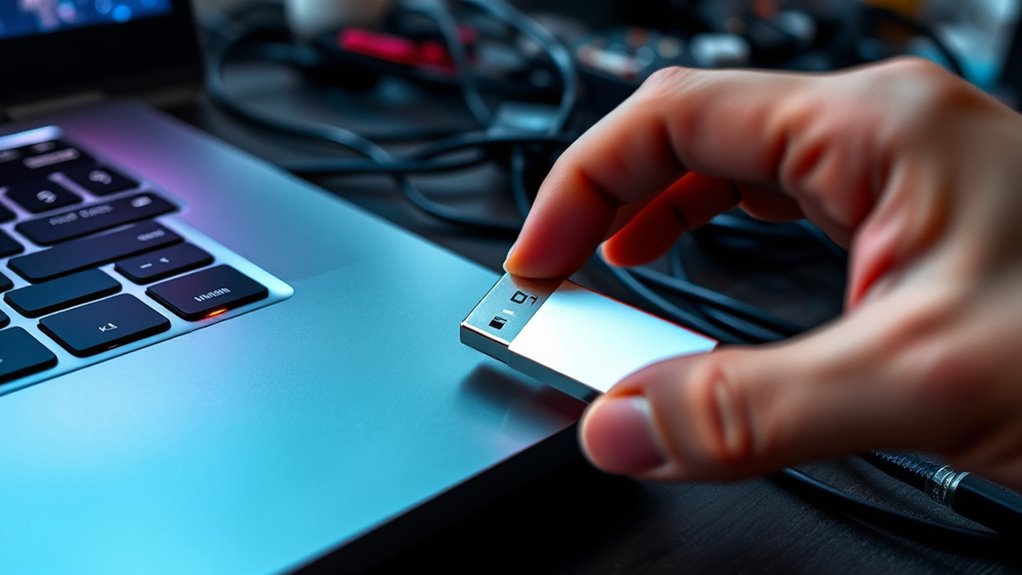
If your USB device isn’t recognized, start by trying a different port or cleaning the ports gently with compressed air. Make sure your drivers are up to date by checking Device Manager or System Preferences, and reconnect the device to reinstall drivers if needed. Test the device on another computer to rule out hardware faults. For more effective solutions tailored to your system, keep exploring these troubleshooting tips.
Key Takeaways
- Try connecting the USB device to a different port or computer to identify hardware issues.
- Update or reinstall device drivers via Device Manager (Windows) or System Report (Mac).
- Clean USB ports gently with compressed air to remove dust and debris.
- Check for physical damage on USB ports and devices, replacing if necessary.
- Keep your system and drivers up to date to prevent compatibility problems.

If your computer displays a “USB Device Not Recognized” error, it can be frustrating and disruptive. This message often indicates there’s a problem with how your system interacts with the connected device, and it’s usually linked to USB port issues or driver conflicts. When your USB ports don’t communicate properly with devices, your computer may fail to recognize or properly function with them. Sometimes, this problem stems from physical issues like dust, debris, or damaged ports, but often it’s due to software conflicts, particularly driver-related problems.
A USB Device Not Recognized error often results from port issues or driver conflicts.
First, consider the possibility of USB port issues. If a specific port isn’t working, try plugging your device into a different port. Sometimes, ports become worn out or damaged over time, especially if you frequently connect and disconnect devices. Cleaning the ports gently with compressed air can also help remove dust or debris that might be obstructing proper contact. If switching ports doesn’t solve the problem, check for physical damage or try connecting the device to another computer. This helps determine if the problem lies with the port or the device itself.
Driver conflicts are another common cause of the “USB Device Not Recognized” error. Your system relies on drivers—software that enables communication between your hardware and operating system. Outdated, corrupted, or incompatible drivers can prevent your device from being recognized. To troubleshoot this, start by disconnecting the device, then open your device manager (on Windows) or relevant system management tool on Mac. Look for any devices marked with a warning icon, which indicates a driver issue. Updating drivers can often resolve conflicts. You can do this manually by visiting the device manufacturer’s website or through your system’s automatic update features. On Windows, right-click the problematic device and select “Update driver.” On Mac, ensure your system is up to date, as macOS manages drivers automatically.
If updating drivers doesn’t work, uninstalling and reinstalling the device can clear up conflicts. Disconnect the device, uninstall its driver, then reconnect it to force the system to reinstall the driver automatically. Sometimes, driver conflicts happen after a Windows update or a system upgrade, so keeping your drivers current is essential. Also, avoid using third-party driver update tools unless you trust them, as they can sometimes cause more issues.
A properly functioning USB port is essential for resolving connection problems, and understanding how hardware interacts with your system can help prevent similar issues in the future.
In most cases, resolving the “USB Device Not Recognized” error involves a combination of checking your physical ports and updating the drivers. By systematically eliminating potential issues—trying different ports, cleaning connections, updating drivers—you can usually restore proper functionality. Remember, persistent problems might point to hardware faults, and replacing damaged ports or devices may be necessary. Being methodical and patient with these troubleshooting steps can save you time and frustration, getting your devices working smoothly again.
USB port cleaning compressed air
As an affiliate, we earn on qualifying purchases.
As an affiliate, we earn on qualifying purchases.
Frequently Asked Questions
Can I Fix a USB Device Not Recognized Without Data Loss?
Yes, you can fix a USB device not recognized without data loss. First, try safe methods like updating drivers or reconnecting the device. If data recovery is needed, use reliable software before attempting hardware replacement. Avoid risky fixes that might wipe your data. If the problem persists, consult professionals to recover your data and then consider hardware repairs or replacement to restore full functionality without losing your files.
Why Does the Error Only Occur on Specific Computers?
Like a key fitting only certain locks, your USB error occurs on specific computers because of hardware conflicts or driver issues unique to those systems. These conflicts may stem from outdated drivers, incompatible hardware, or system misconfigurations. Each computer’s setup varies, so what works on one might not on another. To fix this, update drivers, check for hardware conflicts, and guarantee compatibility, helping your USB work smoothly across different devices.
How Do I Identify if My USB Device Is Physically Damaged?
You can identify if your USB device is physically damaged by performing a hardware inspection and looking for visual signs. Check for bent or broken pins, cracks, or corrosion on the connector. Also, examine the device casing for dents or warping. If these signs are present, it’s likely damaged. Trying the device on another computer can also help determine if the issue is hardware-related or due to connection problems.
Are There Third-Party Tools to Troubleshoot USB Recognition Issues?
Did you know that over 60% of users turn to third-party utilities to troubleshoot hardware issues? If you’re facing USB recognition problems, third-party tools can be quite helpful. They often include hardware diagnostics features that identify faults quickly. These utilities can scan your device, update drivers, or fix corrupt files, making them a valuable resource when built-in solutions fall short. Just make certain you choose reputable options to avoid security risks.
Does Updating My Operating System Affect USB Device Compatibility?
Updating your operating system can improve USB device compatibility by fixing driver conflicts and resolving port issues. When you update, it often includes the latest drivers and patches that enhance device recognition. However, sometimes updates introduce new conflicts or bugs. To avoid problems, back up your data first, then install updates carefully. Afterward, restart your computer and test your USB device to make sure it works smoothly.
USB device driver updater for Windows
As an affiliate, we earn on qualifying purchases.
As an affiliate, we earn on qualifying purchases.
Conclusion
Think of your USB port as a gateway to your digital world. When it’s not recognized, it’s like a door that’s temporarily locked—blocking your connection to important files and devices. But with a few simple fixes, you can open that door again, restoring communication and flow. Remember, every problem is a key waiting to be found. Keep troubleshooting, and soon, your device will be back to bridging your digital universe seamlessly.
USB port tester for PC
As an affiliate, we earn on qualifying purchases.
As an affiliate, we earn on qualifying purchases.
external USB device repair kit
As an affiliate, we earn on qualifying purchases.
As an affiliate, we earn on qualifying purchases.