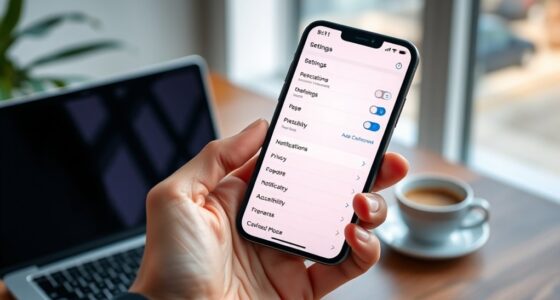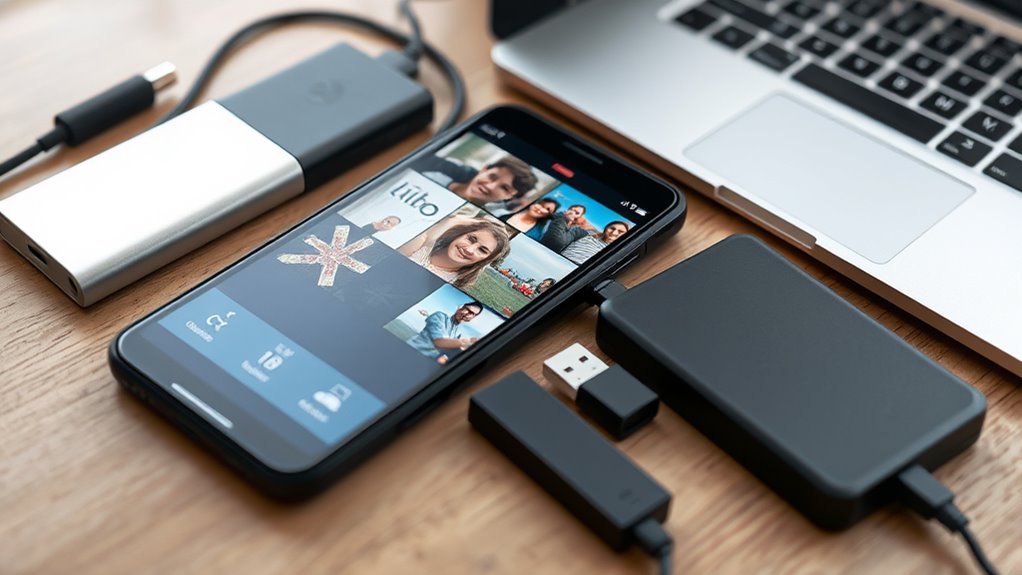

To never lose your photos, regularly back up your phone using cloud storage services like Google Drive, iCloud, or OneDrive. Enable automatic backups and connect to Wi-Fi to save data without hassle. Consider apps that let you encrypt and selectively back up important files, including photos and contacts. Keep an eye on your backup status and update it consistently. If you want to learn more tips on securing your photos, there’s plenty more to discover.

Get the latest gadgets delivered free with Prime
- Fast, free delivery on millions of items
- Prime Video, Amazon Music and more included
- Member-only deals all year
Key Takeaways
- Use a reliable cloud storage service like Google Drive, iCloud, or OneDrive for automatic photo backups.
- Enable backup features in your phone settings or dedicated apps to ensure seamless photo synchronization.
- Connect your device to Wi-Fi during backups to save data costs and improve upload speed.
- Regularly verify that your photos are successfully backed up and update backup settings as needed.
- Encrypt sensitive photos before uploading and create a routine schedule for consistent backups.
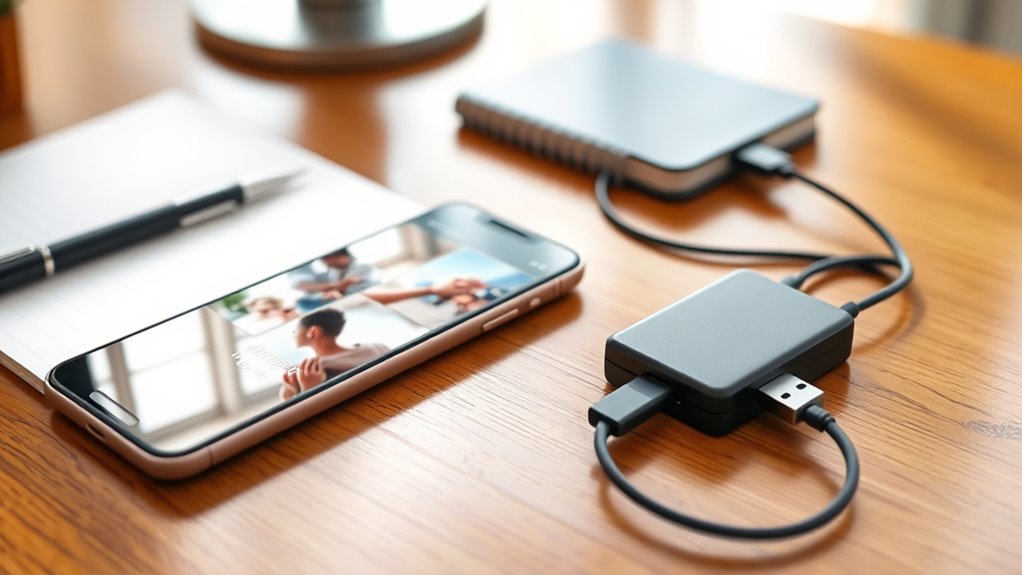
Have you ever lost important photos, contacts, or messages because you didn’t back up your phone? It’s a frustrating experience that can happen in an instant—whether your device gets stolen, damaged, or simply malfunctions. Luckily, backing up your phone is easier than you think, and it can save you a lot of grief down the line. The key is using reliable cloud storage and backup apps to keep your data safe and accessible.
Cloud storage services like Google Drive, iCloud, or OneDrive make it simple to automatically back up your photos, videos, and other essential files. These platforms sync your data seamlessly, so you don’t have to remember to do it manually every time. Once you set up your cloud account and enable automatic backups, your phone will regularly upload new content without any extra effort. This way, even if your device is lost or broken, your precious memories stay secure and can be restored on a new device with just a few taps.
Backup apps are another great tool in your arsenal. Apps like Dropbox, Samsung Cloud, or dedicated backup solutions for Android and iPhone streamline the process further. They often offer scheduled backups, encryption for security, and options to back up specific data like app settings or call logs. Using these apps, you can choose what to back up, how often, and where to store it. This targeted approach guarantees you’re not wasting space and that your most important data is always protected. Plus, many backup apps allow you to create encrypted local backups on your computer, giving you extra peace of mind.
To get started, pick a cloud storage service that suits your needs and set up automatic backups. Make sure your device is connected to Wi-Fi to avoid excessive data charges, especially if you have a limited plan. Regularly check that backups are completing successfully—most services send notifications or show backup status within the app. For added security, consider encrypting sensitive files before uploading or storing them in multiple locations.
Backing up your phone might seem like a hassle at first, but once you establish a routine with cloud storage and backup apps, it becomes second nature. You’ll sleep easier knowing that your photos, contacts, and messages are protected against unexpected mishaps. And when disaster strikes, you can restore your device quickly, without losing what matters most. Don’t wait until it’s too late—start backing up today and keep your memories safe forever. Understanding data security is also crucial to ensure your backups are protected from unauthorized access.
automatic cloud photo backup app for iPhone
As an affiliate, we earn on qualifying purchases.
As an affiliate, we earn on qualifying purchases.
Frequently Asked Questions
How Often Should I Back up My Phone?
You should back up your phone regularly, ideally once a week, to guarantee your photo storage stays safe. Backup frequency depends on how often you take new photos—if you’re snapping daily, consider backing up daily or every few days. This way, you won’t lose recent memories, and your photo storage remains up-to-date. Consistent backups keep your photos protected without too much hassle.
Can I Recover Deleted Photos From Backups?
Think of backups like safety nets—if you accidentally delete photos, you can often recover them from your backups. Photo recovery options include cloud services or local backups, but remember their limitations; once overwritten or deleted from the backup, recovery becomes difficult. To maximize your chances, check your backup regularly and act quickly. This way, you won’t lose precious moments, just like a safety net catching you in a fall.
What’s the Best Backup Method for Android and Iphone?
The best backup method for Android and iPhone combines cloud storage options like Google Photos or iCloud with regular backups. Set a backup schedule to guarantee your photos stay current, and consider local storage options like external drives for added security. Automate backups so you don’t forget, and choose a method that fits your storage needs and convenience, preventing potential photo loss.
How Secure Are Cloud Backups?
Did you know that over 60% of users worry about cloud backup security? Cloud backups are generally secure thanks to data encryption, which protects your privacy concerns. However, no system is entirely risk-free. Always choose reputable providers with strong encryption standards, and enable two-factor authentication. While cloud backups offer convenience, staying informed about their security measures helps you safeguard your photos and personal info effectively.
Do Backups Include App Data and Settings?
Yes, backups often include app data and settings, making recovery seamless. When you back up your phone, you preserve app data, preferences, and settings, so restoring your device brings everything back as it was. This guarantees you won’t lose important information or customization. To maximize app data and settings recovery, regularly update your backups and choose options that include app data, especially before switching devices or performing a reset.
best external hard drive for photo backup
As an affiliate, we earn on qualifying purchases.
As an affiliate, we earn on qualifying purchases.
Conclusion
Remember, backing up your phone is as essential as carrying a pocket watch in the Victorian era—forget it, and you risk losing precious memories forever. Just like you’d safeguard your valuables in a hidden compartment, make sure your photos are stored safely somewhere reliable. Don’t wait until the digital dust settles—stay ahead of the game and back up regularly. Your future self will thank you when nostalgia hits and all you have are pixels to remember by.
As an affiliate, we earn on qualifying purchases.
cloud storage service for Android photos
As an affiliate, we earn on qualifying purchases.
As an affiliate, we earn on qualifying purchases.
Halloween Picks
halloween
As an affiliate, we earn on qualifying purchases.