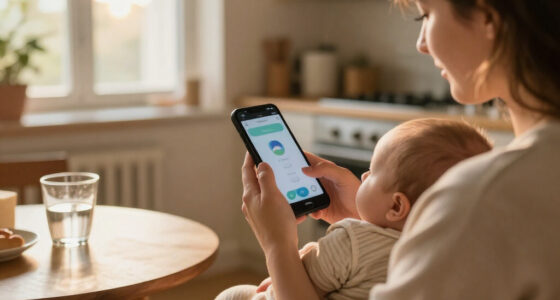
With Android Family Link, you can easily manage your child’s device by approving or blocking apps, setting daily screen time limits, and scheduling device downtime for homework or bedtime. You can also monitor activity reports to see how they spend their time and respond quickly with remote device lock or pause features if needed. This guide will show you step-by-step how to set up and best use Family Link for safer, healthier device use.

Get the latest gadgets delivered free with Prime
- Fast, free delivery on millions of items
- Prime Video, Amazon Music and more included
- Member-only deals all year
Key Takeaways
- Install Family Link on both parent and child’s devices and link the child’s account for centralized management.
- Approve or block apps before download to control accessible content and promote responsible app choices.
- Set daily screen time limits and schedule device downtime to encourage healthy device habits.
- Monitor activity reports to review app usage, screen time, and digital behavior patterns.
- Use remote features like locking, pausing, or locking devices instantly to ensure safety and appropriate usage.

Wondering how to keep your kids safe and manage their device usage? Android Family Link is designed to help you do just that. It gives you a thorough way to oversee your child’s digital safety while ensuring they can still enjoy their devices responsibly. With this app, you can set boundaries, monitor activity, and control what they access, all from your own device. It’s like having a digital shield that keeps your child’s online experience safe and age-appropriate.
Keep your kids safe and manage their device use with Family Link’s helpful tools.
The first step is to set up Family Link on your device and your child’s device. Once installed, you’ll create an account for your child, linking it to your Google account. This connection allows you to manage their device remotely, giving you peace of mind. As a parent, you’ll want to focus on app management, which is a core feature. You can approve or block apps your child wants to download, preventing them from installing anything inappropriate or distracting. This way, you’re actively guiding their app choices instead of leaving it entirely up to chance.
Digital safety is at the heart of Family Link. You can set screen time limits, so your child doesn’t spend too much time on their devices. You can schedule device downtime during homework, dinner, or bedtime, ensuring they get a healthy balance between screen use and other activities. The app also allows you to view activity reports, giving you insights into how they’re using their device—what apps they open most, how long they spend on specific activities. This information helps you have open conversations about healthy digital habits.
Family Link also enables you to manage settings remotely. If your child is using their device and you notice something concerning, you can lock the device instantly. You can also pause their access altogether if needed, which is especially useful if you suspect they’re engaging with content that isn’t suitable. By maintaining control over app management and digital safety features, you teach your child responsible device usage without feeling overwhelmed. Additionally, understanding the importance of high refresh rates in devices can help you select the right hardware for their use, ensuring smooth and responsive performance during activities like gaming or video viewing.
Products Worth Considering

DJI Osmo Pocket 3 Filter Bundle – Vlogging Camera with 1 CMOS Sensor and 4K/120fps

Apple iPad Air (4th Generation, 10.9-inch, Wi-Fi, 256GB) – Space Gray

Apple AirPods Pro 3 Wireless Earbuds with Active Noise Cancellation
As an affiliate, we earn on qualifying purchases.
Frequently Asked Questions
Can I Set Different Restrictions for Each Child?
Yes, you can set different restrictions for each child. With child profile customization, you create individual profiles for your kids, allowing you to tailor restriction setting options specifically for each one. This way, you control what apps they can access, screen time limits, and content filters separately. It gives you flexibility and peace of mind, ensuring each child’s device usage aligns with their age and your family’s rules.
How Do I Monitor App Activity Remotely?
You can monitor app activity remotely with Family Link by using the app activity tracking feature. Open the Family Link app on your device, select your child’s account, and go to the “Dashboard.” There, you’ll see a detailed report of app activity, including usage time. This allows you to keep an eye on their app usage anytime, ensuring effective remote monitoring without needing physical access to their device.
Is Family Link Available in All Countries?
Family Link isn’t available everywhere, so you might face geographic limitations or regional features that restrict access. You’ll want to check Google’s official website or app store to see if it’s accessible in your country. If it’s not, consider alternative parental controls or monitoring apps suited to your region. Keep in mind, regional features can influence functionality, so always verify availability before setting up.
What Happens if My Child Tries to Bypass Controls?
If your child tries to bypass controls, you’ll receive a security alert, prompting you to review the activity. To prevent this, set up account recovery options and verify controls are properly enforced. Regularly monitor their activity to address any security concerns promptly. If needed, you can reset their account or update settings to maintain control, giving you peace of mind while safeguarding their online experience.
Can I Remove a Child’s Account Remotely?
Yes, you can remove your child’s account remotely through account management. But be cautious—this remote access gives you control, yet it also means you hold power over their digital world. As you manage their account, remember that this act affects their access and trust. Use it wisely, knowing that your decision shapes their online safety and your relationship. The choice to remove isn’t just technical; it’s impactful.
Conclusion
With Android Family Link, you gain the ultimate superpower—guiding your child’s digital journey with ease and confidence. It’s like having a personal guardian angel watching over every swipe and click, ensuring their safety while fostering healthy habits. Remember, you’re not just managing devices; you’re shaping their future in a way that could influence generations. Embrace this tool, and watch your child’s digital world flourish under your watchful eye—because nothing is more powerful than a parent’s love and guidance.