
To tame notifications on any device, mastering focus modes is key. Start by setting up focus profiles tailored to different activities like work or relaxation. Customize notification settings and app access for each profile, then enable sync across your devices so preferences stay consistent. Regularly review and adjust these modes for seamless control. Keep exploring these options to improve your focus and reduce distractions effectively; there’s more to discover to optimize your experience.
Key Takeaways
- Access focus mode settings on each device to customize notification restrictions and app access for a distraction-free environment.
- Enable automatic scheduling and sync focus profiles across devices for seamless, consistent focus sessions.
- Use device-specific features like “Do Not Disturb” or focus profiles to manage notifications during work or relaxation.
- Regularly update your operating system and apps to ensure compatibility and effective focus mode functionality.
- Troubleshoot notification issues by checking app permissions, restarting devices, and consulting support resources if needed.
Understanding Focus Modes and Their Benefits
Understanding focus modes is essential because they help you manage your attention and boost productivity. By activating these modes, you can minimize distractions, allowing you to work more efficiently. Focus modes serve as powerful productivity hacks, enabling you to dedicate uninterrupted time to tasks that matter most. Beyond improving work output, they also offer mental health benefits by reducing stress caused by constant notifications and interruptions. When you use focus modes effectively, you create a mental space that promotes calmness and clarity. This balance helps prevent burnout and enhances overall well-being. Recognizing the advantages of focus modes reminds you to prioritize mental health while staying productive. Incorporating digital environment management strategies ensures you optimize your digital tools for maximum benefit. Additionally, understanding the different focus modes available on your devices allows you to tailor your approach for specific tasks and workflows.
Setting Up Focus Modes on Your Smartphone
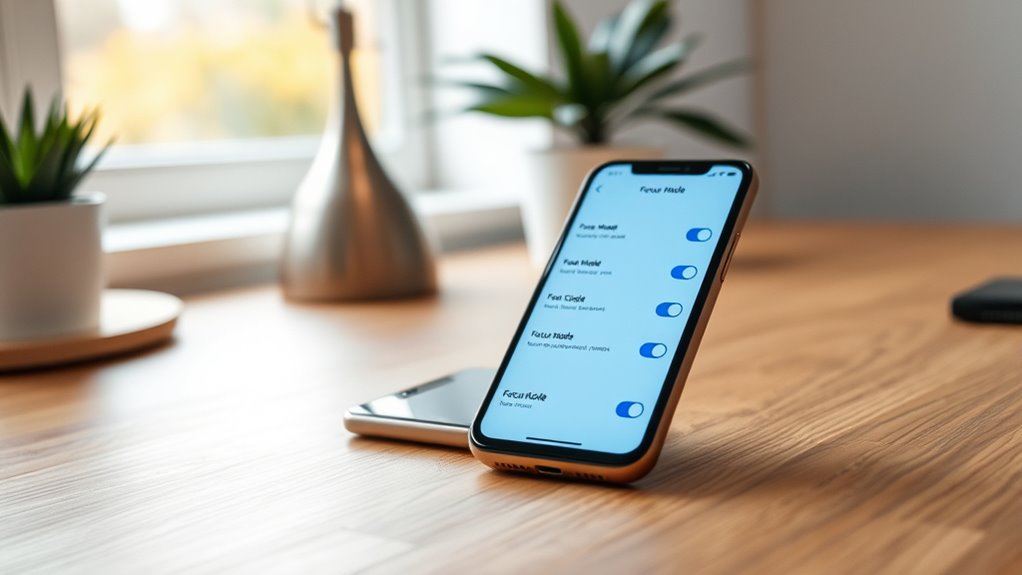
Setting up focus modes on your smartphone is a straightforward process that allows you to customize how your device helps you stay focused. Begin by accessing your device’s settings and selecting the focus mode option. From there, you can customize background settings to control what appears on your screen during focus sessions, reducing potential distractions. App restrictions let you decide which apps can send notifications or be accessed, helping you stay on task. You might choose to disable social media apps or email during focus time, ensuring only essential tools are available. Once configured, activate your focus mode to immediately benefit from tailored background customization and app restrictions. Incorporating digital wellbeing features can further optimize your focus mode by monitoring your device usage and offering insights to improve your productivity. These features often include usage tracking that helps you identify patterns and adjust settings for better focus. Additionally, enabling automatic scheduling can ensure your focus modes activate at designated times, creating a consistent environment for concentration. Leveraging device management tools can also help you customize notifications and app access more precisely, further reducing distractions. Being aware of your battery health and managing background activity can improve your device’s performance during focus sessions. This simple setup helps you create a distraction-free environment, boosting your productivity and concentration.
Customizing Focus Profiles for Different Activities
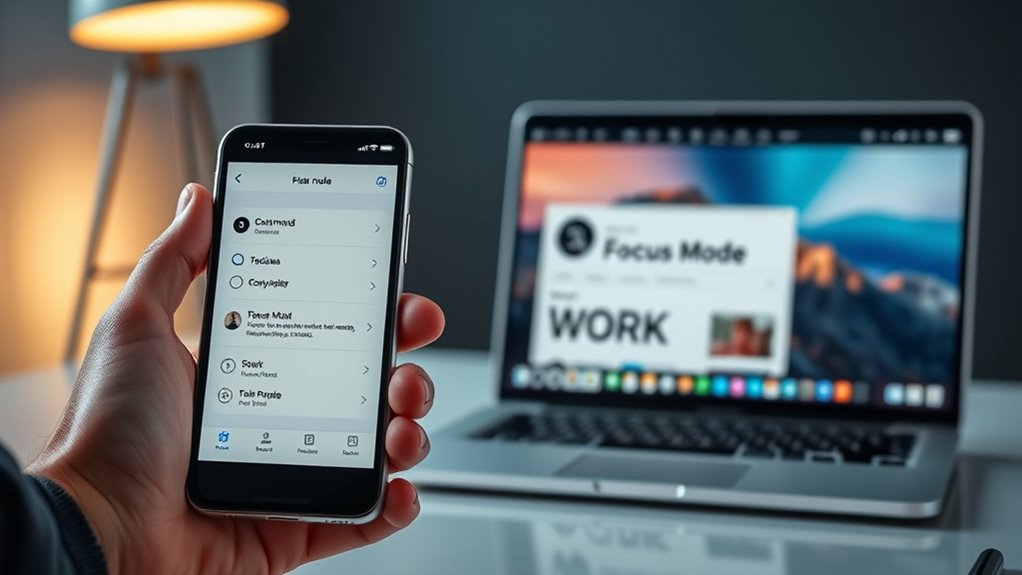
You can tailor your focus profiles to match specific activities, making it easier to stay on task. Creating activity-specific profiles allows you to customize notifications and app access for work, exercise, or relaxation. Adjusting these settings helps you maintain focus without unnecessary interruptions. Incorporating passive voice detection tools can further enhance your ability to identify and revise passive constructions in your writing. Utilizing device customization options ensures that your focus modes are effectively aligned with your daily routines and objectives. Moreover, personalized focus settings enable seamless transitions between different activity modes, promoting a more efficient and distraction-free environment. Employing specialized app integrations can also help automate the activation of these profiles based on your location or calendar events, streamlining your focus management.
Creating Activity-Specific Profiles
Have you ever wished your focus mode could adapt seamlessly to different activities? Creating activity-specific profiles makes this possible. By customizing app-specific settings, you can tailor notifications for each activity, ensuring you stay focused. To do this effectively, consider these steps:
- Identify each activity that needs a dedicated profile, like work, exercise, or relaxation.
- Set up activity-based profiles with specific app permissions and notification preferences.
- Switch between profiles easily based on your current activity, maintaining control without distraction.
- Incorporate device customization features to further enhance your focus management, such as adjusting notification settings to align with your activity type. Understanding focus management techniques can also help optimize your device use for better productivity.
This approach helps you streamline your focus, reduces interruptions, and ensures your device supports your productivity and well-being. With activity-based profiles, your device becomes a powerful tool for managing focus across all areas of your life.
Adjusting Notification Settings
Adjusting notification settings is a key step in customizing your focus profiles for different activities. Effective notification management allows you to control which alerts come through during specific times, reducing distractions. Start by selecting the focus profile you want to modify and access its settings. From there, customize notifications for each app or contact, choosing to silence, prioritize, or allow alerts based on your activity. Device customization options vary across platforms but generally include toggling sounds, vibrations, or banners. Fine-tuning these settings ensures you stay focused without missing critical updates. Regularly review and adjust your notification preferences to match your evolving routines, helping you maintain a productive environment tailored to your needs. Proper notification management empowers you to stay engaged with what matters most, and understanding your device’s customization options can enhance this process further. Additionally, exploring notification management features can help optimize your focus profiles for different scenarios, especially when you leverage device-specific tools to streamline your alerts and improve your overall attention control.
Managing Notifications During Focus Sessions
Managing notifications during focus sessions is essential for maintaining concentration and productivity. Effective notification management helps you reduce distractions and stay on task. To optimize your focus, consider these key strategies:
- Disable non-essential alerts to prevent interruptions.
- Use “Do Not Disturb” modes during critical work periods.
- Schedule specific times to review notifications, avoiding constant checking.
- Incorporate Free Floating techniques to allow notifications to appear only when truly necessary.
These steps help you control the flow of information, ensuring distractions are minimized. By actively managing notifications, you create an environment conducive to deep focus. Remember, distraction reduction isn’t just about silencing alerts; it’s about intentionally designing your device settings to support your work rhythm. Mastering this aspect of focus modes empowers you to stay engaged and accomplish more with less disruption.
Syncing Focus Settings Across Multiple Devices

Syncing your focus settings across devices guarantees seamless integration, so your preferences stay consistent no matter which device you’re using. When your focus modes are synchronized, you avoid interruptions and maintain productivity. This consistency helps you stay in the zone without adjusting settings repeatedly.
Seamless Device Integration
To guarantee your focus settings stay consistent across all your devices, seamless integration is essential. Confirming device compatibility and smooth app integration makes this possible. When your devices communicate effortlessly, your focus modes sync instantly, saving you time and frustration. Here’s what to prioritize:
- Compatibility across different operating systems ensures your settings work everywhere.
- Reliable app integration keeps focus modes synchronized without manual updates.
- Unified notifications prevent interruptions, no matter which device you’re using.
Consistent Focus Preferences
Ensuring your focus preferences stay consistent across all devices can substantially improve your productivity and reduce distractions. By enabling device synchronization, you guarantee your focus modes and notification management settings are uniform everywhere you use your devices. This consistency means you won’t need to adjust settings manually for each device, saving you time and mental effort. When your focus preferences are synchronized, notifications are managed seamlessly, whether you’re on your phone, tablet, or computer. This reduces interruptions during critical work periods and keeps your focus intact. Take advantage of built-in synchronization features to maintain your preferred focus modes across platforms, creating a cohesive experience that supports your productivity and concentration everywhere you go.
Tips for Maintaining Focus and Minimizing Distractions

Staying focused in a busy environment requires deliberate effort to minimize distractions. To do this effectively, consider these tips:
- Schedule mindful breaks to reset your attention and prevent burnout.
- Use environmental cues, like specific sounds or visual signals, to remind you to stay on task.
- Remove or silence notifications during work periods to reduce interruptions.
Troubleshooting Common Focus Mode Issues
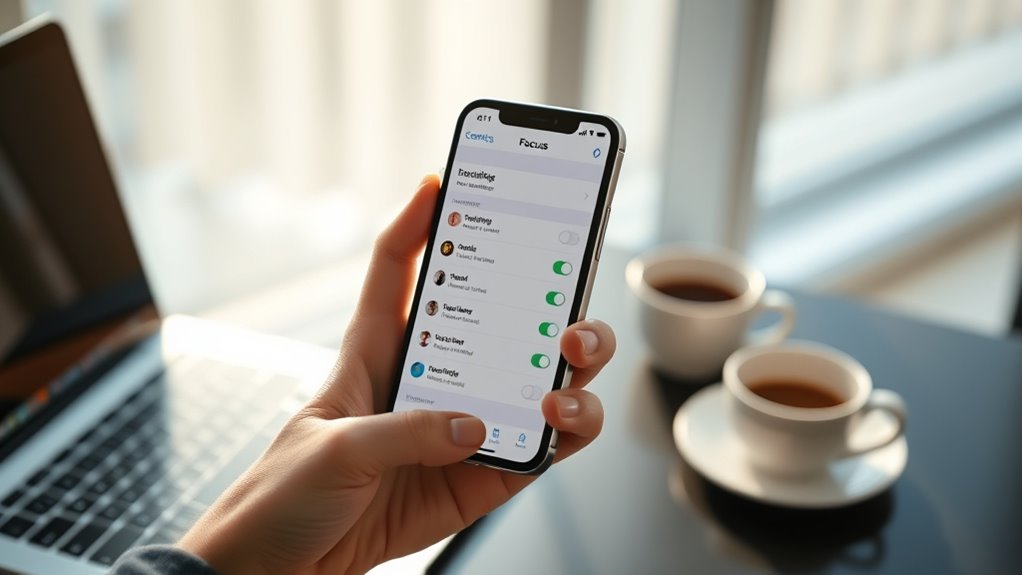
When focus mode isn’t working as expected, it can be frustrating and disruptive to your productivity. One common issue is app compatibility; some apps may not respect focus mode settings or might override notifications. To troubleshoot notifications, start by checking your device’s focus mode settings and verify notifications are allowed for specific apps. Update your operating system and apps regularly, as outdated versions can cause conflicts. If notifications still don’t appear, restart your device to refresh system processes. Remember, certain apps may require manual adjustments or permissions to work properly with focus modes. If problems persist, consult your device’s support resources or app developer documentation. These steps help you resolve typical focus mode issues and regain control over your notifications.
Frequently Asked Questions
Can Focus Modes Be Scheduled Automatically for Specific Times?
Yes, you can schedule focus modes automatically for specific times. By setting up automatic scheduling, you enable time-based activation, so your device switches focus modes without you having to do anything manually. Simply choose the start and end times for each focus mode, and your device will activate and deactivate them seamlessly. This helps you stay focused during work hours or relax during evenings, all without extra effort.
How Do I Prioritize Certain Notifications in Focus Mode?
You can prioritize certain notifications in focus mode through notification customization. Simply access your device’s settings and choose which apps or contacts send priority alerts. Enable “Allow Notifications” for those specific contacts or apps, and set them as priority. This way, even when focus mode is active, you’ll still receive important alerts, while less critical notifications stay muted. This method guarantees you stay informed about what matters most.
Are Focus Modes Available on All Device Brands and Operating Systems?
You might be surprised to find that focus modes aren’t available on every device brand or OS. While some offer robust cross-platform compatibility, others limit you to device-specific features. If you rely on seamless control across your gadgets, check compatibility first, because not all devices support these modes equally. This gap can leave you wondering if you’re truly in control, or just chasing a feature that’s not universally accessible.
Can I Quickly Toggle Focus Modes Without Navigating Through Settings?
Yes, you can quickly toggle focus modes using a shortcut setup on most devices. Many smartphones and computers allow you to create a quick toggle, often through widgets, quick settings, or customizable shortcuts. You just need to set up the shortcut once, and then you can activate or deactivate your focus mode instantly, helping you stay focused without digging through menus.
Will Enabling Focus Modes Affect My Alarm or Emergency Calls?
Imagine your device as a vigilant guard, ensuring alarm safety and emergency accessibility. When you enable focus modes, calls and alarms set as emergency contacts still come through, so you’re never truly cut off. Your alarm remains active, waking you up on time, and emergency calls bypass your focus settings. Rest assured, focus modes help you stay focused while keeping essential alerts accessible, safeguarding your safety without interruption.
Conclusion
So, after all this, you’ve mastered focus modes—only to realize they’re just fancy tools to stop you from checking your phone… or are they? Ironically, the secret to staying focused isn’t in the settings but in your willingness to truly disconnect. With these tips, you’ll tame notifications on any device, proving that sometimes, the biggest distraction is just a tap away. Now, go ahead—disconnect intentionally and enjoy the silence you’ve been craving.