
To guarantee you never lose directions again, download offline maps in Google Maps for your destinations. Simply search for the area, tap “Download,” and save the map locally. This way, you can access detailed routes, landmarks, and navigation even without internet. Make sure to keep the maps updated and manage your device storage wisely. Keep exploring—there’s more to learn about maximizing your offline navigation experience.
Key Takeaways
- Download offline maps of your desired areas for uninterrupted navigation without internet access.
- Regularly update offline maps to ensure directions reflect current road changes and new routes.
- Manage device storage by choosing appropriate map areas to prevent space issues.
- Use voice guidance and double-check routes before traveling for safer offline navigation.
- Customize navigation preferences to avoid tolls or select walking/driving modes for tailored directions.
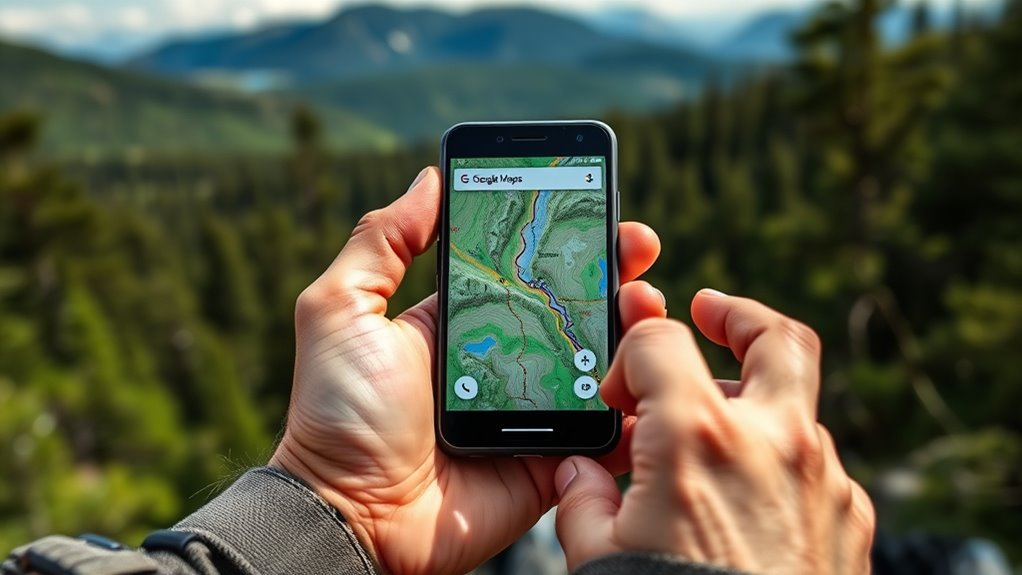
Offline Google Maps lets you access directions and saved locations without an internet connection, making it an essential tool for travelers and commuters alike. When you’re exploring new cities or heading into areas with poor signal, having offline maps guarantees you won’t get lost or stuck without directions. To make the most of this feature, it’s important to understand how map data works and to use some navigation tips that optimize your experience. By downloading the right maps beforehand, you gain instant access to detailed map data, including streets, landmarks, and public transit routes, all stored locally on your device.
When you plan to use offline maps, start by searching for the area you want to explore. Once the area appears on your screen, select the option to download the map. This process saves the map data directly onto your device, meaning you can navigate through the area even when offline. It’s helpful to zoom in and out to include all the neighborhoods or routes you’ll need, guaranteeing you have detailed map data. Keep in mind that larger areas require more storage space, so be selective if your device has limited capacity. Updating your offline maps regularly is also a good navigation tip—new roads, changes in traffic patterns, or construction updates may not be reflected unless you refresh the data. Additionally, understanding how map data storage works can help you manage your device’s memory more efficiently.
Navigation tips involve paying attention to your surroundings and using voice guidance when available. Offline maps still provide turn-by-turn directions, but they rely on the map data you downloaded. Consequently, double-check your route before heading out, especially if you’re navigating complex intersections or unfamiliar streets. Keep your device charged to avoid disruptions, and consider enabling battery saver modes to extend usage. If you’re traveling through areas with limited signal, disable Wi-Fi and mobile data to prevent your device from trying to reconnect to the internet, which can drain your battery faster. Also, set your navigation preferences ahead of time—such as avoiding tolls or choosing walking versus driving directions—to tailor the map data to your needs.
Frequently Asked Questions
How Much Storage Space Do Offline Maps Typically Require?
Offline maps usually take up between 100MB and 1GB of storage, depending on the map file size and area covered. To save space, you can use storage optimization features, selecting only specific regions or cities. This way, you guarantee you have essential directions without cluttering your device, making offline navigation efficient and reliable whenever you need it.
Can I Update Offline Maps With New Information?
Yes, you can update offline maps with new information. To do so, you just need to connect your device to the internet and open Google Maps; it will automatically check for updates during map update procedures. Keep in mind that offline map limitations include storage constraints and occasional outdated data. Regular updates ensure you get the latest routes and place details, helping you navigate accurately without an internet connection.
Are Offline Maps Available for All Countries and Regions?
Offline maps are not available for all countries and regions due to map download restrictions and regional map availability. You can download offline maps in many popular destinations, but some remote or less-mapped areas may lack this feature. To guarantee you have access, check the map download options within the app beforehand. Keep in mind that regional map restrictions might limit offline access, so plan accordingly for your travels.
How Do Offline Maps Impact Battery Life During Use?
Offline maps can increase your device’s battery consumption by up to 20%, especially if you’re orienting yourself for a long time. However, you can minimize this impact through power optimization settings and by reducing screen brightness. Using offline maps is still a smart way to conserve battery compared to constantly streaming data, ensuring you stay on track without draining your device. Stay mindful of battery consumption for extended trips.
Can Multiple Users Access the Same Offline Map Data Simultaneously?
Multiple users can’t access the same offline map data simultaneously through syncing features or collaborative editing. Offline maps are stored locally on your device, so they are individual and private. If you want shared updates, you’ll need to manually sync or update the map data once you’re online again. This limits real-time collaborative editing, but it guarantees each user has consistent and reliable offline navigation without interference.
Conclusion
With offline Google Maps, you’ll never worry about losing directions again. Imagine exploring new places confidently, even without internet — it’s a game-changer. Did you know that over 1 billion people rely on Google Maps monthly? That shows just how essential reliable navigation is in today’s world. So, download your maps, stay prepared, and enjoy seamless adventures wherever you go. Never let connectivity issues hold you back from discovering something new again.