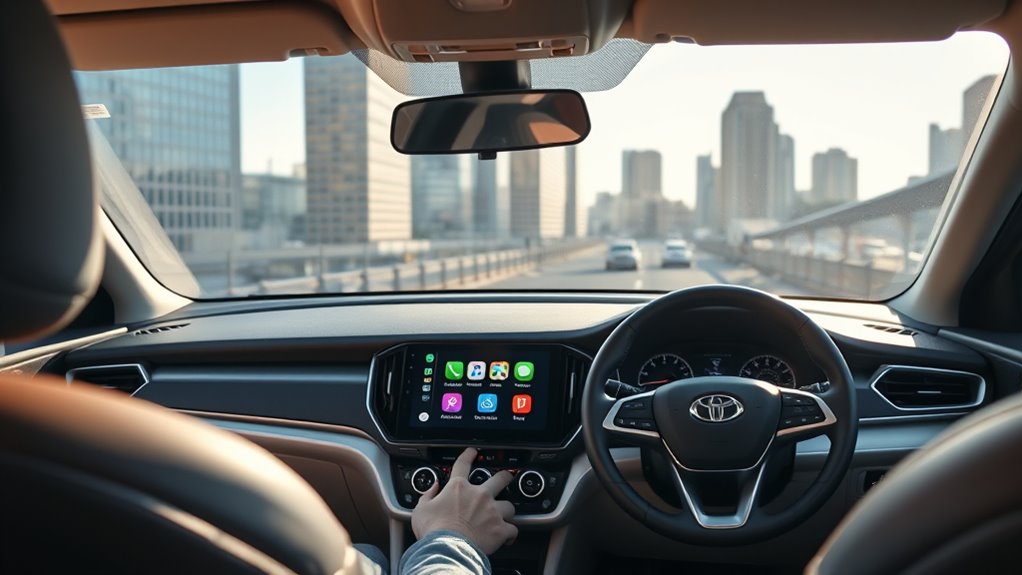

To connect your smartphone to a rental car’s CarPlay or Android Auto without headaches, first confirm if the vehicle supports these systems. Check compatibility with your device before picking up the car, and ask the rental agency about available models. Once you have the right vehicle, connect via Bluetooth or a wired cable, following clear instructions for a seamless setup. If you want to discover the best tips for smooth connection and safe driving, keep exploring.
Key Takeaways
- Verify the rental vehicle’s infotainment system supports Apple CarPlay or Android Auto before booking.
- Confirm compatibility and connection methods (wireless or wired) to prevent setup delays.
- Ensure the system recognizes your device quickly with clear instructions for a seamless connection.
- Choose vehicles with up-to-date, reliable systems to minimize lag, disconnections, and driver distraction.
- Rental providers often specify CarPlay/Android Auto availability, helping you select suitable vehicles upfront.

If you rent a car today, chances are you’ll expect seamless connectivity through CarPlay or Android Auto. This expectation isn’t just about convenience; it’s about a smooth, integrated user experience that keeps you connected without distraction. When choosing a rental, one of your top priorities should be technology compatibility. Not all vehicles support these systems equally, and incompatible setups can turn a simple drive into a frustrating ordeal. Before you hit the road, it’s wise to confirm whether the rental car’s infotainment system is compatible with your smartphone. Many rental agencies now offer vehicles equipped with Apple CarPlay and Android Auto, but this isn’t universal. Being proactive guarantees you won’t be caught off guard, and it helps you avoid wasting time troubleshooting or switching devices mid-journey.
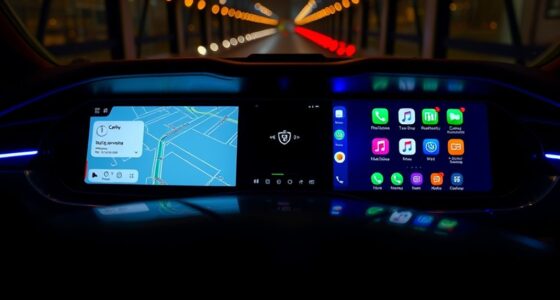
Once you’re behind the wheel of a compatible vehicle, connecting your device should be straightforward. Ideally, the rental car’s system will recognize your phone as soon as you plug in or pair via Bluetooth. A well-designed system enhances the user experience by minimizing steps and reducing setup time. This means fewer distractions and more focus on the road. If the connection process is clunky or requires multiple steps, it can cause frustration and even unsafe situations, especially when you’re trying to start your trip. Good technology compatibility also involves consistent updates and reliable performance—so your calls, navigation, and music apps work smoothly every time. Expect clear instructions from the vehicle’s interface and minimal fuss when connecting.
The user experience is critical here. When everything works seamlessly, you can focus on your driving instead of fiddling with settings or troubleshooting glitches. An intuitive interface, quick response times, and stable connections make a noticeable difference. If you find the system lagging or disconnecting frequently, it can lead to distraction, which defeats the purpose of having advanced connectivity in the first place. Look for rental agencies that prioritize modern, well-maintained vehicles with up-to-date infotainment systems. Many providers now highlight whether their cars come with Apple CarPlay or Android Auto, so you can make an informed choice. Additionally, understanding the contrast ratio of the vehicle’s display can improve visibility and reduce eye strain during your drive. Remember, the goal isn’t just about having the latest tech but ensuring that your experience is smooth, reliable, and safe. When you get it right, connecting your device becomes effortless, allowing you to enjoy your drive with your preferred apps and services without headaches.

Jemluse Wireless CarPlay Adapter for Apple iPhone – Multi-User Seamless Connection for Convert Wired to Wireless Car Play Adapter – No Latency from iOS 10+ to Screen w/USB C (Gray)
The Ultimate Smarter Copilot: Stay on Top of Your Driving- The 3A magic link CarPlay box control everything…
As an affiliate, we earn on qualifying purchases.
As an affiliate, we earn on qualifying purchases.
Frequently Asked Questions
Can I Use Carplay or Android Auto With a Rental Car if I Didn’t Bring My Phone?
You can’t use CarPlay or Android Auto with a rental car if you didn’t bring your phone, since rental car compatibility with these systems depends on your device. Many rental cars require your phone to be connected for these features to work, and device restrictions often prevent use without your personal device. To avoid issues, always bring your phone or check if the rental car offers alternative infotainment options.
Are There Additional Fees for Using Carplay or Android Auto in Rental Cars?
You might face additional service fees for using CarPlay or Android Auto in rental cars, depending on rental company policies. Some companies include the feature at no extra cost, while others charge extra or require a specific package. Always check the rental agreement or ask the staff beforehand to avoid surprises. Being aware of rental car policies helps you plan better and prevents unexpected charges when connecting your phone.
How Do I Connect My Device if the Rental Car’s System Is Outdated?
If the rental car’s system is outdated, you can still connect your device by enabling Bluetooth pairing. First, turn on Bluetooth on both your device and the car’s system. If the connection isn’t smooth, ask about firmware updates, as they can improve compatibility. Sometimes, using an auxiliary cable or a portable Bluetooth adapter helps bypass outdated systems, ensuring you stay connected without headaches.
Is It Possible to Use Navigation Apps Through Carplay or Android Auto in Rentals?
Sure, you can use navigation apps through CarPlay or Android Auto in rentals, but beware of wireless connectivity and compatibility issues. Sometimes, your device refuses to sync or loses connection mid-route, making you feel like a tech genius struggling with a VCR. Keep your cables handy and double-check compatibility before hitting the road. Otherwise, you might find yourself steering with a paper map, which is not as nostalgic as you think.
What Should I Do if My Phone Disconnects Frequently During Use?
If your phone disconnects frequently, start troubleshooting connectivity by checking your device compatibility with the car’s system and updating your phone’s software. Restart your phone and reconnect via USB or Bluetooth, ensuring cables are secure and undamaged. Disable and re-enable Bluetooth or CarPlay/Android Auto settings. If issues persist, try a different cable or device, and consult your vehicle or phone manufacturer for additional support.
![CONMDEX Android Auto USB Cable [Upgrade, 3ft, 2-Pack] 10Gbps USB 3.1 Gen 2 Data Transfer, 3A Fast Charging USB A to Type C Cord, Reliable CarPlay Cable for iPhone 17/16 Pro Max, Galaxy S25/S24 Ultra](https://m.media-amazon.com/images/I/41vy0X7qsdL._SL500_.jpg)
CONMDEX Android Auto USB Cable [Upgrade, 3ft, 2-Pack] 10Gbps USB 3.1 Gen 2 Data Transfer, 3A Fast Charging USB A to Type C Cord, Reliable CarPlay Cable for iPhone 17/16 Pro Max, Galaxy S25/S24 Ultra
[Reliable Car Connectivity & Android Auto] Engineered specifically to solve "falling short" connection issues in vehicles. This cable…
As an affiliate, we earn on qualifying purchases.
As an affiliate, we earn on qualifying purchases.
Conclusion
Remember, a stitch in time saves nine. By familiarizing yourself with CarPlay and Android Auto before your trip, you’ll avoid headaches and stay connected effortlessly. Whether you’re steering unfamiliar streets or playing your favorite playlist, these tools make it simple. So, take a few minutes to set up and understand your system — it’s worth it. With a little prep, you’ll be cruising smoothly, no matter where your rental takes you.
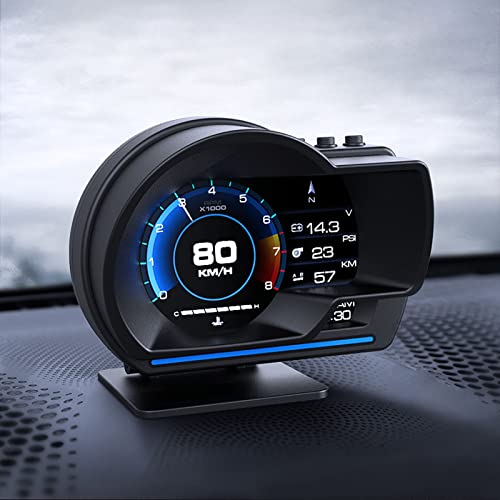
OBD Smart Gauge Display LCD Dual System for Cars – Upgraded HUD, LED Ambient Lighting, Multiple Displays, More Adaptable, Safer Driving with 10 OBD2 Protocols
[Real-time Monitoring for Safer Driving] – Keep your eyes on the road with the AP-6 Car OBD and…
As an affiliate, we earn on qualifying purchases.
As an affiliate, we earn on qualifying purchases.

Qifutan Dash Mounted Holders Phone Holders for Your Car Phone Mount for Car Windshield Dashboard Air Vent Universal Desk Mounts Hands Free Automobile Cell Phone Holder Fit for iPhone Smartphone
Versatile Car Phone Mount: Cell phone car mount boasts premium suction strength and an upgraded air vent clip,…
As an affiliate, we earn on qualifying purchases.
As an affiliate, we earn on qualifying purchases.