When your laptop won’t turn on, start by checking the power source—reinsert the battery, try a different charger, or guarantee everything’s plugged in securely. Next, use built-in diagnostics or open the device to inspect connections if you’re comfortable. Reset the power by holding the power button after disconnecting everything. If these steps don’t work, consider seeking professional help to identify hardware issues. Keep exploring the steps to bring your laptop back to life.
Key Takeaways
- Verify power source by testing with a different charger or battery and checking connections.
- Run built-in hardware diagnostics to identify potential hardware issues.
- Open the device carefully to check and reseat internal hardware connections like RAM and storage.
- Perform a power reset by disconnecting all sources and holding the power button for 15 seconds.
- Seek professional help if troubleshooting steps do not resolve the startup problem.
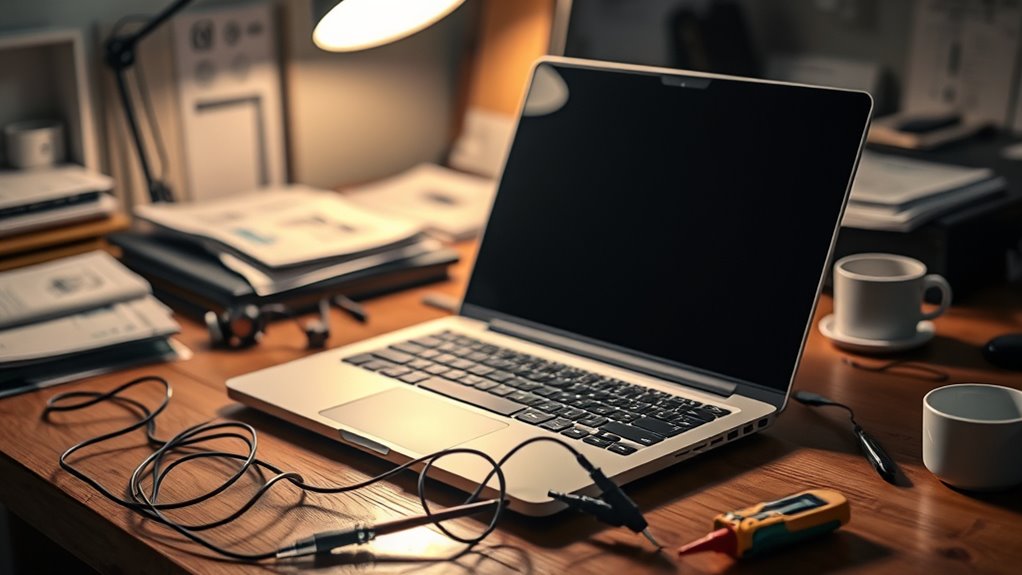
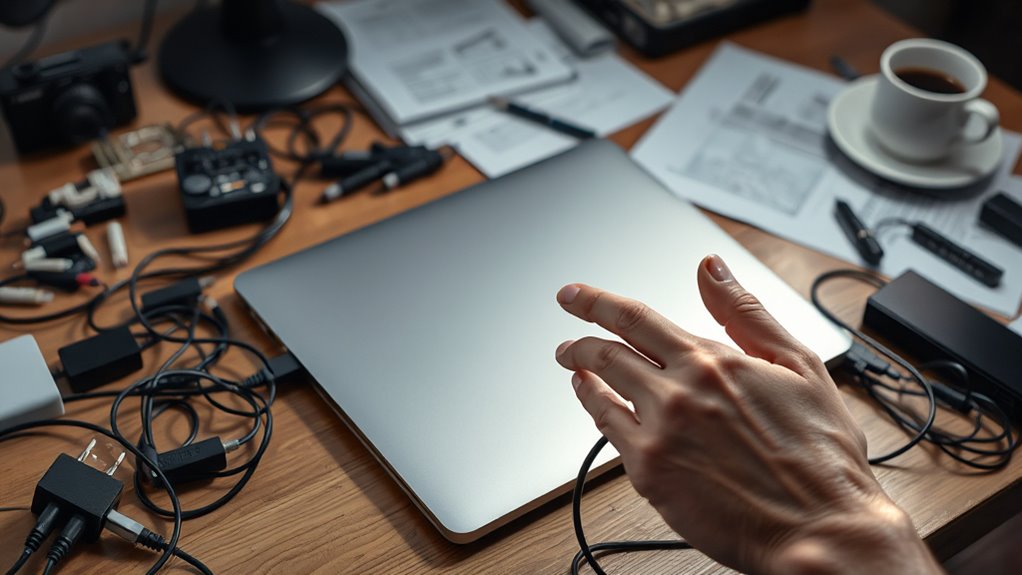
Ever experienced a laptop slowdown or unexpected error and wondered what to do next? One of the first things to check when your laptop refuses to turn on is the power source. Sometimes, it’s as simple as a drained battery or a faulty charger. If your laptop has a removable battery, take it out, wait a few seconds, and then reinsert it. If it’s an integrated battery, try plugging in the charger and see if any indicator lights turn on. If nothing happens, you might be dealing with battery issues that prevent your laptop from powering up. In such cases, testing with a different charger or battery, if available, can help identify the culprit. Ensuring your power connection is solid is vital before moving on to more complex troubleshooting.
Check your power source first—try removing and reinserting the battery or switching chargers to troubleshoot startup issues.
If your laptop still won’t turn on after confirming the power supply, it’s time to explore hardware diagnostics. These diagnostics help identify whether any internal components are causing the problem. Many laptops have built-in diagnostic tools accessible during startup—consult your user manual or manufacturer’s website for instructions. Running these tests can reveal issues with memory, hard drive, or other critical hardware parts. Sometimes, hardware failures are the root cause of startup problems, especially if you hear beeping sounds or see blinking lights. If diagnostics point to a hardware fault, you’ll need to think about repairing or replacing the affected component. Additionally, understanding hardware diagnostics can help you efficiently troubleshoot and resolve issues more effectively.
Furthermore, physical connections inside your laptop could be loose or damaged, especially if it’s been dropped or bumped recently. Carefully open the back panel, if you’re comfortable doing so, and check for loose cables or components. Reseating hardware like RAM modules or storage drives might resolve the issue. Keep in mind, however, that opening your device might void the warranty, so if you’re unsure, it’s better to seek professional help.
Another common cause of startup failure is power issues related to the motherboard or internal circuitry. Sometimes, a simple reset can do the trick. Disconnect all power sources, hold the power button for about 15 seconds to discharge residual power, then reconnect everything and try turning it on again. If your laptop still refuses to start, and you’ve ruled out power and hardware problems, it could be time to consult a technician. They can perform advanced diagnostics to pinpoint issues that aren’t obvious from the outside.
Frequently Asked Questions
How Do I Reset My Laptop’s BIOS?
To reset your laptop’s BIOS, start by turning off your device and disconnecting the power. Remove the battery if possible, or locate the CMOS reset jumper. Press and hold the power button for 30 seconds to drain residual power, then either reinsert the battery or move the jumper to reset the BIOS. This software reset can fix battery issues and restore default settings, helping your laptop turn on properly again.
Can Overheating Cause My Laptop Not to Turn On?
Think of your laptop as a busy engine that needs proper cooling to run smoothly. Overheating can block power management, causing your device not to turn on. When hardware overheats, thermal protection kicks in, shutting down the system to prevent damage. So yes, excessive heat can stop your laptop from powering up. Make certain proper ventilation, clean dust vents, and avoid using it on soft surfaces to keep it cool and functional.
What Does a Blinking Power LED Mean?
A blinking power LED usually signals an error or hardware issue. When you see the blinking signals, it often means your power indicator is detecting a problem, like a faulty battery, memory issue, or overheating. Pay attention to the blinking pattern—some laptops use specific sequences to identify the problem. You should consult your laptop’s manual or manufacturer’s website for exact meanings, then try resetting or troubleshooting based on that info.
Is It Safe to Open My Laptop’s Case?
Opening your laptop’s case is like unfastening a treasure chest—you reveal its inner workings. However, you should consider opening concerns about safety and static damage. While it’s generally safe if you’re cautious, remember that doing so may void your warranty. If you’re unsure or uncomfortable, it’s better to seek professional help. Taking precautions protects both your device and your peace of mind.
How Do I Recover Data if My Laptop Won’T Turn On?
If your laptop won’t turn on, don’t panic. You can recover your data by accessing cloud data backups if you’ve synced files online. For local data, consider using software recovery tools on another working device or removing the hard drive to connect to a different computer. These methods help retrieve your important files without turning on the laptop directly, ensuring your data stays safe.
Conclusion
Just like Pandora’s box, your laptop might hold surprises—some frustrating, some fixable. With these five troubleshooting tips, you hold the key to unleashing its potential once more. Don’t let a dead device leave you in despair; instead, channel your inner hero and take action. Remember, even Prometheus brought fire to mankind—your perseverance can spark new life into your unresponsive laptop. Keep trying, and you’ll be back up and running before you know it.