To remove bloatware and junk programs from your new PC easily, start by accessing the “Apps & Features” in Windows or the Applications folder on macOS. Uninstall any unfamiliar or unnecessary apps, and consider using free cleanup tools like CCleaner to get rid of residual files. Disable unnecessary startup programs to speed up boot times, and keep your system updated for peak performance. If you want to learn more simple tips for a streamlined setup, keep going.
Key Takeaways
- Access “Apps & Features” on Windows or the Applications folder on macOS to identify and uninstall unnecessary programs.
- Use built-in system tools or third-party utilities like CCleaner to detect and remove junk files and residual data.
- Disable unnecessary startup programs via Task Manager or System Preferences to improve boot times and save resources.
- Regularly review installed applications and remove unwanted ones to prevent clutter and optimize performance.
- Keep your system updated to ensure security patches and performance improvements help maintain a clean, efficient PC.
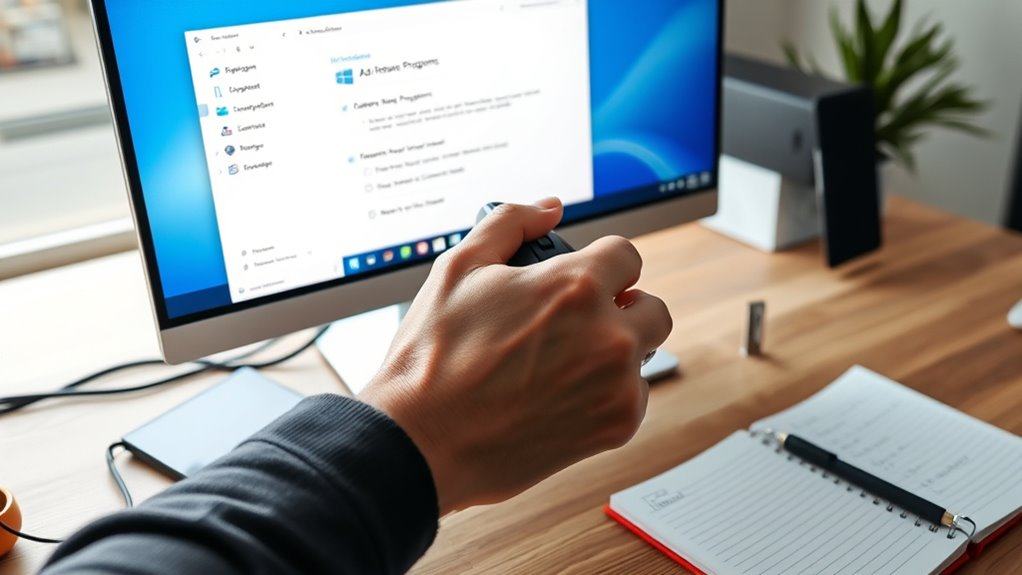
Are you ready to upgrade your understanding of personal computers? Removing bloatware and junk programs is one of the simplest ways to boost your PC’s overall performance. These pre-installed apps and unnecessary programs often clutter your system, slow down software optimization, and hinder system performance. Tackling this issue not only frees up storage space but also makes your computer run more smoothly and responsively. The good news is, cleaning out these unwanted programs isn’t complicated, and with the right approach, you can do it quickly and effectively.
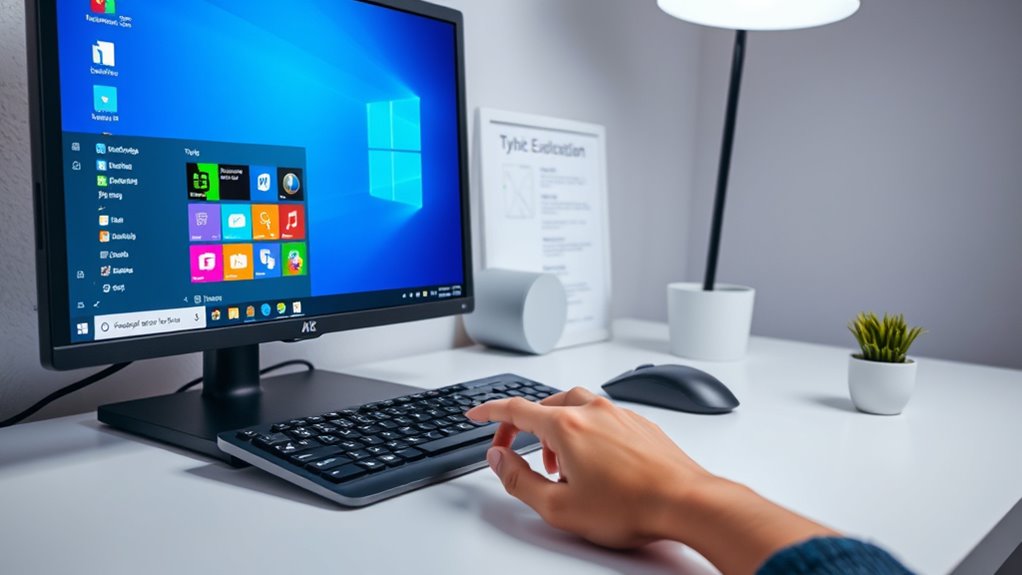
Start by identifying what’s truly essential on your PC. Many computers come with pre-installed apps from manufacturers or third-party software that you never use. To get rid of them, head over to your system’s settings or control panel. On Windows, open “Apps & Features” and browse through the list. Look for programs you recognize as unnecessary or unfamiliar, then select them and click “Uninstall.” Be cautious not to remove anything that’s indispensable for your system’s stability. For macOS, drag unwanted apps from your Applications folder to the Trash, then empty it. If you’re unsure about a program, a quick online search can help you determine whether it’s safe to remove.
Besides manual uninstallation, many tools can streamline the process. Free utility programs like CCleaner or built-in system cleaning tools can help detect junk files, residual data, and unnecessary system components. Using these tools supports software optimization by cleaning temporary files and invalid registry entries, which can otherwise bog down your system. Regularly running such maintenance tasks keeps your PC lean and responsive, ensuring system performance remains essential.
Another effective step is managing startup programs. Many bloatware applications set themselves to launch automatically when your PC boots, delaying startup times and consuming resources. You can disable these through Task Manager on Windows or System Preferences on macOS. Turning off unnecessary startup items speeds up boot times and prevents background programs from hogging system resources, further improving system performance.
Keeping your system updated also plays a significant role in removing junk and improving performance. Software updates often include security patches and performance improvements, ensuring your PC runs efficiently. A clean, optimized system not only performs better but also reduces the risk of malware or other issues caused by outdated or unnecessary programs.
Frequently Asked Questions
Can I Remove Pre-Installed Windows Apps Safely?
Yes, you can safely remove pre-installed apps, but be cautious to maintain system stability. Some pre-installed apps are essential for your Windows functions, so avoid deleting core components. Use built-in tools like PowerShell or third-party programs designed for safe removal. Always back up your system before making changes, and remove only the apps you’re confident won’t affect your system’s stability.
Will Deleting Bloatware Affect System Performance?
Deleting bloatware can boost your system’s performance, improve speed, and free up storage, but it might also risk affecting system stability or causing software conflicts if essential components are removed. To avoid issues, carefully identify and remove only unnecessary programs, and back up your system beforehand. This way, you optimize your PC’s performance while maintaining stability and preventing conflicts.
How Do I Identify Unnecessary Programs?
You can identify unnecessary applications by checking your installed programs list in Settings or Control Panel. Look for software clutter that you don’t recognize or no longer need, such as pre-installed apps or trial versions. If an application seems unfamiliar or irrelevant to your needs, it’s likely an unnecessary application. Removing these helps streamline your system, improve performance, and free up storage space. Always research unfamiliar programs before uninstalling.
Are There Risks of Deleting Essential System Files?
Imagine your system as a delicate web, where deleting essential files could cause it to unravel. Yes, there’s a risk of harming system stability if you remove critical files. Always back up your data before cleaning, so you can restore if something goes wrong. Focus on removing only programs you’re sure are unnecessary, avoiding system files to keep your PC running smoothly and safely.
What Tools Are Best for Removing Junk Programs?
You should use trusted software removal tools like CCleaner, IObit Uninstaller, or Windows’ built-in uninstall feature for effective system optimization. These tools help you identify and safely remove junk programs without risking essential files. They streamline the process, making it easier to free up space and improve performance. Always double-check what you’re deleting to avoid accidentally removing important system components and guarantee your PC runs smoothly.
Conclusion
Removing bloatware can boost your PC’s speed by up to 50%, making your daily tasks smoother. With just a few simple steps, you can reclaim valuable storage and improve performance without technical skills. Remember, a clean PC isn’t just faster—it’s more secure too. So, take action today and enjoy a clutter-free, efficient machine. Your computer will thank you for it, and you’ll be surprised at how much better it runs after cleanup!