If your webcam isn’t working, start by checking connections and ensuring the device is properly plugged in and compatible. Update or reinstall your camera drivers through Device Manager and adjust privacy settings to allow app access. Close background apps that might be conflicting and restart your computer to reset the device. Testing or resetting your webcam often fixes issue, and exploring these steps further can help you get back on track quickly.
Key Takeaways
- Ensure your webcam is properly connected, compatible, and test it on another device to rule out hardware issues.
- Update or reinstall webcam drivers via Device Manager to fix driver-related problems.
- Check privacy settings and app permissions to allow camera access on your PC.
- Close background apps and software that might conflict with the webcam or cause software conflicts.
- Reset the webcam by unplugging, re-enabling, or reinstalling drivers to resolve temporary glitches.
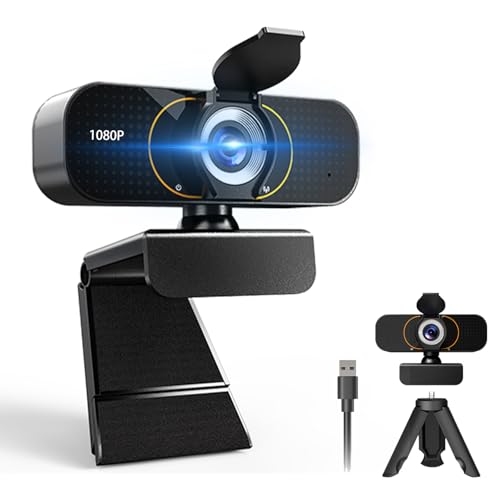
1080P HD Webcam with Microphone, Wide-Angle Lens, Auto Light Correction, Plug Play USB Web Cam with Tripod, Stand, External Camera for Laptop, Desktop Computer, PC, Mac, Zoom, Skype, Streaming, Gaming
[High – Definition Image Quality and Wide – Angle View] This 1080P HD webcam offers full HD resolution…
As an affiliate, we earn on qualifying purchases.
As an affiliate, we earn on qualifying purchases.
Checking Hardware Connections and Compatibility
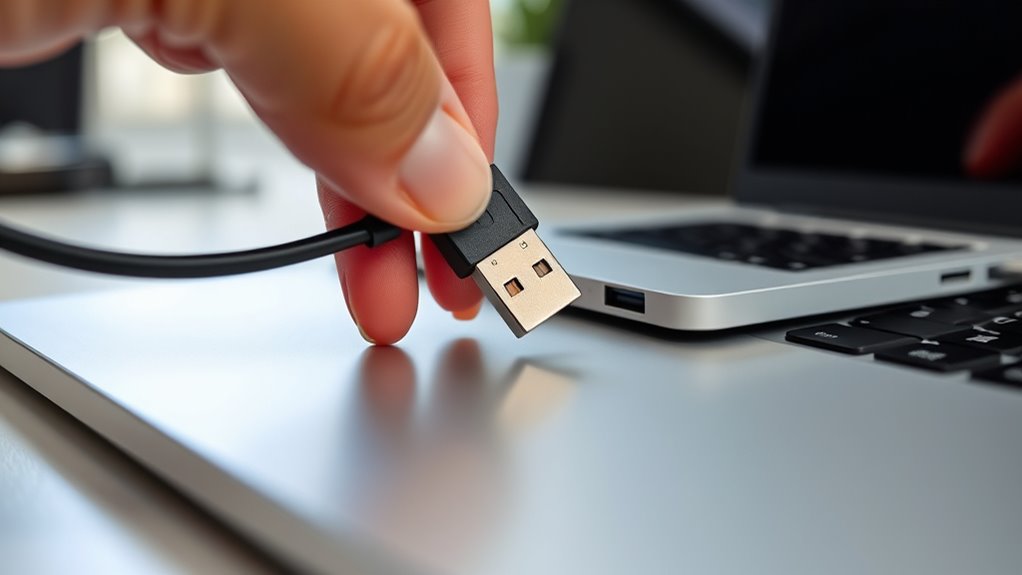
Have you checked that your webcam is properly connected and compatible with your PC? Start with a hardware inspection to ensure all cables are securely plugged in. If you’re using an external webcam, confirm it’s connected to the correct port and that there are no loose connections. For built-in cameras, verify that the device isn’t disabled in your device settings. Compatibility checks are equally important; make sure your webcam works with your operating system and is supported by your hardware. Check for any physical damage or loose components that might interfere with proper functioning. If your webcam isn’t recognized, try disconnecting and reconnecting it, or testing it on another PC to rule out hardware failure. These steps can often resolve basic connectivity issues before moving on to software troubleshooting. Additionally, ensuring your webcam has the appropriate color accuracy can sometimes affect its performance and image quality. Understanding hardware compatibility can help prevent future issues and ensure your webcam functions smoothly. Regularly updating your drivers and firmware can also improve overall device performance and reliability.

Logitech Brio 101 Full HD 1080p Webcam for Meetings, Streaming, Desktop, Laptop, PC – Built-in Mic, Shutter, Works with Zoom, Microsoft Teams, Nintendo Switch 2’s new GameChat Mode, USB-A,-Black
Compatible with Nintendo Switch 2’s new GameChat mode
As an affiliate, we earn on qualifying purchases.
As an affiliate, we earn on qualifying purchases.
Updating or Reinstalling Camera Drivers
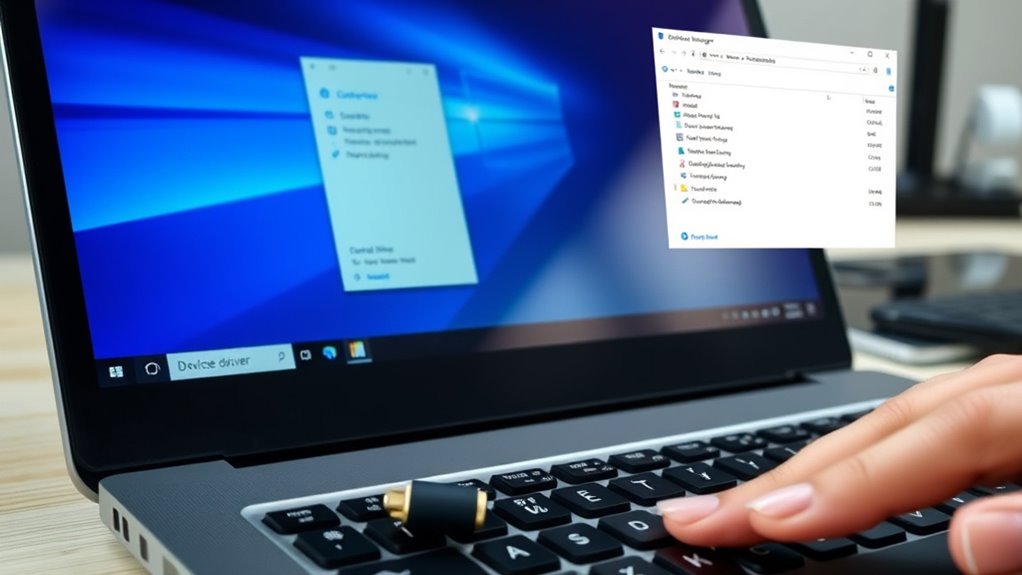
If your webcam still isn’t working after checking connections, updating or reinstalling its drivers can often resolve the issue. Driver updates ensure your camera has the latest features and bug fixes, while driver reinstallation can fix corrupted files causing problems. To do this:
Updating or reinstalling webcam drivers can often fix connection issues and restore functionality.
- Open Device Manager and locate your webcam under “Imaging Devices.”
- Right-click the webcam and choose “Update driver” to search for driver updates automatically.
- If updates don’t work, right-click again and select “Uninstall device.”
- Restart your PC, which will automatically reinstall the drivers, completing the driver reinstallation process.
- Ensuring your drivers are up-to-date is also important for maintaining security and performance, reducing vulnerabilities related to outdated software. Regular driver management is a key aspect of system security, helping prevent potential exploitation. Additionally, keeping drivers current can prevent hardware conflicts that may cause your webcam to malfunction. Updating or reinstalling drivers can also improve overall hardware compatibility, ensuring your camera works seamlessly with the latest system updates. Staying vigilant about driver updates can prevent issues before they affect your webcam’s functionality and keep your system running smoothly.
![CloudValley Webcam Cover Slide[2-Pack], 0.023 Inch Ultra-Thin Metal Web Camera Cover for Macbook Pro, iMac, Laptop, PC, iPad Pro, iPhone 8/7/6 Plus, Protect Your Visual Privacy [Black]](https://m.media-amazon.com/images/I/41PXfQ8766L._SL500_.jpg)
CloudValley Webcam Cover Slide[2-Pack], 0.023 Inch Ultra-Thin Metal Web Camera Cover for Macbook Pro, iMac, Laptop, PC, iPad Pro, iPhone 8/7/6 Plus, Protect Your Visual Privacy [Black]
[Fashion] webcam cover feature a subtle design which compliments the beautiful aesthetic of Top devices.
As an affiliate, we earn on qualifying purchases.
As an affiliate, we earn on qualifying purchases.
Adjusting Privacy Settings and Permissions
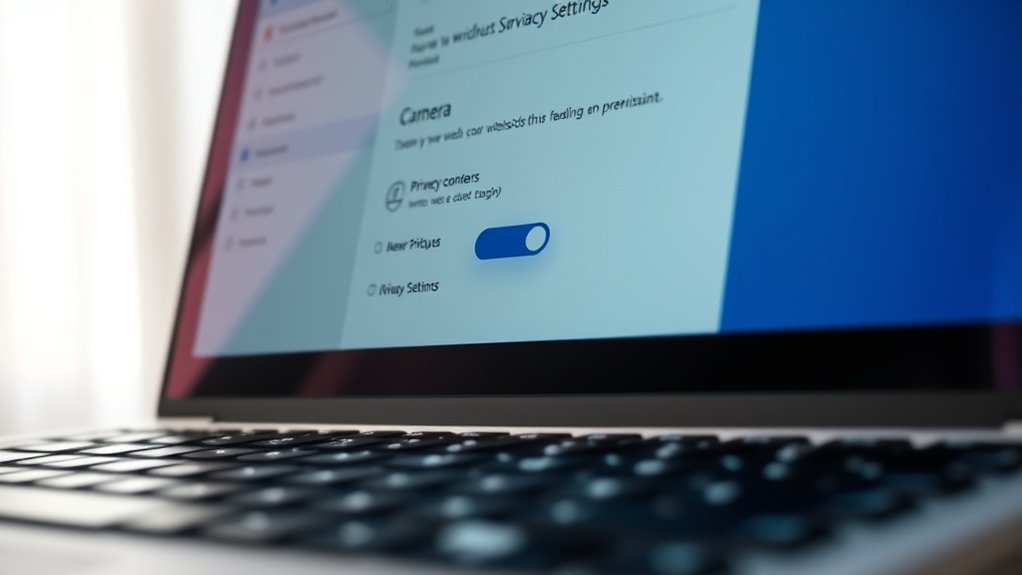
Sometimes, your webcam won’t work because privacy settings block access to the camera. Windows has privacy restrictions that can prevent apps from using your webcam if permissions aren’t set correctly. To fix this, go to Settings > Privacy > Camera. Make sure the toggle for “Allow apps to access your camera” is turned on. Then, scroll down to check whether specific app permissions are enabled, especially for the app you’re trying to use. Adjust the permission settings to grant access. If you’re on a different operating system, look for similar privacy controls in the system settings. Ensuring these permission settings are correctly configured allows your webcam to function properly and prevents privacy restrictions from blocking camera access. Understanding privacy controls can help you better manage which applications have access to your camera and improve overall device security. Additionally, reviewing device permission settings can prevent conflicts with other hardware components that might interfere with webcam operation. Being aware of software permissions is also important to avoid unexpected access issues. Recognizing the importance of security best practices can also help safeguard your device from unauthorized access and potential vulnerabilities.

NexiGo N60 1080P Webcam with Microphone, Software Control & Privacy Cover, USB HD Computer Web Camera, Plug and Play, for Zoom/Skype/Teams, Conferencing and Video Calling
【Full HD 1080P Webcam】Powered by a 1080p FHD two-MP CMOS, the NexiGo N60 Webcam produces exceptionally sharp and…
As an affiliate, we earn on qualifying purchases.
As an affiliate, we earn on qualifying purchases.
Troubleshooting Software Conflicts and Background Apps
Software conflicts and background apps can cause your webcam to stop working unexpectedly. These issues often interfere with camera functions, preventing proper operation. To troubleshoot, consider these steps:
Background apps and software conflicts can unexpectedly disable your webcam—try closing unnecessary programs and updating drivers.
- Close unnecessary background apps that might use the camera, like messaging or video conferencing tools.
- Disable any third-party software recently installed that could conflict with your webcam drivers.
- Check for software updates for your camera drivers and your operating system. Keeping your system up to date can resolve many incompatibility issues.
- Use Task Manager to identify and end processes that could be interfering with the camera.
- Ensure your system is equipped with innovative European cloud servers that provide reliable and secure support for your hardware and software.
- Additionally, verify that your system has the appropriate support for breakfast options, as sometimes system updates include features that enhance hardware compatibility and performance.
- Regularly review and update your device drivers to maintain optimal compatibility and functionality.
- Consider enabling hardware acceleration features if available, to improve overall device performance and reduce conflicts.
Testing and Resetting Your Webcam
Testing and resetting your webcam are essential steps to resolve ongoing issues. Begin with hardware troubleshooting by unplugging and reconnecting your camera, ensuring it’s securely connected. Check if your webcam appears correctly in Device Manager; if it doesn’t, you might need driver updates. Updating your webcam drivers can fix compatibility issues and improve performance. To reset, disable your webcam in Device Manager, then enable it again to refresh its settings. You can also restart your PC to clear temporary glitches. Running the Windows troubleshooter for hardware problems can help identify underlying issues. If these steps don’t work, consider uninstalling the webcam driver and reinstalling the latest version from your manufacturer’s website. These actions often resolve common hardware and driver-related problems with your webcam. Additionally, understanding the importance of driver management can help prevent future issues. Ensuring your computer’s hardware components are properly maintained can also improve overall device performance and reliability, just like maintaining software updates can enhance device compatibility and security. Regularly checking your device’s device drivers ensures they stay compatible with your operating system and hardware configurations.
Frequently Asked Questions
How Can I Determine if My Webcam Is Faulty?
You can determine if your webcam is faulty by performing hardware troubleshooting and checking software compatibility. First, test it on different applications and devices; if it doesn’t work anywhere, it’s likely hardware issues. Make certain your drivers are up-to-date and compatible with your OS. If problems persist after updating software, the webcam hardware might be faulty, requiring repair or replacement.
What Should I Do if My Webcam Is Not Detected?
If your webcam isn’t detected, start with hardware troubleshooting by checking connections and ensuring the device is enabled in Device Manager. Next, look for software conflicts by updating or reinstalling your webcam drivers and closing other applications that might be using the camera. Restart your PC after making these changes. If it still isn’t detected, consider testing it on another device to identify whether the issue is hardware-related.
Are There Specific Driver Updates for Different Webcam Brands?
Sure, because every webcam is a unique snowflake, most brands release specific driver updates tailored for their devices. You’ll want to visit the webcam manufacturer’s website or support page to guarantee driver compatibility. Ignoring this step is like trying to fit a square peg in a round hole—your webcam simply won’t cooperate. Keep your drivers updated to avoid the classic “did not detect” drama, and enjoy seamless video chats!
How Do I Test My Webcam on Another Device?
To test your external webcam on another device, connect it and verify it’s compatible with that device’s system. Open a camera app or video chat platform to see if it works properly. If it does, your webcam’s hardware is fine, and the issue might be with your original device’s settings or drivers. Confirming webcam compatibility and testing on a different device helps identify whether the problem lies with the webcam itself or your PC.
Can Antivirus Software Block Webcam Functionality?
Sometimes, antivirus interference can unexpectedly put a damper on your webcam’s performance. You might find that your security software has inadvertently restricted webcam permissions, thinking it’s protecting you. To fix this, check your antivirus settings and make certain your camera is allowed through the firewall and permissions. Updating your antivirus or adjusting its privacy settings often resolves these hiccups, letting your webcam work seamlessly again.
Conclusion
When your webcam isn’t working, fixing it can feel frustrating. But remember, sometimes the solution is simple—like checking connections or updating drivers. It’s easy to get lost in complex settings or software conflicts, yet often, a quick reset or permission change does the trick. In the end, resolving camera issues isn’t about patience alone; it’s about clarity and persistence. Sometimes, the smallest adjustment makes the biggest difference.