
Slow Wi-Fi often results from factors like outdated equipment, poor placement, interference from other devices, or bandwidth congestion. To speed things up, check your internet speeds, restart your router, place it in a central elevated spot, and reduce interference from electronics or Bluetooth devices. Keep firmware and drivers updated and secure your network. Limiting heavy usage or upgrading your hardware can also boost performance—discover more ways to optimize your connection below.
Key Takeaways
- Test your internet speed regularly and restart your router to ensure stable, high-quality connection performance.
- Optimize router placement by positioning it centrally, elevated, and away from interference sources like microwaves and cordless phones.
- Limit the number of connected devices and turn off unused gadgets to reduce network congestion and improve speed.
- Keep firmware, drivers, and network security updated to enhance device performance and protect against vulnerabilities.
- Upgrade outdated hardware to support faster Wi-Fi standards like Wi-Fi 6 and ensure your equipment matches your internet plan.
Top picks for "slow"
Open Amazon search results for this keyword.
As an affiliate, we earn on qualifying purchases.
Check Your Internet Speed and Plan
Before troubleshooting your Wi-Fi speed, it’s important to know your current internet performance and plan. Check your actual speeds using a reliable speed test tool to see if they match what your service provider promises. Keep in mind that your provider might implement bandwidth throttling during peak hours or when data limits are reached, which can slow down your connection. Contact your service provider to confirm your plan’s details and ask if any restrictions or throttling policies are in effect. Sometimes, the plan you have simply isn’t enough for your needs, especially if you stream, game, or work from home. Knowing your plan and current speeds helps you identify whether issues stem from your service or your local setup. Understanding your internet bandwidth and how it’s managed can help you optimize your connection for better performance. Additionally, reviewing your network equipment and ensuring it is up-to-date can prevent potential bottlenecks that slow down your Wi-Fi. Regularly checking your network security settings can also help prevent unauthorized users from draining your bandwidth. Keeping an eye on network congestion during peak hours can further assist in diagnosing slowdowns.
Restart Your Router and Modem
Restarting your router and modem can often improve your Wi-Fi speed. Power cycle the devices, reset your network settings if needed, and check if your connection becomes more stable. These simple steps can resolve many common connectivity issues quickly. Additionally, ensuring your network has adequate backup power can prevent interruptions that slow down your connection. Maintaining network security also helps prevent unauthorized access that could degrade performance. Regularly updating your firmware can also enhance the stability and speed of your Wi-Fi network. Being aware of your network environment can help identify sources of interference that may affect your connection quality.
Power Cycle Devices
Power cycling your router and modem is one of the simplest yet most effective ways to boost your Wi-Fi speed. Performing a device power cycle clears minor glitches and refreshes your network connection. To do a hardware reboot, unplug both devices from power for at least 30 seconds before plugging them back in. This process resets internal caches and can resolve temporary issues slowing your Wi-Fi. Additionally, regularly discover trusted businesses and services near you can help ensure your network equipment is maintained or upgraded when needed. Proper network management is essential for optimal performance and can prevent issues before they arise. Keeping your firmware up to date ensures your devices are protected and functioning efficiently. Regularly monitoring network performance can help identify issues early and maintain optimal speeds.
Remember these key tips:
- Turn off both your router and modem simultaneously.
- Wait 30 seconds or more to ensure complete power drain.
- Plug them back in and wait for full startup.
Regularly rebooting your devices helps maintain peak performance and can fix minor network hiccups that slow down your Wi-Fi.
Proper device maintenance is essential for consistent Wi-Fi performance and can prevent the need for frequent troubleshooting.
Reset Network Settings
Resetting your network settings by restarting your router and modem can help clear persistent connection issues that a simple power cycle might not resolve. This network reset refreshes your device’s network configurations, often fixing slow speeds caused by outdated or corrupted settings. To do this, unplug both devices, wait about 30 seconds, then reconnect and power them back on. Imagine this as a fresh start for your connection: Performing these resets periodically can help prevent network congestion that can slow down your Wi-Fi. Regular resets can also help address device interference that disrupts your signal quality. Additionally, resetting can resolve configuration errors that may develop over time, further enhancing your connection stability. This device refresh can significantly improve your Wi-Fi speed by clearing glitches that hinder performance. Regularly performing these resets can also help maintain your home energy management system’s stability and efficiency.
Check Connection Stability
To guarantee your Wi-Fi connection remains stable, it’s important to regularly check and refresh your router and modem. Restarting these devices can restore signal consistency and improve connection reliability. When you power cycle your equipment, it clears temporary glitches that may cause interruptions or slow speeds. Additionally, ensuring your network is properly optimized for smart devices can enhance overall performance. Monitoring your network traffic helps identify any devices or applications that may be consuming excessive bandwidth, which can hinder speed for other users. Regular restarts also help prevent interference from other electronics, which can disrupt Wi-Fi signals. Being aware of signal interference sources can help you position your router more effectively. Here are three key steps:
- Turn off your router and modem, then unplug them from power sources.
- Wait about 30 seconds to allow residual energy to dissipate.
- Plug them back in and turn them on, giving your devices time to reconnect.
This simple process helps refresh your network connection, reducing lag and preventing dropouts. Regular restarts ensure your Wi-Fi stays stable, providing a more reliable experience.
Optimize Your Router’s Placement

Your Wi-Fi signal’s strength and speed can substantially improve when you position your router thoughtfully. Proper router placement is key to signal optimization, ensuring your devices get the strongest connection possible. Place your router in a central location, ideally elevated and free from obstructions like walls or furniture. Avoid hiding it in corners, closets, or behind large objects, as these can weaken the signal. Keep it away from electronic devices that cause interference, such as microwaves and cordless phones. A well-positioned router distributes Wi-Fi evenly across your space, reducing dead zones and boosting overall speed. Remember, the goal is to maximize coverage while minimizing interference, so thoughtful router placement directly enhances your Wi-Fi experience. Additionally, understanding Wi-Fi interference sources can help you further optimize your network environment for faster speeds.
Reduce Interference From Other Devices

To keep your Wi-Fi running smoothly, you should minimize interference from other devices. This means staying away from Bluetooth devices and avoiding microwave ovens while using the internet. Limiting the number of wireless devices in your home can also help guarantee a faster, more stable connection.
Minimize Bluetooth Overlap
Bluetooth devices operating nearby can cause significant interference with your Wi-Fi signal, especially since both use the 2.4 GHz frequency band. This Bluetooth interference can slow down your internet and disrupt device pairing. To minimize overlap, consider these steps:
- Turn off Bluetooth on devices when not in use.
- Keep Bluetooth devices away from your Wi-Fi router.
- Use separate frequency bands if your router supports dual-band (2.4 GHz and 5 GHz).
Avoid Microwave Interference
Microwave ovens are a common source of Wi-Fi interference because they operate on the same 2.4 GHz frequency as many wireless networks. When your microwave is running, it emits microwave interference that creates electrical noise, disrupting your Wi-Fi signal. This interference can cause slow speeds and dropped connections. To reduce this, keep your microwave away from your router and connected devices. Avoid placing your router near appliances that generate electrical noise, such as cordless phones or baby monitors, which also operate on similar frequencies. By minimizing microwave interference, you can help guarantee a clearer signal and faster Wi-Fi speeds. Regularly check for sources of electrical noise nearby and reposition your equipment accordingly to optimize your wireless connection.
Limit Wireless Devices
Since multiple wireless devices share the same frequency spectrum, having too many active gadgets can cause significant interference and slow down your Wi-Fi. Device overcrowding leads to signal congestion, making it harder for your router to prioritize each connection. To minimize this, consider these steps:
- Disconnect unused devices to reduce network load.
- Limit the number of smart home gadgets connected at once.
- Schedule device usage during off-peak hours to ease congestion.
Update Firmware and Network Drivers
Keeping your firmware and network drivers up to date is essential for maintaining peak Wi-Fi speeds. Firmware updates improve device performance and fix bugs, while driver updates guarantee your network adapter functions correctly. Regularly check your router’s manufacturer website or device settings for updates. For computers, visit the manufacturer’s support page or device manager to download the latest driver updates. Updating these components helps optimize your network, reduce lag, and enhance stability. Here’s a quick guide:
| Device Type | Update Method | Benefits |
|---|---|---|
| Router | Firmware update via admin panel | Better connectivity, security |
| Laptop/Desktop | Driver update through device manager | Faster, more reliable Wi-Fi |
| Smartphone | App/OS updates | Improved network performance |
| Network Adapter | Download latest drivers online | Reduced lag and disconnections |
| Modem | Firmware update via provider | Improved stability |
Secure Your Wi-Fi Network
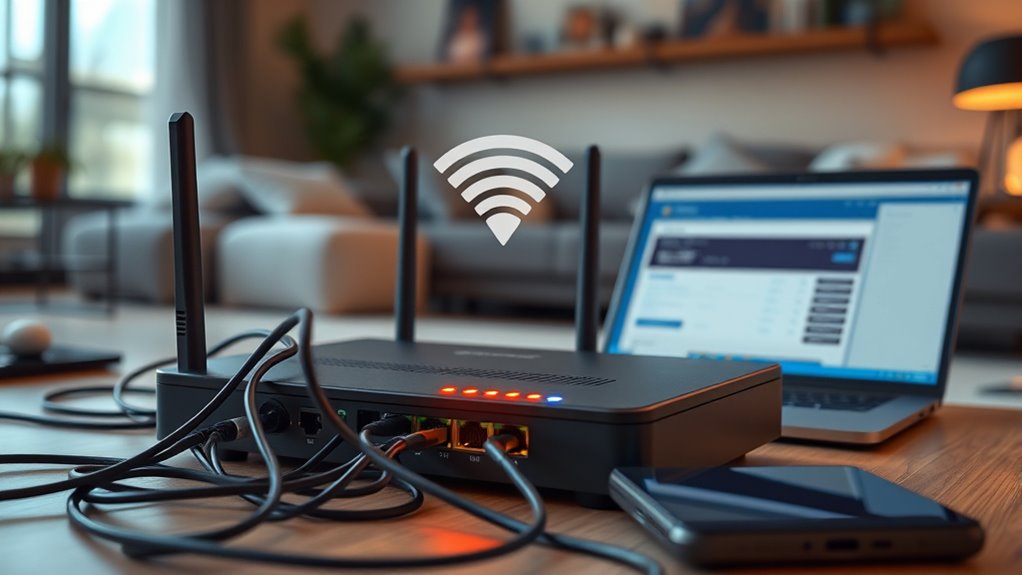
Securing your Wi-Fi network is essential to protect your personal information and prevent unauthorized access. Start by setting a strong password that’s hard to guess, combining letters, numbers, and symbols. Next, enable network encryption—preferably WPA3 or WPA2—to safeguard your data from eavesdroppers. Additionally, consider these steps:
- Change the default admin username and password to prevent intruders.
- Turn off WPS, which can be a security vulnerability.
- Regularly update your router’s firmware to patch security flaws.
These actions ensure your Wi-Fi remains protected, reducing the risk of unauthorized usage that could slow down your connection or compromise your privacy. Strong passwords and encryption are key to maintaining a secure, fast network.
Limit Bandwidth-Heavy Activities

To guarantee your Wi-Fi stays fast for everyone, it’s important to limit bandwidth-heavy activities like streaming, large downloads, or online gaming during peak times. These activities can consume excessive bandwidth, causing slowdowns for other users. You can implement bandwidth throttling to restrict how much data each device or application uses, ensuring fair distribution. Additionally, prioritize streaming services through streaming prioritization settings, which give essential media traffic higher priority over less critical tasks. By managing these heavy activities, you prevent network congestion and improve overall speed. Limiting bandwidth-heavy activities during busy periods helps maintain a smooth connection for all devices, reducing buffering, lag, and frustration. This simple step makes a noticeable difference in your Wi-Fi performance.
Upgrade Your Equipment if Necessary
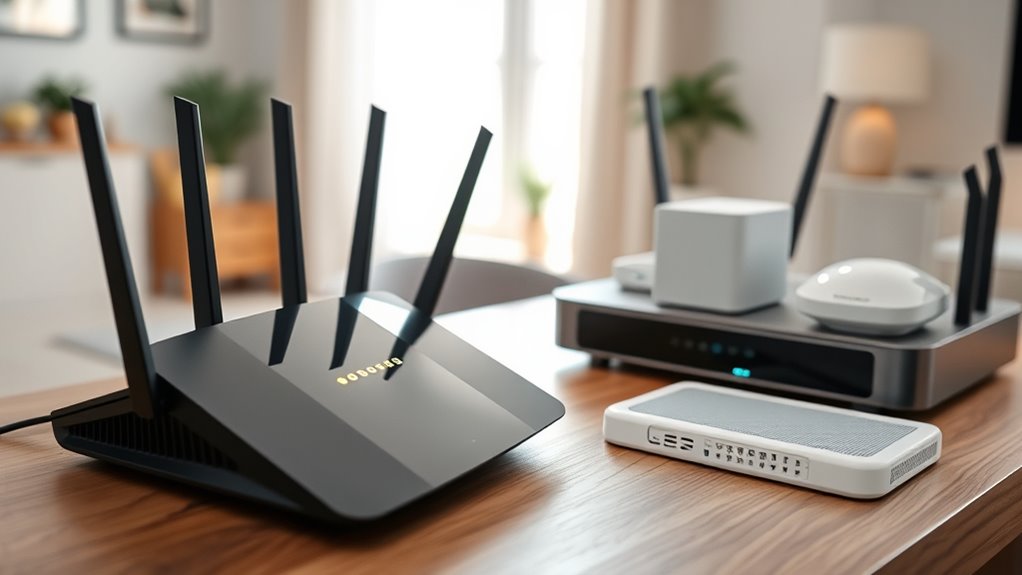
If your Wi-Fi still feels sluggish despite managing bandwidth, upgrading your equipment might be the solution. An outdated router can limit your connection speed and cause frequent drops. When considering an equipment upgrade, focus on router compatibility with your internet plan and devices. Newer models support faster standards like Wi-Fi 6, offering improved speed and coverage.
Upgrading your router can improve Wi-Fi speed and reduce connection issues.
Here are three key points to keep in mind:
- Ensure your router supports your internet service provider’s maximum speed.
- Choose a router compatible with the latest Wi-Fi standards for better performance.
- Consider upgrading your modem if it’s outdated or incompatible with your new router.
An equipment upgrade can considerably boost your Wi-Fi speed, giving you a smoother online experience.
Frequently Asked Questions
How Can I Tell if My Wi-Fi Is Being Throttled by My Provider?
You can tell if your Wi-Fi is being throttled by your provider by performing regular network monitoring and speed tests. If your speeds consistently drop during certain times or after reaching a data cap, throttling might be the cause. Compare your results across different times and servers. If you notice persistent slowdowns despite good signal strength, contact your provider to discuss potential throttling or restrictions on your plan.
What Are the Signs That My Router Needs to Be Replaced?
If your router shows signs of signal degradation or consistently drops connections, it’s time to replace it. Most routers have a lifespan of around 3-5 years, and after that, performance can decline. You might notice slower speeds, frequent disconnections, or outdated features. When these issues persist despite troubleshooting, it indicates your router needs an upgrade to restore peak Wi-Fi performance.
Can Using a VPN Affect My Wi-Fi Speed?
Yes, using a VPN can affect your Wi-Fi speed. When you enable VPN encryption, your data gets encrypted, which can slow down your connection. Additionally, the server location you choose impacts speed; connecting to a distant server may increase lag and reduce bandwidth. For ideal performance, pick a nearby server and consider VPNs with faster encryption protocols. This way, you balance security and speed effectively.
How Do I Troubleshoot Wi-Fi Issues on Multiple Devices Simultaneously?
To troubleshoot Wi-Fi issues on multiple devices, first check for device interference that might disrupt signal strength. Restart your router and each device to refresh connections. Make sure your devices are within range and not blocked by walls or electronics. Use your router’s admin tools to identify connected devices and monitor signal strength. Adjust your router’s placement if needed, and update the firmware for peak performance.
Are There Specific Settings to Prioritize Bandwidth for Certain Apps?
Yes, you can prioritize bandwidth for specific apps by using your router’s Quality of Service (QoS) settings. Access your router’s admin panel and enable bandwidth management or QoS features. Then, assign higher priority to apps like streaming or gaming, ensuring they get the necessary bandwidth. This way, your network manages traffic efficiently, reducing lag and buffering during critical activities.
Conclusion
Don’t let slow Wi-Fi woes wallow in worry. By balancing bandwidth, boosting bandwidth, and barricading bandwidth hogs, you can beautifully boost your browsing bliss. Check, chill, and chart a course to cleaner, quicker connections. With a little care and clever tweaks, your Wi-Fi will wave goodbye to woes and welcome a world of wonder, working wonders at warp speed. Speed up, settle in, and savor a smoother, snappier signal today!