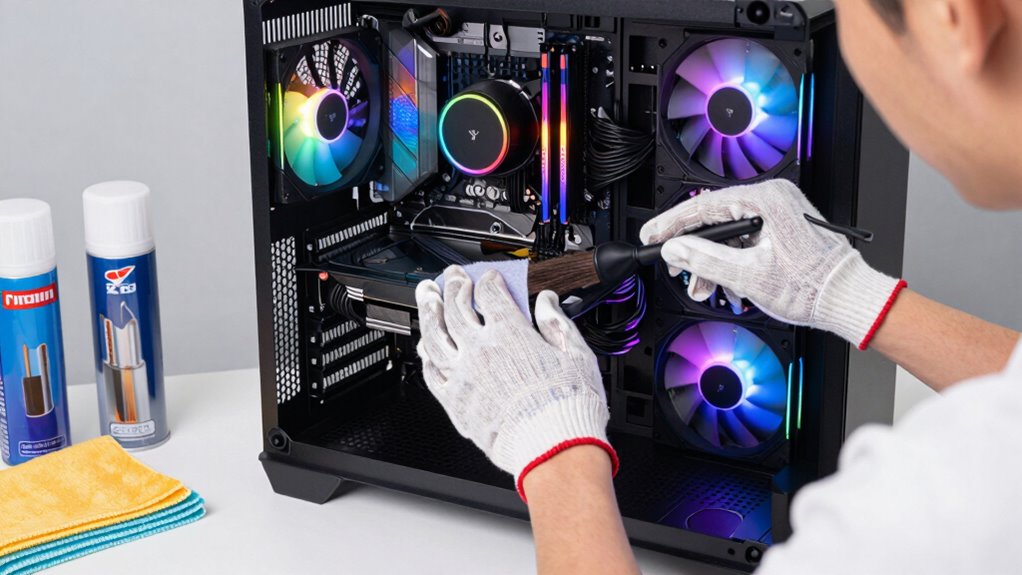

To keep your gaming PC running smoothly, regularly clean dust from fans, vents, and heatsinks to prevent overheating. Keep your software and drivers updated to improve performance and fix security issues. Monitor temperatures and ensure proper airflow, managing fan speed and thermal paste. Manage startup programs and background apps to free system resources. For more tips on maintaining peak performance, continue exploring essential upkeep strategies.
Key Takeaways
- Regularly clean dust from fans, vents, and heatsinks to prevent overheating and maintain optimal airflow.
- Keep drivers and system software up to date for stability and improved gaming performance.
- Monitor CPU and GPU temperatures using tools and reapply thermal paste if temperatures are high.
- Manage startup programs and background processes to reduce lag and speed up system boot time.
- Schedule routine disk checks and backups to prevent data loss and ensure system reliability.
Regularly Clean Your Hardware Components
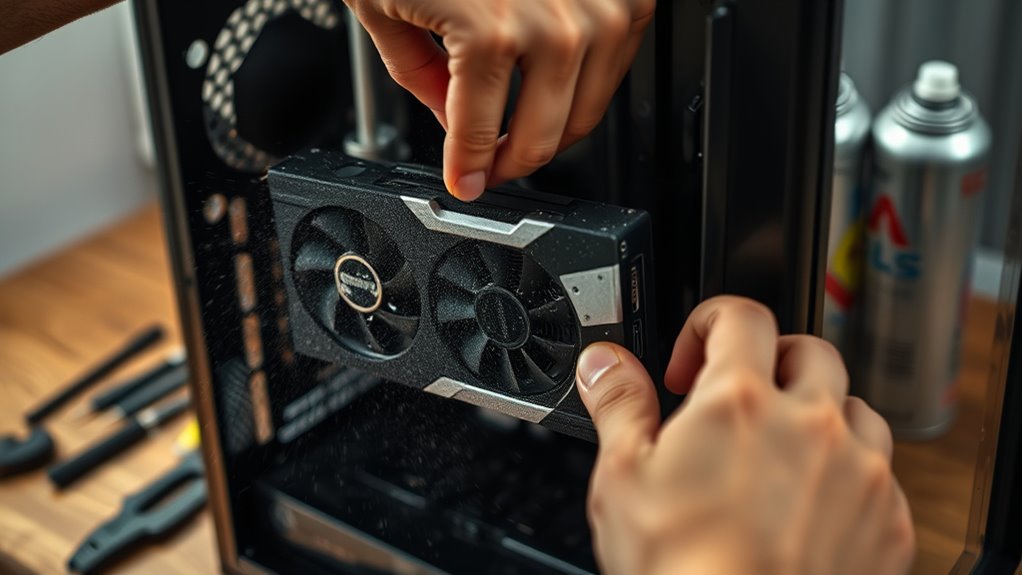
Regularly cleaning your hardware components is essential to keep your gaming PC running smoothly. Dust accumulation can clog fans and heat sinks, causing your system to overheat and perform poorly. Use compressed air to blow out dust from inside your case, paying close attention to vents, fans, and heatsinks. While cleaning, perform a thorough hardware inspection to check for loose connections, damaged cables, or signs of wear. This proactive approach helps prevent potential issues before they escalate. Make sure to turn off and unplug your PC before cleaning, and avoid touching sensitive components directly. Regular maintenance not only prolongs your hardware’s lifespan but also ensures ideal airflow and cooling. Staying consistent with cleaning and inspection keeps your gaming rig performing at its best, especially when considering the importance of cooling efficiency for optimal performance. Additionally, understanding how Free Floating components impact airflow can help you optimize your cooling setup for better results, as proper airflow management is key to maintaining temperature stability during extended gaming sessions.
Keep Your Software and Drivers Up to Date
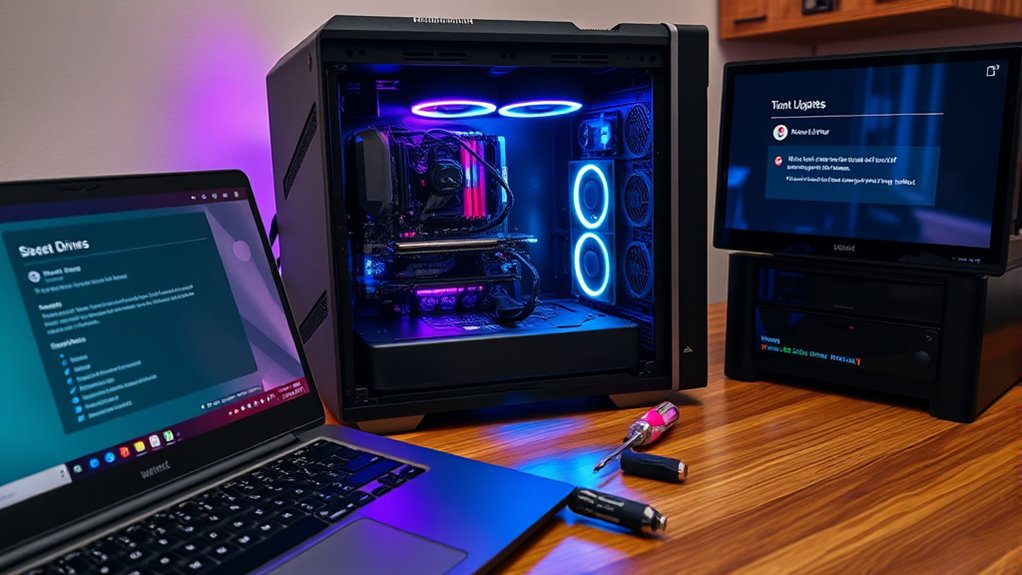
After cleaning your hardware components, it’s time to focus on your software and drivers. Regular software updates guarantee your system runs smoothly and securely. Driver maintenance is equally important; outdated drivers can cause crashes or performance issues. Check for updates from your GPU, motherboard, and peripheral manufacturers. Many programs offer automatic update features—use them to stay current effortlessly. Here’s a quick overview:
| Software Updates | Driver Maintenance |
|---|---|
| Improve game performance | Fix hardware compatibility |
| Patch security vulnerabilities | Prevent crashes and bugs |
| Add new features | Optimize hardware efficiency |
Keeping your software and drivers up to date helps prevent issues and keeps your gaming experience seamless. Staying aware of system security and privacy considerations during updates is crucial, especially since many updates include changes to privacy policies and data handling practices. Regularly reviewing your privacy settings can help safeguard your personal information. Additionally, enabling automatic updates can ensure your system remains protected without manual intervention. Don’t neglect this essential step in PC maintenance.
Monitor and Manage System Temperatures
Keeping an eye on your system temperatures is crucial to guarantee your gaming PC runs efficiently and avoids damage. If temperatures get too high, components like your CPU and GPU can throttle or fail. Use monitoring tools to track temps in real-time. To keep things cool, focus on airflow enhancement within your case, ensuring fans are properly aligned and unobstructed. Reapplying thermal paste can greatly improve heat transfer between your CPU and its cooler. Additionally, consider cleaning dust from fans and heatsinks regularly. Proper cable management also promotes better airflow. Regular maintenance of thermal interface materials helps sustain optimal heat conduction. Maintaining clean and well-maintained cooling components is essential for consistent thermal performance. Keep an eye on temperature spikes during intensive gaming sessions, and adjust your cooling setup if necessary. Maintaining ideal temperatures not only prolongs your rig’s lifespan but also helps sustain peak performance. Proper airflow is essential to prevent heat buildup and ensure consistent cooling performance. Regularly inspecting your cooling system components can help identify potential issues before they lead to overheating.
Optimize Your Operating System for Gaming
To get the best gaming performance, you should keep your system drivers up to date, ensuring compatibility and stability. Managing startup programs helps your PC run smoother by reducing unnecessary background processes. Don’t forget to enable gaming mode settings to prioritize resources and minimize distractions during gameplay.
Update System Drivers Regularly
Regularly updating your system drivers is essential for maintaining peak gaming performance. Keeping your driver updates current ensures your hardware runs smoothly and minimizes glitches. When you perform firmware upgrades, you improve stability and compatibility, reducing crashes during intense gaming sessions. To stay on top, regularly check for driver updates from your GPU, motherboard, and peripheral manufacturers.
Here’s what to focus on:
- Downloading the latest driver updates from official websites
- Installing firmware upgrades for your motherboard and peripherals
- Using driver management tools for automatic updates
- Monitoring release notes for improvements and bug fixes
Manage Startup Programs Efficiently
Managing startup programs effectively can substantially boost your gaming performance by reducing boot times and freeing up system resources. Start by reviewing your boot sequence to identify unnecessary programs that launch automatically. Use the Task Manager or dedicated system tools to disable or delay these apps during startup. This not only speeds up your boot time but also ensures your CPU and RAM are focused on your game rather than background processes. Performing regular startup diagnostics helps you spot and troubleshoot any issues causing slow boots or conflicts. Keep only essential programs enabled in the startup list, and disable the rest. This streamlined approach minimizes resource drain and improves overall system responsiveness, giving you a smoother gaming experience right from the moment you power on your PC. Additionally, optimizing your operating system settings can further enhance startup efficiency and overall performance. Regularly updating your drivers and system firmware can also prevent potential conflicts and improve startup times and stability.
Enable Gaming Mode Settings
Enabling gaming mode settings can considerably enhance your PC’s performance by prioritizing system resources for your game. When you activate gaming mode, your operating system allocates more CPU and RAM to your game, reducing background activity. This results in a noticeable performance boost, especially during intense gaming sessions. To enable gaming mode, you can:
- Turn on Windows’ built-in Gaming Mode via Settings
- Close unnecessary background apps
- Update your graphics drivers
- Adjust power settings to maximum performance
These steps optimize your OS, ensuring your rig runs smoother and handles demanding games better. Gaming mode settings are a simple yet effective way to get the most out of your hardware, providing that much-needed performance boost for an improved gaming experience.
Perform Routine Disk Maintenance and Backups
To keep your gaming PC running smoothly, you need to perform routine disk maintenance and backups. Regularly schedule disk checks, use trusted backup tools, and keep your storage space organized. These steps help prevent data loss and make sure your system stays responsive during intense gaming sessions. Additionally, regularly cleaning and organizing your luggage & bags can help streamline your setup and ensure you have quick access to essential accessories when needed. Ensuring proper environmental conditions like maintaining good air quality can also prevent dust buildup that could impact your hardware. Incorporating organizational strategies into your routine can further simplify ongoing maintenance and keep your gaming space clutter-free. Implementing smart-home integrations can also provide automated alerts for system issues or maintenance needs, ensuring your rig stays in top condition.
Schedule Regular Disk Checks
Regularly scheduling disk checks helps keep your gaming PC running smoothly by identifying and fixing potential issues before they cause major problems. This process improves disk health and enhances error correction, preventing data loss and system crashes. When you run disk checks, you can expect:
- Detection of bad sectors that could corrupt game files
- Identification of read/write errors that slow performance
- Repair of minor file system issues automatically
- Confirmation that your storage devices are in good shape
- Ensuring your storage devices are compatible with your system’s needs by monitoring disk performance
Use Reliable Backup Tools
Using reliable backup tools is essential for safeguarding your gaming PC’s data against hardware failures, malware, or accidental deletions. You should regularly back up important files using cloud backups, which provide remote protection and easy recovery. External drives are also a great option for quick, local backups, especially for large game files or system images. Choose backup tools that automate the process to guarantee consistency and reduce the risk of forgetting. Keep your backup software up to date to avoid vulnerabilities. Testing your backups periodically ensures they’re functioning correctly and data can be restored smoothly. Additionally, incorporating disk maintenance practices such as disk cleanup and defragmentation can help prolong your drive’s lifespan and improve performance. Performing regular hardware checks can identify potential issues before they cause data loss. Being aware of storage health monitoring tools can also aid in early detection of drive issues, preventing unexpected failures. By integrating both cloud backups and external drives into your routine, you minimize potential data loss and keep your gaming experience uninterrupted. Additionally, exploring eco-friendly travel options can inspire sustainable practices even in your digital habits, promoting environmental consciousness.
Manage Storage Space Efficiently
Effective storage management guarantees your gaming PC remains responsive and organized, especially as your library of games and files grows. To keep things running smoothly, regularly perform disk maintenance by clearing temporary files and uninstalling unused programs. Use external storage to expand your capacity without cluttering your main drive. Consider setting up cloud backups for important saved games and critical data, ensuring you don’t lose progress.
Think of your storage setup like this:
- Regularly clean unnecessary files with disk cleanup tools
- Move large, infrequently played games to external storage
- Schedule automatic backups to the cloud
- Monitor your storage space to prevent shortages
Staying proactive with these steps helps your system stay fast and reliable, minimizing crashes and delays during gaming sessions.
Manage Startup Programs and Background Processes
Managing startup programs and background processes is essential for maximizing your gaming PC’s performance. By effectively handling background process management, you prevent unnecessary applications from consuming valuable resources. Use your task manager or system configuration tools to control startup program activation, disabling those that aren’t needed immediately. This reduces boot times and frees up CPU, RAM, and disk usage for your games. Regularly review which programs launch at startup and disable any that don’t serve a critical purpose. Keeping background processes in check to avoid performance dips during gameplay is crucial—unnecessary processes can lead to lag and stuttering. Remember, a lean startup process environment ensures your rig runs smoothly, delivering better frame rates and fewer hiccups. Additionally, understanding the importance of system hygiene can be a metaphor for maintaining your system’s foundation—just like a good breakfast supports a productive day. Consistent startup program control is a simple yet powerful step in maintaining your gaming PC’s peak performance, especially as software bloat can gradually hinder system efficiency over time. Regularly updating your drivers and performing system maintenance can further optimize performance and stability.
Check and Maintain Proper Cable Management
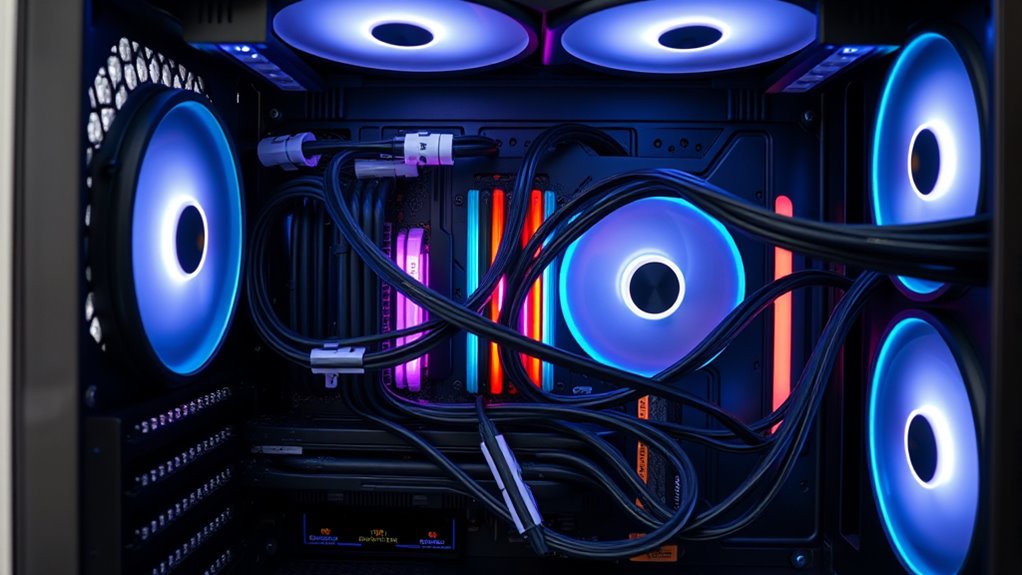
Proper cable management is essential for ensuring ideal airflow and preventing overheating in your gaming PC. Well-organized cables improve airflow, reduce clutter, and make future upgrades easier. Use cable routing techniques to keep cables neatly tucked away, avoiding tangles and obstruction. Label your cables with clear cable labels to identify connections quickly during maintenance or upgrades.
Proper cable management enhances airflow, prevents overheating, and simplifies upgrades in your gaming PC.
To achieve this, consider these tips:
- Route cables along case edges or behind motherboard trays
- Use zip ties or Velcro straps to secure cables tightly
- Keep power cables separate from data cables to reduce interference
- Regularly check and re-label cables if needed for clarity
Good cable management not only boosts performance but also simplifies troubleshooting and cleaning. Maintaining tidy cables ensures your rig runs smoothly for longer.
Use Reliable Antivirus and Anti-Malware Software
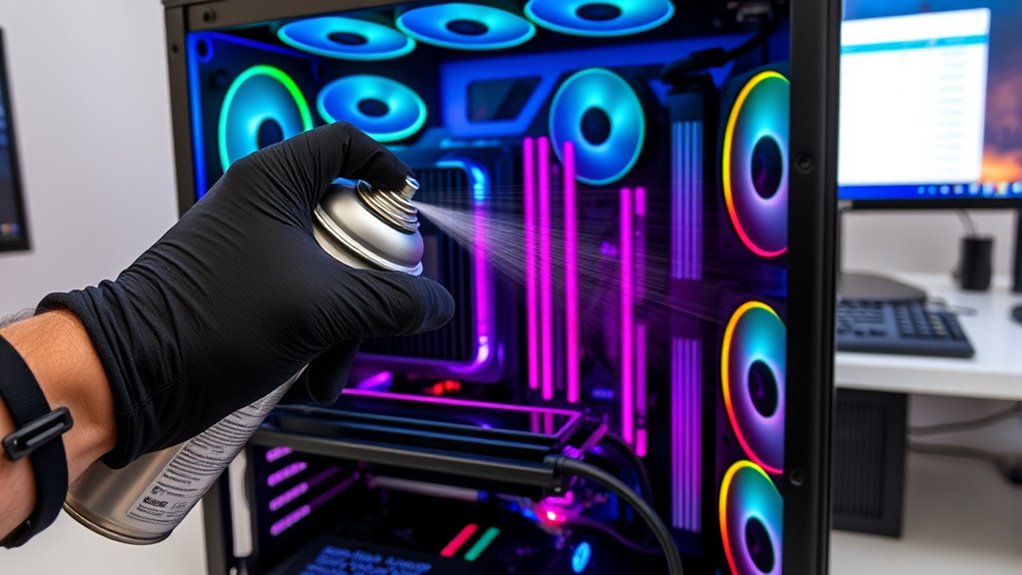
To protect your gaming PC from malicious threats, you need to use reliable antivirus and anti-malware software. Keeping your antivirus software up to date is vital; antivirus updates ensure you have the latest security patches to defend against new threats. Regular malware scans help identify and eliminate malicious files before they cause harm or slow down your system. Schedule scans weekly or whenever you install new software or download files from unfamiliar sources. Don’t ignore alerts or warnings from your security software—address them promptly. Combining real-time protection with routine malware scans creates a strong defense. With consistent updates and vigilant scans, you considerably reduce the risk of malware infections, keeping your gaming rig secure, stable, and running smoothly.
Frequently Asked Questions
How Often Should I Replace Thermal Paste on My CPU?
You should replace your thermal paste every 2 to 3 years, or if you notice your CPU temperature rising substantially. Thermal paste lifespan varies based on quality and usage, but over time it dries out and becomes less effective at transferring heat. If your CPU runs hotter than usual or your system becomes unstable, it’s a good idea to reapply thermal paste to guarantee ideal cooling and performance.
What Are the Signs of a Failing Power Supply Unit (PSU)?
If your PC experiences power supply issues, you’ll notice symptoms like random shutdowns, system crashes, or failure to power on. Fan noises may become inconsistent, or you might see electrical smells. During PSU troubleshooting, check for loose cables or swollen capacitors. If problems persist, consider testing with a known-good PSU. A failing power supply can cause hardware damage, so address these signs promptly to keep your gaming setup stable.
How Can I Improve Airflow Inside My Gaming PC Case?
Think of your gaming PC like a busy city needing smooth traffic flow. To improve airflow, optimize case ventilation by adding or repositioning case fans for better intake and exhaust. Keep vents clear of dust, cable clutter, and obstructions, and consider upgrading to higher-quality fans for more efficient cooling. Proper airflow prevents overheating, helping your components run cooler and smoother during intense gaming sessions.
What Are the Best Practices for Overclocking Safely?
To overclock safely, start by monitoring your hardware temperatures and stability through hardware monitoring tools. Gradually increase clock speeds while keeping an eye on temperature and voltage levels. Use voltage tuning cautiously, raising voltages only as needed to stabilize higher speeds. Test thoroughly after each adjustment, and avoid pushing your components beyond recommended limits. This approach helps prevent overheating and hardware damage while maximizing performance gains.
How Do I Troubleshoot Audio or Visual Glitches During Gaming?
Did you know that outdated drivers cause over 70% of gaming glitches? To troubleshoot audio or visual issues, first check your driver updates, especially for your GPU and audio devices. Then, make certain all cable connections are secure, as loose or damaged cables often cause glitches. Restart your PC after updates, and test different cables if problems persist. These simple steps usually resolve most gaming-related audio and visual hiccups quickly.
Conclusion
Just like a seasoned captain tending to a ship, your gaming rig needs regular care to navigate the digital seas smoothly. By staying vigilant with cleaning, updates, and temperature checks, you guarantee your system remains a steadfast vessel ready for any adventure. Keep this routine, and your PC will sail through intense gaming sessions, avoiding storms of lag and crashes. With consistent maintenance, your rig will always be prepared to conquer new worlds.