
To boost your PC’s FPS for smoother gaming, start by lowering in-game settings like resolution, shadows, and anti-aliasing to reduce load. Keep your graphics drivers up to date for peak performance and stability. Adjust Windows power options to favor high performance, ensuring your CPU runs at full speed. Close background applications to free system resources. If these steps aren’t enough, upgrading hardware components like your GPU or RAM can make a big difference. Keep exploring for more tips to maximize your game’s performance.
Key Takeaways
- Lower in-game resolution and graphics settings to reduce GPU load and improve FPS.
- Keep graphics drivers up to date for compatibility, stability, and performance enhancements.
- Set Windows power plan to High Performance and optimize CPU settings for maximum resource allocation.
- Close unnecessary background applications to free up CPU, RAM, and disk resources.
- Upgrade hardware components like GPU, RAM, or CPU for significant performance gains.
Adjust In-Game Settings for Optimal Performance
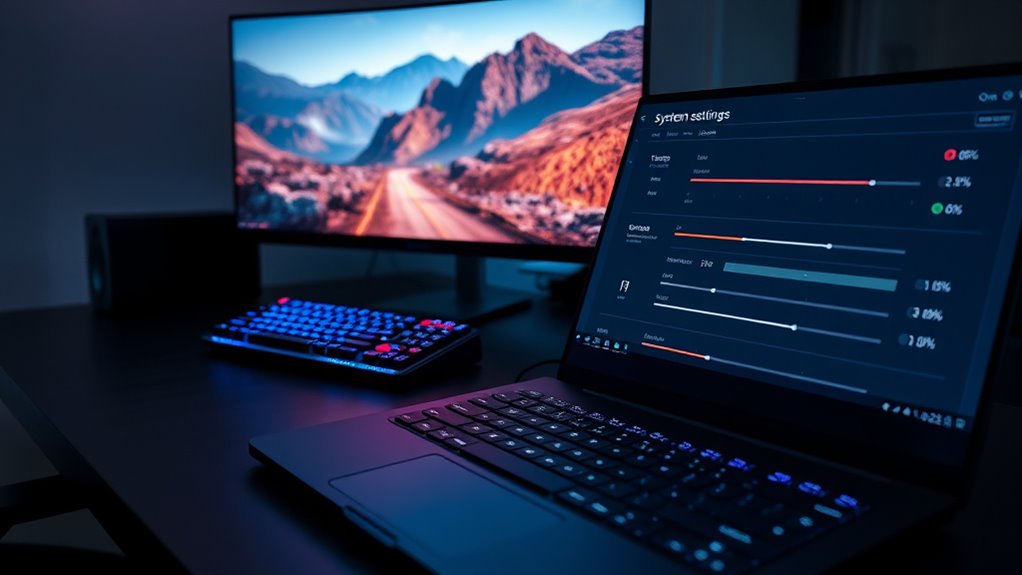
To boost your PC’s FPS, start by adjusting in-game settings to prioritize performance over visuals. First, experiment with resolution tweaks; lowering the resolution reduces the workload on your GPU, resulting in smoother gameplay. Avoid high resolutions if your hardware struggles, and consider scaling down to a more manageable level. Next, focus on shader adjustments—disable or reduce shader quality settings, as they can considerably impact performance. Opt for simpler shader options to lessen rendering demands. Don’t forget to turn off or lower other graphics features like anti-aliasing, shadows, and reflections, which can drain FPS. Additionally, leveraging contrast ratio can help optimize game streaming and reduce latency, enhancing overall gaming performance. These tweaks help your system focus on core gameplay, making your gaming experience more fluid and responsive without sacrificing essential visual clarity.
Keep Your Graphics Drivers Up to Date
Keeping your graphics drivers up to date is essential for maximizing your PC’s gaming performance. Updated drivers ensure better driver compatibility with the latest games and hardware, reducing crashes and graphical glitches. Regular update frequency means you stay ahead of bugs and performance issues, giving you smoother gameplay. Check your graphics card manufacturer’s website or use their app to monitor driver releases and install updates promptly. Ignoring updates can lead to missing out on performance improvements and new features, which can limit your FPS gains. Keep in mind that stability and compatibility are key, so always download drivers from official sources. Staying current with your graphics drivers guarantees your system is optimized for the best gaming experience possible. Additionally, Free Floating can help you identify potential issues and optimize your system settings for higher FPS.
Optimize Your Windows Power Settings
Adjusting your Windows power settings can considerably boost your PC’s FPS by ensuring your system prioritizes performance over energy saving. Start by selecting the ‘High Performance’ power plan, which prevents your system from throttling CPU speeds. Next, customize your plan settings to maximize CPU performance, including setting the minimum and maximum processor state to 100%. Additionally, tweaking power management options can further optimize your system’s responsiveness. For example, enabling core parking features can help manage CPU cores more efficiently during gaming. Finally, optimize your CPU affinity by using task manager or third-party tools to assign core usage for gaming processes, reducing background interference. These steps help your CPU focus on gaming tasks, minimizing latency and boosting FPS. Additionally, understanding the future of modern kitchen technology can inspire you to optimize other aspects of your setup for enhanced gaming performance. Remember, tweaking the power plan and CPU affinity guarantees your system allocates resources effectively, giving you a smoother gaming experience with less lag and stutter. To further enhance your gaming setup, consider exploring smart home integration to create an environment that adapts to your gaming needs seamlessly. Exploring hardware upgrades such as better graphics cards or SSDs can also significantly improve your gaming performance.
Close Background Applications and Processes
Have you noticed that running multiple background applications can cause your game to stutter or lag? These background processes consume valuable system resources, leaving less available for your game. To improve your FPS, close unnecessary applications and processes through Task Manager. This helps with resource management by freeing up CPU, RAM, and disk usage. Keep an eye on processes that might run automatically, like updates or cloud syncs, and disable them temporarily while gaming. Understanding system resources can help you optimize your PC’s performance for gaming. By minimizing background activity, your PC can dedicate more power to your game, reducing lag and increasing frame rates. Regularly managing these background processes guarantees smoother gameplay and better overall performance, giving you a more enjoyable gaming experience. Additionally, monitoring your background applications ensures that no unnecessary programs are consuming system resources without your knowledge. Being aware of system resource allocation can further enhance your ability to optimize your PC for gaming. Implementing these practices based on performance optimization techniques can significantly boost your gaming experience.
Upgrade Your Hardware Components
Upgrading your hardware components can considerably boost your PC’s FPS by providing more power and efficiency for demanding games. When performing hardware upgrades, verify component compatibility to avoid issues. Upgrading your graphics card is one of the most effective ways to improve performance, especially for high-quality visuals. Enhancing your RAM increases your system’s ability to handle large game files smoothly. Upgrading your CPU can also deliver better processing power for complex calculations. Additionally, ensuring proper ventilation and cooling helps maintain optimal hardware performance during intensive gaming sessions. Proper power supply capacity is crucial to support new components reliably and prevent potential system instability. To get the most out of your upgrades, consider system airflow to help keep temperatures down and performance high. Good hardware maintenance practices also contribute to sustained performance and longevity of your upgraded components. Regularly cleaning dust from internal parts is vital for maintaining effective cooling efficiency and preventing overheating.
Frequently Asked Questions
Can Overclocking Improve My FPS Without Damaging Hardware?
Overclocking can improve your FPS, but it comes with risks like hardware instability and potential damage if not done carefully. You should understand overclocking risks before proceeding and increase clock speeds gradually. Use stress tests to monitor stability, and guarantee proper cooling. If done responsibly, overclocking can boost performance without harming your hardware, but always stay cautious to avoid long-term damage.
What Are the Best Third-Party Tools to Boost Gaming Performance?
You can supercharge your gaming experience with third-party tools like driver update utilities and game optimizers that dramatically boost performance. These tools automatically scan and update your drivers for maximum efficiency and optimize your system settings for smoother gameplay. By using trusted options like Driver Booster or Razer Cortex, you guarantee your hardware runs at peak performance, giving you the edge needed for intense gaming sessions without risking stability or hardware damage.
How Can I Reduce Input Lag for a Smoother Gaming Experience?
To reduce input lag and enjoy smoother gaming, start by calibrating your monitor for superior response times. Use low-latency settings and turn off unnecessary features like V-Sync. Additionally, optimize your network by using a wired connection and closing background apps that consume bandwidth. These steps help minimize delays between your actions and on-screen responses, ensuring a more responsive and enjoyable gaming experience.
Does Disabling Windows Visual Effects Affect Gaming FPS?
Disabling Windows visual effects can markedly boost your gaming FPS by reducing system overhead. For example, a gamer noticed smoother gameplay after turning off visual enhancements like animations and transparency. When you customize Windows visuals, you free up resources, leading to better performance. So, if you’re aiming for higher FPS, consider disabling unnecessary visual effects—it’s a simple tweak that makes a noticeable difference in your gaming experience.
Are There Specific BIOS Settings to Enhance Gaming Performance?
Yes, adjusting BIOS settings can improve gaming performance. Focus on BIOS tweaks like enabling XMP profiles to optimize RAM speed and disabling any unnecessary onboard devices. Also, set your power management to a high-performance mode to prevent throttling and guarantee your CPU runs at full capacity during gaming sessions. These tweaks help maximize your hardware’s potential, giving you smoother, more consistent FPS without needing additional software.
Conclusion
Think of your PC as a race car—you need to fine-tune every part to race smoothly. By adjusting in-game settings, updating drivers, optimizing power options, closing background apps, and upgrading hardware, you’re giving your system the boost it needs. When all these pieces work together, your gaming experience becomes a well-oiled machine, delivering higher FPS and smoother gameplay. Keep tinkering and maintaining your setup, and you’ll stay ahead in the game of performance.