
To calibrate your monitor without buying gear, start by using your monitor’s built-in buttons to adjust brightness, contrast, and color temperature for a natural look. Then, access your operating system’s free calibration tools, like Windows’ Display Color Calibration or Mac’s Display Calibrator Assistant, which guide you through gamma and white point adjustments. You can also utilize online test patterns from sites like Lagom to fine-tune settings visually. Keep experimenting to improve your display’s accuracy—more tips await beyond this overview.

Get the latest gadgets delivered free with Prime
- Fast, free delivery on millions of items
- Prime Video, Amazon Music and more included
- Member-only deals all year
Key Takeaways
- Use built-in display calibration tools in Windows (Display Color Calibration) or Mac (Display Calibrator Assistant).
- Access online test patterns from websites like Lagom to adjust contrast, brightness, and color accuracy visually.
- Utilize your monitor’s on-screen menu buttons to manually tweak brightness, contrast, and color temperature.
- Compare on-screen images with known reference photos or videos to fine-tune color and tone.
- Perform iterative adjustments, re-evaluating with test images, to gradually improve display calibration without extra hardware.
Calibrating your monitor doesn’t require expensive equipment; you can achieve accurate colors and tones using free tools and built-in settings. Proper monitor calibration is essential to guarantee your display shows colors as intended, whether you’re editing photos, designing graphics, or just wanting a more true-to-life viewing experience. When you focus on color accuracy, you minimize the risk of misjudging hues, brightness, and contrast, leading to better work and less eye strain.
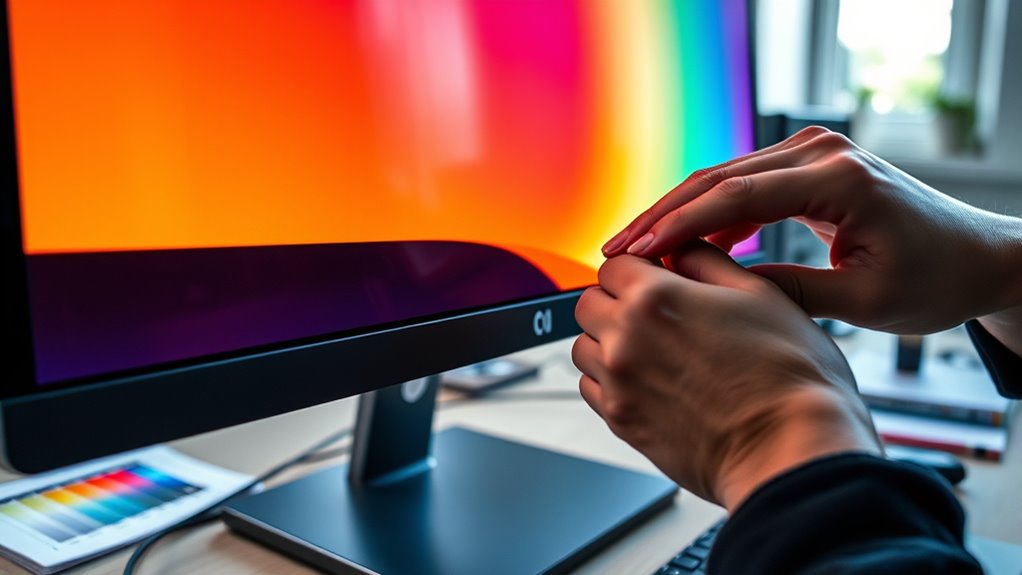
Start by adjusting your monitor’s built-in controls. Most screens have buttons for brightness, contrast, and sometimes color temperature. Set the brightness so that whites look bright but not glaringly harsh, and adjust contrast to make blacks deep without losing detail. Next, select a color temperature setting—often labeled as “Warm,” “Cool,” or “Standard.” For most creative work, a setting around 6500K (daylight) offers a balanced, natural look. These simple tweaks lay a solid foundation for accurate color reproduction.
Once you’ve made these initial adjustments, use free calibration tools available on your operating system. Windows users can utilize the Display Color Calibration tool, accessible via the Control Panel. Mac users can access the built-in Display Calibrator Assistant through System Preferences. These tools guide you through a series of adjustments, asking you to compare on-screen colors against test patterns. They help you fine-tune gamma and white point, which are critical for achieving realistic, consistent colors across various applications.
Beyond system tools, take advantage of online calibration images and test patterns. Websites like Lagom LCD monitor test pages provide visual references for contrast, brightness, and color accuracy. By viewing these images, you can tweak your monitor settings to match the recommended levels, ensuring your display is calibrated without needing any external hardware. Additionally, understanding the importance of color accuracy and how it impacts your viewing experience can help you prioritize these calibration steps.
Remember, achieving the best monitor calibration is an iterative process. After initial adjustments, spend some time viewing familiar images or videos to see if the colors seem natural and consistent. If they look off, revisit your settings and make small tweaks. Over time, you’ll develop an eye for subtle differences and learn how your monitor best displays colors for your specific environment and needs.
In the end, you don’t need fancy equipment to guarantee accurate colors on your screen. By using built-in controls, operating system calibration tools, and online test images, you can considerably improve your monitor’s color accuracy. This approach not only saves money but also gives you a practical way to maintain a reliably calibrated display for all your creative or professional tasks.
Frequently Asked Questions
How Often Should I Calibrate My Monitor Manually?
You should calibrate your monitor manually at least once a month to keep color temperature and brightness adjustment accurate. Regular calibration guarantees your display maintains consistent color accuracy, especially if you notice color shifts or your work requires precise visuals. Use built-in calibration tools or software, and adjust settings as needed. Frequent calibration helps prevent color drift, so your monitor always displays true-to-life images, perfect for creative work or just better viewing.
Can I Calibrate My Monitor Without Professional Tools?
Yes, you can calibrate your monitor without professional tools by adjusting color profiles and display settings manually. Start by resetting your display to default, then tweak brightness, contrast, and color temperature to your liking. Use built-in calibration tools or free software to guide you through the process. Regularly revisit these settings to guarantee your display remains accurate, especially if you notice color shifts or discrepancies.
What Are the Signs My Monitor Needs Calibration?
You’ll notice your monitor needs calibration if the colors look off, like images appear too dull or overly vibrant. Inconsistent display brightness or color accuracy across different areas also signals a problem. If you see color shifts when viewing the same image from different angles, that’s another sign. These issues affect your monitor’s color and display consistency, and calibrating can help restore accurate, uniform visuals.
Does Calibration Improve Color Accuracy Significantly?
Yes, calibration can substantially improve color accuracy, especially for tasks like photo editing or design. It helps with color correction and guarantees your display shows consistent, true-to-life colors. When you calibrate your monitor, you’ll notice better display consistency across different applications and lighting conditions. This process reduces color discrepancies, making your work more precise and reliable, all without needing to buy expensive calibration gear.
Are There Free Software Options for Monitor Calibration?
Yes, there are free software options for monitor calibration. You can explore calibration apps like DisplayCAL or QuickGamma, which serve as software alternatives to hardware devices. These tools guide you through the calibration process by adjusting your display’s settings to improve color accuracy. While they may not be as precise as professional calibration tools, they can substantially enhance your viewing experience, especially if you’re on a budget.
Conclusion
Think of calibrating your monitor like tuning a guitar—you don’t need fancy tools to hit the right notes. With a few simple adjustments, you can bring your screen into harmony, revealing true colors and sharp details. Just like a well-tuned instrument, your display will perform better and look more vibrant. So, don’t wait for perfect gear—trust your eyes and a little patience to create a visual masterpiece right from your desk.
Halloween Picks
halloween
As an affiliate, we earn on qualifying purchases.