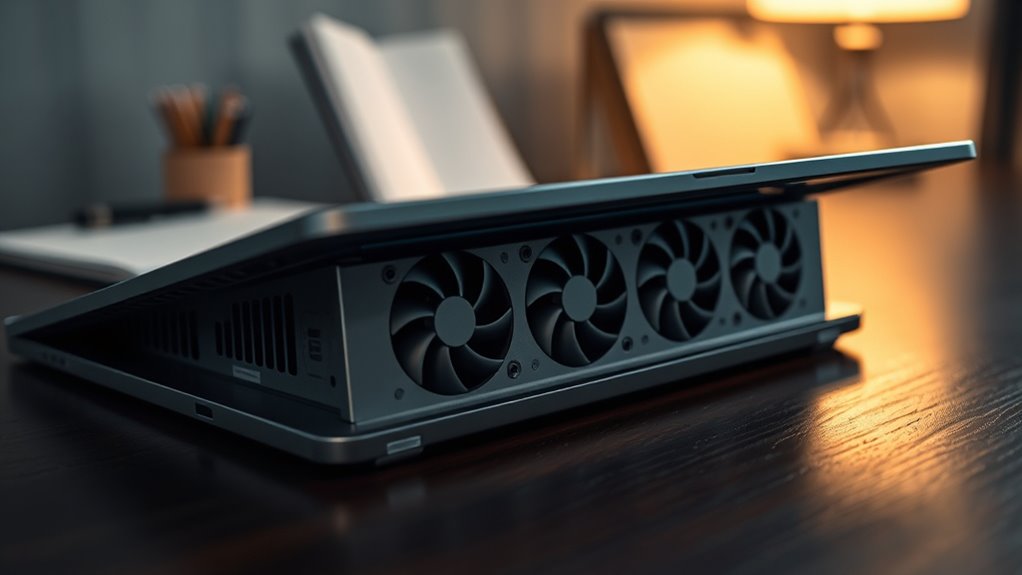

If your laptop fans are loud, start by cleaning the vents with compressed air to remove dust and debris. Make sure to use your device on a hard, flat surface to improve airflow, and close unnecessary programs that cause high CPU or GPU usage. You can also check for updated drivers or adjust your fan settings through software or BIOS. For more tips on safely quieting your laptop fans, keep exploring effective solutions.
Key Takeaways
- Regularly clean vents and internal components with compressed air to remove dust and debris blocking airflow.
- Use software settings or BIOS to switch to quieter fan profiles and reduce fan speed.
- Keep the laptop on a flat, hard surface to ensure proper ventilation and prevent overheating.
- Close unnecessary applications to lower CPU and GPU usage, decreasing fan activity.
- Update device drivers and firmware for optimized fan control and thermal management.

If your laptop fans are loud and distracting, you don’t have to accept the noise as normal. Often, loud fans are a sign that your device is working harder than it needs to, and one common culprit is dust buildup inside your laptop. Over time, dust and debris accumulate around the vents and fans, obstructing airflow and forcing the cooling system to work overtime. This not only causes excessive noise but can also lead to overheating and reduced performance. To quiet your fans safely, start by turning off your laptop and unplugging it. Use compressed air to blow out the vents and any accessible internal components. Be gentle to avoid damaging delicate parts, and consider opening the back panel if you’re comfortable doing so. Removing dust from inside the laptop restores proper airflow, reducing the workload on your fans and lowering noise levels.
Loud laptop fans often indicate dust buildup obstructing airflow; cleaning vents can restore quieter operation and improve performance.
Beyond cleaning, you can also optimize software cooling to prevent your fans from running at high speeds unnecessarily. Many modern laptops have built-in settings or utilities that allow you to control fan behavior. Check your system’s BIOS or dedicated control software for options to set fan profiles—switching to a quieter or balanced mode can considerably reduce noise without sacrificing cooling efficiency. Additionally, monitor your device’s performance with task managers or system monitors to identify apps or processes that cause high CPU or GPU usage. When your laptop is running intensive programs, your fans will naturally work harder, producing more noise. Closing unnecessary applications or adjusting their settings can help keep your system cooler and quieter.
Another effective step is updating your device’s drivers and firmware. Manufacturers often release updates that improve hardware efficiency and optimize fan control algorithms. Keeping your drivers current can help your laptop manage cooling more intelligently, reducing the need for loud fan activity. If your laptop runs hot even after cleaning dust and adjusting software settings, consider applying thermal paste or seeking professional help. Over time, thermal paste can dry out, diminishing its ability to transfer heat away from the processor. Replacing it can lower internal temperatures, which in turn reduces fan noise.
Finally, maintaining a clean workspace and ensuring proper ventilation while using your laptop can make a noticeable difference. Using your device on a hard, flat surface and avoiding soft materials like cushions or blankets helps airflow around the vents. Regularly checking your laptop’s internal cooling components and whole‑home backup power setup can also help prevent overheating during power outages, which might cause your device to work harder. By combining these steps—removing dust buildup, optimizing software cooling, updating drivers, and improving ventilation—you can quiet your laptop fans safely and extend your device’s lifespan.
Frequently Asked Questions
Can Overclocking Cause My Laptop Fans to Become Louder?
Yes, overclocking can cause your laptop fans to become louder. When you overclock, you push your CPU or GPU beyond their normal limits, which increases heat and raises the risk of overheating. To manage this, your laptop’s cooling system kicks in, making the fans work harder and producing more fan noise. It’s important to be aware of overclocking risks and monitor your system to prevent overheating and potential damage.
Is It Safe to Clean Laptop Fans With Compressed Air?
Cleaning your laptop fans with compressed air is safe if you do it correctly. Think of it as giving your device a gust of fresh air—literally! During laptop cleaning and fan maintenance, hold the fan blades still to prevent damage, and use short bursts of compressed air to remove dust. Avoid tilting the can too much, and never shake it. Proper care keeps your laptop cool and quiet without risking harm.
How Often Should I Replace My Laptop’s Thermal Paste?
You should replace your laptop’s thermal paste every 2 to 5 years, depending on thermal paste longevity and your usage. Over time, thermal paste dries out or becomes less effective, causing higher temperatures and potential overheating. Regularly check your laptop’s temperature and performance; if you notice increased heat or fan noise, it’s time for a fresh application. Keeping up with replacement frequency guarantees ideal cooling and prevents hardware issues.
Will Using a Cooling Pad Reduce Fan Noise Significantly?
Using a cooling pad can markedly reduce fan noise by improving airflow and keeping your laptop cooler. The cooling pad benefits include better heat dissipation, which lessens the workload on your fans, making them quieter. When you place your laptop on a cooling pad, you often notice less fan noise overall, especially during intensive tasks. It’s an effective way to keep your laptop quieter and extend its lifespan.
Are There Software Tools to Control Fan Speed Effectively?
They say “a stitch in time saves nine,” so using software tools for fan control can save you from loud laptop fans. You can customize fan speeds with programs like SpeedFan or HWMonitor, giving you better control over noise and temperature. These tools let you adjust fan behavior based on your needs, helping keep your device quiet and cool without hardware changes. Give them a try for a smoother, quieter experience.
Conclusion
Did you know that overheating causes up to 80% of laptop failures? By keeping your laptop’s fans quiet and functioning properly, you not only extend its lifespan but also prevent overheating-related crashes. Just remember to clean the vents regularly and use cooling pads when needed. Taking these simple steps can considerably reduce fan noise and keep your device running smoothly. Stay proactive, and your laptop will thank you with quiet, efficient performance.