
If your Android battery drains fast, start by closing any power-hungry apps and disabling unnecessary notifications or background data. Lower your screen brightness, shorten the timeout, and turn off location, Bluetooth, and Wi-Fi when not needed. Keep your device and apps updated and use built-in battery optimization tools. Check for hardware issues if problems persist. Follow these steps, and you’ll find more tips to extend your battery life ahead.
Key Takeaways
- Turn off location, Bluetooth, and Wi-Fi when not in use to reduce background power consumption.
- Lower screen brightness, shorten timeout duration, and close unnecessary apps to conserve battery.
- Disable non-essential notifications and restrict background data for apps to prevent unnecessary wake-ups.
- Keep your device’s software and apps updated to improve efficiency and fix bugs causing battery drain.
- Perform hardware checks and consider a factory reset if battery issues persist after troubleshooting.
Identify and Close Power-Hungry Apps

If your Android battery is draining quickly, one of the first steps is to identify and close power-hungry apps. Start by reviewing app permissions; some apps may access location, camera, or background data unnecessarily, increasing battery drain. Check your device’s battery usage in settings to see which apps consume the most power. If you notice an app using excessive battery, consider closing it or uninstalling if unnecessary. Additionally, perform a battery calibration by fully discharging and then charging your device to 100%, helping your system better estimate remaining battery life. This process ensures your battery metrics are accurate, which can prevent miscalculations that lead to faster drain. Managing app permissions and calibrating your battery can notably improve battery life. Monitoring app behaviors can also help identify apps that unexpectedly drain power in the background, especially those with high contrast ratio settings affecting performance. Regularly reviewing battery optimization settings can further help extend your device’s battery life. Also, be aware that background activity management plays a crucial role in preventing unnecessary battery consumption.
Disable Unnecessary Notifications and Background Data
Disabling unnecessary notifications and background data can considerably extend your Android device’s battery life. Push notifications from apps you don’t need constantly wake your device and drain power. To reduce this, go to your settings and turn off notifications for unimportant apps. Additionally, limit background data usage by restricting apps from running in the background. This prevents apps from syncing or updating silently, saving battery. You can do this through your app info menu or data usage settings. Keep in mind, disabling certain notifications and background data may delay receiving updates, but it greatly improves battery longevity. Streamlining what runs in the background and what alerts you receive helps your device conserve power and keeps it running longer between charges. Incorporating power management settings and cutting-edge survival technology can further optimize your device’s performance and durability during outdoor adventures. Monitoring battery consumption can also help identify which apps drain your power the most and allow for more targeted adjustments.
Adjust Screen Brightness and Timeout Settings

Reducing your screen brightness and shortening the timeout period can make a big difference in conserving battery life. You should also consider enabling adaptive brightness, so your device adjusts automatically based on your environment. These simple changes help prevent unnecessary power drain from your display. Additionally, adjusting your display settings with load‑planning tools can help optimize overall device performance and battery longevity. Using power management features can further extend your device’s battery life by intelligently controlling background processes and resource usage. Incorporating smart home automation features, like schedules for screen brightness, can also help maintain optimal energy efficiency across your device ecosystem. Regularly monitoring your battery health can provide insights into your device’s current capacity and help you take proactive steps to preserve its lifespan. Understanding battery capacity and managing it effectively ensures your device remains reliable over time.
Lower Screen Brightness
Lowering your screen brightness can substantially extend your device’s battery life. When your display isn’t overly bright, it consumes less power, helping your battery last longer. To optimize, adjust your brightness manually or enable adaptive brightness for automatic calibration based on ambient light conditions. Also, consider setting a shorter display timeout to prevent the screen from staying on unnecessarily. Proper screen calibration ensures colors and brightness are comfortable without wasting energy. Here’s a quick overview:
| Action | Benefit |
|---|---|
| Reduce brightness level | Saves power and reduces eye strain |
| Enable adaptive brightness | Auto-adjusts to lighting conditions for efficiency |
| Set shorter display timeout | Limits screen-on time, conserving battery |
Shorten Screen Timeout
Adjusting your screen timeout settings is a simple yet effective way to conserve battery life. The screen timeout controls how long your display stays on after you stop interacting with your device. By shortening the display duration, you reduce the time your screen remains active unnecessarily, saving power. To change this setting, go to your device’s display or screen settings and select “Screen Timeout” or “Sleep”. Set a shorter duration, such as 30 seconds or one minute, so your screen turns off quickly when not in use. This small adjustment can considerably extend your battery life, especially if you tend to forget to turn off your display manually. Remember, the less time your screen stays lit, the less power it consumes.
Use Adaptive Brightness
Using adaptive brightness allows your device to automatically adjust the screen brightness based on your ambient lighting conditions, which can substantially save battery life. When you enable this feature, your screen calibrates itself to provide ideal visibility without wasting power. It also reduces eye strain and improves overall display performance. To maximize benefits, choose a wallpaper that doesn’t require high brightness levels, making adjustments more seamless. Keep in mind that well-calibrated screens enhance color accuracy and brightness consistency. Adjusting your screen timeout settings alongside adaptive brightness ensures your display isn’t staying on longer than needed. This combination helps prevent unnecessary battery drain while maintaining a comfortable viewing experience. Additionally, understanding credit card security measures can help you safeguard your device against cyber threats, ensuring your data remains protected while you optimize your device’s power consumption. Properly configuring your device settings battery optimization techniques further enhances efficiency and extends battery life. By fine-tuning these settings, you maximize your device’s power consumption effortlessly and can even explore power-saving modes for added efficiency. For example, enabling dark mode can further reduce screen power usage, especially on OLED displays, and selecting auto-brightness can help your device adapt more dynamically to changing environments.
Turn Off Location Services When Not Needed
To conserve your Android device’s battery, turn off location services when you don’t need them. Location services use GPS and other sensors to pinpoint your position, which can drain your battery quickly if left on constantly. When you enable these features only during necessary moments, you reduce unnecessary power consumption. Keep in mind, turning off location services can impact GPS accuracy, especially for navigation apps or location-based services. To save battery life, disable location services in your device settings when you’re not actively using apps that require your location. This simple step helps prolong your device’s battery life without sacrificing overall performance. Additionally, understanding how battery management works can help you optimize your device’s power usage even further. Being aware of power-saving modes can also contribute significantly to extending your device’s battery life during critical times. Using location-based services only when essential ensures you balance functionality with battery conservation. Being mindful of app permissions can further prevent unnecessary background activity that drains your battery.
Manage Battery-Intensive Features Like Bluetooth and Wi-Fi
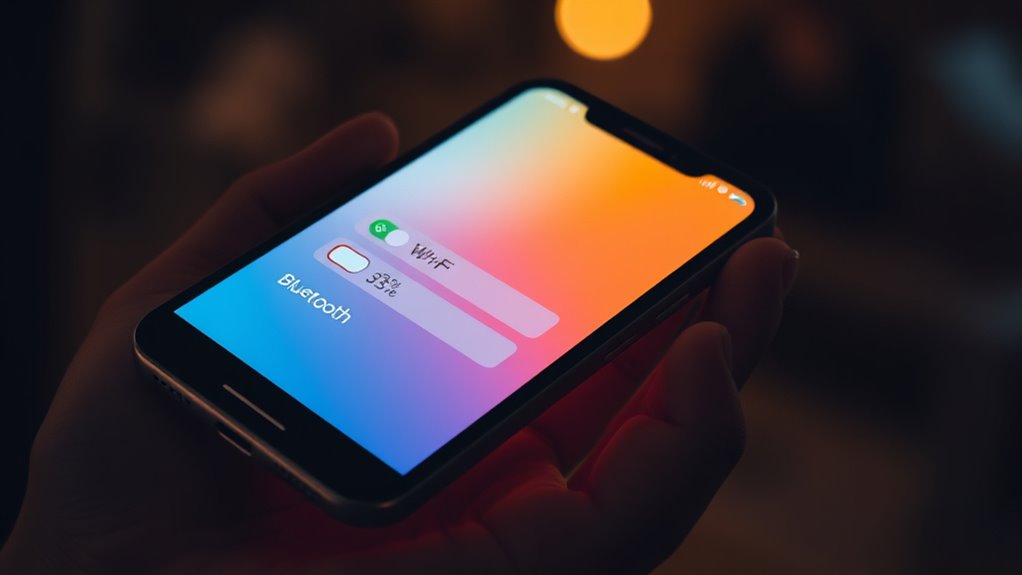
Turning off Bluetooth and Wi-Fi when you’re not using them can substantially extend your Android device’s battery life. Effective Bluetooth management and Wi-Fi optimization prevent your device from draining power searching for connections. You are trained on data up to October 2023. Managing connectivity features helps you understand how these settings impact your device’s power consumption and allows you to make informed decisions to conserve battery life. Imagine your phone quietly waiting in your pocket, not constantly scanning for nearby devices or networks. You save energy by:
Turning off Bluetooth and Wi-Fi saves battery by preventing unnecessary search for connections.
- Disabling Bluetooth after pairing your accessories, like earbuds or fitness trackers
- Turning off Wi-Fi when you’re on the move, rather than leaving it on for potential networks
- Using airplane mode in areas with poor signal to reduce unnecessary power drain
- Recognizing how natural backyard elements can help create a relaxing environment that minimizes the need for constant device usage
These simple steps reduce background activity, helping your battery last longer throughout the day. Managing these features is a quick, impactful way to conserve power without sacrificing connectivity when it’s not needed.
Update Your Device and Apps Regularly

Keeping your device and apps up to date guarantees you benefit from the latest performance improvements and security patches, which can also help conserve battery life. Regular updates often include tweaks to app permissions, ensuring apps don’t access unnecessary data or features that drain your battery. Additionally, updating your device’s software can improve battery calibration, helping your device accurately measure remaining power and optimize usage. Outdated apps and firmware may run inefficiently or cause background processes that consume extra energy. By staying current, you reduce the risk of bugs or glitches that lead to battery drain. Make it a habit to check for updates frequently, so your device runs smoothly, securely, and more efficiently, ultimately extending your battery life.
Use Built-In Battery Optimization Tools
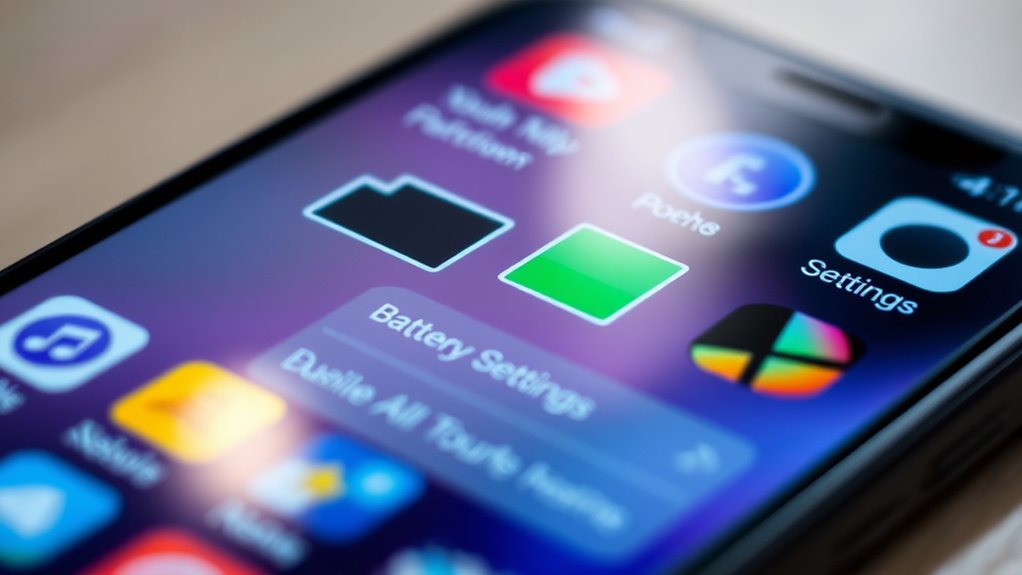
Many smartphones come equipped with built-in battery optimization tools designed to extend your device’s battery life. These features help you manage power consumption more effectively through functions like battery calibration and app permission management. By enabling these tools, you can:
- Visualize which apps drain your battery the most and restrict their background activity
- Automatically adjust screen brightness and timeout settings for energy savings
- Ensure your device runs smoothly with optimized power management settings
Using these tools allows you to fine-tune your device’s performance, prevent unnecessary drain, and improve overall battery longevity. Don’t forget to periodically perform battery calibration to recalibrate sensors and maintain accurate power readings. Managing app permissions also prevents apps from running background processes that waste energy.
Check for Battery-Draining Hardware Issues

Your device’s hardware could be the culprit behind quick battery drain. Faulty batteries, overheating, or damaged connections can all cause significant issues. It’s important to identify and address these hardware problems to improve your phone’s battery life.
Faulty Battery Components
Faulty battery components can substantially contribute to rapid battery drain, especially if hardware issues cause the battery to malfunction. Over time, your battery might lose its ability to hold a charge, leading to faster drain. A faulty charging port can prevent proper power flow, causing incomplete charging and inaccurate battery readings. Poor battery calibration can also make your device misjudge how much juice remains, prompting unnecessary power-saving measures. You might notice your phone discharges quickly even after a full charge or struggles to reach 100%. Check for signs like swelling, corrosion, or physical damage. Common hardware issues include:
- Damaged internal battery cells
- Corroded or loose charging port connections
- Inaccurate battery calibration data affecting performance
Overheating Devices Risks
Overheating devices often signal underlying hardware issues that can accelerate battery drain. When your device temperature rises excessively, it’s usually due to battery overheating or malfunctioning components that cause the device to work harder than necessary. High temperatures can damage internal parts and reduce battery lifespan, leading to faster depletion. If your device feels unusually warm during use or charging, it’s a sign you should check for hardware problems. Overheating not only shortens your battery’s life but also risks overheating the entire device, potentially causing crashes or hardware failures. Keep an eye on the device temperature and avoid exposing your phone to extreme heat. Addressing hardware issues early helps prevent further battery drain and prolongs your device’s overall health.
Damaged Hardware Connections
Damaged hardware connections can considerably impact your device’s battery life by disrupting the flow of power. If your phone’s internal connections are loose or corroded, it can cause inconsistent charging and drain the battery faster. To identify issues, perform a physical inspection of your device’s battery and connection points. Look for signs like corrosion, bent pins, or broken connectors.
Consider these visual cues during inspection:
- Corrosion or residue around the battery contacts
- Bent or broken pins in the charging port
- Loose or disconnected cables inside the device
If you notice any of these, it indicates faulty hardware connections that may need professional repair or replacement. Ensuring solid hardware connections is essential for excellent battery performance.
Perform a Factory Reset if Problems Persist
If your Android device continues to drain battery quickly despite troubleshooting, performing a factory reset can often resolve underlying software issues. A factory reset restores your device to its original settings, eliminating any problematic apps or settings that might be causing excessive battery drain. Before proceeding, back up important data, as this process erases all personal files and app data. To perform the reset, go to your device’s settings, select “System,” then “Reset,” and choose “Factory Data Reset.” This device restore can fix persistent issues that other troubleshooting steps might not resolve. Keep in mind, a factory reset is a last resort, but it can profoundly improve battery life if software conflicts are the root cause of your problem.
Frequently Asked Questions
How Can I Conserve Battery Life Without Limiting App Functionality?
To conserve battery life without limiting app functionality, manage background apps by closing or disabling unnecessary ones. Adjust your screen brightness to a lower level or enable adaptive brightness. These simple steps help reduce power consumption without impacting your app usage. By controlling background app activity and optimizing screen brightness, you keep your device efficient and extend your battery life effortlessly.
Are There Specific Apps Known to Drain Android Batteries Quickly?
Imagine your phone’s battery as a thirsty traveler, gulping down power with every step. Battery hogging apps and resource-intensive games are the biggest culprits, draining energy rapidly. These apps, like endless waterfalls, consume more CPU and screen brightness, leaving less for your essential tasks. To conserve, identify and limit or uninstall these power-hungry apps, especially during low battery, so your device can last longer without sacrificing fun or functionality.
Does Replacing the Battery Improve Overall Device Performance?
Replacing the battery can improve your device’s performance, especially if it’s old or degraded. It helps restore battery capacity, which enhances charging habits and prevents rapid drain. Before replacing, try battery calibration to guarantee accurate readings. A fresh battery, combined with good charging habits, boosts overall speed and longevity, making your device feel snappy again. So, if your battery’s worn out, a replacement is often worth the investment for better performance.
How Do I Identify if Hardware Issues Are Causing Rapid Battery Drain?
Think of your phone as a car; if it’s sputtering, hardware issues might be the culprit. To identify this, run hardware diagnostics through your device settings or a trusted app. Check your battery health in the settings—if it’s markedly degraded, hardware problems could be draining your battery faster than usual. If diagnostics reveal issues, consider professional repair or replacement, so your phone runs smoothly again.
Can Software Updates Negatively Impact My Device’s Battery Life?
Yes, software update risks can temporarily impact your device’s battery health. When you install an update, your phone may run background processes that drain power faster, or bugs could cause higher battery consumption. Usually, these issues resolve with subsequent updates or adjustments. To protect your battery health, keep your device up-to-date, but monitor how updates affect your battery to spot any long-term problems early.
Conclusion
By tuning your device thoughtfully, you can help it run more smoothly and last longer each day. Sometimes, gentle adjustments and mindful habits make all the difference—like giving your phone a little extra care. Remember, even small changes can create a quieter, more balanced experience. With patience and attention, your device will serve you better, quietly supporting your day without demanding too much. It’s all about finding harmony in your digital routine.