
If your visual voicemail isn’t working, start by checking your notification settings to make certain alerts are enabled. Confirm your device has a strong network connection or toggle airplane mode to reset it. Make sure your voicemail app and phone software are up to date. If problems persist, resetting your network settings can help, but note this erases saved Wi-Fi passwords. Still having issues? Contact your carrier support for tailored help—more tips await if you keep exploring.

Get the latest gadgets delivered free with Prime
- Fast, free delivery on millions of items
- Prime Video, Amazon Music and more included
- Member-only deals all year
Key Takeaways
- Check and enable voicemail notifications in device and app settings.
- Verify your network connection, toggle airplane mode, or switch between Wi-Fi and cellular data.
- Update your voicemail app and device software to the latest versions.
- Reset network settings to resolve misconfigurations affecting voicemail.
- Contact your carrier support if the issue persists after troubleshooting.
If your visual voicemail isn’t working properly, it can be frustrating and hinder your ability to manage messages efficiently. You might notice that you’re not receiving voicemail notifications as you normally would, or perhaps the app isn’t displaying your messages at all. This can leave you unsure if you have new messages or if your voicemail service is functioning correctly. Fortunately, most issues with visual voicemail can be fixed with a few straightforward troubleshooting steps. The key is to identify whether the problem lies with your device, network connection, or your carrier’s service.
First, check your voicemail notifications setting. Sometimes, notifications get turned off accidentally or due to app updates. Make sure notifications for your voicemail app are enabled in your device’s settings, and verify that your phone’s notification settings aren’t silenced or disabled. If notifications aren’t coming through, it’s often due to a simple setting that needs to be adjusted. Once you’ve confirmed your notifications are correctly set, restart your phone. A quick reboot can resolve minor glitches that might be interfering with the app’s ability to alert you about new messages.
Next, ensure your device has a solid network connection. Visual voicemail relies on data, so if you’re in an area with weak or no signal, the service may not function properly. Check your signal strength and try toggling airplane mode on and off to reset your network connection. If you’re on Wi-Fi, confirm that your Wi-Fi connection is stable. Sometimes, switching between Wi-Fi and cellular data can resolve connectivity issues impacting voicemail notifications. Additionally, understanding your phone settings and how they affect connectivity can help prevent future problems.
Another troubleshooting step involves updating your voicemail app or your device’s software. Outdated apps or system software can cause compatibility issues. Visit your device’s app store and check for updates to your voicemail app or your phone’s operating system. Installing the latest version ensures you have all the recent bug fixes and improvements, which can often resolve visual voicemail problems.
If these steps don’t resolve the issue, consider resetting your network settings. This can clear out any misconfigurations affecting your voicemail notifications. Keep in mind, though, this will erase saved Wi-Fi passwords and other network preferences, so be ready to re-enter them afterward. Finally, if none of these troubleshooting steps work, contact your carrier. There might be a service outage or a problem with your account that only your provider can resolve.
Products Worth Considering

Amazon Kindle Paperwhite (12th Generation, 2024), 16 GB, 7-inch Display, Jade
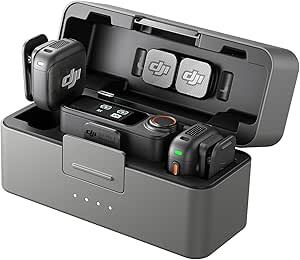
DJI Mic 3 Wireless Microphone System (2 Transmitters, 1 Receiver, Charging Case)

Amazon Kindle Scribe Colorsoft 64GB (1st Generation)
As an affiliate, we earn on qualifying purchases.
Frequently Asked Questions
Does Visual Voicemail Work Internationally?
Yes, visual voicemail can work internationally, but it depends on your carrier compatibility and international roaming settings. You need to verify your carrier supports visual voicemail abroad and that international roaming is enabled on your device. Contact your carrier before traveling to confirm these options, as some providers may require additional plans or settings adjustments. Once set up, you should be able to access visual voicemail even when roaming internationally.
Can I Set up Visual Voicemail on a Prepaid Plan?
Think of your phone as a musical instrument; you can tune it to play the right notes, even on a prepaid plan. Yes, you can set up visual voicemail, but keep in mind prepaid limitations like voicemail compatibility and features. Some carriers restrict advanced options, so check with yours first. With a little setup, you’ll be able to enjoy visual voicemail just like a professional musician hitting perfect notes.
Is Visual Voicemail Available on All Device Models?
Not all device models support visual voicemail due to device compatibility and carrier restrictions. To check if your device works, visit your carrier’s website or contact customer support. Some carriers may require specific apps or settings to enable visual voicemail. If your device isn’t compatible, you might need an upgrade or alternative voicemail options. Always verify with your carrier before assuming visual voicemail is available on your device.
How Do I Disable Visual Voicemail Temporarily?
Think of your phone as a symphony, where every feature plays a essential note. To temporarily disable visual voicemail, go to your voicemail setup or app, then select settings to turn it off. Remember, phone compatibility matters; some devices may not support this feature fully. Disabling it helps you focus on calls without visual distractions, giving you a break while keeping your options open for reactivation later.
Will Resetting My Phone Delete My Voicemails?
Resetting your device typically deletes your voicemails, so it’s crucial to do a voicemail backup before resetting. If you haven’t backed up your voicemails, they’ll be lost during the reset process. To avoid losing important messages, save or transfer your voicemails beforehand. Once you’ve completed the backup, resetting your device shouldn’t affect your stored voicemails, but always double-check with your carrier for specific instructions.
Conclusion
Now that you’ve navigated through those troubleshooting steps, your visual voicemail should be back up and running like a well-oiled machine. Think of it as revealing a secret garden—once fixed, all your messages bloom effortlessly at your fingertips. Don’t let glitches be a thorn in your side; instead, keep this guide handy as your trusty map. Soon, you’ll be sailing smoothly through your voicemails, each message a shining gem in your personal treasure chest.