
Your Wi-Fi may feel slow even if your internet plan is fine because poor router placement, interference from devices like cordless phones or microwaves, and thick walls can weaken signals. Multiple devices streaming or downloading simultaneously also share bandwidth, slowing things down. Sometimes, interference from neighboring Wi-Fi networks or outdated channels cause issues. Moving your router to a central spot, minimizing obstacles, and switching channels can make a big difference—discover more tips to boost your speed.

Get the latest gadgets delivered free — and shop member deals
- Fast, free delivery on millions of items
- Access to Prime Big Deal Days deals on October 6–7
- Prime Video, Amazon Music and more included
Key Takeaways
- Poor router placement behind furniture or near thick walls weakens signal strength and causes slow speeds.
- Interference from other devices on the 2.4 GHz band or neighboring Wi-Fi networks can reduce performance.
- Multiple devices streaming or downloading simultaneously saturate bandwidth, slowing down the connection.
- Environmental obstacles like metal objects or electronic appliances disrupt Wi-Fi signals and create dead zones.
- Automatic channel selection may pick congested channels, leading to slower Wi-Fi performance.
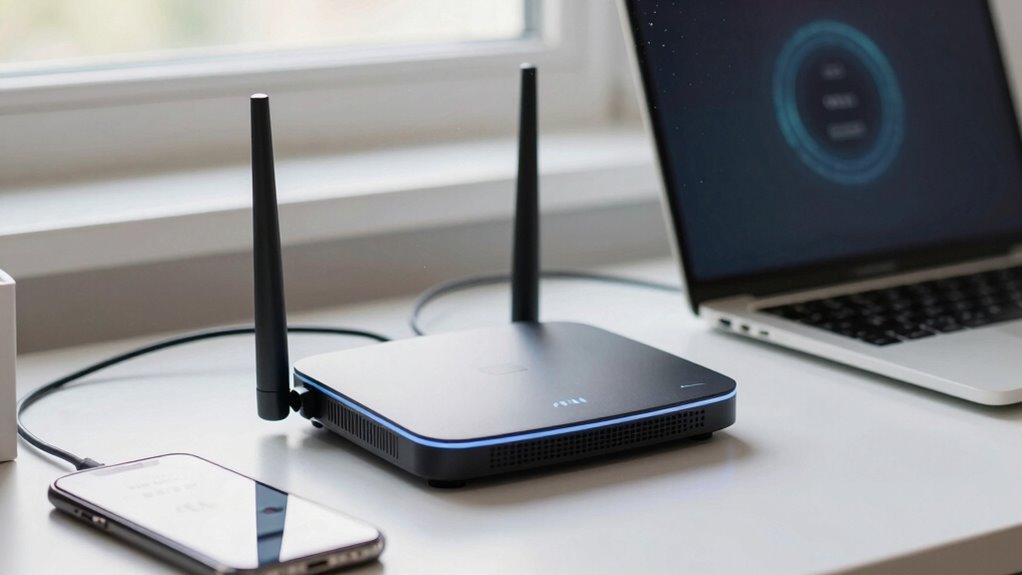
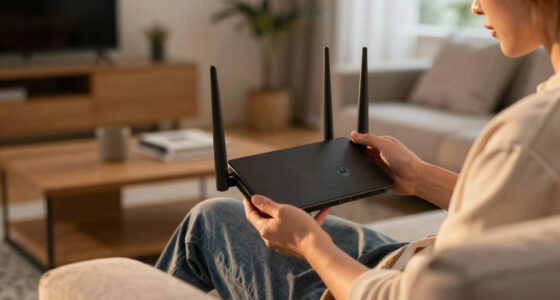
If your Wi-Fi suddenly feels sluggish despite a strong signal, you’re not alone. Many people experience slow internet even when their router shows full bars or a good connection. The culprit often lies in how your router is positioned and what’s around it. Router placement is crucial. If your router sits hidden behind furniture, inside a cabinet, or near thick walls, it can block or weaken the signal. Ideally, you want your router in a central, open spot, elevated off the ground, free from obstructions. This helps distribute the signal evenly across your space. Avoid placing it near metal objects or appliances like microwaves, which can interfere with Wi-Fi signals. A poor placement can lead to dead zones or inconsistent speeds, making your browsing frustrating despite a seemingly strong connection. Additionally, environmental factors such as nearby thick walls or electronic devices can significantly impact Wi-Fi performance, even if your setup seems optimal. Device interference also plays a big role in slowing down your Wi-Fi. Many modern devices, such as cordless phones, baby monitors, or Bluetooth gadgets, operate on similar frequencies as your Wi-Fi, especially the 2.4 GHz band. When multiple devices use the same frequency, they can cause interference, leading to dropped connections or sluggish speeds. Even neighboring Wi-Fi networks can interfere if they operate on the same channel. You might not realize how crowded your Wi-Fi neighborhood is, but switching your router to a less congested channel can improve performance. Many routers have automatic channel selection, but sometimes manually choosing a cleaner channel makes a difference. Additionally, the number of connected devices matters. When several devices are streaming, gaming, or downloading simultaneously, they share the available bandwidth, which slows down your connection. Make sure to prioritize critical devices or limit background apps that consume data. Upgrading your router or adjusting its settings can also help handle multiple devices better. In essence, your slow Wi-Fi isn’t always due to your internet plan or service provider. It’s often about the physical setup and the environment. Optimizing router placement and reducing device interference can significantly boost your Wi-Fi speed. Keep your router in a strategic spot and minimize interference sources, and you’ll notice faster, more stable internet. Sometimes, a simple repositioning or channel change can make all the difference between a sluggish connection and a smooth online experience. Being aware of interference sources and how they affect your network can help you troubleshoot and improve your Wi-Fi performance more effectively.
As an affiliate, we earn on qualifying purchases.
Frequently Asked Questions
Can Outdated Device Hardware Affect Wi-Fi Speed?
Yes, outdated device hardware can affect your Wi-Fi speed. If your device isn’t compatible with the latest network standards, it won’t connect efficiently. Additionally, older hardware may struggle with network congestion, causing slower speeds even with a good connection. Upgrading your device or ensuring compatibility with current Wi-Fi standards can improve performance and reduce frustrating slowdowns caused by outdated hardware.
How Does Wi-Fi Interference Impact Connection Quality?
Think of your Wi-Fi connection as a clear stream. Electromagnetic interference from neighboring networks acts like debris, muddying the water and disrupting smooth flow. These signals clash, causing packet loss and lag. When too many networks compete in the same airspace, your connection struggles to stay steady. To improve, change your Wi-Fi channel or move your router away from other electronics, restoring the stream’s clarity and speed.
Does Router Placement Influence Internet Speed?
Yes, router placement markedly influences your internet speed. If you position your router in a central, open spot, it can broadcast a stronger signal throughout your space. Avoid signal obstacles like thick walls, metal objects, or electronic devices that cause interference. Proper placement reduces dead zones and boosts connection quality, ensuring faster speeds and a more reliable Wi-Fi experience. Remember, a well-placed router makes all the difference.
Can Multiple Devices Overload My Wi-Fi Network?
Yes, multiple devices can overload your Wi-Fi network. When several devices connect, they create device congestion, which strains your router’s capacity. Each device shares the available bandwidth, so as more devices access the network, the bandwidth sharing becomes less efficient, leading to slower speeds. To improve performance, limit the number of active devices or upgrade your router to handle higher device congestion more effectively.
Is My ISP Throttling My Internet Speed?
You might think your internet’s slow because of your home setup, but sometimes your ISP is throttling your speed. They do this through bandwidth management, especially during peak hours, to control signal congestion. This deliberate slowing can make your connection feel sluggish, even if your equipment is fine. To confirm, run speed tests at different times and compare results — if speeds drop consistently, ISP throttling could be the culprit.
As an affiliate, we earn on qualifying purchases.
Conclusion
Remember, even the swiftest fox can stumble if the forest’s dense. Your Wi-Fi might seem sluggish, but it’s often just a matter of clearing the underbrush—checking your router’s position, reducing interference, or updating firmware. Don’t let your connection become like Icarus flying too close to the sun; instead, keep it grounded and optimized. With a few simple tweaks, you’ll be surfing smoothly, feeling like the hero in your digital Odyssey.
As an affiliate, we earn on qualifying purchases.
As an affiliate, we earn on qualifying purchases.
Halloween Picks
halloween
As an affiliate, we earn on qualifying purchases.