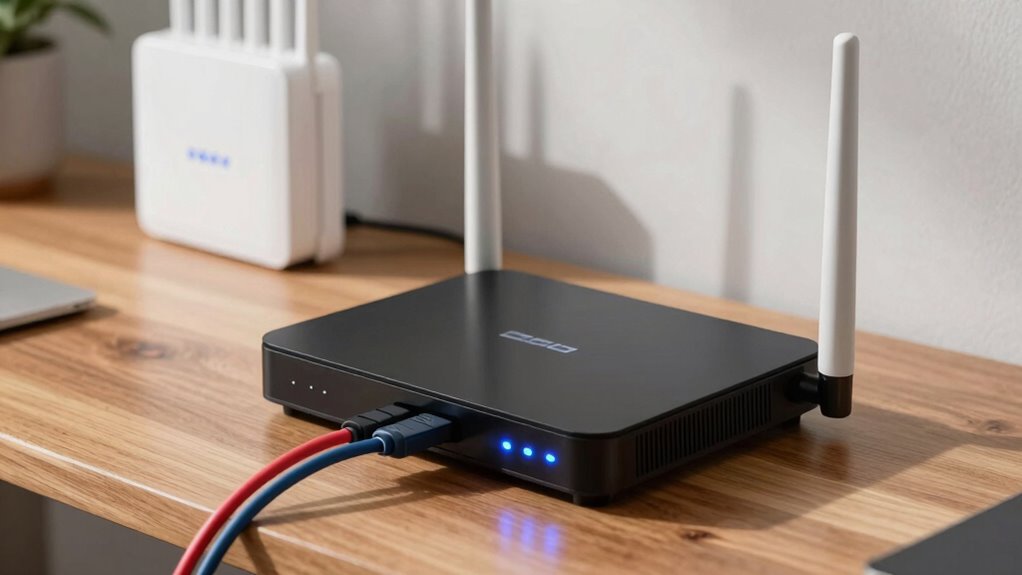

Understanding your home network starts with knowing how your modem, router, and extenders work together. The modem connects your home to the internet and translates signals from your ISP. The router distributes that internet connection to your devices and manages traffic. Extenders boost Wi-Fi in weak spots, ensuring better coverage. Proper setup, placement, and security boost performance and reliability. Keep exploring to learn how to optimize your network and fix common issues efficiently.
Key Takeaways
- Modems connect your home to the internet and translate signals from your ISP for device use.
- Routers distribute internet, manage traffic, and enhance security within your home network.
- Wi-Fi extenders boost coverage by repeating signals, especially in dead zones or large areas.
- Proper placement, environmental awareness, and firmware updates optimize network speed and stability.
- Troubleshooting involves restarting devices, checking security settings, and minimizing interference sources.
What Is a Modem and How Does It Work?
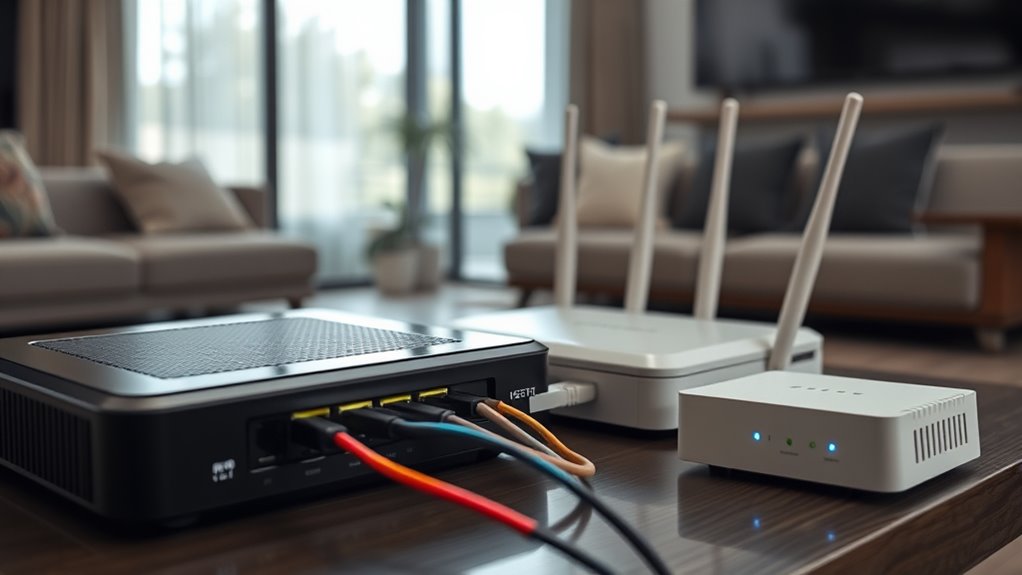
Have you ever wondered how your internet connection gets into your home? It all starts with the modem, a device that connects your home network to your internet service provider. Modem types vary, including cable, DSL, fiber, and satellite modems, each designed for different kinds of internet connections. The modem’s job is to translate signals from your service provider into a form your devices can understand. When you connect your modem, it establishes a link that enables data transfer between your home network and the wider internet. Without a functioning modem, your devices won’t be able to access the internet, making it a vital part of home networking. Understanding how your modem works helps you troubleshoot issues and choose the right one for your needs. European cloud innovation emphasizes the importance of secure and reliable infrastructure for modern connectivity.
Understanding Routers and Their Role in Your Network
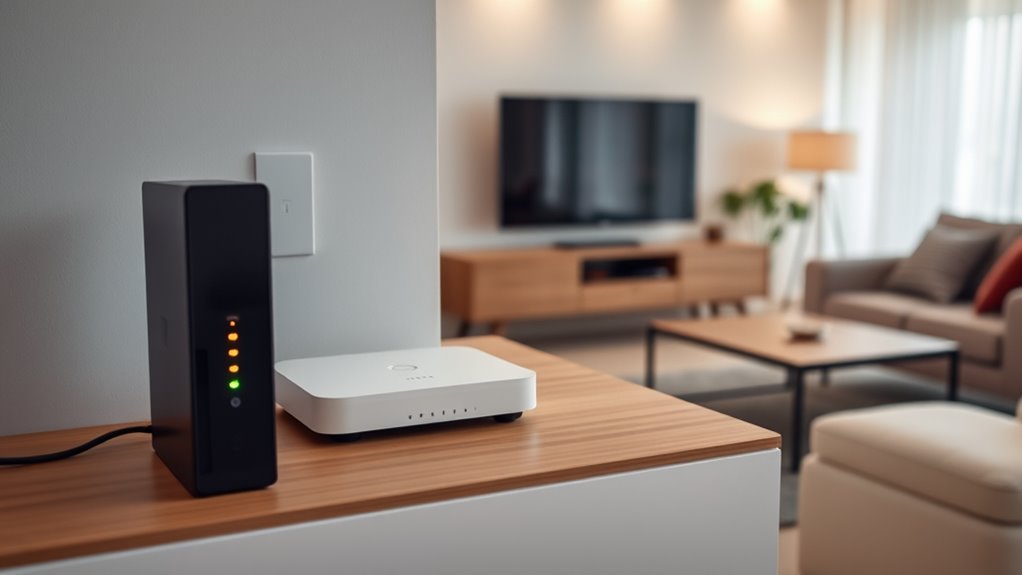
Once your modem connects your home to the internet, a router takes over to distribute that connection to all your devices. It acts as the central hub, managing data flow and ensuring each device gets its share. A key role of the router is maintaining wireless security, protecting your network from unauthorized access through passwords and encryption. It also enables network segmentation, allowing you to create separate networks for guests or smart devices, enhancing security and reducing congestion. By assigning local IP addresses and managing traffic, your router keeps your home network organized and efficient. Additionally, understanding network management can help you optimize your network for various connected devices and automation systems. Proper router placement and configuration are crucial for maximizing coverage and performance throughout your home. Knowing how to configure your network can significantly improve both security and speed. Understanding these functions helps you optimize your setup, ensuring safer browsing and smoother device interactions. A reliable router is essential for a secure, well-structured home network.
How Wi-Fi Extenders Improve Coverage in Your Home

Proper extender placement is key to boosting your Wi-Fi coverage, so position it halfway between your router and the areas with weak signals. This helps maximize signal strength and reduces dead zones. With the right placement, your Wi-Fi signal becomes stronger and more reliable throughout your home. Additionally, using self-watering planters as a metaphor, ensuring the extender’s placement allows for consistent “moisture” (signal) distribution is essential for optimal performance. Just like a proper watering technique promotes healthy plant growth, correct extender placement ensures a robust and stable connection across your living spaces. Moreover, understanding the importance of high-quality home decor can create an environment that supports better focus and comfort while managing your network setup. Recognizing how device compatibility impacts extender performance can also help you choose the best model for your needs. Fostering a well-organized living space can further help streamline your technology setup and maintenance.
Extender Placement Strategies
To maximize the effectiveness of your Wi-Fi extender, it’s vital to place it strategically within your home. Proper extender placement guarantees ideal signal distribution, reducing dead zones and boosting coverage. Position your extender halfway between your router and the area needing better coverage, avoiding obstructions like thick walls or large furniture. Keep it elevated, such as on a shelf, to prevent signal interference. Avoid placing it near electronics that cause interference, like microwaves or cordless phones. Regularly test signal strength to find the best spot for extender placement, guaranteeing a strong and stable connection. Understanding Wi-Fi signals can help you optimize placement for better coverage. Additionally, considering wave and wind factors can help ensure your signals are less affected by environmental conditions, improving overall performance. Being aware of interference sources can further enhance your network stability and coverage.
Signal Strength Enhancement
Have you ever experienced frustrating dead spots or slow internet in certain areas of your home? Wireless signal boosting with Wi-Fi extenders can solve this. These devices improve coverage extension techniques by amplifying your existing Wi-Fi signal, ensuring it reaches distant rooms. Extenders pick up your router’s signal and rebroadcast it, effectively enlarging your network’s reach. Proper placement is key: position the extender halfway between your router and the dead zone for ideal signal strength enhancement. This setup minimizes signal loss and maximizes coverage. By boosting wireless signals, extenders eliminate frustrating gaps, providing consistent internet speed throughout your home. Additionally, understanding wireless signal troubleshooting can help optimize your setup for even better performance. Recognizing home network layout principles can further assist in optimizing extender placement for comprehensive coverage.
Setting Up Your Home Network: Step-by-Step Guide
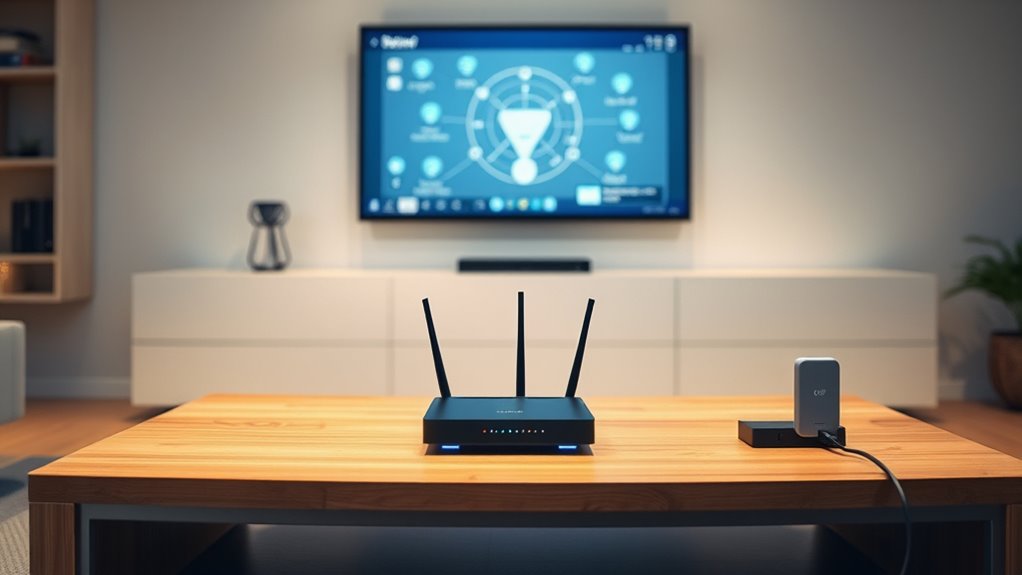
Setting up your home network might seem intimidating at first, but breaking it down into clear steps makes the process manageable. Begin by connecting your modem to the internet source, then plug in your router and power it on. Access your router’s admin panel to customize settings like network name and password. Enable network security features such as WPA3 encryption to protect your data. Set up parental controls to manage content access and monitor usage. Consider creating a guest network for visitors to keep your main network secure. Regularly update your firmware to patch vulnerabilities. Verify your Wi-Fi password is strong and not shared publicly. These steps will help you establish a secure, efficient, and user-friendly home network. Additionally, understanding electric power generation with bike generators can be useful if you’re interested in sustainable energy solutions for your home. A solid grasp of home networking fundamentals can also simplify troubleshooting and future upgrades, especially when considering network security practices to keep your devices protected. Being familiar with wireless standards will ensure your network remains compatible with new devices and technologies.
Common Problems and Troubleshooting Tips

Even with a properly set up home network, problems can still arise that disrupt your connectivity. One common issue is hardware compatibility; sometimes, your modem, router, or extender may not work seamlessly together, causing slow speeds or dropped connections. Check that all devices support the same standards and are updated with the latest firmware. Network security can also cause problems—if your Wi-Fi isn’t secured properly, unauthorized users might slow down your network or cause disruptions. Make sure you’re using strong passwords and enabling encryption. Restarting your devices often fixes temporary glitches, while resetting your router can resolve persistent issues. Regularly updating firmware and reviewing your security settings helps prevent technical problems and keeps your network running smoothly. Understanding hardware compatibility can help you troubleshoot more effectively when issues arise, and being aware of network standards ensures your devices communicate effectively. Additionally, paying attention to device firmware updates can prevent many compatibility issues before they occur. Maintaining a well-configured network with proper device placement can also enhance overall stability and performance.
Tips for Optimizing Your Home Internet Performance
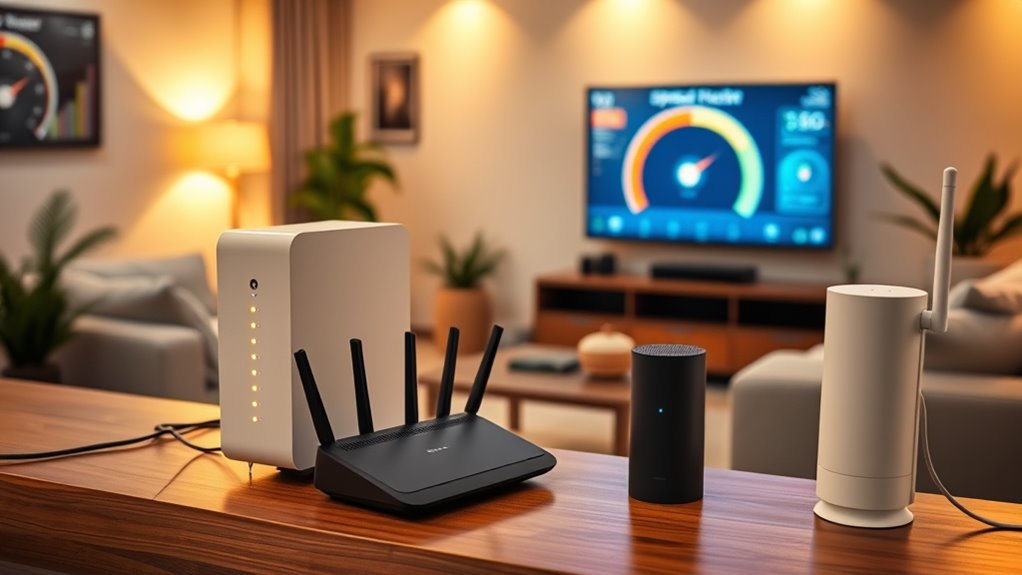
To get the best internet speed, start by placing your router in a central, open spot away from walls and electronics. Reduce signal interference by keeping your Wi-Fi away from cordless phones and microwaves. Don’t forget to update your router’s firmware regularly to improve performance and security. Additionally, consider using a network security protocol to protect your network from unauthorized access. Ensuring proper wireless signal distribution can also help maintain consistent coverage throughout your home.
Optimize Router Placement
Finding the best spot for your router can substantially boost your home internet performance. Place it centrally in your home, away from thick walls and large metal objects, to maximize coverage. Elevate the router off the ground, such as on a shelf, to improve signal distribution. Keep it away from devices that emit interference, like microwaves and cordless phones. Consider using mesh networks if you have a large area, as they provide seamless coverage. Powerline adapters can also extend your network without sacrificing speed, especially in tricky spots. Regularly update your router’s firmware for maximum performance. Avoid placing the router near windows or mirrors, which can reflect signals. Proper placement ensures reliable connectivity throughout your home.
Minimize Signal Interference
Are your Wi-Fi signals struggling to stay strong? Interference sources like neighboring networks, cordless phones, and microwaves can cause signal attenuation, weakening your connection. To minimize this, keep your router away from electronic devices that emit radio waves. Choose a central, elevated spot in your home to reduce obstacles and interference. Avoid placing your router near thick walls, metal objects, or large appliances, which can block signals. Changing your Wi-Fi channel to less crowded ones can also help reduce interference from nearby networks. Regularly check for sources that might disrupt your connection and reposition your router as needed. By proactively addressing interference sources, you’ll optimize your Wi-Fi signal strength and enjoy faster, more reliable internet performance throughout your home.
Regular Firmware Updates
Keeping your router’s firmware up to date is a simple yet effective way to boost your home internet performance. Regular firmware updates enhance firmware security, protecting your network from vulnerabilities. An update schedule guarantees you don’t miss critical patches that improve stability and speed. By staying current, you can fix bugs, optimize performance, and support new features. To maximize benefits, consider the following:
- Check for updates weekly or monthly
- Enable automatic firmware updates if available
- Download updates from official manufacturer sites
- Read update release notes for important changes
- Reboot your router after each update to apply changes
Consistently updating firmware keeps your network secure and running smoothly, making your home internet faster and more reliable.
Frequently Asked Questions
Can I Use Multiple Routers in One Home Network?
Yes, you can use multiple routers in one home network to improve coverage and performance. By setting up multiple routers, you create network segmentation, which helps reduce congestion and enhances device connectivity. Just verify you configure each router correctly—using different IP addresses and disabling DHCP on secondary routers—to avoid conflicts. This setup allows you to extend your Wi-Fi signal efficiently and maintain a stable, fast network throughout your home.
What Is the Difference Between a Modem and a Gateway Device?
Imagine you’re upgrading your setup; a modem connects you to your Internet service, like a gateway opening the door to the web. A gateway device combines a modem and router into one unit, simplifying your network. This impacts your Internet speed and network security, as a gateway manages both functions efficiently. Without a separate modem, setup is easier, but you might sacrifice some control over your network security and customization.
How Do I Know if My Wi-Fi Extender Is Compatible?
You can determine if your Wi-Fi extender is compatible by checking its specifications for extender compatibility and device interoperability with your existing router. Look at the extender’s supported Wi-Fi standards (like 802.11ac or ax) and make sure they match or exceed your router’s capabilities. Also, verify the extender’s brand and model are listed as compatible by your router manufacturer. This way, you ensure smooth setup and reliable performance.
Are Mesh Networks Better Than Traditional Extenders?
Yes, mesh networks are generally better than traditional extenders because they provide seamless wireless coverage and reduce dead zones. Unlike extenders, which can suffer from wireless interference and create separate networks, mesh systems intelligently route signals, improving overall performance. This means you get more consistent signal coverage across your home, fewer interruptions, and a simplified setup, making them ideal for modern, device-heavy households.
How Often Should I Update My Network Hardware Firmware?
You should update your network hardware firmware as often as the manufacturer recommends, typically every few months. Regular firmware updates improve network security by fixing vulnerabilities and bugs, guaranteeing your devices stay protected from threats. Keeping your firmware current also enhances performance and stability. Check your device’s settings or manufacturer’s website periodically to stay informed about new updates and ensure your network remains secure and efficient.
Conclusion
Now that you understand how modems, routers, and extenders work together, you can build a stronger, more reliable home network. Think of your devices like a team passing a ball smoothly across the field—you want each player, or device, in sync. With the right setup and troubleshooting tips, you’ll enjoy seamless internet everywhere in your home, making your online experience as smooth as a well-choreographed dance.