
To boost your Wi-Fi signal at home without hiring a pro, start by placing your router in a central, elevated spot away from clutter and electronics that cause interference. Update its firmware for better performance and security. Switch to a less congested Wi-Fi channel, and secure your network. Use a range extender or repeater to cover dead zones, and adjust antennas for peak coverage. Keep experimenting—there’s more simple tips to improve your Wi-Fi here.
Key Takeaways
- Place your router centrally and elevate it on a high shelf for even coverage.
- Adjust antennas and experiment with angles to optimize signal distribution.
- Switch to less crowded Wi-Fi channels and use the 5 GHz band for less interference.
- Keep the router away from thick walls, electronics, and interference sources like microwaves.
- Use Wi-Fi extenders or repeaters strategically to eliminate dead zones and boost coverage.
Find the Best Spot for Your Router
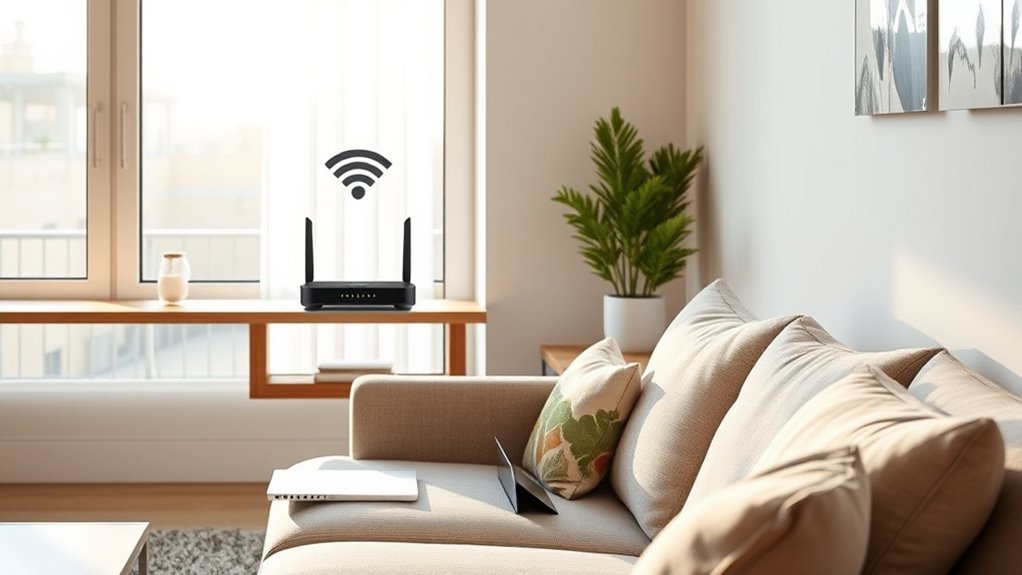
To get the best Wi-Fi signal, you need to place your router in the most favorable spot. Proper router placement is key to maximizing your signal strength. Keep your router central in your home, ideally on a high shelf, to distribute the signal evenly. Avoid placing it behind furniture, inside cabinets, or near thick walls, as these signal obstacles weaken your connection. Stay away from electronics like cordless phones or microwaves that can cause interference. Elevating your router and positioning it away from clutter helps reduce signal obstacles that block or slow down your Wi-Fi. Remember, the clearer the line of sight, the stronger your signal will be, providing faster and more reliable internet throughout your home. A well-placed router can significantly improve your Wi-Fi performance and reduce dead zones. Additionally, interference sources such as other electronic devices can further impact your signal quality, so minimizing their presence around your router is beneficial. Ensuring your router is free from nearby electronic interference sources can help maintain optimal performance and is especially important when considering signal obstacles that may be present in your environment. Being aware of wireless interference sources in your home can help you further optimize your setup and improve connectivity.
Update Your Router’s Firmware
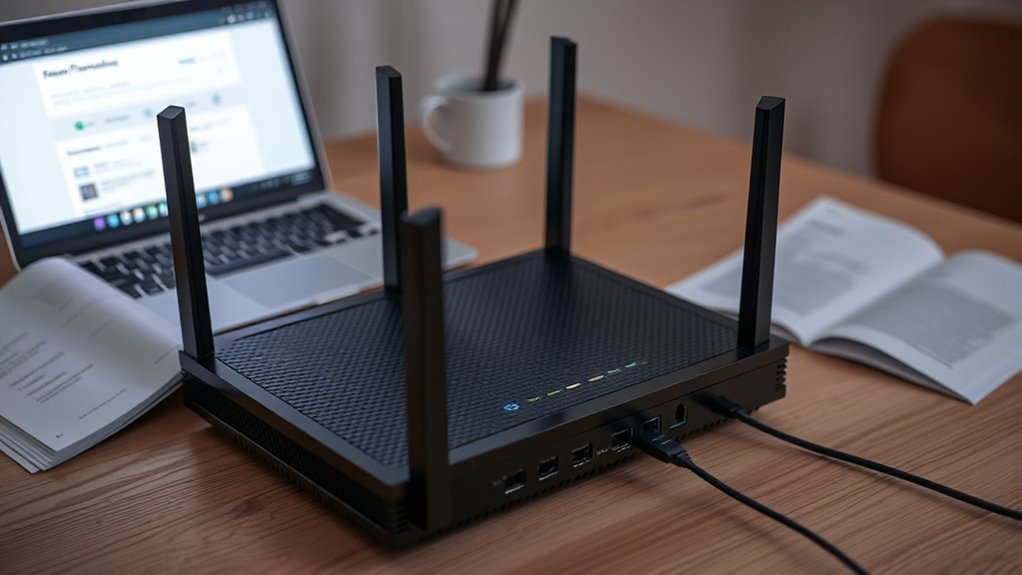
Updating your router’s firmware regularly is essential for maintaining peak performance and security. Firmware updates fix bugs, improve stability, and add new features that can help boost your Wi-Fi signal. To update, visit your router manufacturer’s website or access the admin panel through your browser. Look for the firmware or software update section, then follow instructions to download and install the latest version. This process guarantees your device benefits from security enhancements that protect your network from vulnerabilities. Keeping firmware current prevents potential exploits and keeps your Wi-Fi running smoothly. Additionally, proper configuration of wireless settings can further enhance signal strength and reliability. Regularly checking for updates and firmware release notes ensures you stay informed about improvements and security patches. Incorporating Firmware updates from reputable sources can prevent issues caused by outdated software. Remember, manufacturers release updates periodically, so checking for updates every few months is a good habit. Staying up-to-date helps optimize your router’s performance, preventing compatibility issues and keeping your home network secure, especially considering the importance of hardware compatibility in ensuring seamless updates.
Change Your Wi-Fi Channel

Your Wi-Fi signal can improve if you identify congested channels and switch to a less crowded frequency. Using a scanner or your router’s tools helps you see which channels are busy and which are clearer. By changing to a less crowded channel, you can reduce interference and boost your Wi-Fi performance. Understanding wireless communication principles can further help optimize your home network. Additionally, knowing how radio frequency interference affects signals can assist in choosing the best channel for your environment. Being aware of free floating concepts in wireless signals can help you better troubleshoot and improve your setup. Familiarity with channel congestion can guide you in selecting optimal settings for your specific space. Recognizing how signal propagation impacts coverage can also help you make smarter adjustments.
Identify Congested Channels
Have you ever noticed your Wi-Fi slowing down during certain times of the day? That’s often due to channel congestion, where multiple networks in your area compete for the same space. To identify these crowded channels, use a Wi-Fi analyzer app. These tools show which channels are experiencing the most traffic and highlight frequency overlap, where signals interfere with each other. By pinpointing the most congested channels, you can choose a less crowded one for your router. This simple step reduces interference and improves your Wi-Fi speed. Remember, staying on a busy channel can cause slowdowns, so regularly checking for congestion helps maintain peak performance. Identifying Wi-Fi interference is a key step in reducing interference and boosting network performance. Taking this proactive approach ensures you’re not battling unnecessary interference from neighboring networks. Additionally, understanding your wireless environment can help you optimize your entire home network setup for better coverage, especially when considering radio frequency characteristics and how they influence signal quality.
Switch to Less Crowded Frequency
Once you’ve identified the most congested channels with a Wi-Fi analyzer, the next step is to switch your router to a less crowded frequency. Many modern routers offer dual band options, allowing you to choose between 2.4 GHz and 5 GHz. Using channel selection, you can manually set your router to a frequency with less interference. For example, on the 2.4 GHz band, channels 1, 6, and 11 are popular, but choosing a less crowded one can improve your signal. On the 5 GHz band, there are more channels available, often with less interference. Adjusting your router’s channel settings helps reduce congestion, boosting your Wi-Fi performance and reliability. Switching to a less crowded frequency is a simple, effective way to enhance your home network without extra expenses.
Secure Your Network From Unauthorized Users
To keep your Wi-Fi safe, you need to prevent unauthorized access. Start by changing default passwords and enabling strong network encryption. Don’t forget to update your router’s firmware regularly to patch security vulnerabilities. Additionally, implementing security best practices can further safeguard your network. Using a guest network can also limit access for visitors and reduce potential risks. For added protection, consider monitoring your network’s activity regularly to detect any suspicious behavior. Understanding how network security works can help you identify and respond to threats more effectively.
Change Default Passwords
Did you know that leaving your Wi-Fi router’s default password in place makes it vulnerable to unauthorized access? Changing your default password is *essential* for maintaining strong password security and controlling network access. Use a unique, complex password that’s hard to guess. Avoid common words or patterns, and include a mix of letters, numbers, and symbols. To emphasize, consider this table:
| Weak Password | Moderate Password | Strong Password |
|---|---|---|
| password123 | summer2024 | !X9v#f7L!pQz |
| admin | myhomewifi | 9$kLz!7vB2xQ |
| 000000 | qwerty | G#7z!mL8rP2s |
Prioritizing password security prevents unauthorized network access and keeps your Wi-Fi protected. Additionally, changing default passwords is a simple but crucial step in safeguarding your entire home network. Strengthening your Wi-Fi security can also involve updating firmware regularly, which helps protect against known vulnerabilities and improves overall network performance.
Enable Network Encryption
Enabling network encryption is a crucial step to protect your Wi-Fi from unauthorized users. It strengthens your network security and prevents intruders from accessing your data. To do this effectively, follow these steps:
- Access your router’s admin panel through a web browser.
- Locate the wireless settings section.
- Choose WPA3 or WPA2 encryption, as they are the most secure options.
- Create a strong, unique password and ensure it’s stored securely for future password management.
Regularly Update Firmware
Have you updated your router’s firmware lately? Regularly updating it is essential for maintaining network security and ensuring firmware compatibility with the latest devices. Outdated firmware can leave vulnerabilities open to hackers, risking unauthorized access. Check your router manufacturer’s website or admin panel for updates, and install them promptly. This simple step keeps your network protected from threats and improves overall performance.
| Firmware Update | Security Boost | Compatibility Check |
|---|---|---|
| Fixes vulnerabilities | Protects against hacks | Ensures device support |
| Adds features | Strengthens network security | Maintains smooth connectivity |
| Improves stability | Prevents unauthorized access | Keeps devices working properly |
Use a Wi-Fi Range Extender or Repeater
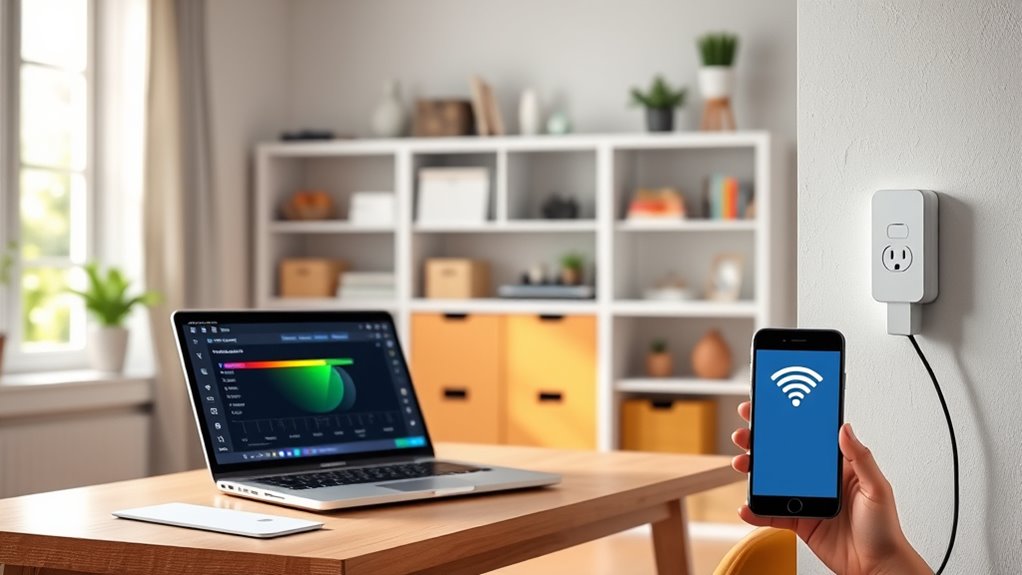
A Wi-Fi range extender or repeater can be an effective solution when your signal struggles to reach certain areas of your home. It works by capturing your existing Wi-Fi signal and rebroadcasting it to improve coverage. To get the best results, consider these tips:
- Choose a device compatible with your router to ensure seamless connectivity.
- Position the extender halfway between your router and the dead zone, avoiding obstructions.
- Opt for a repeater that supports WPA3 or WPA2 to maintain strong wireless security.
- Check that the extender’s setup process is straightforward so you can avoid compatibility issues.
Using a range extender can instantly boost coverage without complex wiring. Just guarantee it supports your device and maintains your network’s security.
Adjust Router Antennas for Better Coverage
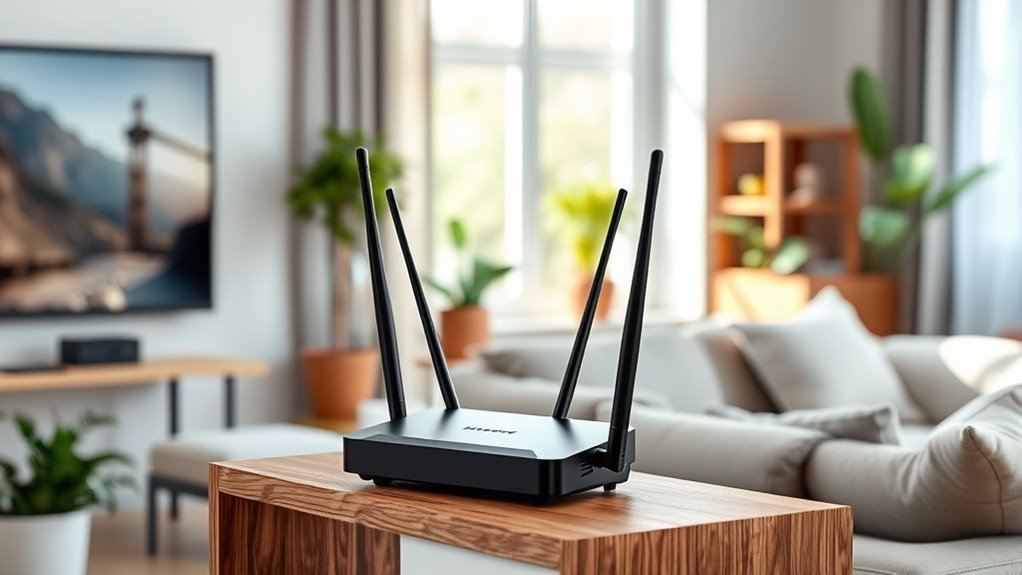
Adjusting your router’s antennas can markedly improve Wi-Fi coverage throughout your home. Proper antenna orientation plays a key role in signal boosting, ensuring your Wi-Fi reaches all areas effectively. If your antennas are vertical, the signal tends to spread horizontally, which works well for single-floor homes. For multi-story buildings, try positioning one antenna vertically and the other horizontally to enhance coverage across different levels. Experiment with antenna angles to find the best setup for your space. Keep in mind that directional antennas can be aimed toward specific areas needing better signal. Regularly adjusting antenna positions can make a noticeable difference in Wi-Fi strength, reducing dead zones and providing a more consistent connection. Simple antenna adjustments can significantly boost your Wi-Fi performance without extra cost.
Minimize Interference From Other Devices
Interference from other electronic devices can considerably weaken your Wi-Fi signal, causing slow speeds and dropped connections. To minimize this, you should:
- Keep your router away from microwave interference by placing it away from microwaves and cordless phones.
- Turn off or relocate Bluetooth devices when not in use to reduce signal clutter.
- Avoid placing your router near thick walls, metal objects, or large appliances that can block signals.
- Use a Wi-Fi analyzer app to identify and eliminate sources of interference in your home.
Frequently Asked Questions
Can I Boost My Wi-Fi Signal Without Buying New Equipment?
Yes, you can boost your Wi-Fi signal without buying new equipment by trying DIY solutions like repositioning your router to a central, open spot. Reduce interference from walls and electronics, and update your router’s firmware. Using free signal boosters or adjusting antenna angles can also help. These simple steps improve your Wi-Fi, making it faster and more reliable without spending extra money.
How Do I Test if My Wi-Fi Speed Improves After Adjustments?
Think of your Wi-Fi as a race car—after tweaks, you need to see if it’s faster. Run a speed test on your device, noting download and upload speeds. Then, use a signal analyzer app to gauge your Wi-Fi’s signal strength and stability. Compare these results to your previous tests. If speeds improve and signals stay steady, your adjustments worked; if not, tweak again and test anew.
Will Moving My Router to a Different Floor Help?
Moving your router to a different floor can help improve your Wi-Fi signal. Proper router placement is key, so try placing it higher and away from interference sources like microwaves or cordless phones. Elevating your router and avoiding obstructions can reduce signal blockages, ensuring better coverage across your home. Experiment with different locations to find the spot that offers the strongest, most consistent Wi-Fi connection.
Are There Any Apps to Analyze Wi-Fi Signal Strength?
Yes, there are Wi-Fi analyzer and signal strength apps that help you check your network’s performance. Apps like NetSpot, Wi-Fi Analyzer, and Fing let you see signal strength, identify dead zones, and find the best spots for your router. You simply download the app, run it around your house, and monitor the signal. These tools make it easy to optimize your Wi-Fi without needing professional help.
How Often Should I Update My Router’s Firmware?
You should update your router’s firmware at least once every three to six months to maintain ideal router security and performance. Regular firmware updates fix security vulnerabilities, improve stability, and enhance signal strength. Following a consistent firmware update schedule ensures your network stays protected from threats and functions smoothly. Keep an eye on manufacturer notifications or set reminders to check for updates, so your Wi-Fi remains fast and secure.
Conclusion
By following these simple tips, you can considerably boost your Wi-Fi signal without spending a dime. Imagine turning your entire home into a seamless internet zone—no more buffering or dead zones. Did you know that interference from just a few devices can reduce your signal by up to 50%? Taking control of your Wi-Fi setup puts that power in your hands, making your online experience faster and more reliable—right where you are.