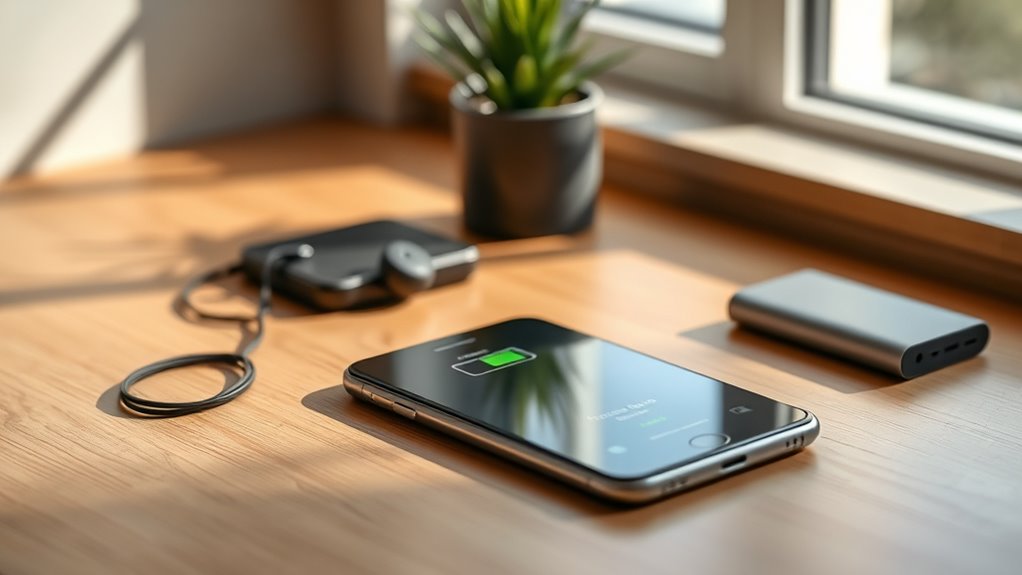

To extend your smartphone’s battery life, activate Battery-Saving Mode, trim down screen brightness and shorten timeouts, and enable dark mode whenever possible. Turn off Wi-Fi, Bluetooth, and mobile data when you don’t need them, and manage app background activity to prevent unnecessary drain. Limiting notifications and auto-updates also helps conserve energy. Keeping your software updated and exploring these tips further will reveal even more ways to boost your battery’s longevity.
Key Takeaways
- Enable Battery-Saving Mode to reduce background activity and extend overall battery life.
- Turn off unused connectivity features like Wi-Fi, Bluetooth, and mobile data when not needed.
- Use dark mode across apps and reduce screen brightness to lower power consumption.
- Manage app background activity by restricting auto-refreshes and closing unused apps regularly.
- Keep software updated and review app permissions to optimize power efficiency and prevent unnecessary drain.
Enable Battery-Saving Mode
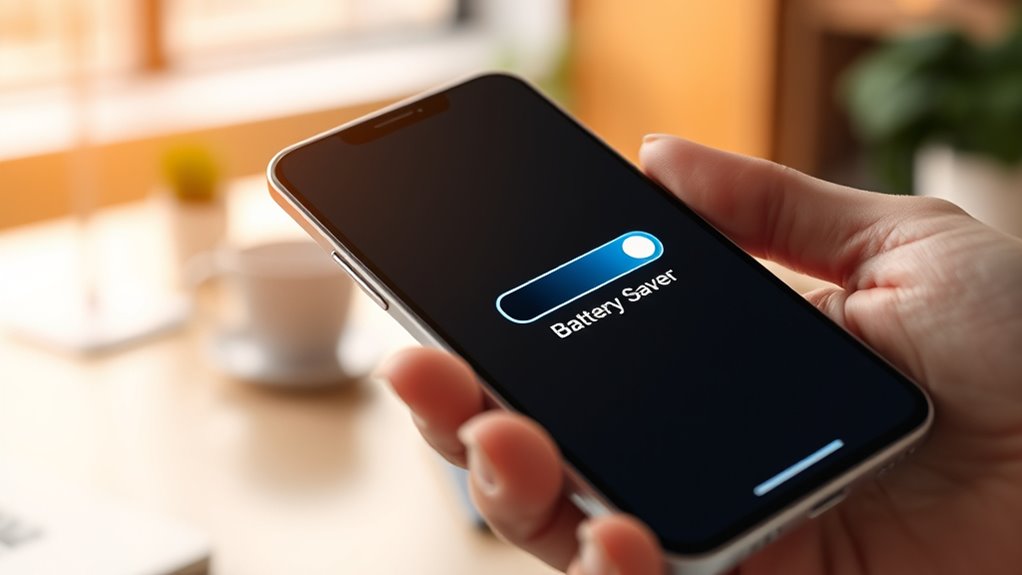
Have you ever wondered how to make your smartphone last longer on a single charge? Enabling battery-saving mode is a simple but effective way to do this. When you turn it on, your device activates power-saving features that reduce background activity, decrease screen brightness, and limit app refreshes. This not only conserves energy but also helps maintain your Battery health over time. Regularly activating this mode ensures you get the most out of each charge, especially during long days or when you’re away from charging sources. It’s a quick step with a big impact on your battery’s longevity. Additionally, limiting background app activity and avoiding extreme temperatures can further preserve battery capacity, ensuring your device stays functional for longer periods. Adjusting screen brightness settings can further reduce power consumption and extend your device’s overall battery life. Being mindful of power management settings can also optimize how your device uses energy, preventing unnecessary drain. Using efficient charging practices, such as unplugging once fully charged, can also help maintain your battery’s health over time. Keep in mind, though, that extended use of power-saving mode can sometimes slow down your device’s performance, so use it when you really need to stretch your battery life.
Adjust Screen Brightness and Timeout Settings
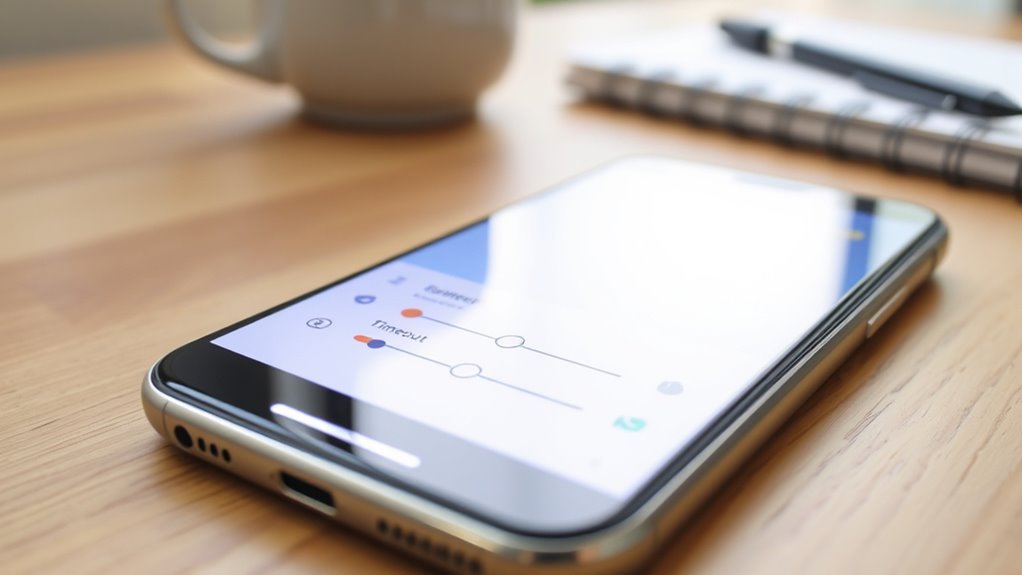
Adjusting your screen brightness and timeout settings is one of the quickest ways to conserve battery life. Lowering brightness reduces power consumption, especially in well-lit environments, and can be easily managed through your device’s display settings. Additionally, setting a shorter screen timeout ensures your display isn’t wasting energy when you’re not actively using your phone. Proper screen calibration can improve touch sensitivity, making your device more responsive without needing to increase brightness. This adjustment helps prevent unnecessary power drain caused by overly sensitive screens or delayed responses. By fine-tuning these settings, you optimize energy use, extend battery life, and ensure your device remains responsive and efficient throughout the day. Incorporating energy-efficient configurations can also help reduce overall power consumption and prolong battery longevity. Regularly updating your device’s software can improve power management features, further enhancing battery life. Additionally, enabling adaptive brightness allows your device to automatically adjust brightness based on ambient lighting conditions, conserving energy more effectively. Utilizing battery saver modes can provide an extra layer of protection for your device’s power reserves during extended usage periods. Incorporating water-saving tips for indoor plants can also help reduce the need for frequent watering, indirectly conserving device energy by minimizing outdoor water usage.
Turn Off Unnecessary Connectivity Features

Turning off Wi-Fi when you’re not using it prevents your phone from constantly searching for networks, saving battery life. Similarly, disabling Bluetooth when you don’t need it stops unnecessary power drain. These simple steps help keep your phone powered longer throughout the day. Additionally, turning on Airplane Mode during periods of inactivity can further conserve energy by disabling all wireless communications. Using battery saver modes can also optimize power usage by limiting background activity and reducing performance temporarily. Being mindful of background app activity and closing unused apps can additionally prevent unnecessary battery drain. For optimal results, consider reviewing your device’s power management settings, which can provide tailored options for conserving battery based on your usage patterns.
Disable Wi-Fi When Idle
When your smartphone’s Wi-Fi remains active even when you’re not using it, it drains battery life unnecessarily. Turning off Wi-Fi when idle helps conserve power and reduces the risk of Wi-Fi security vulnerabilities. Keeping Wi-Fi disabled prevents your device from constantly searching for networks, which can lead to data throttling and slower performance when you do reconnect. Additionally, it minimizes background activity that consumes energy, especially if your device auto-connects to open or insecure networks. Disabling unnecessary connectivity features can significantly improve your battery longevity and device security. By disabling Wi-Fi when not needed, you ensure your battery lasts longer and your device remains more secure. Simply toggle Wi-Fi off when you’re away from trusted networks, and turn it back on only when necessary, helping you extend your smartphone’s battery life effectively. Necessary Cookies ensure your device maintains secure connections and basic functionality while you manage your connectivity settings.
Turn Off Bluetooth When Not Used
Since Bluetooth consumes power even when you’re not actively using it, turning it off when unnecessary can substantially extend your smartphone’s battery life. Maintaining good Bluetooth hygiene helps prevent constant device searching, which drains your battery. Additionally, leaving Bluetooth on can cause wireless interference with other signals, reducing efficiency and increasing power consumption. By turning Bluetooth off when you don’t need it, you minimize these issues and conserve energy. This simple step also reduces exposure to unnecessary wireless emissions, promoting better device health. Regularly managing your device’s wireless connectivity settings can help optimize overall performance and battery longevity. For optimal results, consider checking your device’s power management settings to further enhance battery life. Remember to toggle Bluetooth off after pairing devices or when you know you won’t need the connection for a while. Small habits like this can make a significant difference in extending your smartphone’s battery life throughout the day, especially when combined with other battery-saving techniques. Being aware of your device’s hardware features can also help you identify additional ways to improve battery efficiency.
Manage App Background Activity

Managing app background activity is one of the most effective ways to conserve your smartphone’s battery. Start by creating an app whitelist, allowing only essential apps to run in the background. This helps prevent unnecessary background refreshes that drain power. Go to your device settings and disable background activity for apps that don’t need to update constantly. For instance, social media apps often refresh in the background, consuming energy even when you’re not actively using them. Turning off background refresh for non-essential apps helps reduce battery drain. Keep in mind, some apps may need background activity for notifications or updates, so adjust settings accordingly. Regularly reviewing and managing these settings ensures your battery lasts longer without sacrificing your app functionality. Additionally, understanding battery capacity can help you better optimize your device’s power management strategies. To further improve efficiency, consider using battery optimization features provided by your device. Being aware of power consumption patterns can also guide you in making smarter choices about app usage and settings. Monitoring your app activity can give insights into which apps consume the most power and help you make targeted adjustments.
Use Dark Mode Whenever Possible

Activating dark mode on your smartphone can considerably extend battery life, especially on OLED and AMOLED screens. By switching to dark mode, you reduce the amount of power needed for bright backgrounds, which helps conserve energy. Dark mode benefits include less eye strain and improved screen aesthetics, making content easier to read in low-light environments. It also minimizes the overall brightness your screen emits, leading to longer battery performance throughout the day. Plus, many apps now support dark mode, ensuring a consistent look across your device. Using dark mode whenever possible is a simple yet effective trick to maximize your smartphone’s battery life without sacrificing usability or style. Give it a try and enjoy the visual and power-saving advantages today.
Limit Notifications and Auto-Updates
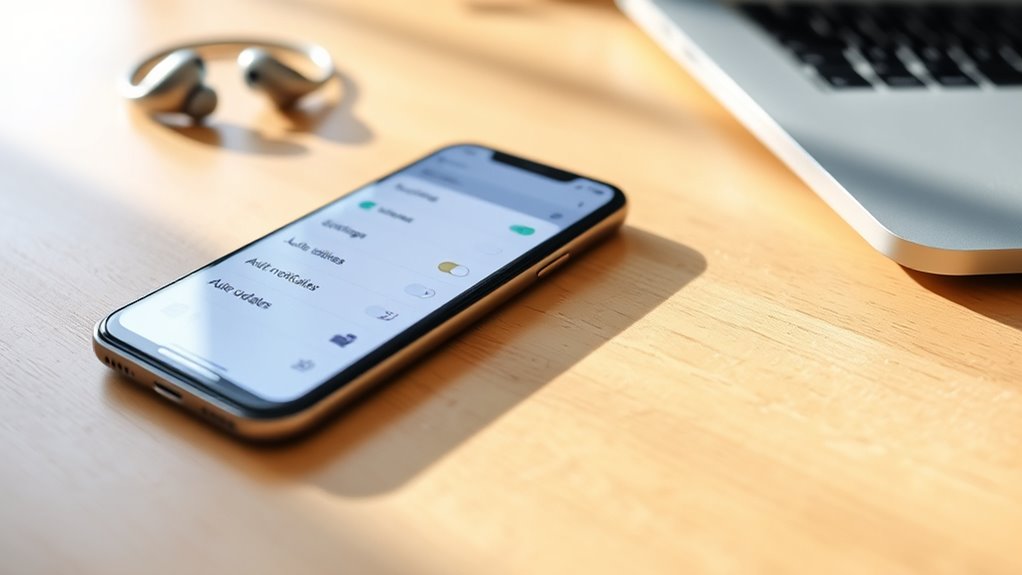
To conserve battery life, it is crucial to limit notifications and auto-updates, as these features constantly wake your device and drain power even when you’re not actively using it. Effective notification management ensures your phone only alerts you to essential updates, preventing unnecessary screen wake-ups. Disable or mute non-urgent notifications from apps that don’t require immediate attention. Additionally, apply auto update restrictions by turning off automatic app updates or scheduling them for when your device is charging and connected to Wi-Fi. This prevents background processes from running constantly. By controlling when and how your phone receives notifications and updates, you reduce background activity and conserve battery life, keeping your device running longer between charges.
Keep Your Software and Apps Updated
Keeping your software and apps updated is essential for peak battery life. Enable automatic updates to stay current without extra effort, and regularly clear cache to free up resources. Also, monitor app permissions to prevent unnecessary background activity that drains your battery.
Enable Automatic Updates
Since software and app updates often include important security patches and performance improvements, enabling automatic updates guarantees your device stays current without manual effort. This also benefits your battery life by reducing the need for manual checks and downloads. When updates happen automatically, your apps can perform auto app refresh efficiently, saving power. Additionally, cloud syncing ensures your data stays consistent across devices without extra battery drain. To optimize, enable auto updates during off-peak hours to minimize background activity. Keep your device’s firmware current to prevent unnecessary power consumption caused by outdated software. Use the following table to understand update options:
| Update Type | Benefit |
|---|---|
| Auto App Refresh | Keeps apps current, reduces manual updates |
| Cloud Syncing | Maintains data consistency, minimizes sync load |
| Firmware Updates | Improves device efficiency and stability |
Regularly Clear Cache
Regularly clearing your cache helps your devices run more efficiently by removing unnecessary temporary files that can slow down performance and drain battery life. Cache clearing is a simple yet effective way to improve storage management, freeing up space occupied by outdated data. When you clear cache regularly, your apps and system run smoother, reducing background activity that consumes power. Keeping your software and apps updated also plays a role, as updates often include performance improvements and bug fixes that enhance battery life. Make it a habit to clear cache periodically through your device settings or app management tools. This proactive step assures your smartphone isn’t wasting energy on unnecessary files, helping your battery last longer and your device perform at its best.
Monitor App Permissions
Have you ever considered how app permissions can impact your smartphone’s battery life? App permission management is essential because apps requesting unnecessary access can drain power. Regular permissions audits help identify apps with excessive permissions, allowing you to revoke what’s unnecessary. When permissions are overly broad, apps may run background processes that consume battery without your knowledge. Keeping your software and apps updated ensures you have the latest security patches and permission controls. Updates often optimize app performance and reduce unnecessary background activity, saving power. By monitoring app permissions proactively, you prevent apps from overstepping their bounds, which can extend your battery life. Make it a habit to review permissions periodically; it’s a simple step that can greatly improve your device’s longevity.
Frequently Asked Questions
How Does Battery Health Impact Overall Battery Longevity?
Battery health directly impacts your phone’s overall longevity by influencing battery degradation and capacity loss. As your battery ages, it experiences capacity loss, meaning it can’t hold as much charge, which shortens your device’s usage time. You can slow this process by avoiding extreme temperatures and frequent full charges. Maintaining good battery health guarantees your phone’s battery lasts longer, reducing the need for early replacements and keeping your device running smoothly.
Can Using Airplane Mode Significantly Save Battery Life?
They say “a penny saved is a penny earned,” and turning on airplane mode can save your battery considerably. When you enable airplane mode, it benefits your device by disabling Wi-Fi, Bluetooth, and cellular signals, reducing power consumption. Use this as a battery-saving tip during low signal or when you don’t need connectivity. It’s an easy way to extend your smartphone’s battery life when you’re running low.
What Are Some Hidden Settings That Can Improve Battery Performance?
You can boost your battery life by managing background apps, which drain power without you realizing. Check your settings to restrict unnecessary background activity. Additionally, adjusting your screen timeout settings helps conserve energy; set it to a shorter duration so your screen turns off quickly when not in use. These simple tweaks keep your phone running longer between charges, making your device more efficient throughout the day.
Does Removing Unnecessary Widgets Help Conserve Battery?
Yes, removing unnecessary widgets can help conserve your battery. Widget management is vital because active widgets constantly refresh data, which drains power. By limiting or removing widgets that you don’t use, you reduce background app refreshes, saving energy. Keep only essential widgets active, and you’ll notice an improvement in battery life. Regularly review your widget setup to make sure you’re not unintentionally draining your phone’s power with unnecessary background activity.
How Do Temperature Extremes Affect Smartphone Battery Efficiency?
Extreme temperatures, whether hot or cold, negatively impact your smartphone’s battery efficiency. High battery temperature accelerates chemical reactions, causing faster battery degradation, while cold temperatures reduce chemical activity, leading to decreased performance. You should practice good thermal management by avoiding prolonged exposure to heat or cold, keeping your device in a cool, dry place, and removing it from direct sunlight. Monitoring battery temperature helps maintain ideal performance and prolongs your battery’s lifespan.
Conclusion
By applying these simple tricks, you can extend your battery life and keep your phone running longer. It’s like giving your device a gust of fresh air amidst constant demands. While technology offers endless features, sometimes less is more—less screen brightness, fewer notifications. Embrace these strategies, and your phone will be both smarter and more resilient, proving that a little effort can turn your device from a battery-draining monster into a reliable companion.