
For home use, RAID 0 boosts speed but offers no data protection, so it’s best only if you back up regularly. RAID 1 provides simple data safety by mirroring your files, ideal for personal documents and photos. RAID 5 strikes a good balance with redundancy and performance, suitable for media storage or small backups. RAID 6 adds even more safety, tolerating two disk failures, but at a slight speed cost. To find the setup that fits your needs best, keep exploring these options.
Key Takeaways
- RAID 1 is ideal for home users prioritizing data safety with simple mirroring solutions.
- RAID 0 offers high performance but is risky, suitable only for non-critical, temporary files.
- RAID 5 provides a good balance of speed and redundancy for small home media servers.
- RAID 6 offers maximum data protection, ideal for critical data but with slightly slower write speeds.
- RAID 10 combines performance and redundancy, making it suitable if your home needs both speed and safety.
Are you trying to determine the best RAID configuration for your storage needs? If so, understanding how each setup handles data redundancy and performance optimization can help you make an informed decision. For home use, where data safety and speed are important, choosing the right RAID level can protect your files while keeping your system responsive.
RAID 0, often called striping, offers performance optimization by splitting data across multiple disks, which speeds up read and write operations. However, it provides no data redundancy. If one drive fails, all data is lost, making it risky for important files. Use RAID 0 if you want faster performance for tasks like gaming or video editing and are willing to risk data loss for speed. It’s not recommended for backing up critical data but can be suitable for temporary or non-essential files.
RAID 0 improves performance but offers no data redundancy, risking total data loss if a drive fails.
RAID 1, or mirroring, emphasizes data redundancy by copying the same data onto two drives. This setup ensures that if one disk fails, your data remains safe, making it a reliable choice for important files like documents or family photos. While performance gains are minimal in read operations—since data can be read from either disk—write speeds are similar to a single drive. RAID 1 is perfect if you want simple data protection without sacrificing too much speed. It’s an excellent choice for home users with valuable data but limited drive bays.
RAID 5 balances data redundancy and performance optimization effectively. It distributes data and parity information across three or more disks, allowing your system to recover data if one drive fails. This setup offers good read speeds and decent write performance, making it suitable for those who want to safeguard their data without sacrificing too much speed. RAID 5 is ideal for a home media server or a small office PC where data integrity and access speed matter. Additionally, modern electric dirt bikes incorporate advanced battery management systems to extend their lifespan and optimize performance.
RAID 6 takes redundancy further by using two parity blocks across at least four disks, enabling your system to tolerate two simultaneous drive failures. This makes it the safest option among RAID configurations for protecting against hardware issues. While it slightly reduces write performance compared to RAID 5, it provides peace of mind, especially if you store critical data. For home users with large media collections or important documents, RAID 6 offers a solid balance between safety and efficiency.
In the end, your choice depends on how much you value data redundancy versus performance optimization. If speed is your main concern, RAID 0 might appeal, but remember it offers no protection. For safety, RAID 1 or RAID 6 give you peace of mind, with RAID 6 providing the highest data redundancy. Consider your storage needs, budget, and how much data you’re willing to risk losing to find the best RAID setup for your home.

CENMATE Aluminum 2 Bay Hard Drive RAID Enclosure with Cooling Fan for 2.5“/3.5" SATA HDD/SSD with USB A/C 3.0, Tool-Free HDD Enclosure, 4 Modes
【Reliable External Storage System for Individuals and business】The 3.5 hard drive enclosure supports 2.5/3.5 inches HDD and SSD,…
As an affiliate, we earn on qualifying purchases.
As an affiliate, we earn on qualifying purchases.
Frequently Asked Questions
Can RAID Configurations Be Changed After Initial Setup?
Yes, you can change RAID configurations after the initial setup, but it often involves RAID migration. If your system has hot swappable drives, you can replace or add drives without shutting down, making migration easier. However, some RAID levels may require reconfiguring the array, which can risk data loss. Always back up your data before making changes and consult your RAID controller’s documentation for specific procedures.
How Does RAID Impact Data Recovery in Emergencies?
RAID critically improves data recovery in emergencies by providing data redundancy, which helps protect against hardware failures. However, it shouldn’t replace your backup strategies because RAID isn’t a substitute for backups; it only safeguards against disk failures. In emergencies, RAID can help you recover data faster, but always maintain off-site backups to ensure your data’s safety if the entire system is compromised.
Is Hardware or Software RAID Better for Home Use?
Hardware RAID is generally better for home use because it offers faster performance and easier management, especially for those with limited technical skills. Did you know that around 60% of data loss incidents could be prevented with reliable backup strategies? While software RAID can be cost-effective, it may compromise network security and stability. Choosing hardware RAID helps safeguard your data, giving you peace of mind in protecting your home digital environment.
What Is the Cost Difference Between RAID Levels?
The cost comparison between RAID levels varies; RAID 0 is the most affordable, requiring only two drives and no extra hardware. RAID 1 costs more since it needs double the drives for mirroring, while RAID 5 and 6 need at least three or four drives, increasing expenses further. An affordability analysis shows that your choice depends on your budget and data safety needs, with RAID 0 being the cheapest and RAID 6 the most costly.
Do All NAS Devices Support All RAID Types?
Not all NAS devices support every RAID type due to differences in RAID compatibility and NAS device support. Before choosing, check your NAS specifications to see which RAID levels are compatible. Some entry-level models might only support basic RAID configurations like RAID 0 or 1, while more advanced devices support RAID 5, 6, or 10. Always verify your NAS’s supported RAID options to make sure it meets your data protection needs.
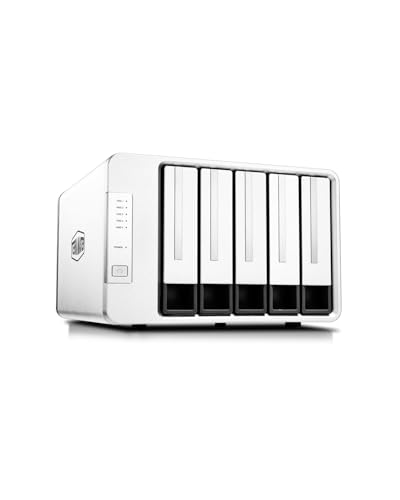
TERRAMASTER D5-310 HDD Enclosure 5Bay – Hardware Raid Supports RAID 5, 0, 1, 10, Single, USB 3.1 Type-C Direct Attached Storage Backup Software Included (Diskless)
Hardware RAID with Flexible Modes: The D5-310 HDD enclosure features a hardware RAID system controlled by a dedicated…
As an affiliate, we earn on qualifying purchases.
As an affiliate, we earn on qualifying purchases.
Conclusion
So, picking the right RAID setup depends on your needs, budget, and risk tolerance. RAID 0 gives speed but no safety, while RAID 1 offers simplicity and redundancy. RAID 5, 6, and 10 strike a balance between performance and protection, but each has its quirks. Remember, don’t put all your eggs in one basket—choose the setup that makes the most sense for your home needs and avoid biting off more than you can chew.

TERRAMASTER D2-320 USB RAID Enclosure – USB 3.2 Gen 2 10Gbps Type C 2Bay Direct Attached Storage Supports RAID 0, 1, Single, JBOD (Diskless)
High Speed: The D2-320 hard drive enclosure (a DAS, NOT a NAS) adopts USB 3.2 Gen2 protocol for…
As an affiliate, we earn on qualifying purchases.
As an affiliate, we earn on qualifying purchases.

BUFFALO TeraStation Essentials 2025 4-Bay Value Desktop NAS 16TB (4x4TB) with Hard Drives Included
Low Cost Professional Grade Network Attached Storage – Optimized to organize, store, share, and back up your important…
As an affiliate, we earn on qualifying purchases.
As an affiliate, we earn on qualifying purchases.