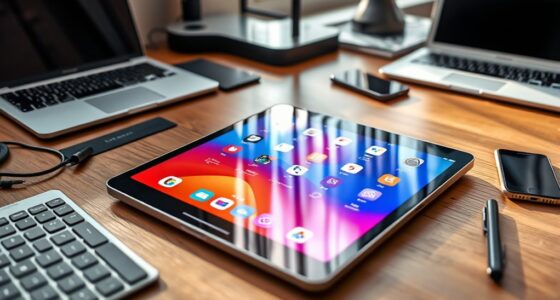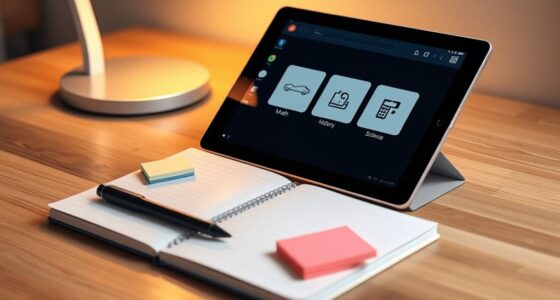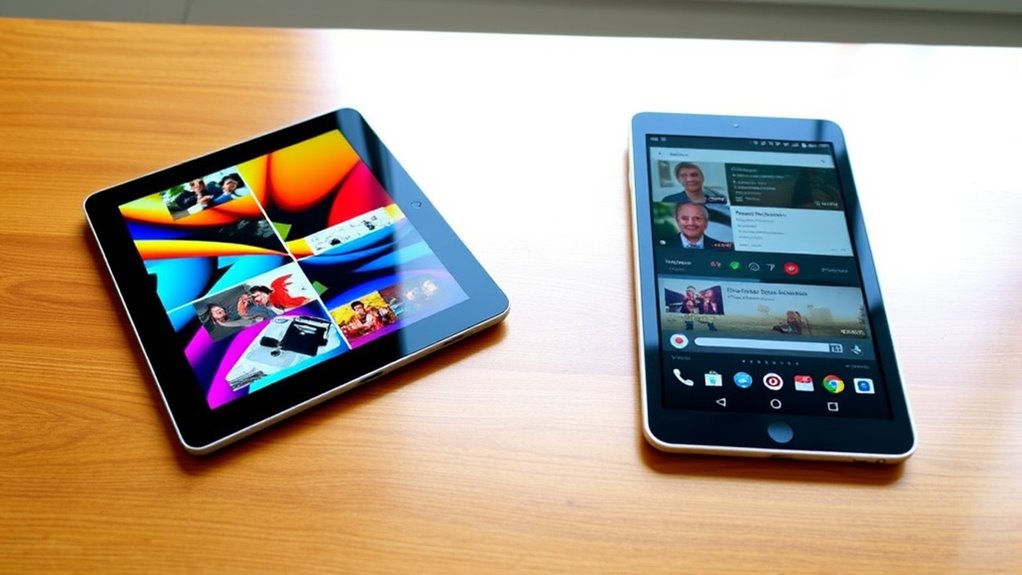

Using split-screen mode on your iPad or Android tablet lets you multitask efficiently by working on two apps side-by-side. You can compare information, copy and paste data, or switch between tasks without constantly changing screens. Activating this feature is simple with gestures or app icons, and app pairing saves time by launching two apps at once. Keep going, and you’ll discover even more ways to boost your productivity with split-screen tools.

Get the latest gadgets delivered free with Prime
- Fast, free delivery on millions of items
- Prime Video, Amazon Music and more included
- Member-only deals all year
Key Takeaways
- Split-screen mode allows multitasking on both iPads and Android tablets, enabling use of two apps simultaneously.
- Activating split-screen involves gestures like dragging apps from the dock or recent apps menu.
- App pairing enables automatic launching of two apps side-by-side for quicker multitasking.
- Mastering multitasking gestures facilitates quick setup and switching between split-screen apps.
- Smart device integration enhances productivity by controlling and automating workflows across devices.
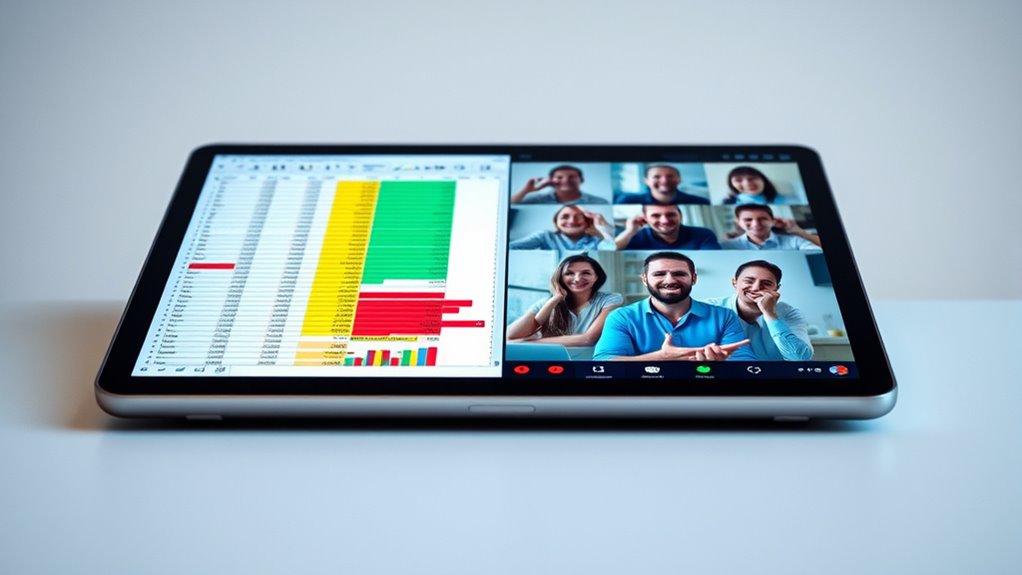
Using split-screen on iPads and Android tablets can remarkably boost your productivity by allowing you to multitask seamlessly. This feature lets you work on two apps simultaneously, making it easier to compare information, copy and paste data, or keep an eye on multiple streams of content without constantly switching between screens. To activate split-screen mode, you typically use specific multitasking gestures—like swiping from the edge of the screen or dragging app icons—making the process intuitive once you get the hang of it. These gestures enable you to quickly enter split-screen mode without browsing through menus, streamlining your workflow.
Using split-screen on tablets boosts productivity by enabling seamless multitasking with intuitive gestures.
Both iPads and Android tablets have introduced app pairing features that enhance your multitasking experience. App pairing allows you to select two apps to launch side-by-side automatically, saving you time and effort. For example, you can set your messaging app and email client to open together so you can respond to messages while reviewing emails. On Android tablets, this often involves holding down app icons or using split-screen buttons found in the recent apps menu. On iPads, you can access split view by dragging an app from the dock or using multitasking gestures designed for multitasking. These features are designed to be user-friendly but also provide advanced options for power users who want to customize their multitasking setup.
Once you’ve mastered these tools, multitasking gestures become second nature. Swiping up from the bottom of the screen and holding allows you to see all open apps and drag your preferred ones into split view. On Android, pinch gestures or tapping the split-screen icon can quickly bring two apps into side-by-side mode. These gestures are especially helpful when you’re working on the go or juggling multiple tasks during meetings or while commuting. The app pairing features further complement this by pre-loading your favorite app combinations, so you don’t waste time setting things up each time you need to multitask.
Additionally, understanding smart device integration can enhance your multitasking experience, allowing for seamless control and automation across your tablet and other smart home devices. Using split-screen effectively requires some practice, but once you get comfortable, it transforms your device into a powerful multitasking tool. You can watch a video while taking notes, compare documents side-by-side, or manage social media accounts without switching apps repeatedly. The combination of multitasking gestures and app pairing features ensures you stay productive and organized, whether you’re using an iPad or an Android tablet. With these tools at your fingertips, you’ll find multitasking not just easier but also more efficient, making your digital workspace more flexible and responsive to your needs.
iPad split screen multitasking accessories
As an affiliate, we earn on qualifying purchases.
As an affiliate, we earn on qualifying purchases.
Frequently Asked Questions
Can I Use Split-Screen With All Apps on Ipad and Android Tablets?
Not all apps support split-screen on your iPad or Android tablet. You can use multitasking gestures to activate split-screen, but app compatibility varies. On iPads, only compatible apps work in Split View, while Android tablets often have a broader range of supported apps. To maximize multitasking, check if your apps support split-screen and use gestures to quickly switch between multitasking modes.
How Do I Adjust the Size of Split-Screen Windows?
Did you know that 75% of tablet users find multitasking essential? To resize split-screen windows, you simply tap and hold the divider between apps, then drag to adjust window size. On iPads and Android tablets, this resizing process is intuitive and quick. Just move the divider left or right to make one app larger or smaller, giving you full control over your multitasking experience.
Is Split-Screen Available on All Ipad and Android Tablet Models?
Split-screen is not available on all iPad and Android tablet models. Your device’s multitasking capabilities depend on its hardware and software, and app compatibility also plays a role. Most recent iPads and many Android tablets support split-screen, but older models might not. Check your device’s specifications and software version to see if multitasking features are supported. Updating your device’s software can sometimes enable split-screen functionality if it’s not already available.
Can I Run Three or More Apps Simultaneously in Split-Screen Mode?
Imagine a digital workspace where you juggle multiple apps effortlessly. You can run three or more apps simultaneously on some Android tablets, enhancing your multitasking efficiency. However, app compatibility varies, and many devices support only two apps in split-screen mode. To maximize your productivity, check your device’s capabilities, as more advanced models may allow you to expand beyond two apps for a seamless, multi-window experience.
Does Using Split-Screen Affect Device Battery Life Significantly?
Using split-screen does impact your device’s battery life by increasing power consumption and causing some battery drain. When you run multiple apps simultaneously, your device’s processor, display, and background activities work harder, which uses more energy. To conserve battery, limit split-screen usage when you’re low on power, and close unnecessary apps. Keep an eye on your device’s power consumption to extend battery life during multitasking.
Android tablet split screen apps
As an affiliate, we earn on qualifying purchases.
As an affiliate, we earn on qualifying purchases.
Conclusion
Now, as you explore split-screen on your iPad or Android tablet, you quickly realize how effortlessly you can multitask. It’s no coincidence that these features make your day smoother—technology simply adapts to your needs. With just a tap, you can do more at once, turning your device into the perfect tool for work or play. So, next time you split your screen, remember: convenience and efficiency are just a swipe away.
As an affiliate, we earn on qualifying purchases.
As an affiliate, we earn on qualifying purchases.
Fall Picks
fall essentials
As an affiliate, we earn on qualifying purchases.