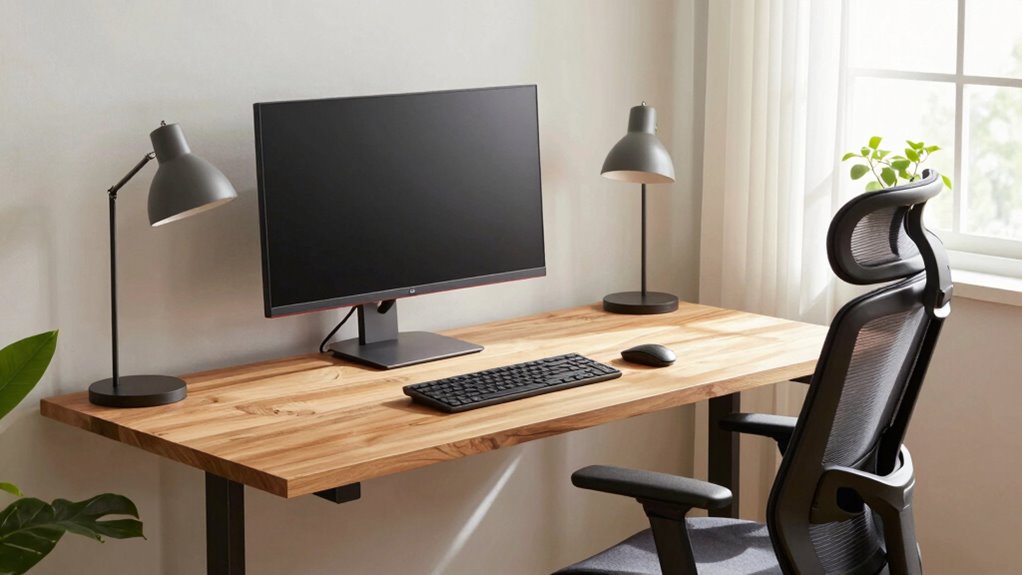

To avoid tech neck and wrist pain, set up your desk with an ergonomic approach. Keep your monitor at eye level and about an arm’s length away, with the top just below eye height. Position your keyboard and mouse close enough to keep your wrists straight and relaxed. Support your lower back and take regular breaks to stretch. Paying attention to these details can make a big difference, and the tips below will guide you through creating a comfortable workspace.
Key Takeaways
- Position your monitor at eye level and about an arm’s length away to prevent neck strain and promote proper alignment.
- Keep your keyboard and mouse close, at a height that allows wrists to stay straight and relaxed during use.
- Support your lower back with lumbar cushions and maintain good posture to minimize neck and back discomfort.
- Take regular breaks to stretch neck, shoulders, and wrists, reducing tension and preventing strain.
- Keep essential items within arm’s reach and minimize clutter to promote natural movement and ergonomic efficiency.
Choosing the Right Desk and Chair
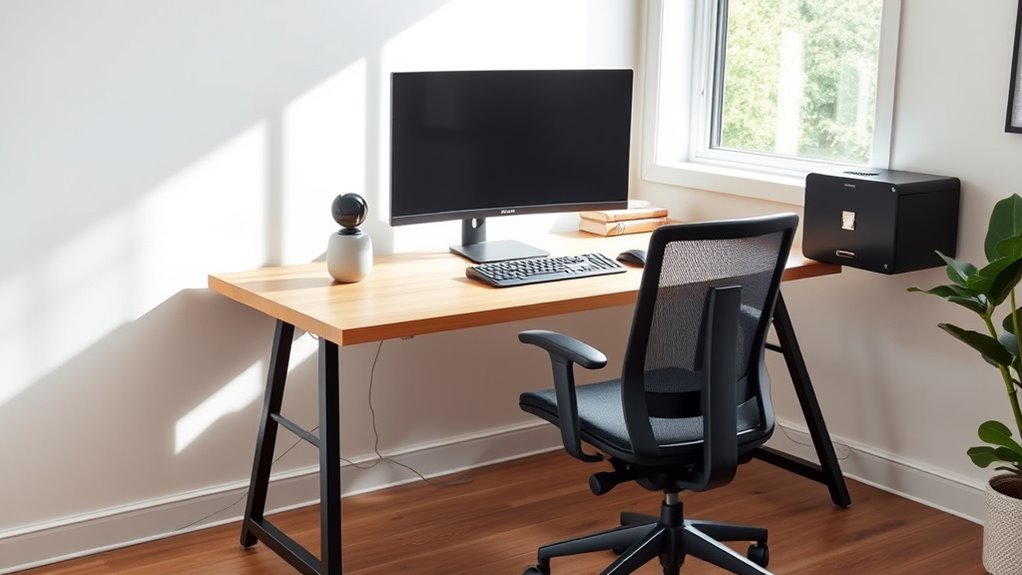
Selecting the right desk and chair is essential for maintaining good posture and preventing discomfort during long working hours. When choosing your desk, consider its aesthetics to match your workspace style, but don’t compromise on comfort and function. Material choices matter too—wood offers durability and a classic look, while metal provides strength and a modern vibe. Your desk should be sturdy enough to hold your gear without wobbling. For your chair, prioritize adjustable features like height, lumbar support, and armrests to keep you comfortable throughout the day. A proper ergonomic setup not only supports your health by promoting proper alignment but also helps prevent common issues like tech neck and wrist pain. Investing in ergonomic furniture that adapts to your body can make a significant difference in your daily comfort. A well-chosen desk and chair combo not only enhances your workspace’s visual appeal but also supports your health by promoting proper alignment and reducing strain. Modern ergonomic design principles emphasize proper support to help maintain spinal health during extended periods of sitting. Incorporating adjustable features and ergonomic accessories can further optimize your workspace for comfort and health.
Proper Monitor Placement
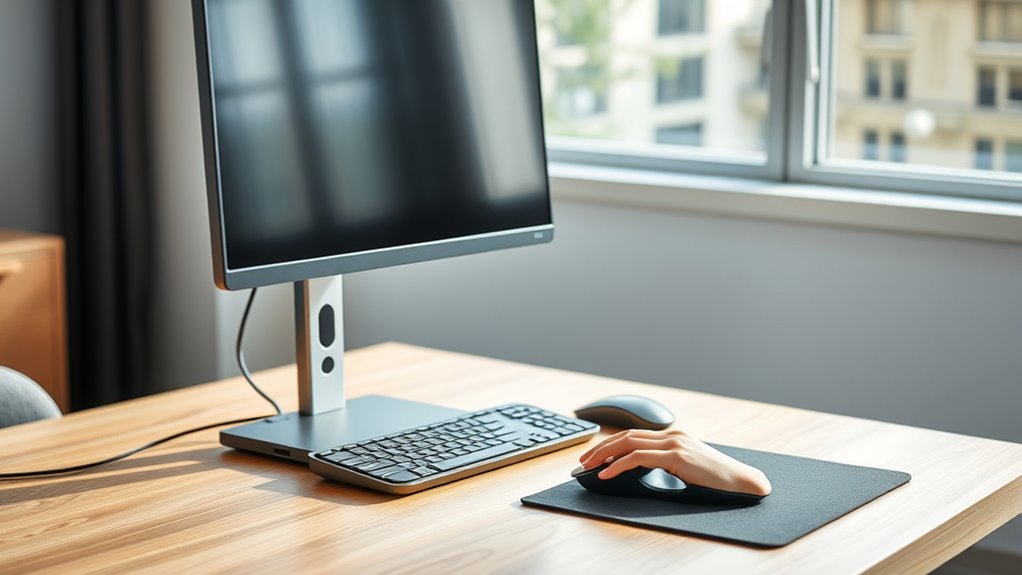
Have you positioned your monitor correctly? Proper monitor placement reduces eye strain and prevents tech neck. First, set the monitor so the top of the screen is at or just below eye level, keeping your neck straight. Second, position it about an arm’s length away to avoid leaning forward. Third, adjust the screen brightness to match ambient lighting, reducing glare and eye fatigue. Fourth, minimize monitor glare by placing it perpendicular to windows or light sources. Ensuring these elements are in place helps maintain good posture and reduces discomfort. Remember, a well-positioned monitor keeps your head aligned, eases eye strain, and makes your workspace more comfortable overall. Additionally, choosing the right display technology can further improve image clarity and reduce eye fatigue during long periods of use. Incorporating adaptive lighting features can also help reduce eye strain by adjusting the lighting based on ambient conditions. Proper ergonomics in monitor placement supports overall comfort and health during extended computer use. Paying attention to ergonomic guidelines can further enhance your workspace setup, especially by considering screen size and resolution to match your visual needs and workspace.
Keyboard and Mouse Positioning

Are your keyboard and mouse positioned to support healthy posture? Your keyboard should be directly in front of you, at a height that keeps your wrists straight and relaxed. This promotes wrist flexibility and reduces strain. Keep your mouse close by, at the same level as your keyboard, to avoid reaching or twisting your wrist. Use keyboard shortcuts whenever possible to minimize excessive movements, which can lead to discomfort over time. Make sure your wrists aren’t resting on hard surfaces; consider a cushioned pad if needed. Maintain a slight tilt of the keyboard to keep your wrists in a neutral position. Proper placement encourages natural movement and helps prevent repetitive strain injuries. Adjust your setup until it feels comfortable and supports your ergonomic health. Additionally, paying attention to desk ergonomics can further enhance your comfort and reduce strain. Ensuring your workspace is ergonomically optimized can make a significant difference in maintaining long-term comfort during work sessions. Incorporating movement breaks into your routine can also help reduce muscle tension and improve circulation, further supporting your ergonomic health. Regularly taking breaks and stretching can also help alleviate tension and prevent discomfort.
Maintaining Good Posture
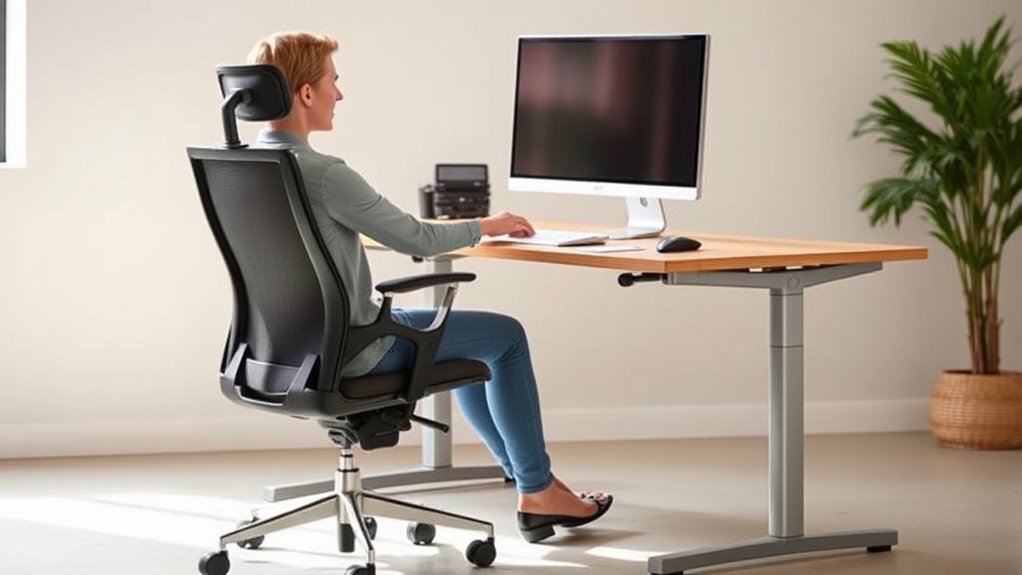
To maintain good posture, keep your head aligned with your spine and avoid jutting it forward. Make sure your lower back is supported by your chair to reduce strain. Proper alignment helps prevent discomfort and keeps you focused throughout the day. Incorporating attention to detail in your setup can further enhance your ergonomic position, including adjusting your monitor height to reduce eye strain. Additionally, being aware of scam red flags when choosing ergonomic accessories can help you avoid lower-quality products that may not provide proper support. Recognizing ergonomic standards can guide you in selecting the most effective and safe equipment for your workspace, ensuring your setup adheres to free floating principles for optimal comfort.
Keep Head Aligned
Ever wondered why keeping your head aligned is essential for comfortable and healthy desk work? When your head tilts forward or downward, it increases neck strain and leads to discomfort over time. To maintain proper posture:
- Keep your monitor at eye level so your head stays straight.
- Avoid craning your neck by sitting close enough to your screen.
- Relax your shoulders and keep them back to prevent unnecessary head tilt.
- Take regular breaks to stretch your neck and reset your posture.
- Being aware of your ergonomic setup can help prevent long-term issues. Incorporating the right proper head alignment techniques can also provide peace of mind when considering investments in gold or other assets, ensuring your financial health is as secure as your physical posture. Additionally, maintaining neutral head position during work can significantly reduce the risk of developing chronic neck pain. Regularly adjusting your workspace to promote correct ergonomics can make a notable difference in your comfort and health. Proper head alignment helps reduce neck strain and prevents long-term issues. Remember, a slight forward head tilt can cause tension, so stay aware of your posture throughout the day for comfort and health.
Support Lower Back
Supporting your lower back is essential for maintaining good posture and preventing discomfort during long hours at your desk. Use a lumbar support cushion or adjustable chair to guarantee your lower back is properly supported. Proper lumbar support helps keep your spine in its natural curve, reducing strain. Incorporate lower back exercises into your routine, like gentle stretches or core strengthening, to enhance muscle support and flexibility. Regularly adjusting your position and taking short breaks also alleviate pressure on your lumbar region. Remember, a well-supported lower back minimizes the risk of pain and fatigue, helping you stay comfortable and focused throughout the day. Decoding slang can also help you better understand informal language and communicate more effectively in casual settings. Additionally, choosing ergonomic office furniture can further improve your posture and comfort. Paying attention to your overall ergonomics ensures a healthier workspace and reduces long-term strain.
Desk Accessories for Comfort

Adding the right desk accessories can make a significant difference in your comfort throughout the workday. Ergonomic office accessories help reduce strain and improve your posture, making your workspace more inviting. They also assist with desk clutter management, keeping your area organized and efficient. Consider these essentials:
Enhance your workspace with ergonomic accessories for comfort and organization.
- An adjustable wrist rest to support your wrists and prevent repetitive strain.
- A monitor stand to keep your screen at eye level, reducing neck tension.
- Cable organizers to manage cords neatly, avoiding clutter and distractions.
- Document holders to keep papers at eye level, minimizing frequent neck movements.
With these accessories, you’ll create a more comfortable, organized workspace that promotes better posture and reduces discomfort during long hours at your desk.
Setting Up Your Work Area

To set up your work area effectively, start by adjusting your desk height so your elbows are at a 90-degree angle. Next, position your monitor about an arm’s length away with the top of the screen at eye level. Keep essential items within easy reach to minimize unnecessary movement and maintain a tidy workspace.
Desk Height Alignment
Ensuring your desk is set to the correct height is essential for maintaining comfort and reducing strain during work. When your desk is properly aligned, it supports good keyboard ergonomics and proper wrist alignment, preventing discomfort and injuries. To achieve this:
- Adjust your desk so your elbows are at a 90-degree angle when typing.
- Make sure your forearms are parallel to the floor, reducing wrist strain.
- Keep your keyboard at a height where your wrists stay straight—avoid bending them up or down.
- Confirm that your feet rest flat on the floor or on a footrest for better posture.
Proper desk height helps you maintain natural arm and wrist positions, minimizing the risk of tech neck and wrist pain. Small adjustments make a significant difference in comfort and productivity.
Monitor Positioning Tips
Proper monitor positioning plays an essential role in maintaining good posture and preventing neck and eye strain. To do this, choose the right monitor size and adjust the tilt for comfort. Your monitor should be directly in front of you, with the top at or slightly below eye level. Adjust the tilt so the screen is angled to reduce glare and reflections. If your monitor is too large or small, it can cause unnecessary movement or strain. Consider a monitor size that fits comfortably on your desk without forcing you to lean forward. Here’s a quick visual:
| Positioning Tips | Description |
|---|---|
| Adjust monitor tilt | Tilt screen for glare reduction and eye comfort |
| Monitor size selection | Choose a size that fits your workspace and reduces strain |
| Eye level positioning | Top of monitor at or slightly below eye level |
| Distance from eyes | Keep about an arm’s length away |
| Screen brightness | Match brightness to ambient lighting for eye comfort |
Organize Essential Items
Organizing your essential items within easy reach helps you work more efficiently and reduces clutter that can distract you. Good personal organization and clutter management keep your workspace tidy and focused. Start by placing frequently used tools nearby, so you don’t have to stretch or reach awkwardly. Consider these items:
- Keyboard and mouse
- Notepad and pens
- Phone or headset
- Sticky notes or reminders
Keep these essentials within arm’s length to minimize unnecessary movement. Use organizers or trays to keep small items sorted and prevent clutter buildup. This setup not only enhances productivity but also promotes better ergonomics. When everything has a designated place, your work area stays streamlined, reducing stress and discomfort. Clear, accessible spaces support better posture and help avoid strain during long work sessions.
Incorporating Movement and Breaks

To prevent stiffness and fatigue, it’s important to incorporate movement and breaks into your work routine. Take short, frequent breaks to stand, stretch, or walk around. Simple stretching routines can relieve tension in your neck, shoulders, and wrists, reducing strain from prolonged sitting. Remember to stay hydrated—hydration habits support circulation and help you stay alert. Every hour, try to stretch your arms, neck, and legs, and change your position to prevent stiffness. Use reminders or timers to prompt these breaks, ensuring you don’t overlook them. Moving regularly keeps your muscles active and promotes better posture. Staying consistent with these habits helps you avoid discomfort and maintains your focus throughout the workday.
Recognizing Signs of Strain

Being attentive to your body’s signals is essential because early signs of strain can prevent more serious injuries. If you notice discomfort, it’s a warning sign you need to modify your setup. Common indicators include:
- Hand muscle tension or aching in your wrists and fingers, which suggests poor wrist positioning.
- Eye strain, causing headaches or blurred vision after long screen time.
- Soreness or stiffness in your neck and shoulders from poor posture.
- Fatigue or a tingling sensation in your hands or arms, signaling overuse.
Paying attention to these signs helps you catch issues early, reducing the risk of long-term pain or injury. Listening to your body ensures you make quick adjustments and maintain comfort during your workday.
Tips for Long-Term Ergonomic Success
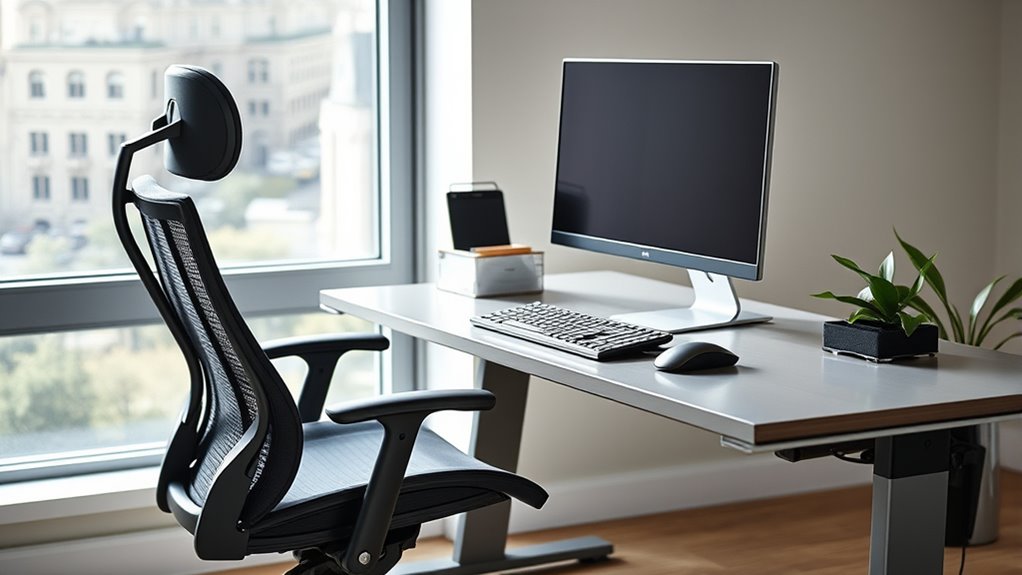
Achieving long-term ergonomic success requires consistent effort and mindful habits. To stay comfortable, invest in ergonomic accessories like adjustable chairs, keyboard supports, and monitor stands. Be aware of ergonomic myths; for example, that expensive gear always guarantees comfort—this isn’t true. Regularly reevaluate your setup to prevent strain. Incorporate breaks and stretching into your routine to reinforce good habits. Here’s a visual to help you picture ideal ergonomics:
| Aspect | Tip | Common Myth |
|---|---|---|
| Workspace | Use ergonomic accessories for better support | Only expensive gear improves comfort |
| Posture | Maintain neutral positions consistently | Good posture is a one-time fix |
| Breaks | Take short, frequent breaks to move | Breaks aren’t necessary if you’re comfortable |
| Routine | Reassess and adjust your setup periodically | Ergonomic setup is a one-time effort |
Frequently Asked Questions
How Often Should I Adjust My Ergonomic Setup?
You should make frequent adjustments to your ergonomic setup, ideally every 30 minutes to an hour, to prevent discomfort. Incorporate regular ergonomic check-ins to guarantee your workspace remains aligned with your posture. Pay attention to signs of strain, and don’t hesitate to tweak your chair, monitor, or keyboard as needed. Staying proactive helps maintain comfort and reduces the risk of tech neck and wrist pain over time.
What Are Common Mistakes to Avoid in Ergonomic Setup?
Avoid common mistakes by focusing on posture correction and equipment placement. Don’t slouch, lean forward, or crane your neck; instead, sit upright with your monitor at eye level. Keep your wrists straight, and position your keyboard and mouse close to reduce strain. Avoid cluttered desks, improper chair height, and poor lighting. Regularly check and adjust your setup to maintain ideal ergonomics, preventing discomfort and long-term injuries.
How Do I Customize Ergonomic Tips for My Body Type?
To customize ergonomic tips for your body type, focus on personalized ergonomics by making body-specific adjustments. Adjust your chair height so your feet rest flat on the floor, and guarantee your monitor is at eye level to prevent neck strain. Use ergonomic accessories like wrist supports if needed. Listen to your body’s signals and tweak your setup to stay comfortable and avoid pain, tailoring your workspace to support your unique needs.
Can Ergonomic Setups Improve Overall Work Productivity?
Yes, ergonomic setups can boost your overall work productivity. Imagine a cluttered desk versus one with well-placed desk accessories that promote better posture awareness. When your workspace is organized and supports your body, you’ll reduce discomfort and fatigue, allowing you to focus longer. Proper ergonomics not only prevents pain but also helps you stay engaged and efficient, making your workday smoother and more productive.
What Are Signs My Ergonomic Setup Needs Reevaluation?
If you notice frequent neck, shoulder, or wrist discomfort, it’s time for a posture correction and equipment calibration. Persistent aches, eye strain, or decreased focus also signal your ergonomic setup needs reevaluation. Pay attention to your body’s signals and modify your chair, monitor height, or keyboard position accordingly. Regularly reassess your workspace to ensure it supports good posture, preventing pain and boosting your comfort and productivity.
Conclusion
By setting up your workspace ergonomically, you create a haven of comfort instead of a source of pain. Imagine a desk where your neck stays relaxed and your wrists feel supported—an oasis of productivity. Now, picture ignoring these tips, facing persistent aches and fatigue. Choosing the right setup isn’t just about comfort; it’s about protecting your health in the long run. Make small changes today for a healthier, pain-free tomorrow.