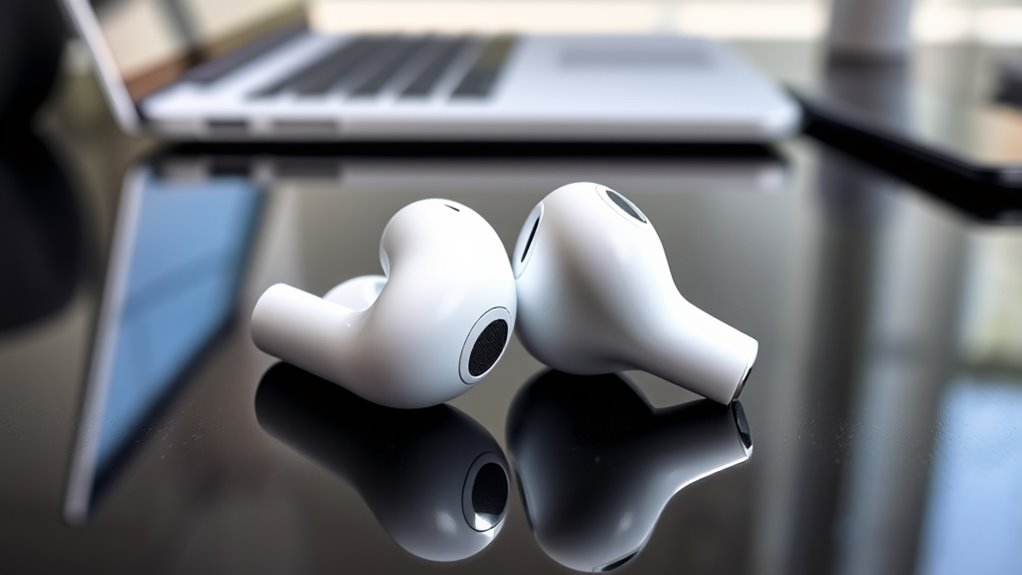

If your AirPods keep disconnecting, it could be due to wireless interference, low battery, outdated software, or a need to reset. Make sure you’re away from other electronics that cause interference, keep your AirPods and device close, and check their battery levels. Updating your device’s software and resetting your AirPods often helps restore a stable connection. For more tips to fix persistent issues, you’ll find helpful solutions below.
Key Takeaways
- Minimize Bluetooth interference by moving away from other electronics and turning off unused devices.
- Ensure AirPods and your device have sufficient battery and update software regularly for stability.
- Reset your AirPods and re-pair them to resolve persistent disconnection issues.
- Keep AirPods close to your device and avoid crowded environments with many Bluetooth devices.
- Perform regular maintenance like checking battery health and reducing Bluetooth device density.
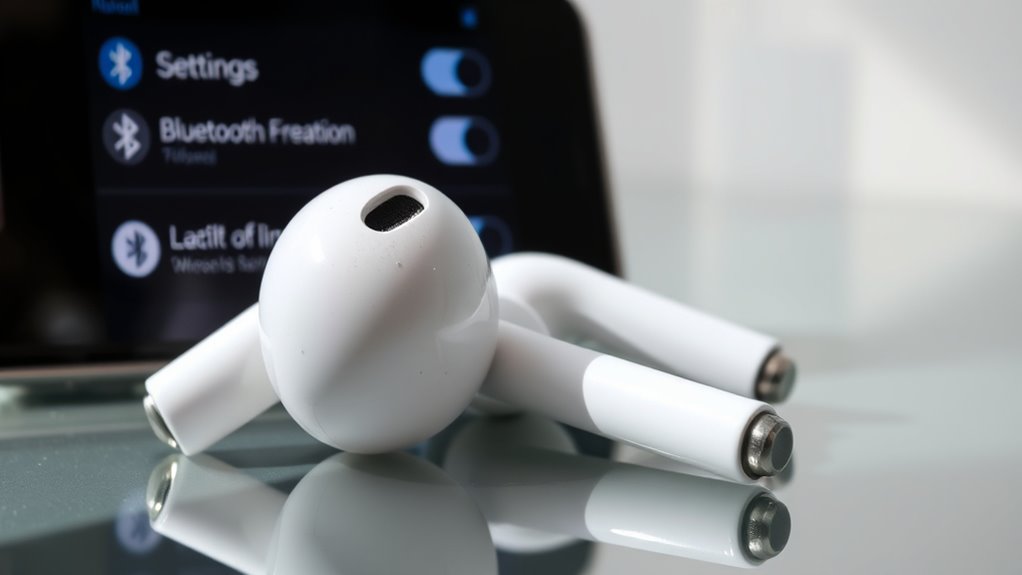
If your AirPods keep disconnecting, it can be frustrating, but many issues have simple fixes. One common culprit is Bluetooth interference. Wireless signals can get disrupted by other devices, Wi-Fi networks, or even microwave ovens operating nearby. To minimize this, try moving away from other electronics that might be causing interference. Also, turn off Bluetooth on other devices that aren’t in use to reduce congestion. Keeping your device and AirPods close together helps maintain a strong connection. If you’re in a crowded area with lots of Bluetooth devices, your signal might be competing for bandwidth, leading to frequent disconnects. Resetting your Bluetooth settings can also help clear out any conflicts—go to your device’s Bluetooth menu, forget your AirPods, then reconnect them.
Another noteworthy factor affecting connection stability is battery health. Over time, the batteries in your AirPods degrade, which can cause connection issues or sudden disconnections. If your AirPods are old or haven’t been charged properly, their battery capacity might be diminished, making it harder for them to maintain a steady connection. Check the battery level in your device’s widget or settings to see if they’re fully charged before use. If they’re low on power, charging them fully might temporarily improve connectivity. However, if your AirPods have been used extensively and their battery health has declined, consider replacing the batteries or upgrading to a new pair. Poor battery health can lead to inconsistent performance, including disconnections.
Updating your device’s software is another step that can help fix connection issues. Apple regularly releases updates that improve Bluetooth stability and fix bugs that might cause AirPods disconnects. Make sure your iPhone, iPad, or Mac is running the latest version of iOS or macOS. Pairing your AirPods again after an update can also enhance connection reliability. If you’ve tried these fixes and your AirPods still disconnect frequently, performing a reset might be necessary. To do this, put your AirPods in their case, press and hold the setup button on the back of the case until the LED flashes amber and then white, and then reconnect them to your device.
Ultimately, maintaining good Bluetooth habits—keeping devices updated, avoiding interference, monitoring battery health, and understanding projector technology—can considerably improve your AirPods’ connection stability. Addressing these common issues often restores a seamless experience, allowing you to enjoy your music or calls without interruption.
Frequently Asked Questions
Do Airpods Disconnect When the Battery Is Low?
Yes, your AirPods can disconnect when the battery is low. As the battery drain progresses, they might shut off unexpectedly. Bluetooth interference from other devices can also cause disconnections, especially if the battery is not fully charged. To prevent this, keep your AirPods charged regularly and minimize Bluetooth interference by turning off unused devices nearby. Charging your AirPods before they run out can help maintain a stable connection.
Can Using Them With Android Devices Cause Disconnections?
Using your AirPods with Android devices can be like trying to fit a square peg into a round hole; it’s not designed for perfect compatibility. Android compatibility isn’t seamless, and Bluetooth interference from other devices can cause disconnects. To improve connection stability, keep your AirPods close to your Android device and limit other Bluetooth devices nearby. Regularly resetting your AirPods may also help maintain a steady connection.
Do Firmware Updates Fix Connectivity Issues?
Firmware updates often fix connectivity issues by improving the device’s performance and stability. When you update your AirPods, Apple addresses bugs and adds features that enhance Bluetooth connection reliability. So, if you’re experiencing disconnections, performing a firmware update can notably improve connectivity. Make sure your AirPods are charged and connected to your device, then follow Apple’s instructions to install the latest firmware for ideal performance.
How Does Wi-Fi Interference Affect Airpods?
Wi-Fi interference can disrupt your AirPods’ Bluetooth signals, causing frequent disconnects and poor audio quality. When Wi-Fi signals and Bluetooth operate on similar frequencies, they compete for space, leading to interference. To fix this, move closer to your device, reduce Wi-Fi congestion by turning off other devices, or switch to a different Wi-Fi channel. Keeping these signals clear guarantees your AirPods stay connected and deliver ideal sound.
Are There Differences in Disconnection Issues Between Airpods Models?
Yes, disconnection issues can vary between AirPods models. Newer models typically handle Bluetooth interference better, reducing disconnections. Poor charging habits, like letting batteries drain completely or frequent incomplete charges, also impact performance. You might find your older AirPods disconnect more often due to degraded batteries or less advanced Bluetooth technology. To improve connectivity, keep your AirPods charged properly and minimize Bluetooth interference, especially with older models.
Conclusion
If your AirPods keep disconnecting, don’t worry—most issues are fixable with simple steps. Regularly updating firmware and resetting your AirPods can notably improve connectivity. Did you know that over 60% of Bluetooth connection problems stem from outdated software or interference? By keeping your device and AirPods up to date, you can enjoy seamless listening. With these tips, you’ll minimize disconnections and get back to enjoying your music without interruptions.